
Introduction to Your Samsung Galaxy Foldable Smartphone
This guide provides comprehensive instructions for operating your Samsung Galaxy Z Fold 7, Z Flip 7, and Flip 7 FE smartphones. Designed for both new users and experienced owners, this manual covers essential functions, advanced features, and tips to help you maximize your device's capabilities. Follow these clear, step-by-step instructions to navigate your device with confidence.
The manual aims to be your personal technical assistant, offering clear instructions, illustrations, and helpful icons to guide you through every setting and function. It ensures visual clarity and ease of understanding without unnecessary complexity.
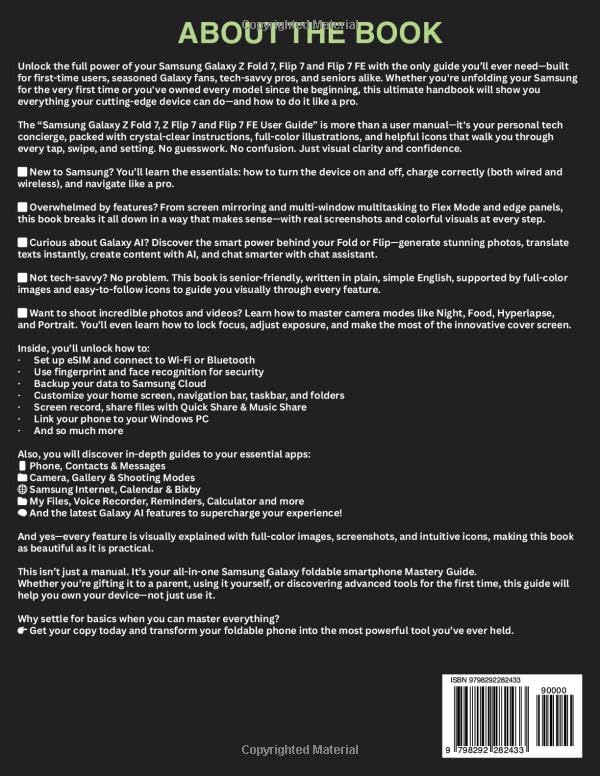
Image: Back cover of the user guide, highlighting key features and content sections such as setup, essential apps, and Galaxy AI capabilities.
Getting Started: Initial Setup
This section covers the initial setup procedures for your Samsung Galaxy foldable smartphone, ensuring you can begin using your device quickly and securely.
Powering On and Charging
To power on your device, press and hold the power button until the Samsung logo appears. For charging, connect the provided USB-C cable to the device's port and a compatible power adapter. Your device supports both wired and wireless charging. Ensure you use certified chargers for optimal performance and safety.
Network and Connectivity
- eSIM Setup: Follow the on-screen prompts to activate your eSIM. This typically involves scanning a QR code provided by your carrier or manually entering activation details.
- Wi-Fi Connection: Navigate to Settings > Connections > Wi-Fi. Select your desired network and enter the password if prompted.
- Bluetooth Pairing: Go to Settings > Connections > Bluetooth. Turn on Bluetooth, then select the device you wish to pair from the list of available devices.
Security Features
- Fingerprint Recognition: Set up your fingerprint for secure unlocking and authentication. Go to Settings > Security and privacy > Biometrics > Fingerprints and follow the instructions to register your fingerprints.
- Face Recognition: Configure face recognition for convenient unlocking. Access Settings > Security and privacy > Biometrics > Face recognition and register your face.
Data Backup
Regularly back up your device data to Samsung Cloud to prevent data loss. Navigate to Settings > Accounts and backup > Samsung Cloud and select the data you wish to back up.
Operating Your Device
This section details how to use various features and customize your Samsung Galaxy foldable smartphone for an optimized user experience.
Customization and Navigation
- Home Screen: Personalize your home screen by adding widgets, changing wallpapers, and organizing app icons into folders.
- Navigation Bar: Adjust the navigation bar settings (buttons or swipe gestures) in Settings > Display > Navigation bar.
- Taskbar: Utilize the taskbar for quick access to frequently used apps and multitasking, especially on the Z Fold models.
- Folders: Create and manage folders on your home screen or app drawer to keep your applications organized.
Productivity and Sharing
- Screen Record: Capture your screen activity by accessing the Quick Panel and tapping the Screen recorder icon.
- Quick Share: Share files quickly and easily with other nearby Samsung devices. Select the file, tap the share icon, and choose Quick Share.
- Music Share: Share your phone's audio output with a friend's Bluetooth speaker or headphones via Music Share.
- Link to Windows PC: Connect your phone to your Windows computer for seamless access to messages, notifications, photos, and apps directly from your PC.
Camera Features and Photography
Your Samsung Galaxy foldable device offers advanced camera capabilities. Explore various modes to enhance your photography:
- Night Mode: Capture bright and clear photos in low-light conditions.
- Food Mode: Optimize colors and focus for appetizing food photography.
- Hyperlapse: Create dynamic time-lapse videos with motion.
- Portrait Mode: Apply a depth-of-field effect to make your subject stand out.
- Focus and Exposure: Tap on the screen to set focus and adjust exposure manually for precise control over your shots.
- Innovative Cover Screen: Utilize the cover screen for quick selfies or to preview shots when using the main cameras.
Galaxy AI Features
Leverage the power of Galaxy AI to enhance your device experience:
- Photo Generation: Create stunning images with AI-powered editing and generation tools.
- Instant Translation: Translate texts and conversations in real-time.
- Content Creation: Utilize AI to assist in generating various forms of content.
- Chat Assistant: Get smarter responses and assistance in your messaging applications.
Essential Applications
Your Samsung Galaxy device comes pre-loaded with a suite of essential applications designed to enhance your daily tasks and communication.
- Phone, Contacts & Messages: Manage calls, organize contacts, and send/receive text messages efficiently.
- Camera, Gallery & Shooting Modes: Capture photos and videos, organize your media, and explore various camera modes.
- Samsung Internet, Calendar & Bixby: Browse the web securely, manage your schedule, and use Bixby for voice commands and smart assistance.
- My Files, Voice Recorder, Reminders, Calculator: Access and manage your files, record audio, set reminders, and perform calculations.
- Latest Galaxy AI Features: Integrate and utilize the newest AI functionalities across these applications for a supercharged experience.
Troubleshooting
If you encounter any issues with your Samsung Galaxy Z Fold 7, Z Flip 7, or Flip 7 FE, consider the following general troubleshooting steps:
- Restart Device: A simple restart can often resolve minor software glitches.
- Check for Updates: Ensure your device's software is up to date by going to Settings > Software update.
- Clear Cache: For app-specific issues, try clearing the app's cache in Settings > Apps > [App Name] > Storage > Clear cache.
- Factory Reset (Last Resort): If problems persist, you may consider a factory reset after backing up all your data. Go to Settings > General management > Reset > Factory data reset.
For more detailed troubleshooting or persistent issues, please refer to Samsung's official support website or contact customer service.
Specifications
Below are the key specifications for the Samsung Galaxy Z Fold 7, Z Flip 7, and Flip 7 FE user guide:
| Feature | Detail |
|---|---|
| ASIN | B0FHG5865N |
| Publisher | Independently published |
| Publication Date | July 12, 2025 |
| Language | English |
| Print Length | 111 pages |
| ISBN-13 | 979-8292282433 |
| Item Weight | 12.5 ounces |
| Dimensions | 8.5 x 0.25 x 11 inches |
Note: These specifications pertain to the user guide itself, not the physical smartphone devices.
Warranty and Support
For information regarding the warranty of your Samsung Galaxy Z Fold 7, Z Flip 7, or Flip 7 FE smartphone, please refer to the official documentation included with your device or visit the official Samsung support website. This user guide does not provide warranty details for the physical devices.
For technical support, service, or further assistance, please contact Samsung customer service or visit their authorized service centers. Keep your proof of purchase handy for any warranty claims.


