
1. Introduction
Thank you for choosing the LIGE FV21-D Women's Smartwatch. This device combines elegant design with advanced fitness and communication features to enhance your daily life. This manual provides detailed instructions for setup, operation, and maintenance to ensure optimal use of your smartwatch.
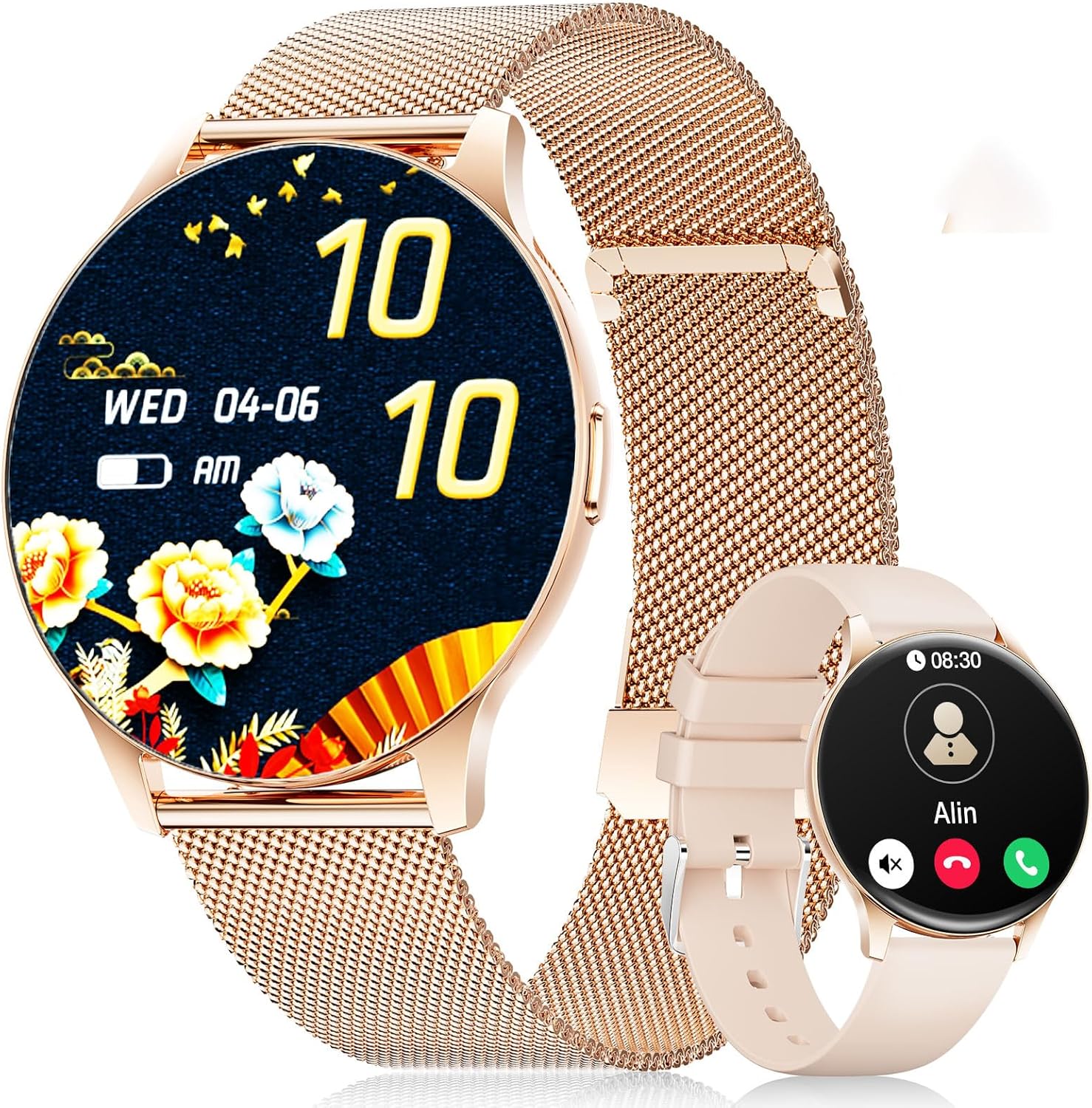
Image: The LIGE FV21-D Smartwatch, showcasing its rose gold casing with a mesh strap and an alternative beige silicone strap. The main display shows a floral watch face, while the smaller inset shows a call interface.
2. Package Contents
Please verify that all items are present in your package:
- LIGE FV21-D Smartwatch
- Metal Mesh Strap (Rose Gold)
- Silicone Strap (Beige)
- Charging Cable
- User Manual (this document)
3. Setup
3.1 Charging the Smartwatch
- Connect the charging cable to the charging port on the back of the smartwatch.
- Plug the USB end of the charging cable into a standard USB power adapter (not included) or a computer's USB port.
- The watch display will indicate charging status. Ensure the watch is fully charged before first use. A full charge typically takes approximately 2 hours.
3.2 Power On/Off
- Power On: Press and hold the side button for a few seconds until the LIGE logo appears.
- Power Off: Press and hold the side button, then select the "Power Off" option on the screen.
3.3 App Installation and Pairing
To unlock the full functionality of your smartwatch, you need to pair it with your smartphone using the dedicated application.
- Download the App: Search for "FitCloudPro" in your smartphone's app store (Apple App Store for iOS or Google Play Store for Android) and install it.
- Enable Bluetooth: Ensure Bluetooth is enabled on your smartphone.
- Open the App: Launch the FitCloudPro app and follow the on-screen instructions to create an account or log in.
- Add Device: In the app, navigate to the "Device" or "Add Device" section. The app will search for available smartwatches.
- Select Your Watch: Select "FV21-D" or the corresponding device name from the list.
- Confirm Pairing: A pairing request may appear on both your phone and the smartwatch. Confirm the pairing on both devices.
- Grant Permissions: Grant necessary permissions (e.g., notifications, location, contacts) to the app for full functionality.
Note: The smartwatch supports Android 4.4+ and iOS 9.0+ operating systems.
4. Operating Instructions
4.1 Basic Navigation
- Touch Screen: The 1.43-inch HD AMOLED touch display allows for intuitive interaction.
- Swipe Up/Down: Scroll through menus and notifications.
- Swipe Left/Right: Access quick functions or different widgets.
- Tap: Select an item or confirm an action.
- Side Button: Press to return to the home screen or wake the display. Long press for power options.
4.2 Customizing Watch Faces
Your smartwatch offers over 200 customizable watch faces. You can change them directly on the watch or through the FitCloudPro app.
- On the Watch: Long-press the home screen, then swipe left or right to browse available watch faces. Tap to select.
- Via App: Open the FitCloudPro app, go to the "Watch Faces" section, and choose from the gallery. You can also upload your own photos to create custom watch faces.
4.3 Phone Function (Bluetooth Call)
Once paired, you can make and receive calls directly from your smartwatch.
- Making Calls: Access the "Dialer" or "Contacts" function on the watch to initiate a call.
- Receiving Calls: When a call comes in, the watch will display the caller ID. You can answer or reject the call directly from the watch screen.
4.4 Sports Modes
The smartwatch supports over 120 sports modes, including yoga, cycling, running, and more. To start a workout:
- Navigate to the "Sports" or "Workout" menu on your watch.
- Select your desired activity.
- Tap to start tracking. The watch will record data such as duration, calories burned, and heart rate.
- To end a workout, swipe or tap the screen and select the "End" option.
4.5 Health Monitoring
The FV21-D smartwatch provides comprehensive health tracking features:
- Heart Rate Monitor: Continuously monitors your heart rate throughout the day. View real-time data on the watch or detailed trends in the app.
- Sleep Tracker: Automatically monitors your sleep patterns, including deep sleep, light sleep, and wake times. Access sleep analysis in the FitCloudPro app.
- Pedometer: Tracks your daily steps taken.
- Calorie Measurement: Estimates calories burned based on activity and personal data.
- SpO2 (Blood Oxygen) Monitor: Measures your blood oxygen saturation levels.
- Menstrual Cycle Tracking: For female users, the app can track and predict menstrual cycles.
Note: This device is not a medical device. Health data is for reference only and should not be used for medical diagnosis or treatment.
4.6 Notifications and Reminders
Receive notifications directly on your wrist:
- Calls and Messages: Get alerts for incoming calls, SMS, and messages from various apps (e.g., WhatsApp, Facebook). Configure app notifications in the FitCloudPro app.
- Alarm Clock: Set alarms through the app to vibrate on your wrist.
- Sedentary Reminder: The watch can remind you to move after periods of inactivity.
- Weather Information: View current weather conditions and forecasts (requires app synchronization).
- Voice Assistant: Access your smartphone's voice assistant directly from the watch.
4.7 Water Resistance (IP68)
The FV21-D smartwatch is IP68 waterproof, meaning it is resistant to dust and can withstand immersion in water up to 1.5 meters for 30 minutes. It is suitable for daily use, such as washing hands, rain, and sweating during exercise. However, it is not recommended for hot showers, saunas, or diving, as steam and hot water can damage the seals.
5. Maintenance
5.1 Cleaning the Smartwatch
- Wipe the watch screen and body with a soft, lint-free cloth.
- If necessary, slightly dampen the cloth with water. Avoid using harsh chemicals or abrasive materials.
- Ensure the watch is completely dry before charging.
5.2 Strap Replacement
Your smartwatch comes with two interchangeable straps: a metal mesh strap and a silicone strap. To replace them:
- Locate the quick-release pins on the underside of the strap where it connects to the watch body.
- Slide the pin inwards to detach the strap.
- Align the new strap with the watch lugs and insert one end of the pin into the hole.
- Slide the quick-release pin inwards, position the strap, and release the pin to secure it. Ensure both ends of the pin are properly seated.
5.3 Battery Care
- Avoid fully discharging the battery frequently.
- Charge the watch regularly, even if not in use, to maintain battery health.
- Store the watch in a cool, dry place when not in use for extended periods.
6. Troubleshooting
| Issue | Possible Solution |
|---|---|
| Watch does not power on. | Ensure the watch is fully charged. Connect it to the charger for at least 30 minutes. |
| Cannot pair with smartphone. |
|
| Notifications are not received. |
|
| Inaccurate health data. |
|
| Short battery life. |
|
If you encounter issues not listed here or require further assistance, please refer to the support section.
7. Specifications
| Feature | Detail |
|---|---|
| Model Number | FV21-D |
| Display | 1.43 Inch HD AMOLED (466 x 466) |
| Dimensions | 1.81 x 1.81 x 0.87 inches |
| Item Weight | 6.7 ounces |
| Connectivity | Bluetooth |
| Operating System Compatibility | Android 4.4+ and iOS 9.0+ |
| Water Resistance | IP68 |
| Battery Type | Lithium Polymer (1 required, included) |
| Special Features | Pedometer, Fitness Tracker, Multi-Sport Tracker, Heart Rate Monitor, Oximeter (SpO2), Sleep Tracker, Bluetooth Call, Music Player, Voice Assistant, Reminders, Alarm Clock, Text Messages, Notifications, Sedentary Reminder, Cycle Tracking. |
| Memory Storage Capacity | 256 MB |
| GPS | GPS Via Smartphone |
8. Warranty and Support
LIGE is committed to ensuring your satisfaction with the FV21-D Smartwatch. Should you have any questions, require technical support, or encounter any issues with your device, please do not hesitate to contact our customer service team.
Please refer to the contact information provided with your purchase documentation or visit the official LIGE website for support details.
