
Introduction
This manual provides essential information for the setup, operation, and maintenance of your MSI PRO MP245PG E14 24-inch IPS monitor. Please read this guide thoroughly before using the product to ensure proper functionality and safety. The MSI PRO MP245PG E14 is a 24-inch Full HD (1920x1080) monitor featuring a 140Hz refresh rate, Adaptive-Sync technology, HDR readiness, and multiple connectivity options including HDMI, DisplayPort, and VGA. It also incorporates MSI EyesErgo technology for user comfort.
Safety Information
Observe the following safety precautions to prevent damage to the monitor and ensure personal safety:
- Always disconnect the power cable from the electrical outlet before cleaning the monitor.
- Do not expose the monitor to rain or moisture to avoid fire or shock hazards.
- Do not open the monitor casing. There are no user-serviceable parts inside. Refer all servicing to qualified service personnel.
- Place the monitor on a stable, flat surface to prevent it from falling.
- Ensure proper ventilation around the monitor. Do not block ventilation openings.
- Use only the power adapter and cables supplied with the monitor.
Package Contents
Verify that all items are present in your package. If any items are missing or damaged, contact your retailer.
- MSI PRO MP245PG E14 Monitor
- Monitor Stand (Base and Neck)
- Power Cable
- HDMI Cable
- Documentation (Quick Start Guide, Warranty Card)
Setup
1. Assembling the Stand
- Carefully remove the monitor and stand components from the packaging.
- Attach the stand neck to the monitor panel. Ensure it clicks securely into place or is fastened with screws as indicated in the quick start guide.
- Attach the stand base to the stand neck, securing it with the thumb screw or screws provided.
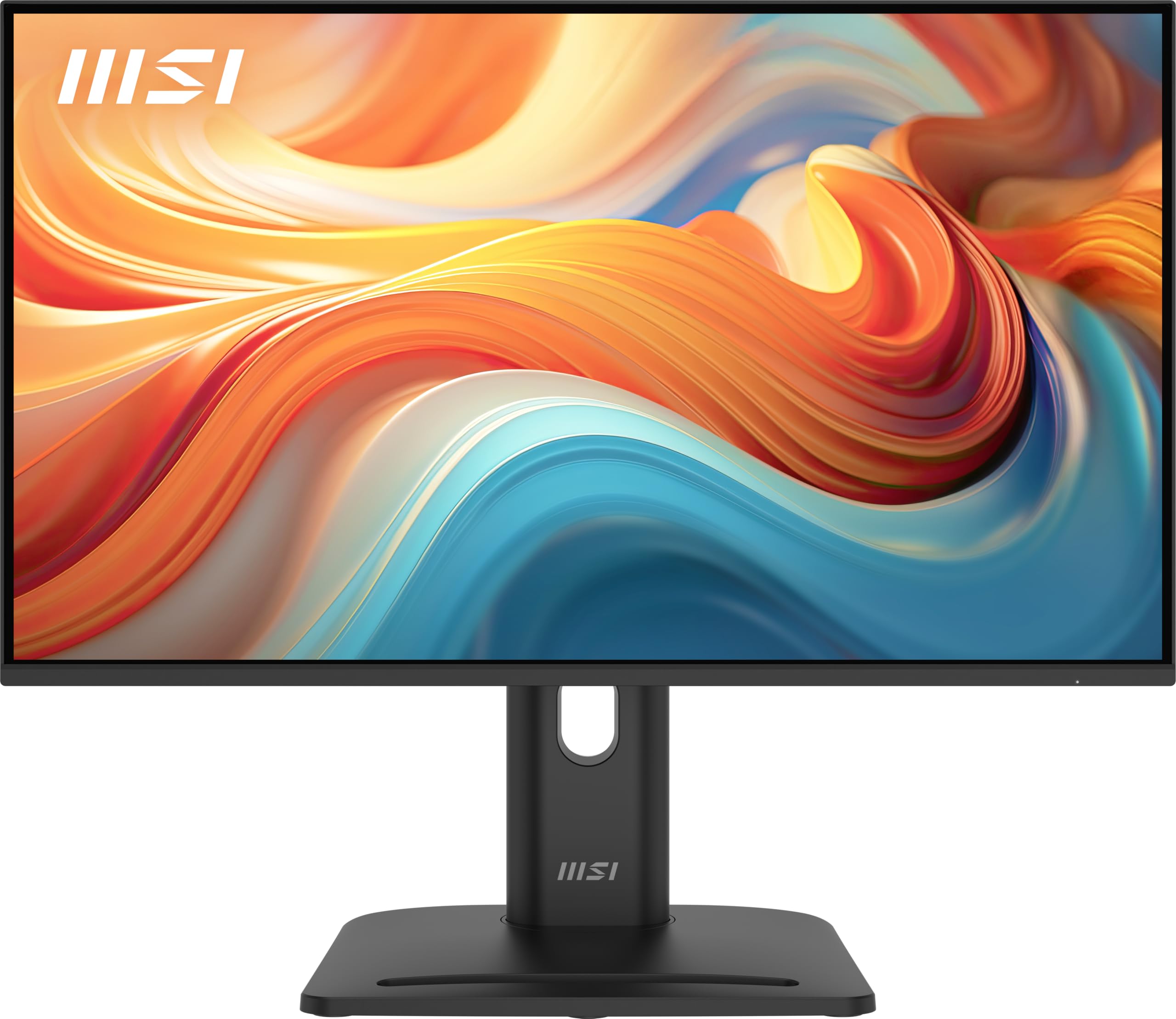
Figure 1: MSI PRO MP245PG E14 monitor fully assembled on its stand.
2. Connecting Cables
Connect the necessary cables to the monitor and your computer or other devices.
- Power Connection: Connect the power cable to the monitor's power input and then to a power outlet.
- Video Connection: Choose one of the following video input options:
- HDMI: Connect an HDMI cable from your computer's HDMI output to the monitor's HDMI input.
- DisplayPort: Connect a DisplayPort cable from your computer's DisplayPort output to the monitor's DisplayPort input.
- VGA (D-Sub): Connect a VGA cable from your computer's VGA output to the monitor's VGA input.
- Audio Connection (Optional): If using external speakers or headphones, connect them to the monitor's audio output jack.
Figure 2: Rear view of the monitor showing available input ports.
3. Initial Power-On
After connecting all cables, press the power button on the monitor to turn it on. The monitor will automatically detect the active input source. If not, you may need to manually select the input source using the On-Screen Display (OSD) menu.
Operating the Monitor
1. Power On/Off
Press the power button, typically located on the back or bottom right of the monitor, to turn the monitor on or off. The power indicator light will show the monitor's status.
2. On-Screen Display (OSD) Menu
The OSD menu allows you to adjust various monitor settings. Access the OSD menu by pressing the OSD navigation button or joystick, usually located on the back of the monitor. Navigate through the menu options using the joystick or directional buttons and confirm selections by pressing the center button or a dedicated 'Enter' button.
3. Adjusting Display Settings
Within the OSD menu, you can modify settings such as:
- Brightness/Contrast: Adjust the overall luminance and contrast ratio of the display.
- Color Settings: Fine-tune color temperature, gamma, and individual RGB levels.
- Input Source: Manually select between HDMI, DisplayPort, or VGA inputs.
- Refresh Rate: The monitor supports up to 140Hz refresh rate. Ensure your graphics card settings are configured to utilize this refresh rate for smoother visuals.
- Adaptive-Sync: Enable or disable Adaptive-Sync for tear-free gaming experiences.
- MSI EyesErgo Technology: This feature includes Anti-Flicker and Less Blue Light modes to reduce eye strain during prolonged use. These settings can be adjusted in the OSD.
4. Ergonomic Adjustments
The monitor stand offers multiple ergonomic adjustments to optimize your viewing comfort:
- Tilt: Adjust the screen's vertical angle (-5° to 20°).
- Swivel: Rotate the screen horizontally (-45° to 45°).
- Height Adjustment: Raise or lower the screen (up to 130mm).
- Pivot: Rotate the screen 90° for portrait mode (-90° to 90°).
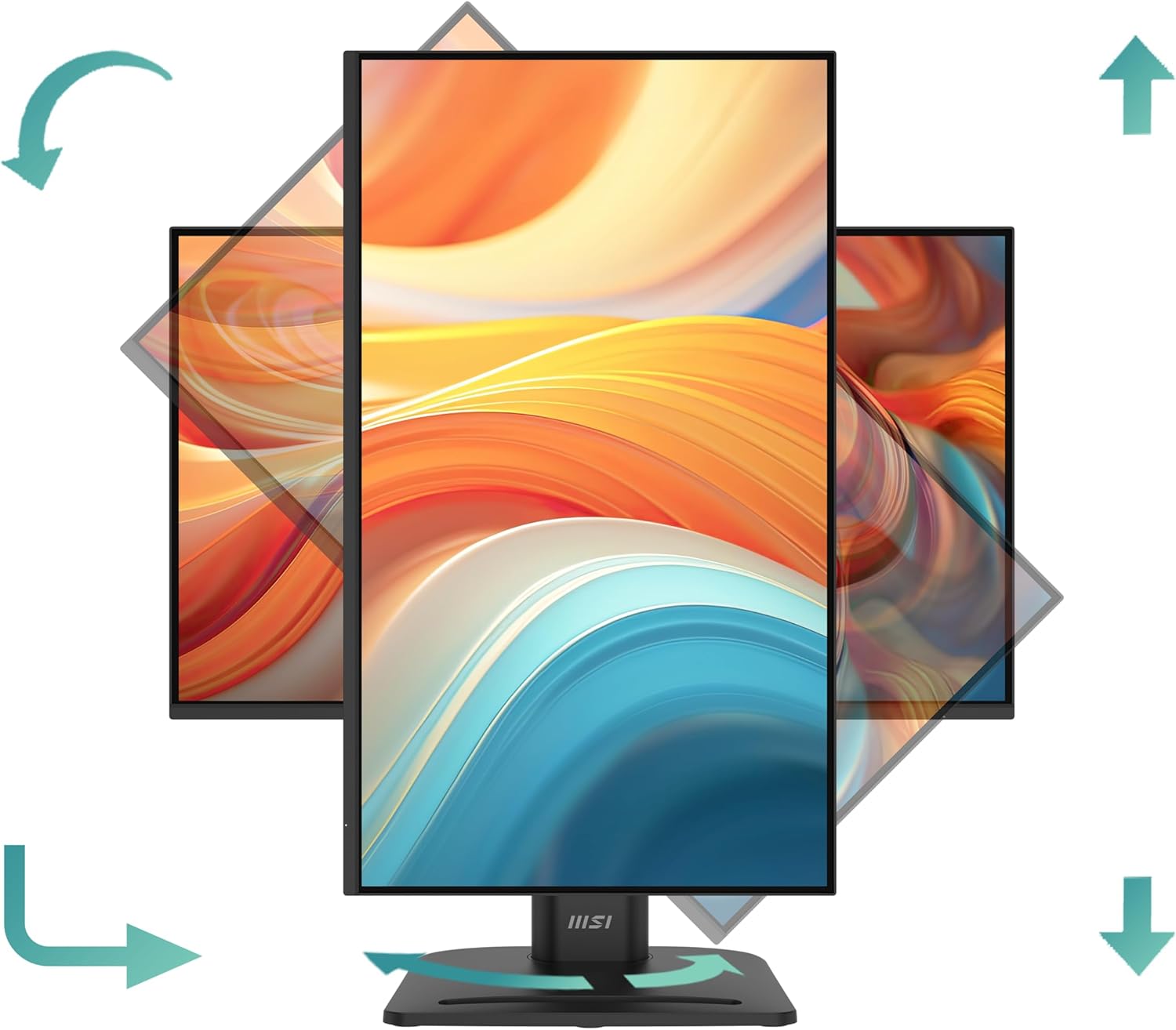
Figure 3: Illustration of the monitor's adjustable stand capabilities.
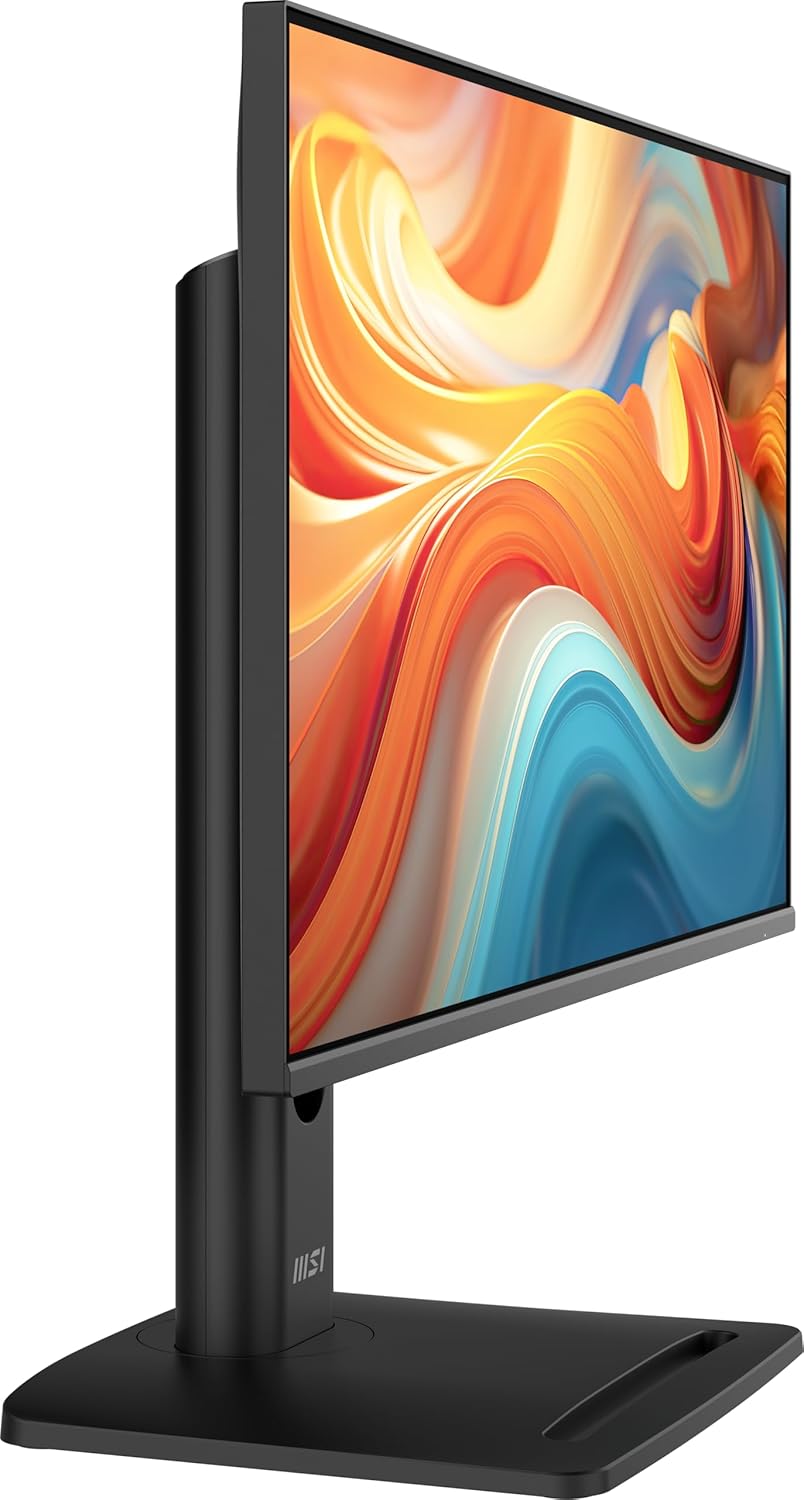
Figure 4: Side view highlighting the height adjustment feature.
5. VESA Mount Compatibility
The monitor is VESA mount compatible (75x75mm), allowing you to attach it to a wall mount or an alternative monitor arm. To do this, remove the stand and attach the VESA-compatible mounting bracket to the back of the monitor.

Figure 5: Monitor with a mini PC attached via VESA mount.
Maintenance
1. Cleaning the Monitor
- Always unplug the monitor from the power outlet before cleaning.
- Use a soft, lint-free cloth lightly dampened with water or a non-abrasive screen cleaner.
- Do not spray cleaner directly onto the screen. Apply it to the cloth first.
- Avoid using benzene, thinner, ammonia-based cleaners, or abrasive cleaning agents, as these can damage the screen or casing.
2. Storage
If storing the monitor for an extended period, ensure it is clean, dry, and stored in a cool, well-ventilated area. Use the original packaging if available to protect it from dust and physical damage.
Troubleshooting
If you encounter issues with your monitor, refer to the following common troubleshooting steps:
| Problem | Possible Solution |
|---|---|
| No image on screen |
|
| Image is blurry or distorted |
|
| Screen flickering |
|
| No sound from built-in speakers |
|
For more complex issues or if the problem persists, please refer to the official MSI support website or contact customer service.
Specifications
| Feature | Specification |
|---|---|
| Model Name | PRO MP245PG E14 |
| Screen Size | 24 Inches |
| Panel Type | IPS |
| Resolution | 1920 x 1080 (FHD) |
| Refresh Rate | 140Hz |
| Response Time | 1ms (MPRT) |
| Aspect Ratio | 16:9 |
| Connectivity | 1x HDMI, 1x DisplayPort, 1x VGA (D-Sub) |
| VESA Mounting | 75 x 75 mm |
| Ergonomics | Tilt, Swivel, Height Adjustment, Pivot |
| Built-in Speakers | Yes |
| Dimensions (W x D x H) | 53.92 x 31.47 x 51.92 cm (with stand) |
| Weight | 7.26 kg (with stand) |
| Color | Black |
Warranty Information
MSI provides a limited warranty for this product. The specific terms and conditions of the warranty may vary by region and purchase date. Please refer to the warranty card included in your product packaging or visit the official MSI website for detailed warranty information and registration procedures. Keep your proof of purchase for warranty claims.
Support
For technical assistance, driver downloads, FAQs, or further product information, please visit the official MSI support website:
You may also contact MSI customer service directly through the contact information provided on their website or in your product documentation.


