
1. Introduction
The VicoHome Smart Bird Feeder Camera is designed to bring the beauty of nature directly to your smartphone. This device combines a bird feeder with a high-definition camera, offering features such as AI bird recognition, solar-powered operation, night vision, and motion alerts. It allows users to observe, record, and identify various bird species visiting their garden, providing an interactive and educational experience for all ages.
This manual provides detailed instructions for the setup, operation, and maintenance of your VicoHome Smart Bird Feeder Camera to ensure optimal performance and longevity.
2. Safety Information
Please read all safety instructions carefully before using the product. Failure to follow these instructions may result in damage to the product or personal injury.
- Outdoor Use Only: This product is designed for outdoor use and is IP65 waterproof. Ensure all connections are secure to maintain water resistance.
- Wi-Fi Compatibility: The device supports 2.4GHz Wi-Fi networks only. It is not compatible with 5GHz networks.
- App Control: The camera is controlled exclusively via the VicoHome App on smartphones. It is not compatible with TVs or computers.
- Solar Panel Placement: Ensure the solar panel is placed in an area that receives direct sunlight for maximum charging efficiency. Avoid shaded areas.
- Mounting Security: When mounting the feeder, ensure it is securely fastened to prevent it from falling, especially in windy conditions.
- Cleaning: Disconnect power before cleaning. Use a soft, damp cloth. Do not use harsh chemicals or abrasive cleaners.
3. Package Contents
Verify that all items listed below are included in your package:
- 1 × VicoHome Smart Bird Feeder Camera
- 1 × Solar Panel with Charging Cable
- 1 × Mounting Bracket & Installation Accessories
- 1 × USB Charging Cable
- 1 × Quick Start Guide

Image: Components of the VicoHome Smart Bird Feeder Camera system, including the feeder unit, solar panel, and mounting hardware.
4. Setup
4.1 Physical Installation
The VicoHome Smart Bird Feeder Camera offers flexible mounting options including pole mount, tree mount, and wall mount.
- Choose a Location: Select an outdoor location that provides a clear view for the camera and receives ample direct sunlight for the solar panel. Ensure the location is within range of your 2.4GHz Wi-Fi network.
- Mount the Bracket: Use the provided mounting bracket and installation accessories to securely attach the feeder to a pole, tree, or wall. Ensure the mounting is stable and can support the weight of the feeder, especially when filled with birdseed.
- Attach the Feeder: Securely attach the bird feeder camera unit to the mounted bracket.
- Position the Solar Panel: Mount the solar panel in a position where it can receive maximum direct sunlight throughout the day. Connect the charging cable from the solar panel to the camera unit.
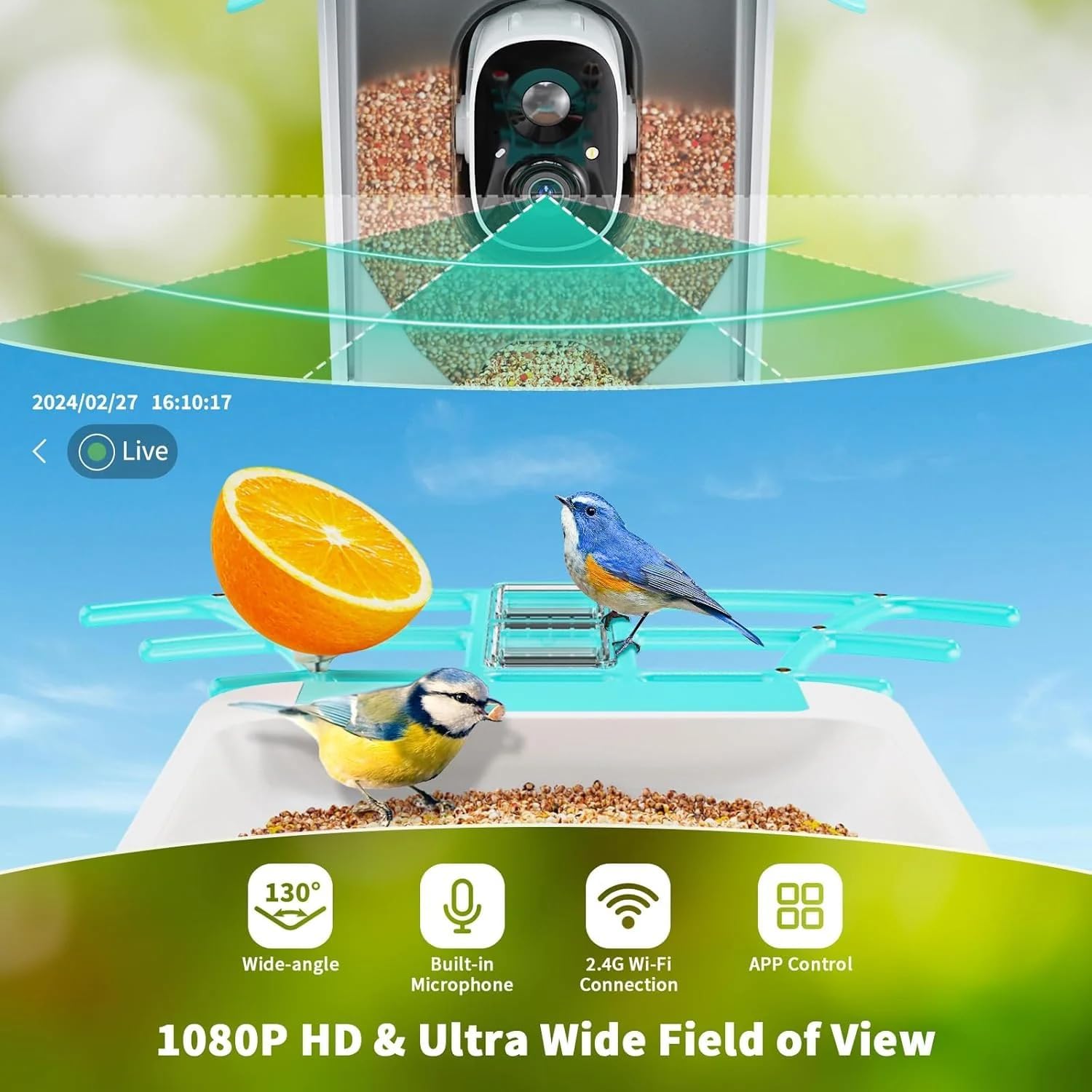
Image: Illustration of the bird feeder camera mounted outdoors, demonstrating its waterproof design and connection to the solar panel.
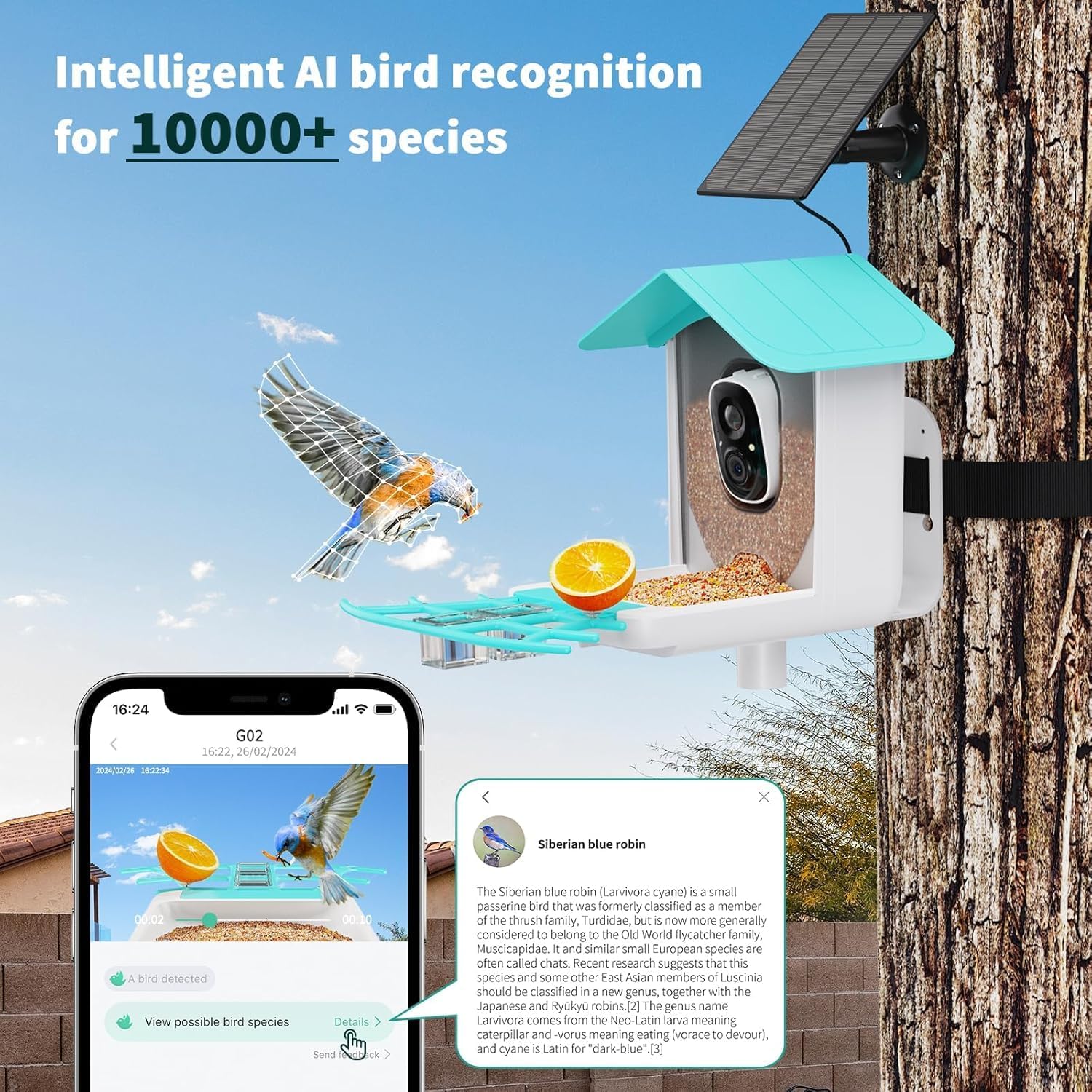
Image: Detailed view of the camera unit's power switch and microSD card slot for local storage.
4.2 Powering On and Initial Charge
The camera is battery-powered and supplemented by the solar panel. For first-time use, it is recommended to fully charge the camera using the provided USB charging cable before relying solely on solar power.
- Locate the power switch on the camera unit (refer to image in 4.1).
- Turn the power switch to the "ON" position.
- Connect the USB charging cable to the camera and a standard USB power adapter (not included) to fully charge the internal battery.
- Once charged, ensure the solar panel is connected and positioned for optimal sunlight exposure to maintain continuous power.

Image: The solar panel component, designed to provide continuous power to the bird feeder camera.
4.3 App Installation and Wi-Fi Connection
The VicoHome App is essential for controlling your bird feeder camera and accessing its features.
- Download the App: Search for "VicoHome" in your smartphone's app store (Google Play Store for Android or Apple App Store for iOS) and download the official app.
- Create an Account: Open the VicoHome App and follow the on-screen instructions to create a new user account or log in if you already have one.
- Add Device: In the app, tap the "+" icon or "Add Device" to begin the pairing process.
- Select Device Type: Choose the appropriate device type, typically "Smart Camera" or "Bird Feeder Camera".
- Connect to Wi-Fi: Follow the app's prompts to connect the camera to your 2.4GHz Wi-Fi network. This usually involves scanning a QR code displayed on your phone with the camera, or entering your Wi-Fi credentials. Ensure your phone is connected to the 2.4GHz network during setup.
- Device Pairing: Once connected, the camera will pair with your account. You can then name your device and begin using it.

Image: A visual representation of the VicoHome app interface, demonstrating a bird detection alert and options for viewing details.
5. Operating Instructions
5.1 Live View and Recording
Once connected, you can access a live feed from your camera and record videos or capture photos.
- Open the VicoHome App and select your bird feeder camera from the device list.
- Tap on the live view to see real-time footage.
- Use the on-screen controls to manually record video or take snapshots.
- The camera automatically records when motion is detected. These recordings can be accessed in the app's playback section.
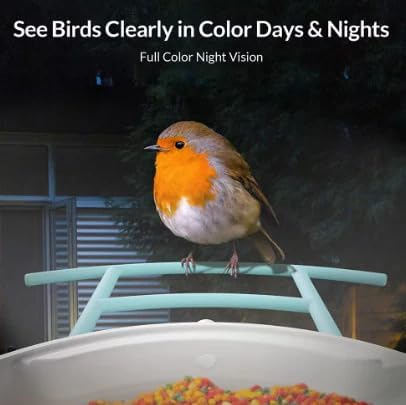
Image: The VicoHome app displaying a live feed from the bird feeder, highlighting features like wide-angle view, microphone, Wi-Fi connectivity, and app control.
5.2 AI Bird Recognition and Motion Alerts
The camera features advanced AI technology to identify bird species and notify you of activity.
- When a bird is detected, the camera will automatically record a short clip and send a push notification to your smartphone.
- Tap the notification to view the event. The app will attempt to identify the bird species using its AI database (recognizes 11,000+ species).
- You can review identified species and learn more about them directly within the app.

Image: A notification from the VicoHome app indicating a bird has been detected in the backyard.
Image: The VicoHome app displaying detailed information about a recognized bird species, in this case, a Siberian blue robin.
5.3 Night Vision and Two-Way Audio
- Night Vision: The camera is equipped with full-color night vision, allowing you to observe birds and other wildlife clearly even in low-light conditions or at night. This feature activates automatically.
- Two-Way Audio: The built-in speaker and microphone enable two-way communication. You can hear the sounds around the feeder and, if desired, speak through the app to gently interact with or deter animals.
Image: A robin perched on the feeder at night, illustrating the camera's ability to capture clear, full-color images in darkness.
5.4 Cloud and SD Storage
Your recordings can be stored in two ways:
- Free Cloud Storage: The VicoHome App offers free 3-day cloud storage for recorded events. This allows you to access recent recordings from anywhere.
- MicroSD Card Storage: For extended local storage, you can insert a microSD card (up to 128GB, not included) into the camera's designated slot. Recordings will be saved directly to the card.
6. Maintenance
6.1 Cleaning the Feeder and Camera
Regular cleaning is essential for hygiene and optimal performance.
- Disconnect Power: Before cleaning, ensure the camera is turned off and disconnected from any power source (USB cable, solar panel).
- Empty Seed: Remove any remaining birdseed from the feeder.
- Clean Surfaces: Use a soft, damp cloth to wipe down the exterior of the feeder and camera lens. For stubborn dirt, a mild soap solution can be used, but ensure no water enters the camera unit.
- Avoid Harsh Chemicals: Do not use abrasive cleaners, solvents, or strong detergents, as these can damage the materials or coatings.
- Dry Thoroughly: Allow all components to dry completely before refilling with seed and reassembling.
6.2 Solar Panel and Battery Care
- Keep Solar Panel Clean: Periodically wipe the surface of the solar panel with a soft, damp cloth to remove dust, dirt, or debris that may reduce charging efficiency.
- Monitor Battery Level: Check the battery status in the VicoHome App. If the battery level consistently drops, re-evaluate the solar panel's placement for better sun exposure or consider a temporary USB charge.
- Extreme Temperatures: While designed for outdoor use, prolonged exposure to extreme temperatures (very hot or very cold) can affect battery life.
6.3 Firmware Updates
The VicoHome App will notify you if firmware updates are available for your camera. It is recommended to install these updates to ensure optimal performance, new features, and security enhancements. Follow the in-app instructions for firmware updates.
7. Troubleshooting
| Problem | Possible Cause | Solution |
|---|---|---|
| Camera not connecting to Wi-Fi. | Incorrect Wi-Fi band (5GHz), weak signal, incorrect password. | Ensure your router is broadcasting a 2.4GHz Wi-Fi signal. Move the camera closer to the router. Double-check the Wi-Fi password. Restart your router and the camera. |
| Poor video quality or lag. | Weak Wi-Fi signal, network congestion. | Improve Wi-Fi signal strength by moving the camera closer to the router or using a Wi-Fi extender. Reduce other network activity. |
| Battery not charging or draining quickly. | Insufficient sunlight for solar panel, faulty solar panel/cable, excessive motion detection. | Ensure the solar panel receives direct sunlight for several hours daily. Clean the solar panel. Reduce motion detection sensitivity in the app if alerts are too frequent. Fully charge via USB if needed. |
| No motion alerts received. | Motion detection disabled, app notifications off, poor Wi-Fi. | Check motion detection settings in the VicoHome App. Ensure app notifications are enabled on your phone. Verify Wi-Fi connection. |
| Bird recognition not working. | Poor image clarity, unusual bird angle, software issue. | Ensure the camera lens is clean. Ensure good lighting. Check for app updates. |
8. Specifications
| Feature | Detail |
|---|---|
| Model Name | Vicohome G02 |
| Brand | VicoSafe |
| Indoor/Outdoor Usage | Outdoor |
| Power Source | Battery Powered (with Solar Panel) |
| Mounting Type | Pole mount, Tree mount, Wall mounted |
| Color | Blue |
| Material | New and Post-Consumer Recycled Plastics |
| Product Dimensions (L x W x H) | 8 x 7 x 11 inches |
| Item Weight | 2.13 pounds |
| Control Method | App (VicoHome App) |
| Connectivity Technology | Wireless (2.4GHz Wi-Fi only) |
| Special Features | Adjustable Perch, Long Lasting, Motion Sensor, Rain Proof, AI Bird Recognition, Night Vision, Two-Way Audio, Cloud & SD Storage |
| UPC | 199284632608 |
9. Warranty and Support
VicoSafe is committed to providing quality products and customer satisfaction.
9.1 Warranty Information
All VicoHome products are 100% original. For specific warranty terms and conditions, please refer to the warranty card included in your package or visit the official VicoSafe website. Keep your proof of purchase for warranty claims.
9.2 Customer Support
If you encounter any issues or have questions regarding your VicoHome Smart Bird Feeder Camera, please contact VicoSafe customer support. Contact details can typically be found in the Quick Start Guide or on the official VicoSafe website.
When contacting support, please have your product model number (G02) and purchase information ready.


