
1. Introduction
The FOSSIBOT F114 is a rugged smartphone designed for durability and performance in challenging environments. It features a robust build, a powerful battery, and an advanced camera system, running on the Android 15 operating system. This manual provides essential information for setting up, operating, maintaining, and troubleshooting your device.
2. What's in the Box
Upon opening your FOSSIBOT F114 package, you should find the following items:
- FOSSIBOT F114 Mobile Phone
- 18W Fast Charger
- Type-C USB Cable
- SIM Card Pin
- User Manual

Video: An unboxing and initial overview of the FOSSIBOT F114 Rugged Smartphone, showcasing the included accessories and the device itself.
3. Device Overview
3.1. Display
The FOSSIBOT F114 features a 6.67-inch HD+ IPS display with a resolution of 720 x 1600 pixels and a 60Hz refresh rate. The display is designed to be scratch-resistant, offer high transparency, and include anti-fingerprint properties for clear visibility.

3.2. Processor and Memory
Powered by an octa-core UNISOC T615 processor, the F114 ensures smooth multitasking and gaming. It comes with 16GB of RAM (4GB physical + 12GB virtual RAM) and 128GB of internal storage, expandable up to 2TB via an SD card.

3.3. Camera System
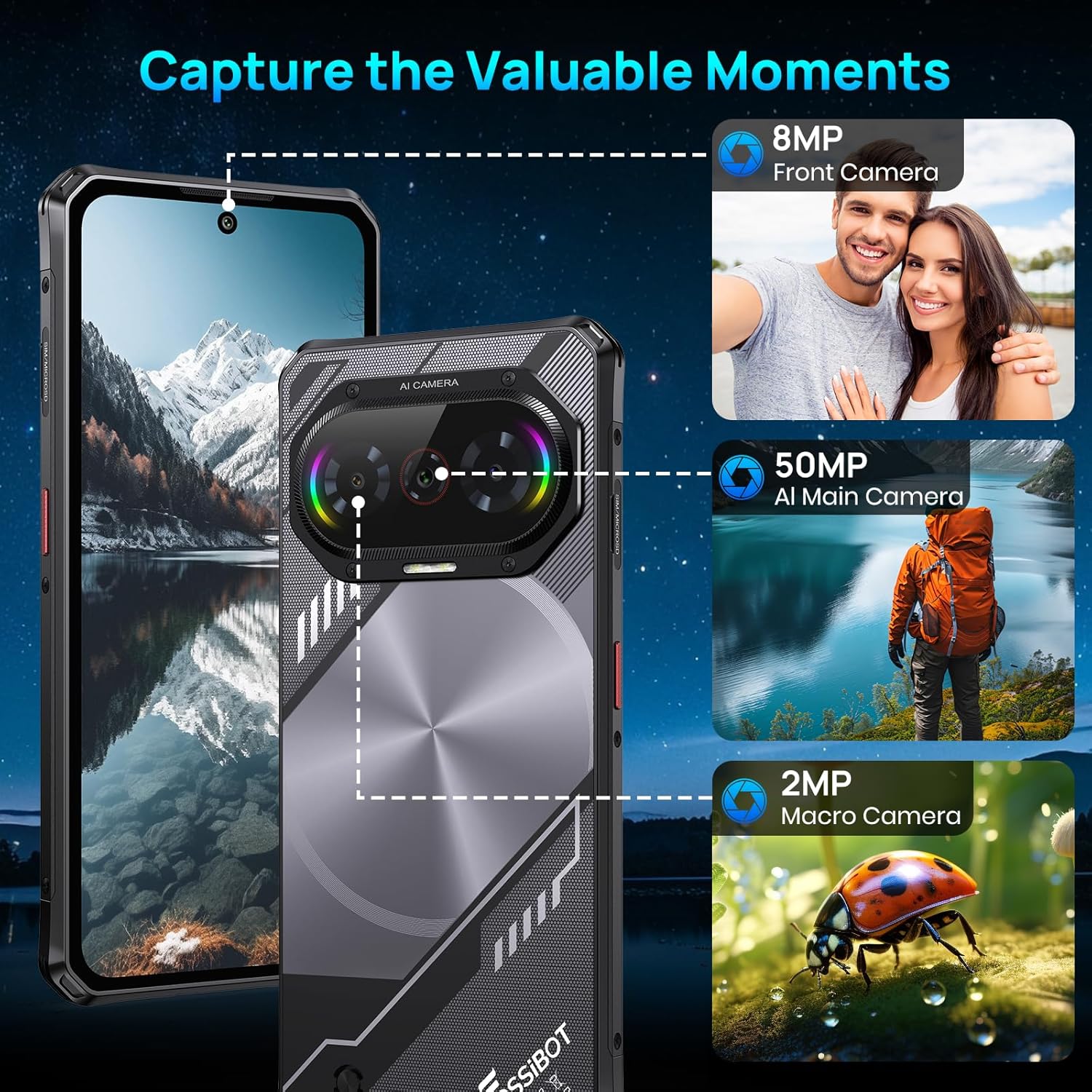
The device is equipped with a versatile camera setup: a 50MP AI main camera, an 8MP front camera, and a 2MP macro camera. This configuration allows for detailed photos, clear selfies, and close-up shots.
3.4. Battery
A 5000mAh large-capacity battery provides extended usage, complemented by 18W fast charging capabilities to quickly replenish power.

3.5. Durability
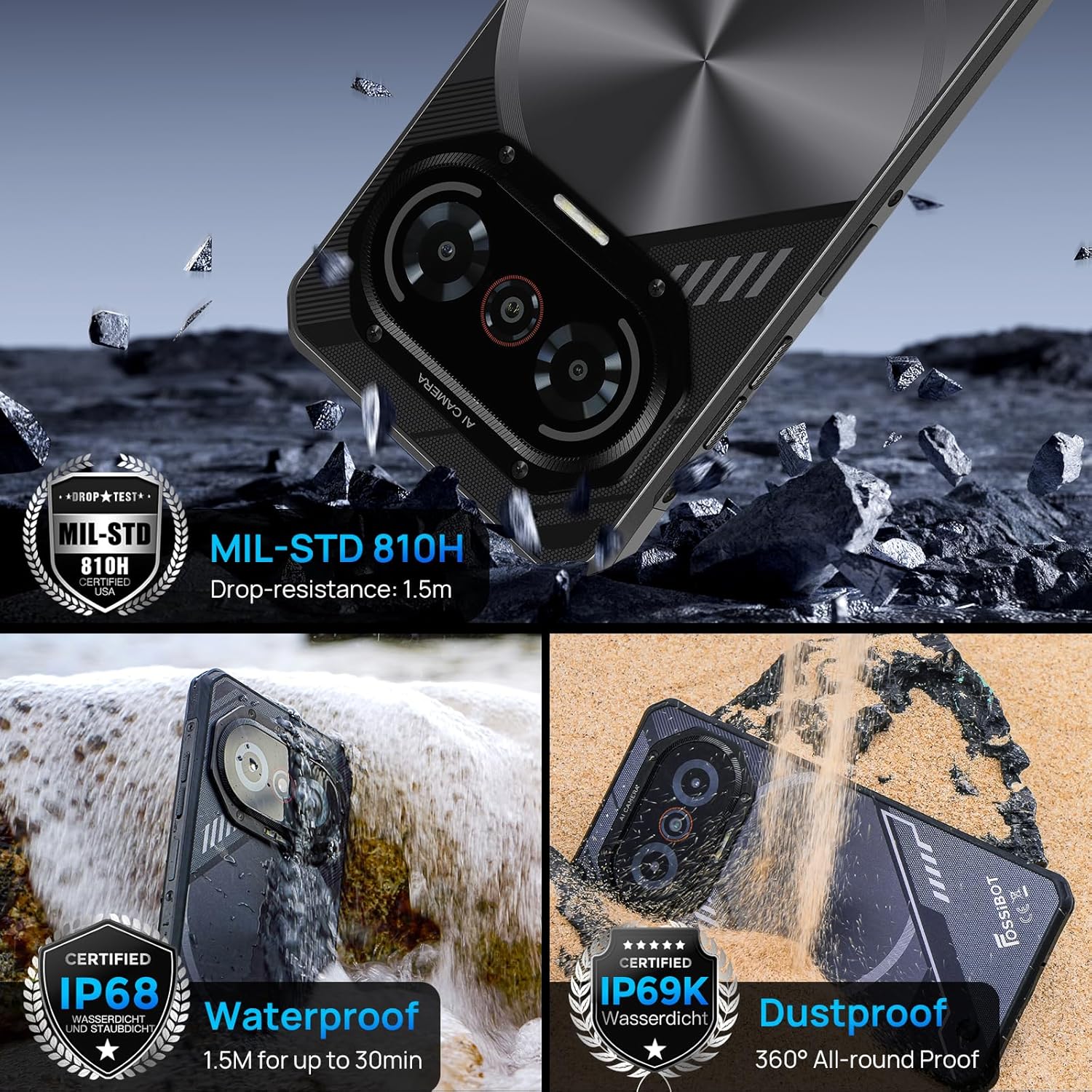
The F114 is certified with IP68/IP69K and MIL-STD-810H standards, making it waterproof, dustproof, and drop-resistant. It is built to withstand harsh outdoor conditions.
3.6. Operating System
The smartphone runs on the latest Android 15 operating system, offering enhanced privacy features, faster app launches, and improved multitasking capabilities.

3.7. Connectivity and Other Features
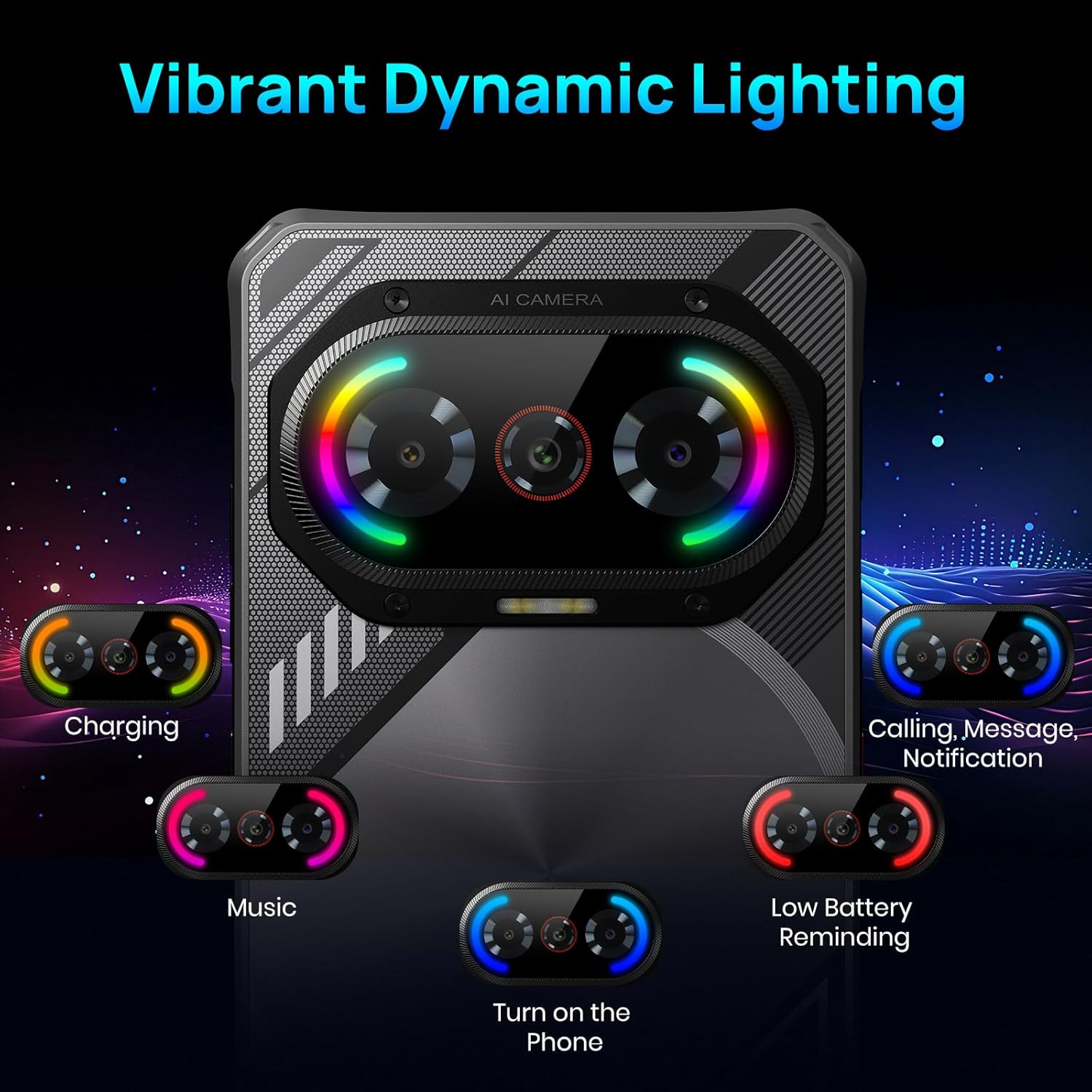
The F114 supports dual 4G SIM cards and includes comprehensive navigation systems (GPS, GLONASS, Galileo, Beidou, QZSS). It also features NFC for contactless payments and data transfer. The device incorporates a dynamic lighting effect on the rear for notifications and charging status.
4. Initial Setup
4.1. SIM Card and SD Card Installation
- Locate the SIM card tray on the side of the phone.
- Insert the provided SIM card pin into the small hole next to the tray to eject it.
- Place your Nano SIM card(s) and/or a microSD card (up to 2TB) into the tray, ensuring correct orientation.
- Carefully reinsert the tray into the phone.
4.2. Powering On/Off
- To Power On: Press and hold the Power button (usually on the right side) until the FOSSIBOT logo appears.
- To Power Off: Press and hold the Power button, then select 'Power off' from the options on the screen.
- Restart: Press and hold the Power button, then select 'Restart' from the options.
5. Basic Operation
5.1. Screen Navigation
- Tap: Touch an icon or option to select it.
- Swipe: Drag your finger across the screen to scroll or navigate between screens.
- Pinch: Use two fingers to zoom in or out on images and web pages.
5.2. Notifications and Quick Settings
- Notifications: Swipe down from the top of the screen to view notifications.
- Quick Settings: Swipe down again from the notification panel to access quick settings for Wi-Fi, Bluetooth, brightness, etc.
6. Camera Operation
The FOSSIBOT F114's camera app offers various modes to enhance your photography:
- Photo Mode: Standard mode for everyday pictures.
- Portrait Mode: Creates a depth-of-field effect, blurring the background.
- Professional Mode: Allows manual control over settings like ISO, white balance, and exposure.
- Night Mode: Optimizes settings for low-light conditions.
- HDR: High Dynamic Range for balanced exposure in high-contrast scenes.
- Macro Mode: For extreme close-up photography using the 2MP macro lens.
- Underwater Mode: Special mode for capturing photos and videos while submerged.
To take a photo, open the Camera app and tap the shutter button. To switch between modes, swipe left or right on the mode selector above the shutter button.
7. Special Features
7.1. Dynamic Lighting Effects
The FOSSIBOT F114 features customizable dynamic lighting on the rear panel. These lights can indicate various statuses:
- Charging Status: Different light patterns/colors for charging levels.
- Incoming Calls/Messages: Visual alerts for new communications.
- Music Rhythm: Lights can synchronize with music playback.
- Low Battery Reminder: A distinct light pattern to indicate low power.
You can configure these lighting effects in the device settings under 'Radiant and agile' or similar menu options, allowing you to choose different rhythm modes like Joyful Movement, Bidirectional streaming light, Musical Pulse, and Rhythmic Pursuit.
Video: A demonstration of the FOSSIBOT F114's various features, including its display, processor, camera capabilities, dynamic mood lights, and fast charging.
7.2. NFC (Near Field Communication)
NFC allows for quick, short-range wireless communication. Use it for:
- Contactless Payments: Make payments at compatible terminals using Google Pay.
- Data Transfer: Share files, photos, and contacts with other NFC-enabled devices.
To enable NFC, go to Settings > Connected devices > Connection preferences > NFC.
7.3. GPS and Navigation
The FOSSIBOT F114 supports multiple global navigation satellite systems (GPS, GLONASS, Galileo, Beidou, QZSS) for accurate location tracking and navigation, ideal for outdoor activities.
8. Maintenance
- Cleaning: Use a soft, damp cloth to clean the device. Avoid harsh chemicals.
- Water Exposure: While waterproof, ensure all ports are securely closed before exposing the phone to water. After water exposure, dry the phone thoroughly before charging.
- Software Updates: Regularly check for and install software updates to ensure optimal performance and security.
- Battery Care: Avoid extreme temperatures. Do not fully discharge the battery frequently.
9. Troubleshooting
9.1. Device Not Powering On
- Ensure the battery is charged. Connect the phone to the charger for at least 30 minutes.
- Press and hold the Power button for 10-15 seconds to force a restart.
9.2. Poor Network Connection
- Check if your SIM card is properly inserted.
- Verify that your carrier is supported (Note: AT&T, CRICKET, and Verizon are not supported).
- Restart the phone.
- Go to Settings > Network & internet > Mobile network and ensure mobile data is enabled.
9.3. Apps Crashing or Freezing
- Clear the cache of the problematic app (Settings > Apps > [App Name] > Storage & cache > Clear cache).
- Update the app to the latest version from the Google Play Store.
- If the issue persists, uninstall and reinstall the app.
9.4. Battery Draining Quickly
- Reduce screen brightness.
- Close unused apps running in the background.
- Disable Wi-Fi, Bluetooth, and GPS when not in use.
- Check battery usage in Settings > Battery to identify power-hungry apps.
10. Specifications
| Feature | Specification |
|---|---|
| Brand | FOSSIBOT |
| Model Name | F114FT128 |
| Operating System | Android 15 |
| RAM Memory Installed Size | 16 GB |
| Memory Storage Capacity | 128 GB (Expandable to 2 TB via SD card) |
| Screen Size | 6.67 Inches |
| Resolution | 720 x 1600 |
| Refresh Rate | 60 Hz |
| Cellular Technology | 4G |
| Wireless Carrier | Unlocked (AT&T, CRICKET, and Verizon not supported) |
| SIM Card Slot Count | Dual SIM |
| Connector Type | USB Type C |
| Water Resistance Level | Waterproof (IP68/IP69K) |
| Front Photo Sensor Resolution | 8 MP |
| Rear Facing Camera Photo Sensor Resolution | 50 MP (Main) |
| Number of Rear Facing Cameras | 2 (50MP Main + 2MP Macro) |
| Battery Capacity | 5000 Milliamp Hours |
| Battery Average Life | 5 days (Standby) |
| Video Capture Resolution | 1080p at 30 fps |
| GPS Geotagging Functionality | True |
11. Warranty and Support
FOSSIBOT offers comprehensive support for your F114 smartphone:
- Warranty: A 1-year long-term warranty is provided.
- Returns: A 30-day free return guarantee is available.
- Customer Service: Year-round customer support and 24-hour online customer service are provided to assist with any issues.
For further assistance, please refer to the contact information provided with your product documentation or visit the official FOSSIBOT website.