
Introduction
This manual provides detailed instructions for the setup, operation, and maintenance of your Polaring M8 Wireless Retro Game Console. Please read this manual thoroughly before use to ensure proper functionality.

Image: The Polaring M8 Wireless Retro Game Console, including the game stick, two wireless controllers, and various cables.
Package Contents
Please verify that all items listed below are included in your package. If any items are missing or damaged, please contact customer support.
- 1 x Game Stick
- 2 x Wireless Controllers
- 1 x HDMI Cable
- 1 x USB Power Cable
- 1 x 64GB TF Card (pre-installed or separate)
- 1 x Wireless Receiver
- 1 x User Manual (this document)

Image: Visual representation of the Polaring M8 package contents.
Setup Instructions
Follow these steps to set up your Polaring M8 Wireless Retro Game Console.
- Insert TF Card: Ensure the 64GB TF card is inserted into the game stick.
- Connect Wireless Adapter: Plug the wireless receiver into the USB port on the game stick.
- Connect HDMI Cable: Connect one end of the HDMI cable to the game stick and the other end to an available HDMI input port on your TV, PC monitor, or projector.
- Connect Power: Plug the USB power cable into the game stick's power input, then connect the other end to a USB power source (e.g., a USB wall adapter, not included, or a USB port on your display device).
- Insert Controller Batteries: Open the battery compartment on the back of each wireless controller and insert 2 AAA batteries (not included), ensuring correct polarity. Close the compartment.
- Power On: Turn on your display device and select the correct HDMI input source. The game console should power on automatically.
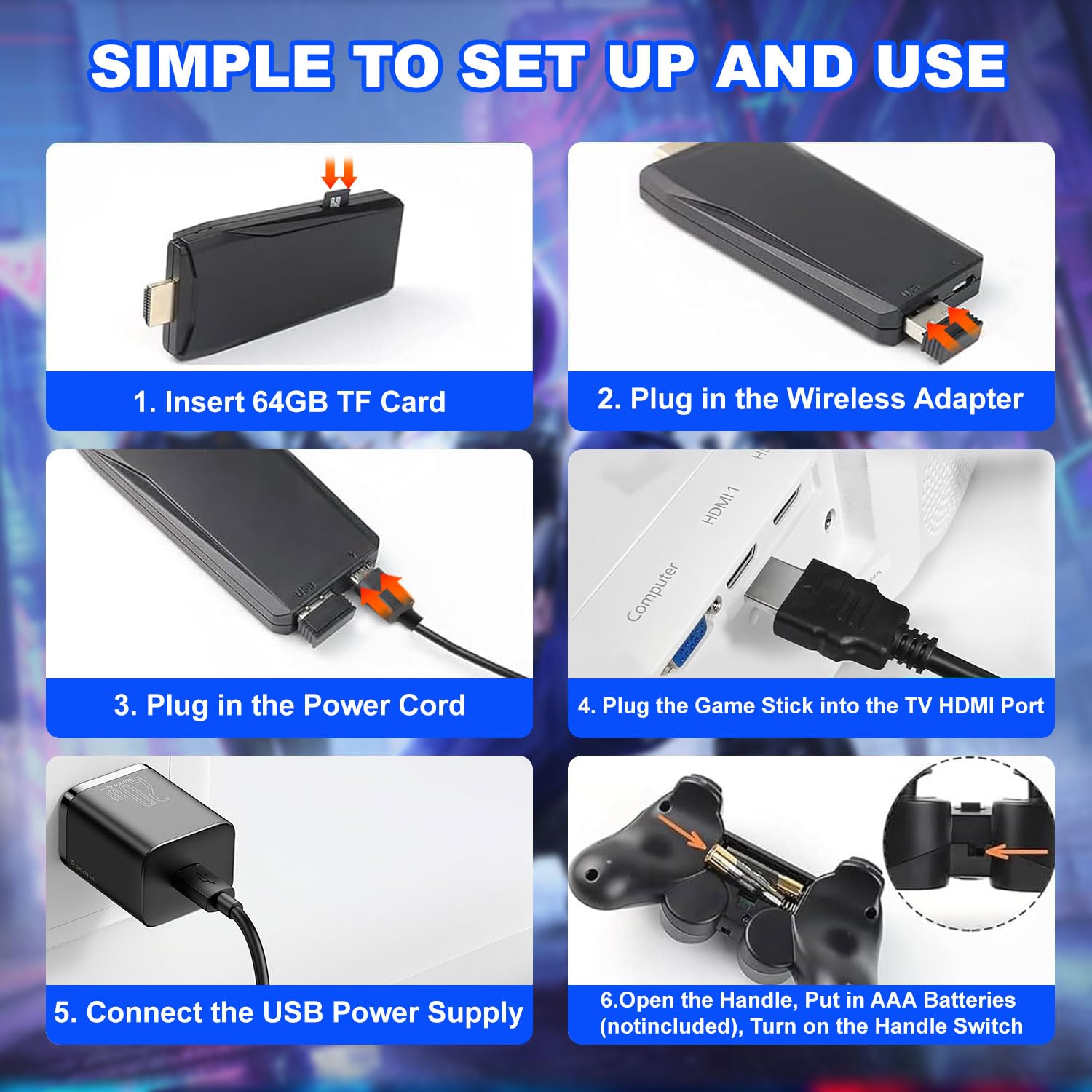
Image: Detailed setup steps for the Polaring M8 console.
Operating Instructions
Controller Pairing and Usage
The wireless controllers are designed to automatically pair with the game stick upon power-on, provided the receiver is connected.
- Navigation: Use the directional pad (D-pad) or left analog stick to navigate through menus.
- Selection: Press the A button (or equivalent action button) to select options.
- Back/Exit: Press the B button (or equivalent back button) to go back or exit a menu.
- Start Game: Select a game from the menu and press the Start button to begin.
- Pause/Menu: During gameplay, pressing the MODE button (or a combination like SELECT + START) may bring up an in-game menu or pause the game.
Game Selection and Emulators
The Polaring M8 console comes pre-loaded with over 40,000 games across 23 emulators, offering a wide range of classic gaming experiences.
- Browse through the emulator categories to find your desired game.
- The system supports various classic game genres including action, adventure, puzzle, and role-playing games.

Image: Gameplay demonstration with wireless controllers.
Maintenance
To ensure the longevity and optimal performance of your Polaring M8 console, follow these maintenance guidelines:
- Cleaning: Use a soft, dry cloth to clean the console and controllers. Avoid using liquid cleaners or abrasive materials.
- Storage: Store the console and accessories in a cool, dry place away from direct sunlight and extreme temperatures.
- Battery Care: Remove batteries from controllers if they will not be used for an extended period to prevent leakage.
- Ventilation: Ensure the game stick has adequate ventilation during operation to prevent overheating.
Troubleshooting
If you encounter any issues with your Polaring M8 console, please refer to the following troubleshooting steps:
| Problem | Possible Cause | Solution |
|---|---|---|
| No power/Console not turning on | Power cable not connected properly; insufficient power supply. | Ensure USB power cable is securely connected. Try a different USB power adapter or port. |
| No signal on TV/Monitor | Incorrect HDMI input selected; HDMI cable loose or faulty. | Verify the correct HDMI input is selected on your display. Reconnect the HDMI cable firmly. Try a different HDMI port or cable. |
| Controllers not responding | Low or dead batteries; controllers not paired; wireless receiver disconnected. | Replace AAA batteries in controllers. Ensure the wireless receiver is securely plugged into the game stick. Re-pair controllers if necessary (refer to specific pairing instructions if provided separately). |
| Game lag or input delay | Wireless interference; console overheating; game emulation issues. | Ensure controllers are close to the receiver. Provide adequate ventilation for the game stick. Some emulated games may exhibit minor input delays. |
| Games resetting or not saving progress | TF card issues; specific game emulation behavior. | Ensure the TF card is properly inserted and not corrupted. Some retro games may not have built-in save features or require specific in-game actions to save. |
| Console gets hot during use | Normal operation; insufficient ventilation. | It is normal for the device to generate some heat. Ensure it is in an open area with good airflow. If it becomes excessively hot, discontinue use and contact support. |
Specifications
- Model: M8
- Brand: Polaring
- Storage: 64GB TF Card (expandable storage supported)
- Games: Over 40,000 pre-installed games
- Emulators: 23 supported emulators
- Output: 4K HD HDMI (supports 1080P, 2K, 4K TVs/projectors/monitors)
- Controllers: Dual 2.4GHz Wireless Controllers
- Connectivity: HDMI, USB
- Item Weight: Approximately 13.1 ounces (371 grams)
- Package Dimensions: Approximately 6.57 x 4.69 x 4.17 inches (16.7 x 11.9 x 10.6 cm)

Image: The Polaring M8 console supports 4K HD output to various display devices.
Official Product Videos
No official product videos from the seller were found in the provided data.
Warranty and Support
For warranty information, technical support, or any inquiries regarding your Polaring M8 Wireless Retro Game Console, please refer to the contact information provided with your purchase or visit the official Polaring website.
Please retain your proof of purchase for warranty claims.