
1. Introduction
This manual provides detailed instructions for setting up and using your Guermok USB-C to HDMI Projection Cable (Model V286). This cable is designed to connect USB-C enabled devices to HDMI displays, supporting high-resolution video output and Power Delivery (PD) charging.
2. Key Features
- TV Mode Projection & PD Charging: Eliminates the need for bulky docks, enabling simultaneous TV mode projection and PD charging via a single port.
- High Resolution Output: Supports resolutions up to 8K@60Hz and 4K@144Hz for ultra-smooth, vivid visuals.
- HDR & ALLM Support: Provides enhanced gaming and viewing experiences with High Dynamic Range and Auto Low Latency Mode.
- PD 100W: Supports up to 100W Power Delivery to keep your device charged during use.
- Ventilation-Friendly Design: USB-C connector designed to avoid blocking device ventilation ports.
- Capture Card Ready: Ideal for live streaming and connecting to capture cards.
- Wide Compatibility: Compatible with a broad range of USB-C devices including Switch (1st & 2nd Gen), iPad, Steam Deck, Mac, and more.
- Durable & Portable: Built with a flexible, braided cable for durability and easy transport.
3. Setup Instructions
- Connect to Display: Plug the HDMI end of the Guermok projection cable into an available HDMI input port on your TV, monitor, or projector.
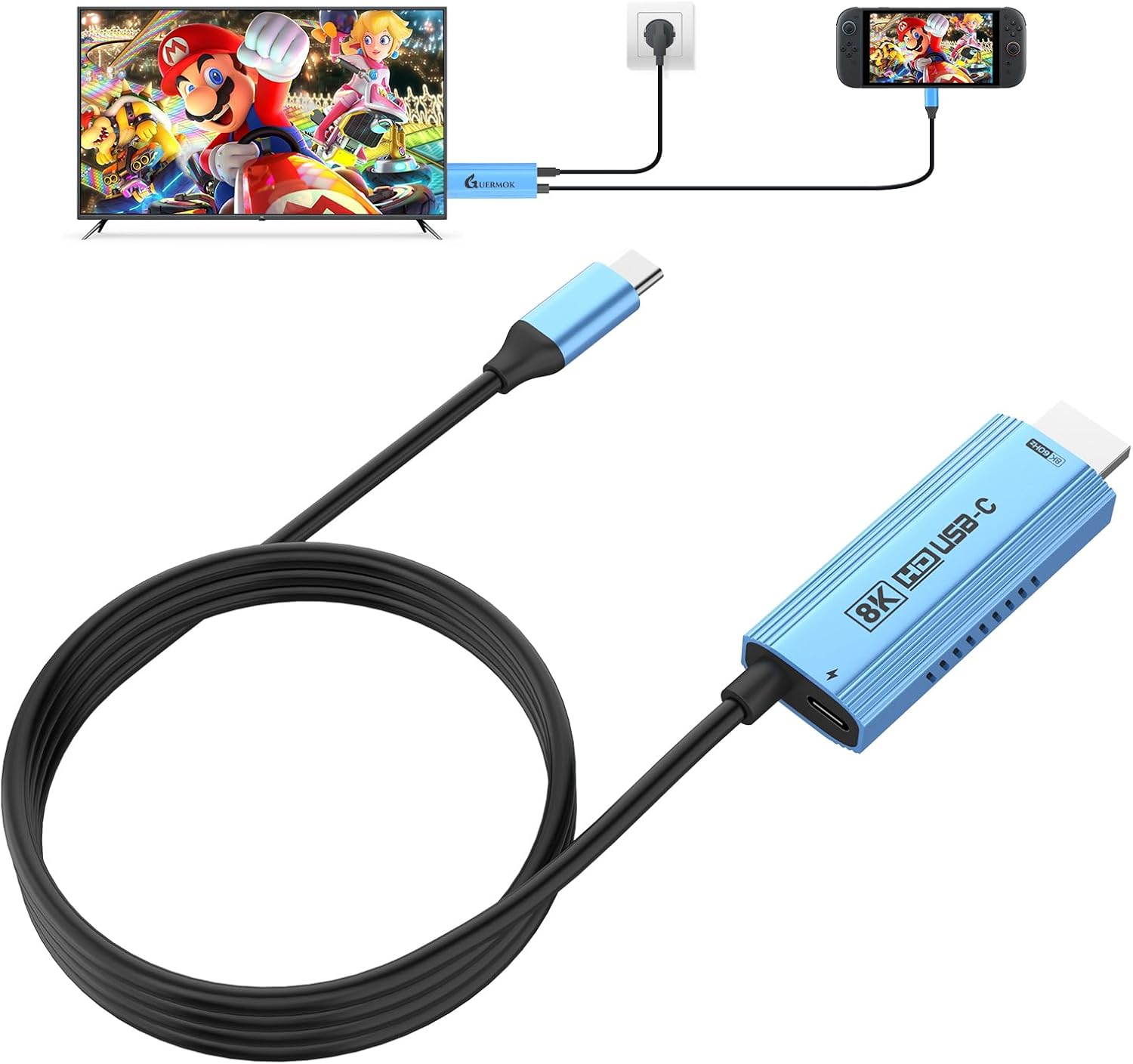
Image: The Guermok USB-C to HDMI cable connected to a TV, with a power adapter plugged into a wall outlet and a gaming console connected to the USB-C end of the cable.
- Connect to Device: Plug the USB-C end of the cable into the USB-C port of your compatible device (e.g., Nintendo Switch, iPad, laptop, smartphone).

Image: A person playing a Nintendo Switch connected via the Guermok USB-C to HDMI cable to a TV, with a portable monitor also displaying the game.
- Connect Power (Optional but Recommended): For optimal performance and charging, connect a USB-C power adapter (PD 65W+ recommended) to the PD port on the projection cable.
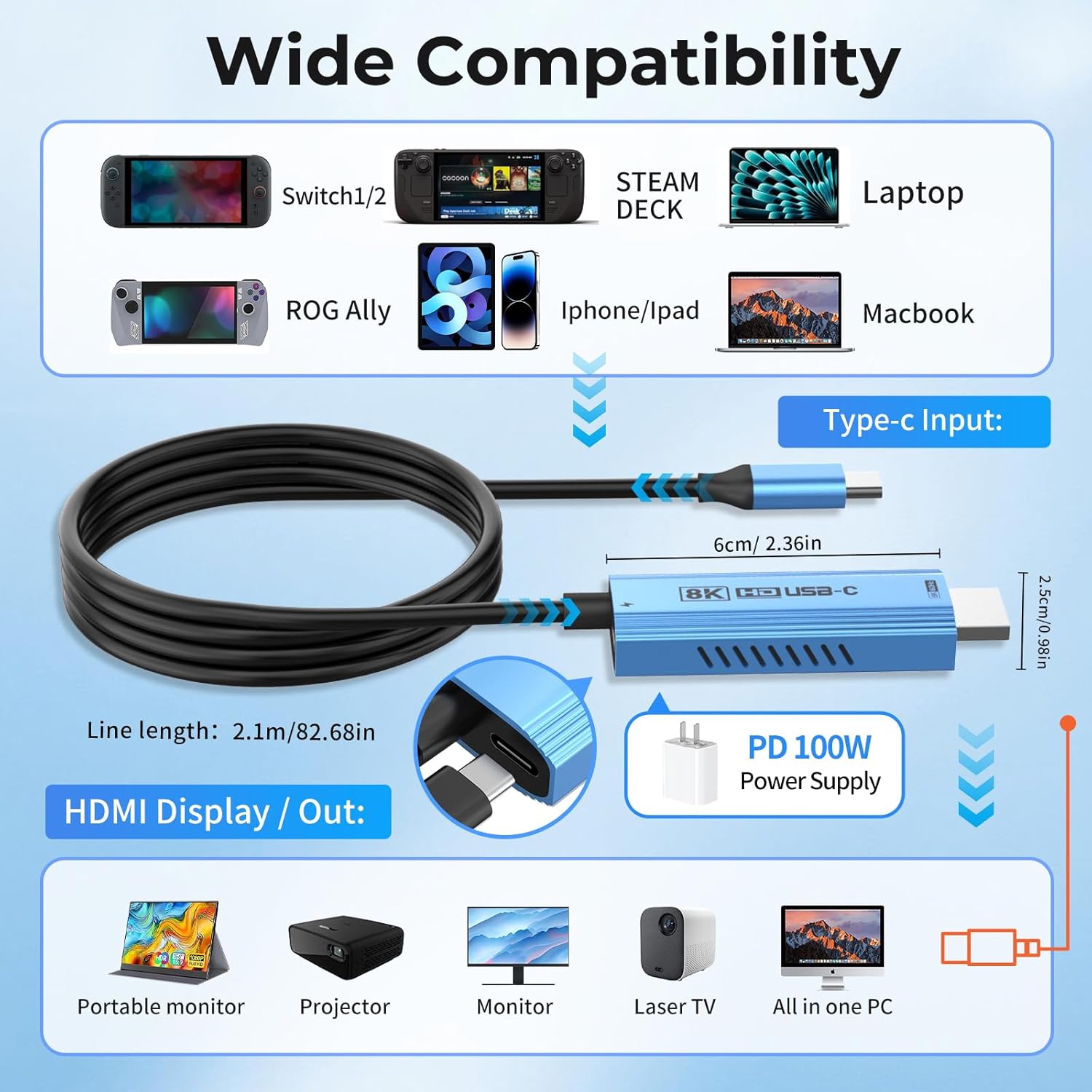
Image: A diagram illustrating the connection of the USB-C to HDMI cable, showing the Type-C input, HDMI display/output, and PD 100W power supply connection.
- Select Input on Display: Use your TV/monitor remote to select the correct HDMI input source where the cable is connected.
4. Operating Instructions
The Guermok USB-C to HDMI Projection Cable offers plug-and-play functionality for most compatible devices. Once connected, your device's screen should automatically mirror or extend to the connected display.
4.1. General Use
- Screen Mirroring: Your device's screen will be mirrored on the larger display.
- Extended Display: Some devices (e.g., laptops) may support extended display mode, allowing you to use the external display as a second screen. Adjust display settings on your device as needed.
- Audio Output: Audio will typically be transmitted through the HDMI cable to the connected display. Adjust audio output settings on your device if necessary.
4.2. Specific Device Usage
- Nintendo Switch (1st & 2nd Gen): Connect the USB-C end to the Switch's bottom port. Ensure a power adapter is connected to the cable's PD port for TV mode. The cable is designed to avoid blocking the Switch's ventilation.
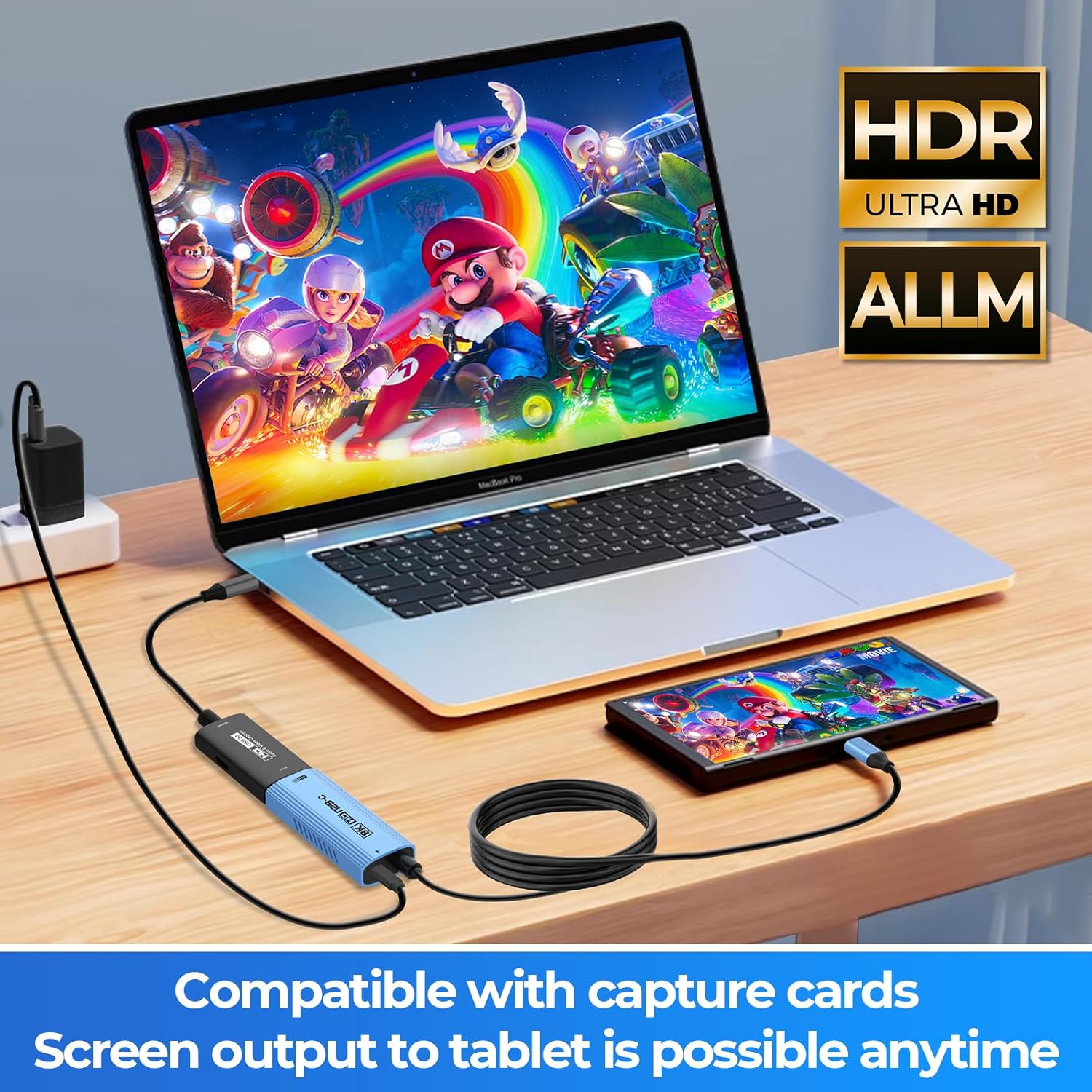
Image: A Nintendo Switch console connected to a TV via the Guermok USB-C to HDMI cable, displaying a game on the large screen.
- Laptops/MacBooks: Connect the USB-C end to your laptop's USB-C port. The display should automatically extend or mirror.

Image: A laptop connected to an external monitor via the Guermok USB-C to HDMI cable, showing the laptop screen mirrored on the monitor.
- Smartphones/Tablets (iPad, Android): Connect the USB-C end to your device. Ensure your device supports video output over USB-C (DisplayPort Alternate Mode).
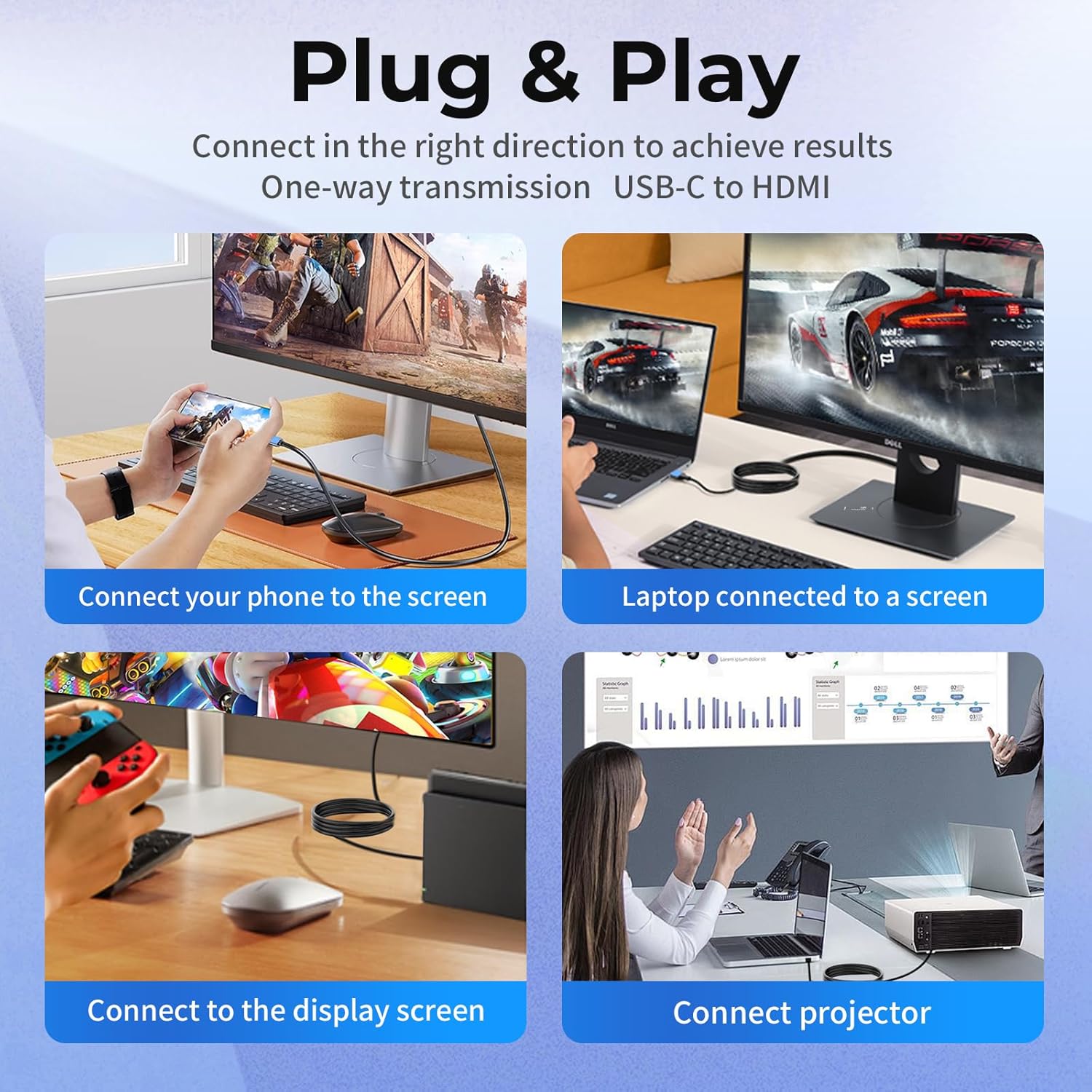
Image: A smartphone connected to a projector via the Guermok USB-C to HDMI cable, displaying content on a large projected screen.
- Capture Cards: The cable can be used with capture cards for live streaming. Connect the HDMI output of the cable to the HDMI input of your capture card.

Image: A gaming console connected to a capture card, which is then connected to a laptop, demonstrating screen output to a tablet or Mac.
5. Compatibility
This USB-C to HDMI cable is designed for wide compatibility with devices supporting DisplayPort Alternate Mode (Alt Mode) over USB-C.
5.1. Compatible Devices
- Nintendo Switch (1st & 2nd Gen)
- iPad (USB-C models)
- Steam Deck
- MacBooks (USB-C/Thunderbolt 3/4 ports)
- Laptops with USB-C ports supporting DisplayPort Alt Mode
- Smartphones and Tablets with USB-C ports supporting DisplayPort Alt Mode
- Gaming Consoles with USB-C video output
5.2. Important Note for Nintendo Switch 2 Users
Please do not update your Switch 2 to system version 21.0.0 or above, as it may cause TV Mode / Dock display output to stop working with this cable. If your device has already been updated, please wait for a future firmware update from Guermok to restore compatibility. Refer to the Firmware Update section for more details.

Image: An important notice regarding compatibility with Nintendo Switch 2 system versions, advising against updating to 21.0.0 or above.
6. Firmware Update Notice
As noted in the compatibility section, Nintendo Switch 2 system version 21.0.0 and above may cause issues with TV Mode / Dock display output. Guermok is working on a firmware update to restore compatibility.
Once released, the latest firmware can be obtained via official support channels. It is recommended to check the manufacturer's website or contact customer support for the most current information and instructions on how to perform the firmware update.
Video: A tutorial demonstrating how to perform a firmware upgrade for a 4K60Hz device, showing the steps on a computer screen.
7. Troubleshooting
7.1. General Display Issues
- No Display:
- Ensure all connections are secure.
- Verify the correct HDMI input is selected on your TV/monitor.
- Confirm your USB-C device supports video output (DisplayPort Alt Mode).
- For Switch 2, ensure it's not on system version 21.0.0 or higher without the necessary firmware update for the cable.
- Try restarting your device and reconnecting the cable.
- Flickering/Unstable Display:
- Ensure a stable power supply is connected to the cable's PD port.
- Check for loose connections.
- Try a different HDMI port on your display.
- Incorrect Colors (Whitewashed/Faded):
- If HDR makes the screen appear too bright, adjust your monitor’s brightness manually.
- Check your display's color settings.
7.2. Capture Card Specific Issues
If you are experiencing issues with a capture card, consider the following:
- Interface Connection Problems: Ensure the capture card is connected to a USB 3.0 interface on your computer (usually blue).
- Adapter/Capture Card Plugged Backwards: If using an adapter, ensure it's oriented correctly. USB-C connectors can be reversible, but the internal wiring for video output might be directional.
- Driver and System Recognition: Check and update your computer's USB drivers and system patches.
- Device Compatibility: Ensure your capture card model supports USB 3.0.
- Extension Cables/Converters: Avoid low-quality extension cables or converters that do not support USB 3.0, as they can limit transfer speeds.

Image: A detailed troubleshooting guide for common issues when using a capture card, such as interface connection problems and driver recognition.

Image: Instructions on how to add a capture card audio device, including steps for OBS setup and audio mixer checks.
8. Specifications
| Feature | Detail |
|---|---|
| Brand | Guermok |
| Model | V286 |
| Connector Type | USB Type-C (Input), HDMI (Output) |
| Cable Length | 67 inches (approx. 1.7 meters) |
| Max Resolution | 8K@60Hz, 4K@144Hz |
| Power Delivery | Up to 100W (PD) |
| Special Features | HDR, ALLM, High Speed, Ventilation-Friendly Design |
| Compatible Devices | Desktop, Gaming Console, Laptop, Projector, Tablet (with USB-C video output) |
| Product Dimensions | 13 x 9 x 2 cm; 70 g |
9. Maintenance
- Cleaning: Use a soft, dry cloth to clean the cable and connectors. Avoid liquid cleaners.
- Storage: Store the cable in a cool, dry place away from direct sunlight and extreme temperatures.
- Handling: Avoid excessive bending, twisting, or pulling of the cable, especially near the connectors, to prevent damage.
- Inspection: Periodically inspect the cable and connectors for any signs of wear or damage. Discontinue use if damage is found.
10. Warranty and Support
For warranty information, technical support, or to inquire about firmware updates, please refer to the official Guermok website or contact their customer service directly. Keep your purchase receipt for warranty claims.
Video: A demonstration of a similar USB-C to HDMI cable connecting a phone to a TV, showcasing screen mirroring functionality.


