
WONLINK NA1602
WONLINK AX1800 USB WiFi 6 Adapter NA1602 Instruction Manual
Model: NA1602
1. Introduction
This manual provides detailed instructions for the installation, operation, and maintenance of your WONLINK AX1800 USB WiFi 6 Adapter NA1602. Please read this manual thoroughly before using the device to ensure proper functionality and optimal performance.
2. Product Features
- Dual-Band WiFi 6 (AX1800): Supports 1201Mbps on 5GHz and 574Mbps on 2.4GHz for high-speed wireless connectivity.
- USB 3.0 Interface: Provides ultra-high-speed data transmission up to 5Gbps, backward compatible with USB 2.0.
- External High-Gain Antennas: Enhances signal reception and penetration, improving wireless range and stability.
- WPA3 Security: Incorporates the latest WPA3 security protocol for advanced authentication and encryption.
- MU-MIMO & OFDMA: Optimizes data transmission efficiency for multiple devices simultaneously.
- Built-in Driver: Simplifies installation with an integrated driver for Windows 10/11.
- Compact Design: Portable and convenient for use with desktops and laptops.
3. Package Contents
Verify that all items are present in the package:
- 1x WONLINK AX1800 USB WiFi 6 Adapter
- 1x Operation Instructions (this manual)
4. Setup and Installation
Follow these steps to install your WONLINK AX1800 USB WiFi 6 Adapter:
- Insert the Adapter: Insert the USB WiFi Adapter into an available USB 3.0 port on your desktop PC or laptop.

Image: The WONLINK AX1800 USB WiFi 6 Adapter plugged into a laptop's USB port, showing its compact design and dual antennas.
- Access the Driver: After insertion, the adapter will appear as a removable disk (USB Drive) in "My Computer" or "This PC". Double-click to open it.

Image: A visual guide demonstrating how the adapter appears as a USB drive and the subsequent steps to locate and run the driver installer.
- Run the Installer: Locate and double-click the "WiFiAutoInstall.exe" file. Follow the on-screen prompts, selecting "Next" and then "Install" to complete the driver installation.
- Connect to WiFi: Once the driver is installed, open your computer's network settings, scan for available wireless networks, and connect to your desired WiFi network.
Note: If the built-in driver does not install automatically or you experience unstable WiFi, you can download the latest drivers from the official WONLINK website.
5. Operating Modes
The WONLINK AX1800 USB WiFi 6 Adapter supports two primary operating modes:
- Station Mode (Signal Receiver): In this mode, the adapter acts as a receiver, allowing your PC or laptop to connect to an existing wireless router and access the internet.
- AP Mode (Signal Transmitter): In this mode, the adapter can turn a wired internet connection on your PC or laptop into a WiFi hotspot, enabling other devices to connect wirelessly.
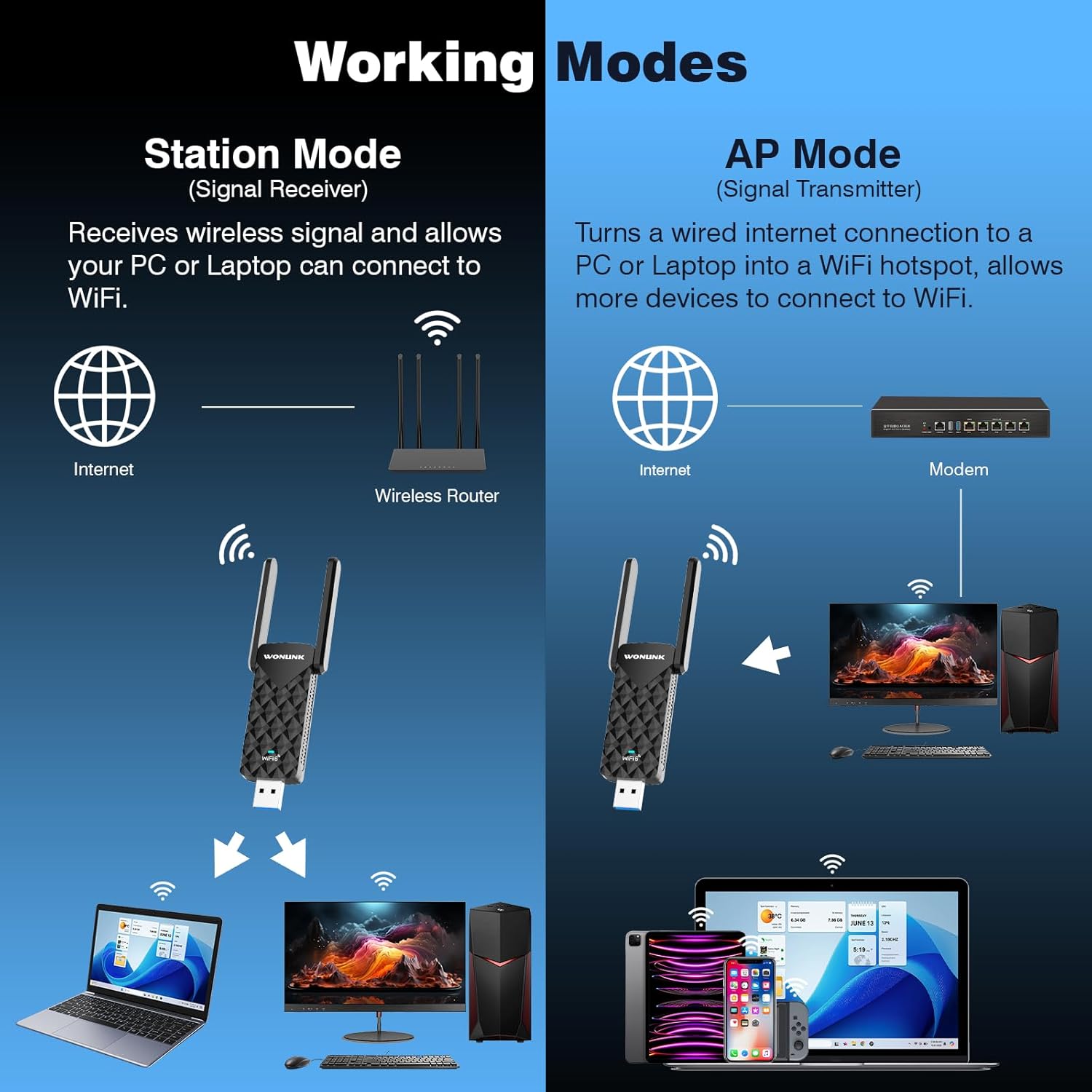
Image: A visual representation of the adapter functioning in Station Mode (receiving WiFi from a router) and AP Mode (creating a WiFi hotspot from a wired connection).
6. Specifications
| Feature | Detail |
|---|---|
| Brand | WONLINK |
| Model | NA1602 |
| Hardware Interface | USB 3.0 (Backward compatible with USB 2.0) |
| Data Link Protocol | IEEE 802.11a/b/g/n/ac/ax |
| Data Transfer Rate | Up to 1201 Mbps (5GHz), Up to 574 Mbps (2.4GHz) |
| Security Protocols | WPA-PSK/WPA2-PSK/WPA3 |
| Compatible Devices | Desktop, Laptop |
| Operating Systems | Windows 10 (32-bit/64-bit), Windows 11 (64-bit) |
| Dimensions | 78.3mm x 36.8mm x 10.5mm (Adapter body) |
| Item Weight | 2.11 ounces (approx. 0.06 kg) |
7. Troubleshooting
If you encounter issues with your WiFi adapter, please refer to the following common solutions:
- Adapter Not Detected:
- Ensure the adapter is fully inserted into a USB port.
- Try a different USB port (preferably a USB 3.0 port).
- Restart your computer.
- No WiFi Networks Found:
- Verify that the adapter drivers are correctly installed (check Device Manager).
- Ensure your wireless router is powered on and broadcasting a signal.
- Check if WiFi is enabled in your computer's network settings.
- Slow Connection Speed:
- Ensure you are connected to a WiFi 6 compatible router.
- Try connecting to the 5GHz band for higher speeds, if available.
- Adjust the position of the adapter's antennas for optimal signal reception.
- Reduce interference from other electronic devices.
- Update the adapter drivers from the official WONLINK website.
- Frequent Disconnections:
- Ensure the adapter is securely connected.
- Check for updated drivers.
- Move closer to your wireless router or adjust antenna orientation.
- Verify that your router's firmware is up to date.
8. Maintenance
To ensure the longevity and optimal performance of your WONLINK AX1800 USB WiFi 6 Adapter, follow these maintenance guidelines:
- Cleaning: Gently wipe the adapter with a soft, dry cloth. Avoid using liquid cleaners or solvents.
- Storage: When not in use, store the adapter in a cool, dry place away from direct sunlight and extreme temperatures.
- Physical Protection: Avoid dropping the adapter or subjecting it to strong impacts. Ensure the antennas are not bent excessively.
- Driver Updates: Periodically check the official WONLINK website for the latest driver updates to ensure compatibility and performance improvements.
9. Support Information
For further assistance or technical support, please visit the official WONLINK website or contact their customer service. Refer to the product packaging or the WONLINK website for specific contact details and warranty information.
Related documentsNA1602


Ask a question about this manual
Ask about setup, troubleshooting, compatibility, parts, safety, or missing instructions. Manuals+ will review the question and use this page’s manual context to help answer it.