
1. Introduction
The Unitron TV Connector is a device designed to stream audio directly from your television or other media sources to your compatible Unitron or Relate hearing aids. This allows for a personalized listening experience with crystal-clear stereo sound, enhancing your entertainment without disturbing others.
This manual provides detailed instructions on how to set up, operate, and maintain your Unitron TV Connector, ensuring optimal performance and longevity.
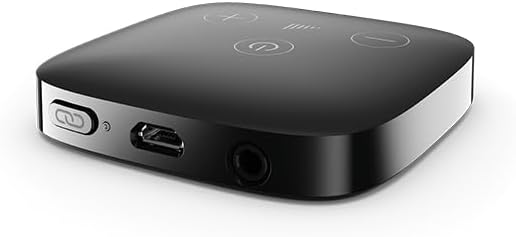
Figure 1.1: Unitron TV Connector. This compact device facilitates direct audio streaming to hearing aids.

Figure 1.2: Direct Streaming to Hearing Aids. Enjoy clear stereo sound without disturbing others.
2. Package Contents
Please verify that all items are present in your package:
- 1 x Unitron TV Connector device
- 1 x Audio Cable (3.5mm to RCA)
- 1 x Optical Cable (TOSLINK)
- 1 x Power Adapter
- 1 x User Manual (this document)
3. Compatibility
The Unitron TV Connector is designed for seamless integration with a range of hearing aids. It is compatible with:
- Unitron Hearing Aids: Tempus, Discover (Stride and Moxi models), Moxi Blu, Vivante, Smile series.
- Relate Hearing Aids: Relate 3.0, 4.0, and 5.0 series.
- Phonak Hearing Aids: Marvel, Paradise, Lumity, Life, and Infinio series.
Important Note: This device is NOT COMPATIBLE with soundbars. It will only stream audio from compatible hearing aids and will not connect to or stream from soundbar systems.

Figure 3.1: Device Compatibility. Designed to seamlessly pair with your hearing aids.
4. Setup
Follow these steps to set up your Unitron TV Connector:
- Connect Power: Plug the power adapter into the DC IN port on the Unitron TV Connector and then into a wall outlet. The power indicator light on the device will illuminate.
- Connect to TV/Audio Source: Choose one of the following connection methods based on your TV or audio source's available ports:
- Optical Connection (Recommended for Digital Audio): Connect one end of the optical cable to the OPTICAL IN port on the TV Connector and the other end to the Optical Digital Audio Out (TOSLINK) port on your TV.
- Audio Cable Connection (Analog Audio): Connect one end of the audio cable (3.5mm jack) to the AUDIO IN port on the TV Connector. Connect the RCA ends of the cable to the corresponding red and white Audio Out ports on your TV.
- Pair with Hearing Aids:
- Ensure your hearing aids are turned on and within range of the TV Connector (typically within 1 meter for initial pairing).
- Press the pairing button on the TV Connector (often indicated by a link or chain icon). The pairing indicator light will start blinking.
- For most compatible hearing aids, they will automatically detect and pair with the TV Connector. Some models may require you to briefly open and close the battery door or restart them to initiate pairing mode. Consult your hearing aid's manual for specific pairing instructions.
- Once successfully paired, the indicator light on the TV Connector will turn solid.

Figure 4.1: Simple, Quick Setup. Just plug in and start streaming in minutes.
5. Operation
Once the Unitron TV Connector is set up and paired with your hearing aids, operating it is straightforward:
- Automatic Streaming: When the TV Connector detects an audio signal from the connected TV or audio source, it will automatically begin streaming to your paired hearing aids. Your hearing aids will switch to the TV streaming program.
- Manual Switching (if applicable): Some hearing aid models allow you to manually switch to the TV streaming program via a button on the hearing aid or through a remote control/smartphone app. Refer to your hearing aid's manual for details.
- Volume Control: The volume of the streamed audio is typically controlled via your hearing aids. You can adjust the volume using the volume controls on your hearing aids or through their associated remote control/app. The TV's volume can also be adjusted independently for others in the room.
- Stopping Streaming: To stop streaming, simply move out of range of the TV Connector, turn off your hearing aids, or switch to a different program on your hearing aids. The TV Connector will remain on and ready to stream when you return within range.

Figure 5.1: High-Quality Stereo Audio. Hear every detail – from dialogue to music.

Figure 5.2: Watch TV Together Again. Enjoy shows at your volume while others listen normally.
6. Maintenance
Proper care and maintenance will ensure the longevity of your Unitron TV Connector:
- Cleaning: Wipe the device regularly with a soft, dry cloth. Do not use abrasive cleaners, solvents, or immerse the device in water.
- Storage: Store the TV Connector in a cool, dry place away from direct sunlight and extreme temperatures when not in use for extended periods.
- Handling: Handle the device with care. Avoid dropping it or subjecting it to strong impacts.
- Cables: Ensure all cables are connected securely and are not bent or kinked, which could damage them.
7. Troubleshooting
If you encounter issues with your Unitron TV Connector, try the following troubleshooting steps:
| Problem | Possible Cause | Solution |
|---|---|---|
| No sound streaming to hearing aids. |
|
|
| Poor sound quality or intermittent streaming. |
|
|
| Hearing aids not pairing. |
|
|
If the problem persists after attempting these solutions, please contact customer support for further assistance.
8. Specifications
- Product Dimensions: 2.5 x 20.5 x 0.46 inches
- Manufacturer: Oticon
- ASIN: B0FH396Q1B
- Connectivity: Bluetooth (for hearing aid streaming), Optical (TOSLINK), 3.5mm Audio Jack
- Power Supply: External Power Adapter (included)
9. Warranty and Support
For information regarding the warranty period and terms for your Unitron TV Connector, please refer to the warranty card included in your product packaging or contact the retailer from whom you purchased the device. Warranty details may vary by region and seller.
If you require technical support, have questions about product functionality, or need assistance with troubleshooting beyond what is covered in this manual, please contact the manufacturer's customer service or the authorized seller. Keep your purchase receipt and product serial number (if applicable) ready when contacting support.
Manufacturer: Oticon

