
LUNA HOME E2
Luna Light Bulb Security Camera User Manual
Brand: LUNA HOME | Model: E2
Introduction
The Luna Light Bulb Security Camera is an innovative solution for home security, offering 360° pan and tilt capabilities, 2K color night vision, and smart AI-powered notifications. Designed for effortless installation into standard E26/E27 bulb sockets, this camera provides comprehensive surveillance for both indoor and outdoor environments. This manual provides detailed instructions for setup, operation, maintenance, and troubleshooting to ensure optimal performance of your Luna security camera.
What's in the Box
- 1x Luna Light Bulb Security Camera
- 1x E27 Extender
- 1x Adapter for Wi-Fi pairing test
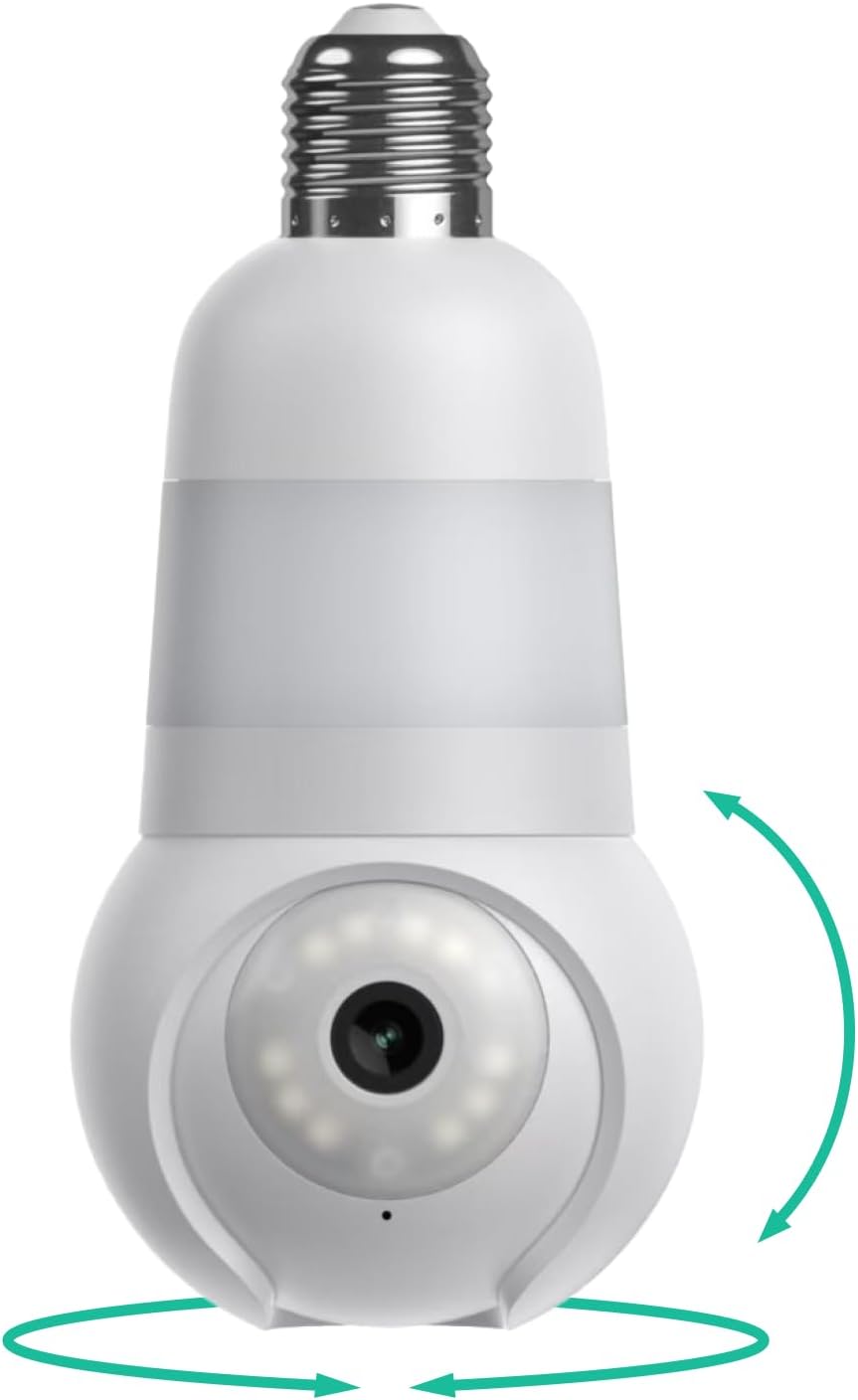
Image: The Luna Light Bulb Security Camera, showing its bulb-like design and the pan/tilt rotation capabilities.
Key Features
Effortless Installation
Simply screw the camera into any standard E26/E27 bulb socket. Connect to your 2.4GHz Wi-Fi 6 network for instant setup. An E27 extender is included to ensure compatibility with most lampshades. Note: This camera does not work with 5GHz Wi-Fi networks.

Image: The Luna camera installed in an outdoor light fixture, demonstrating the use of the included extender for proper clearance.
360° Pan, Tilt & Zoom
Achieve a comprehensive view of your property with 360° panoramic coverage. The camera allows for pan, tilt, and digital zoom functions to monitor specific areas like entrances, porches, or hallways.

Image: The Luna camera mounted in an outdoor light, illustrating its wide pan and tilt range for comprehensive coverage.
2K Color Night Vision
Capture clear 2K ultra-HD footage both day and night. Advanced color night vision technology provides detailed, full-color video even in low-light conditions, allowing identification of details such as vehicle color or clothing.

Image: A split image demonstrating the difference between traditional black and white night vision and Luna's enhanced color night vision, showing a car and surroundings in full color at night.
Intelligent AI Motion Detection & Smart Notifications
Receive real-time, descriptive alerts for events that matter most. The intelligent AI motion detection system provides specific notifications, such as "Delivery man with package walking toward front door," reducing false alarms. Customize motion zones to focus on critical areas.

Image: A smartphone displaying a Luna app notification: "Delivery man with package walking toward front door," overlaid on a camera view of a person delivering a package.

Image: A split image illustrating the intelligent motion tracking feature, with red boxes highlighting a person being followed by the camera's view.
Built-in LED Light & Spotlight
Illuminate your surroundings with the integrated LED lamp and motion-activated spotlight. Both can be controlled via the Luna AI app, providing additional visibility and security.

Image: The Luna camera installed in an outdoor light fixture, highlighting its ambient light and motion-activated spotlight features.
Two-Way Audio
Communicate directly with visitors, delivery personnel, or deter unwanted individuals using the built-in microphone and speaker. Stay connected through the Luna AI App from anywhere.

Image: A person holding a smartphone displaying the Luna app, with a text bubble indicating two-way audio communication with a child visible on screen.
Continuous Recording & Cloud Storage
Enjoy 24/7 recording with secure US-based cloud storage (subscription required after free trial). Footage is protected with AES128 encryption, ensuring security and accessibility.
Built for All Weather
With an IP65 weather rating, the Luna camera is designed to withstand rain, snow, and heat, ensuring reliable operation in various outdoor conditions.
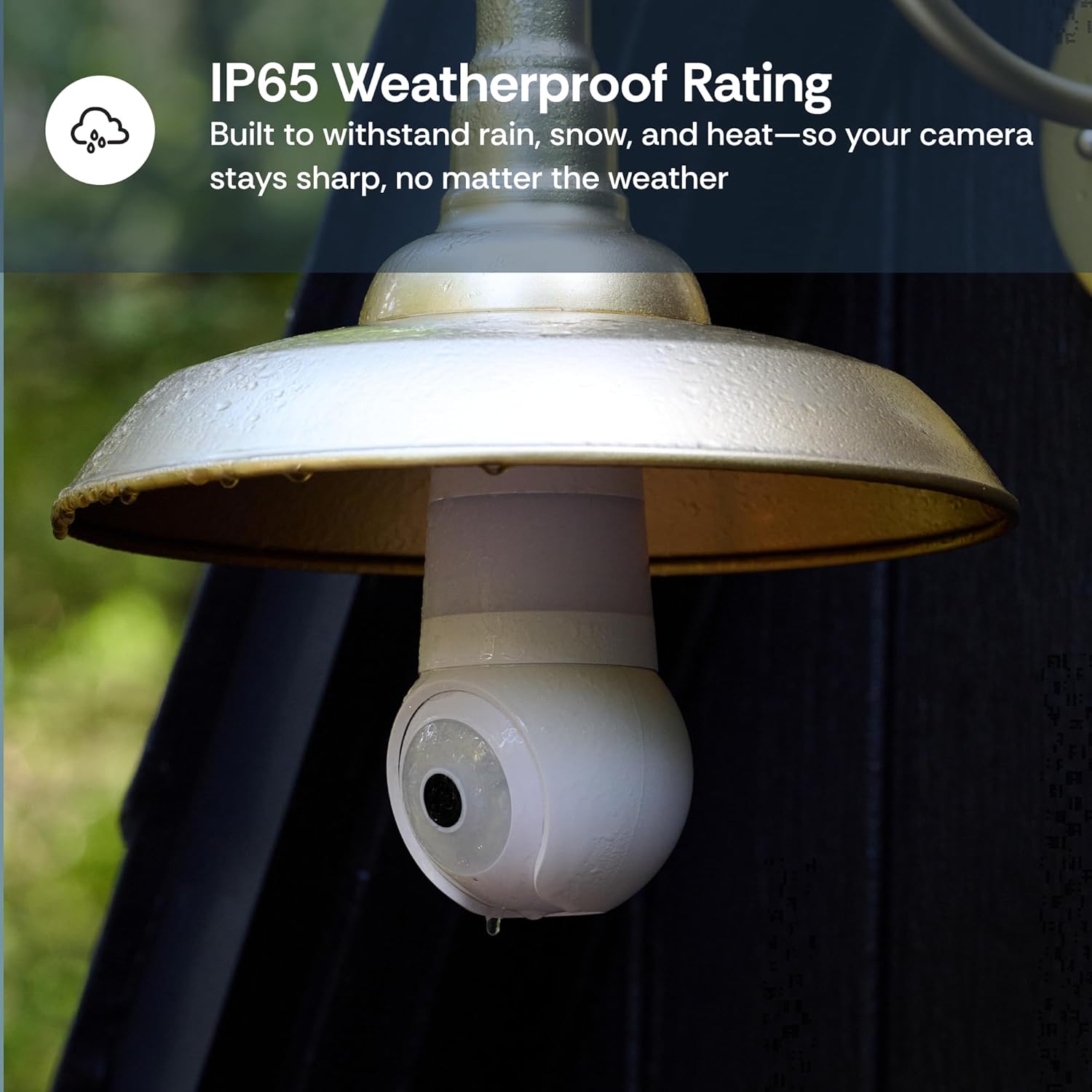
Image: The Luna camera with water droplets on its surface, demonstrating its IP65 weatherproof rating.
Setup Guide
Prepare the Installation Location
Ensure the light fixture is powered off at the switch before installation. The camera requires a standard E26/E27 bulb socket. If your lampshade requires extra clearance, use the provided E27 extender.
Install the Camera
Carefully screw the Luna Light Bulb Security Camera into the E26/E27 socket. Ensure it is securely fastened but do not overtighten.
Power On and Download App
Turn on the power to the light fixture. The camera will power on and indicate readiness for pairing. Download the "Luna AI" app from your smartphone's app store (available for iOS and Android).
Connect to Wi-Fi
Open the Luna AI app and follow the on-screen instructions to add your new device. The camera supports 2.4GHz Wi-Fi 6 networks. Ensure your phone is connected to a 2.4GHz network during the setup process. The included adapter can be used to test Wi-Fi pairing before final installation.
Configure Settings
Once connected, customize your camera settings within the app, including motion detection zones, notification preferences, and LED light control.
Operating Instructions
The Luna Light Bulb Security Camera is primarily operated through the Luna AI mobile application.
Live Viewing
Open the Luna AI app and select your camera to view live 2K HD video feed. You can pan, tilt, and zoom digitally within the live view to adjust your perspective.
Two-Way Audio
During live viewing, tap the microphone icon to speak through the camera's speaker. Tap the speaker icon to hear audio from the camera's location.
LED Light and Spotlight Control
Access the light settings within the app to manually turn the LED light on/off or adjust its brightness. You can also configure the motion-activated spotlight to turn on when motion is detected.
Event Playback and Recordings
Navigate to the "Events" or "Playback" section in the app to review recorded footage triggered by motion events. With a Luna Subscription Plan, you can access 30 days of cloud video storage and utilize features like keyword search for events and daily highlight reels.

Image: A table outlining the features available with and without a Luna subscription, including live viewing, 2-way audio, color night vision, cloud storage, and AI alerts.
Notifications Management
Manage your notification preferences in the app settings. You can enable or disable specific types of alerts and adjust their sensitivity. For detailed, descriptive alerts, a subscription may be required after the free trial.
Maintenance
- Cleaning: Gently wipe the camera lens and body with a soft, damp cloth. Avoid using harsh chemicals or abrasive materials that could damage the surface or lens.
- Weather Protection: While the camera has an IP65 weather rating, ensuring it is installed in a location that offers some protection from direct, prolonged exposure to extreme weather conditions (e.g., under an overhang) can extend its lifespan.
- Firmware Updates: Periodically check the Luna AI app for available firmware updates. Keeping your camera's firmware up-to-date ensures optimal performance, security, and access to new features.
Troubleshooting
- Camera not connecting to Wi-Fi:
- Ensure your Wi-Fi network is 2.4GHz. The Luna camera does not support 5GHz Wi-Fi.
- Check the Wi-Fi signal strength at the installation location. If the signal is weak, consider moving your router closer or using a Wi-Fi extender.
- Verify that you have entered the correct Wi-Fi password.
- Restart your router and the camera, then attempt the connection process again.
- Poor image quality or frequent disconnections:
- This often indicates a weak Wi-Fi signal. Relocate the camera or improve Wi-Fi coverage.
- Ensure there are no physical obstructions blocking the camera's view or Wi-Fi signal.
- Clean the camera lens if it appears blurry.
- No motion detection alerts:
- Check the motion detection settings in the Luna AI app. Ensure it is enabled and sensitivity is adjusted appropriately.
- Verify that motion detection zones are correctly configured to cover the desired areas.
- Ensure your phone's notification settings allow alerts from the Luna AI app.
- LED light not working:
- Check the light control settings in the Luna AI app.
- Ensure the light fixture switch is always in the "on" position for the camera to receive power and function, including its light features.
Specifications
| Feature | Detail |
|---|---|
| Brand | LUNA HOME |
| Model Name | Light bulb security camera (Model E2) |
| Connectivity | 2.4GHz Wi-Fi 6 (Does NOT work with 5GHz WiFi) |
| Resolution | 2K Ultra-HD |
| Night Vision | Color Night Vision |
| Pan/Tilt | 360° Pan, Tilt capability |
| Power Source | E26/E27 bulb base (120 Volts AC) |
| Special Features | Built-in LED Bulb & Spotlight, Smart GenAI Motion, Two-Way Audio, Continuous Recording, App Control |
| Indoor/Outdoor Usage | Indoor, Outdoor (IP65 Weatherproof Rating) |
| Dimensions | 3.2 x 3.2 x 6.6 inches |
| Item Weight | 1.19 pounds |
| UPC | 850065480176 |
Warranty and Support
Return Policy: This product is eligible for a refund or replacement within 30 days of purchase, as per standard return policies.
For further assistance, technical support, or warranty inquiries, please contact Luna Home & Care directly:
- Phone: (855) 604-5862
- Website: lunahomeai.com
- Email: support@lunahome.com

Image: Contact details for Luna Home support, including phone number, website, and email address.
Official Product Videos
No official product videos with "creator_type: Seller" were found in the provided product data. Please refer to the product listing on Amazon for any available video content.
Related documentsE2


Ask a question about this manual
Ask about setup, troubleshooting, compatibility, parts, safety, or missing instructions. Manuals+ will review the question and use this page’s manual context to help answer it.