
1. Introduction
This manual provides essential instructions for setting up, operating, and maintaining your Insta360 GO Ultra action camera. Please read this manual thoroughly before using the product to ensure proper function and safety.
2. What's in the Box
Verify that all items are present in your package:
- 1x Standalone Camera
- 1x Action Pod
- 1x Magnet Pendant
- 1x Quick Release Safety Cord
- 1x Magnetic Easy Clip
Note: A MicroSD Card is sold separately and is required for recording.

Image: Insta360 GO Ultra camera, Action Pod, Magnet Pendant, Quick Release Safety Cord, Magnetic Easy Clip, and USB-C cable.
3. Product Overview
The Insta360 GO Ultra is a compact action camera designed for hands-free recording and versatile mounting. It consists of a small standalone camera module and an Action Pod with a flip touchscreen.
Key Components:
- Standalone Camera: The primary recording unit, lightweight and waterproof.
- Action Pod: Houses the camera, provides a larger battery, a flip touchscreen for preview and control, and additional ports.
- Magnetic Mounting System: Allows the camera to attach to various accessories for diverse shooting angles.
4. Setup
4.1 Charging the Device
Before first use, fully charge the Insta360 GO Ultra. Connect the Action Pod to a power source using the provided USB-C cable. The standalone camera charges when inserted into the Action Pod.
- Standalone Camera: Approximately 70 minutes of run time.
- With Action Pod: Up to 200 minutes of combined run time.
- Fast Charging: 0-80% in approximately 12 minutes.
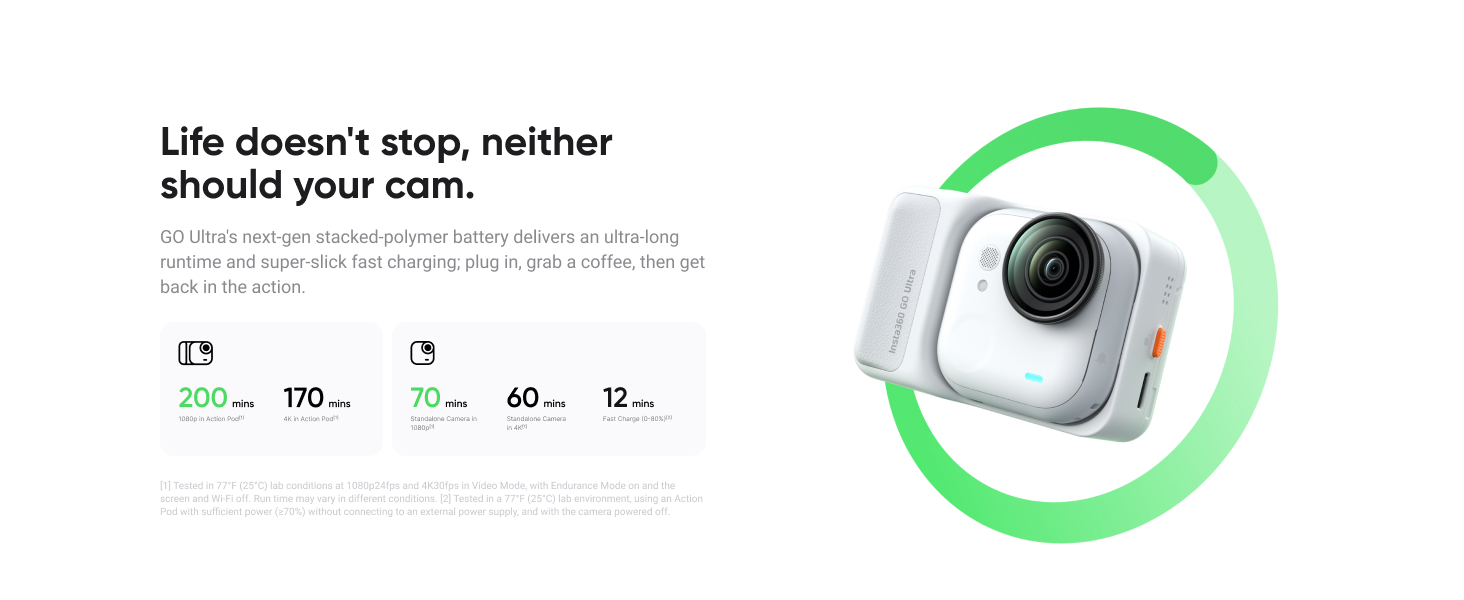
Image: Diagram illustrating battery life for the standalone camera and with the Action Pod, along with fast charging times.
4.2 Inserting a MicroSD Card
The Insta360 GO Ultra requires a microSD card for storage (sold separately). Locate the microSD card slot on the Action Pod and insert the card until it clicks into place. Ensure the camera is powered off before inserting or removing the card.

Image: A hand demonstrating the insertion of a microSD card into the Action Pod, next to a cyclist wearing the camera.
4.3 Mounting the Camera
The GO Ultra features a magnetic mounting system. Use the included accessories to attach the camera:
- Magnet Pendant: Wear around your neck for hands-free, first-person perspective shots.
- Magnetic Easy Clip: Attach to a cap brim or clothing for stable POV footage.
- Other Magnetic Accessories: Utilize various optional mounts for creative angles on bikes, helmets, or other surfaces.

Image: A collage showing the Insta360 GO Ultra mounted in various ways, including on a child's hat, a person's chest, and inside a washing machine.
5. Operating Instructions
5.1 Power On/Off
To power on the Action Pod, press and hold the power button. To power off, press and hold the power button until the shutdown prompt appears on the screen, then confirm. The standalone camera powers on automatically when removed from the Action Pod or when the Action Pod is powered on with the camera inserted.
5.2 Recording Video and Photos
- Video Recording: Press the shutter button on the standalone camera or the record button on the Action Pod to start/stop recording. The GO Ultra supports 4K 60fps video.
- 4K Active HDR: This mode enhances dynamic range for balanced exposure in challenging lighting conditions.
- PureVideo Mode: Optimized for low-light environments, reducing noise and improving clarity.
- Photo Capture: The camera can capture ultra-detailed 50MP photographs.

Image: A first-person view from a cyclist, highlighting the 4K 60FPS video capability.

Image: A side-by-side comparison demonstrating the superior low-light performance of the Insta360 GO Ultra using PureVideo Mode.
5.3 Using the Action Pod Touchscreen
The 2.5-inch flip touchscreen on the Action Pod allows for live preview, settings adjustments, and playback. It can be flipped 180 degrees for vlogging or self-recording.
5.4 Control Options
- Voice Control 2.0: Use voice commands to operate the camera hands-free.
- Gesture Control: Perform specific gestures to trigger actions like recording.
- Remote Control: The Action Pod can act as a remote control when the standalone camera is mounted separately.
5.5 Stabilization
The Insta360 GO Ultra incorporates advanced stabilization technologies:
- FlowState Stabilization: Provides three levels of electronic image stabilization for smooth footage across various activities.
- 360 Horizon Lock: Automatically keeps your footage level, regardless of camera orientation.

Image: A split image showing the effect of FlowState Stabilization, with one side blurry (off) and the other smooth (on).
5.6 Waterproofing
- The standalone GO Ultra camera is IPX8 waterproof to 33ft (10m).
- The Action Pod is IPX4 splashproof. For deeper underwater use with the Action Pod, a separate Dive Case is required (up to 197ft/60m).
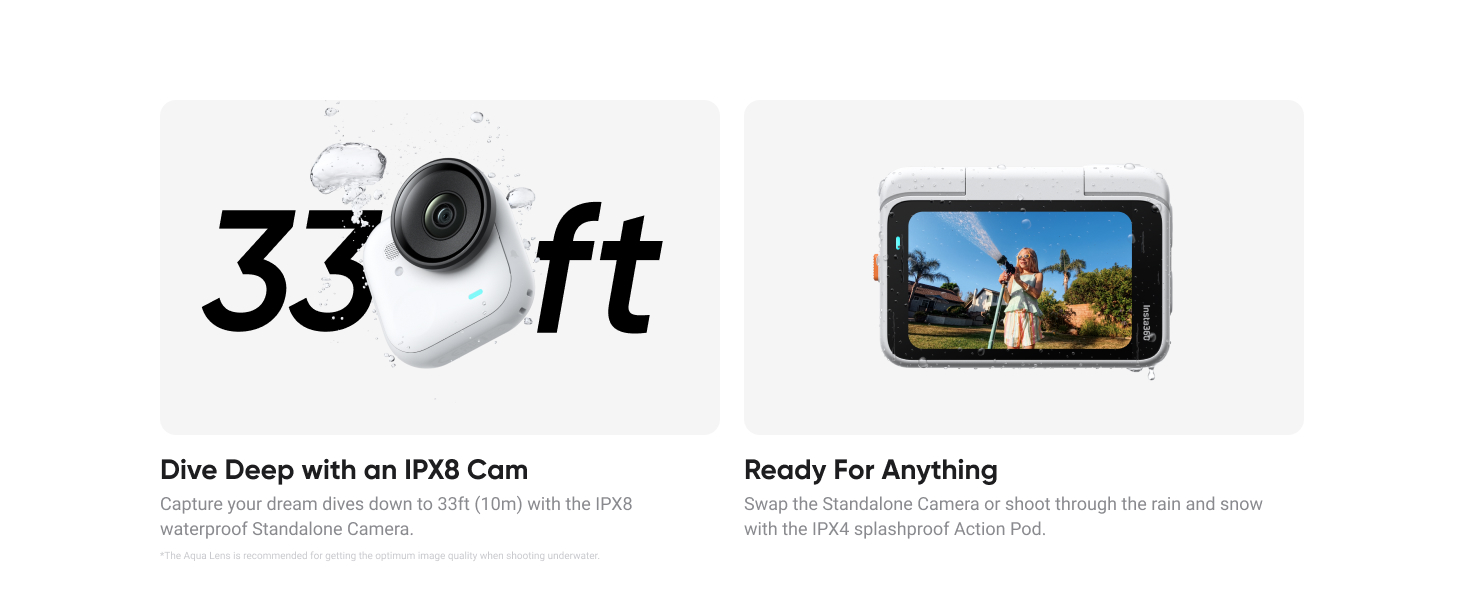
Image: A split image showing the standalone camera used underwater and the Action Pod being splashed with water.
5.7 Post-Capture Features
- AI Auto Editing: The Insta360 app can automatically find highlights and edit them into a video with transitions and music.
- FreeFrame Mode: Allows you to shoot once and export in any aspect ratio for different social media platforms.
- Timelapse & TimeShift: Creative modes for capturing dynamic sequences.
6. Maintenance
6.1 Cleaning
Wipe the camera lens and body with a soft, lint-free cloth. For stubborn dirt, use a slightly damp cloth. Do not use harsh chemicals or abrasive materials.
6.2 Storage
Store the camera in a cool, dry place away from direct sunlight and extreme temperatures. Ensure the camera and Action Pod are dry before storing, especially after underwater use.
7. Troubleshooting
Common Issues and Solutions:
- Camera not powering on: Ensure the battery is charged. Connect to a power source and try again.
- Recording issues: Check if a microSD card is inserted and has sufficient free space. Ensure the card is compatible and formatted correctly.
- Poor video quality: Verify that the lens is clean and free from smudges. Check shooting mode settings (e.g., ensure 4K is selected if desired).
- Connectivity problems (Bluetooth/Wi-Fi): Ensure the camera and your device are within range. Restart both devices and try reconnecting.
For further assistance, refer to the official Insta360 support website or contact customer service.
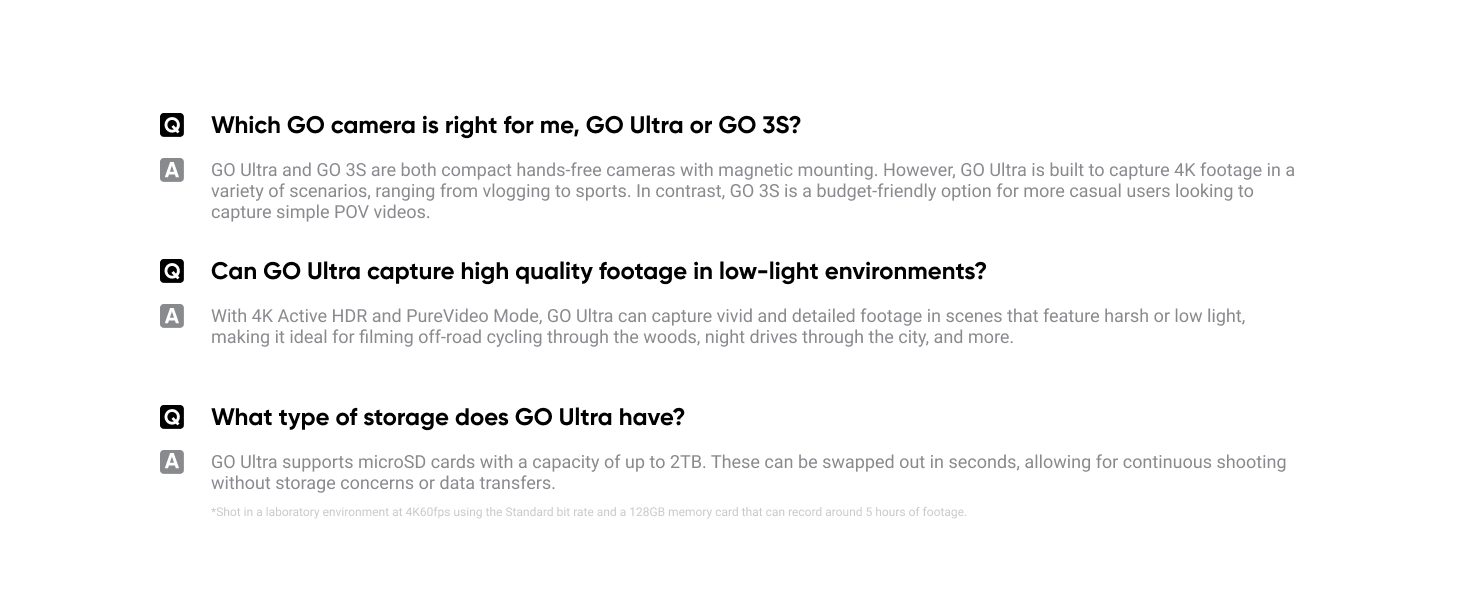
Image: A section displaying common questions and answers regarding the Insta360 GO Ultra, including comparisons with other models and storage information.
8. Specifications
| Brand | Insta360 |
| Model Number | CINSABEA |
| Item Weight | 5.7 ounces |
| Package Dimensions | 4.02 x 3.94 x 3.94 inches |
| Batteries | 1 Lithium Ion battery required (included) |
| Color Name | Arctic White |
| Special Features | Touchscreen |
| Photo Sensor Technology | CMOS |
| Video Capture Resolution | 4K |
| Maximum Focal Length | 14.3 Millimeters |
| Maximum Aperture | 2.85 f |
| Flash Memory Type | CompactFlash (MicroSD card slot) |
| Video Capture Format | MP4 |
| Supported Audio Format | 48kHz 32bit AAC |
| Screen Size | 10 Inches (referring to Action Pod display) |
| Connectivity Technology | Bluetooth, USB, Wi-Fi |
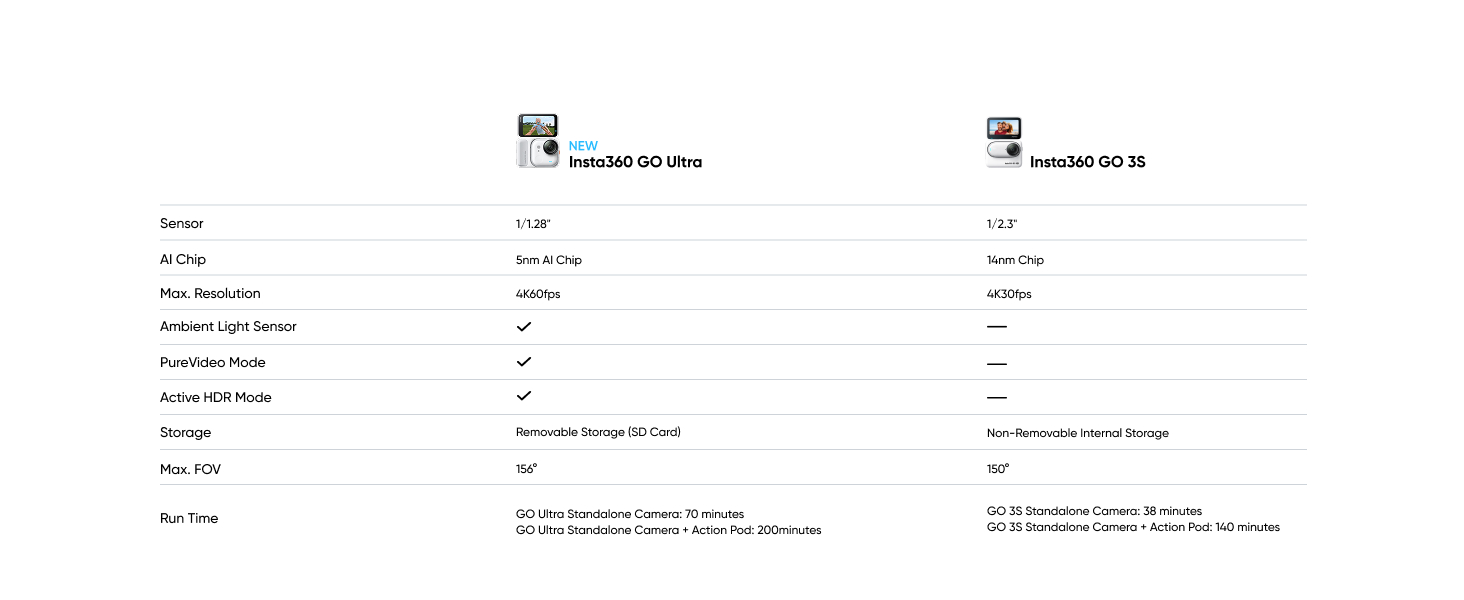
Image: A detailed comparison table outlining the specifications of the Insta360 GO Ultra versus the Insta360 GO 3S.
9. Support and Warranty
For product support, technical assistance, or warranty information, please visit the official Insta360 website or contact their customer service directly. Keep your proof of purchase for warranty claims.
The product is sold by the Insta360 Official Store, ensuring direct support from the manufacturer.


