
1. Introduction
This manual provides detailed instructions for the KTC H27T6 27-inch QHD 200Hz Fast IPS Gaming Monitor. Please read this manual thoroughly before using the product to ensure proper operation and to maximize your experience.

Image 1.1: Front and rear view of the KTC H27T6 monitor, showcasing its design and adjustable stand.
Key Features:
- Display: 27-inch QHD (2560 x 1440) Fast IPS panel.
- Refresh Rate: Up to 200Hz (overclockable to 210Hz).
- Response Time: 1ms MPRT for reduced motion blur.
- Color Gamut: 131% sRGB, 1.07 billion colors, HDR 400 support.
- Audio: Integrated dual 2W speakers.
- Ergonomics: Tilt (-5° to 20°), Swivel (±45°), Pivot (±90°), and Height Adjustment (130mm).
- Connectivity: 2x DisplayPort 1.4, 2x HDMI 2.0, 1x USB 2.0 (for firmware updates), 1x Earphone jack.
2. Package Contents
Verify that all items listed below are present in your package. If any items are missing or damaged, please contact customer support.
- KTC H27T6 27-inch Gaming Monitor x 1
- Monitor Base x 1
- Monitor Stand x 1
- Quick Start Guide (QSG) x 1
- DisplayPort (DP) Cable x 1
- Power Adaptor x 1
- Power Cord x 1

Image 2.1: Illustration of all components included in the KTC H27T6 monitor package.
3. Setup Instructions
3.1 Assembling the Stand
- Carefully remove the monitor and stand components from the packaging.
- Attach the monitor stand to the base. Ensure it clicks securely into place.
- Align the assembled stand with the mounting slot on the back of the monitor. Gently push until it locks.
- Place the monitor on a stable, flat surface.
Alternatively, the monitor supports VESA wall mount (100mm x 100mm) for alternative mounting solutions. Mounting screws are not included for VESA mounting.
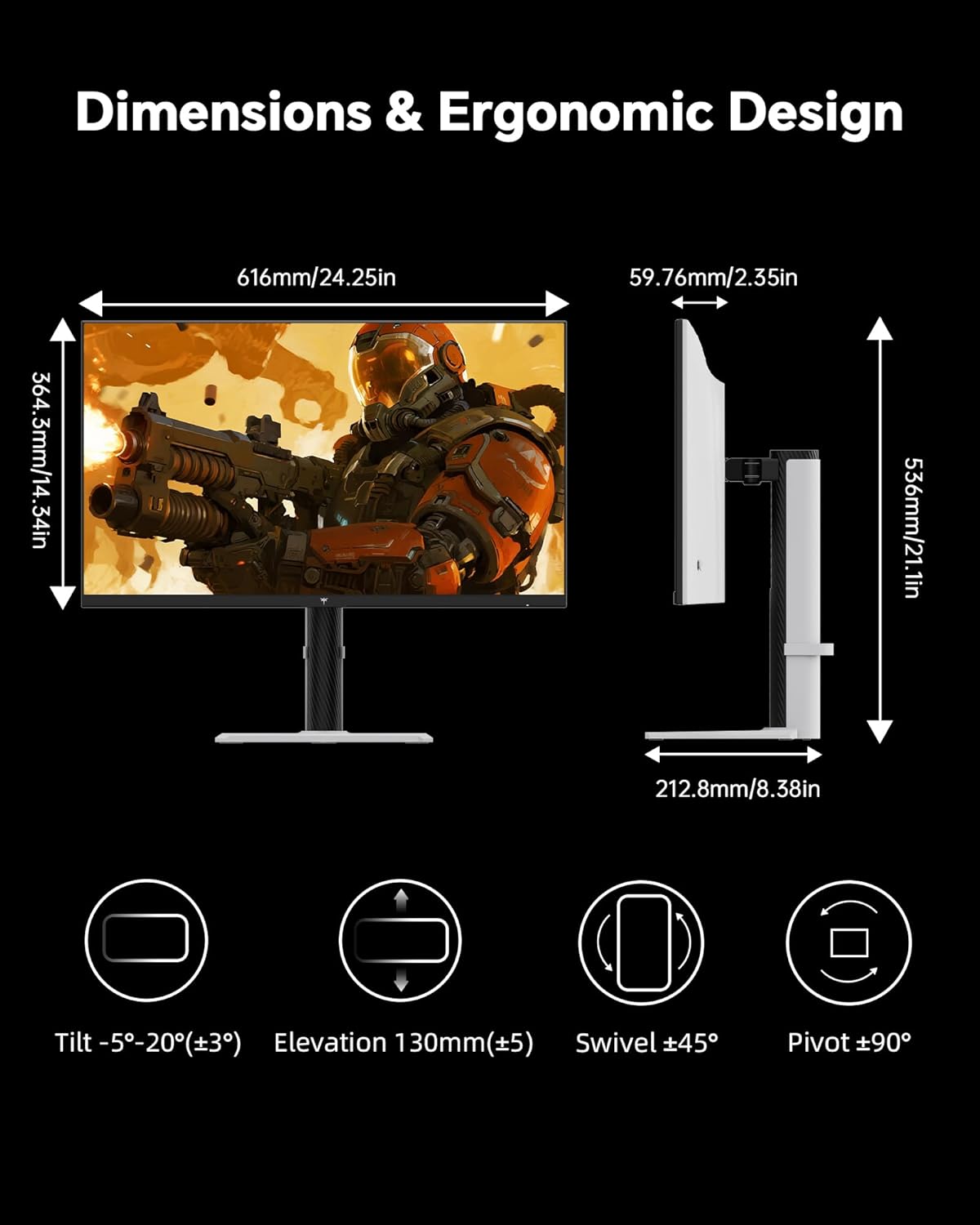
Image 3.1: Visual guide for ergonomic adjustments and VESA mount compatibility.
3.2 Connecting to a Device
The KTC H27T6 monitor offers multiple connectivity options:
- DisplayPort (DP 1.4): Connect the included DP cable from your computer's graphics card to one of the DP ports on the monitor. Supports up to 2560x1440 resolution at 200Hz (210Hz OC).
- HDMI (HDMI 2.0): Connect an HDMI cable from your device to one of the HDMI ports on the monitor. Supports up to 2560x1440 resolution at 144Hz.
- Earphone Jack: Connect headphones or external speakers to this port for audio output.
- USB 2.0: This port is for firmware updates only and does not support data transfer.

Image 3.2: Overview of the monitor's input and output ports.
3.3 Power Connection
- Connect the power adaptor to the monitor's power input.
- Connect the power cord to the adaptor, then plug the power cord into a wall outlet.
- Press the power button on the monitor to turn it on.
4. Operating Instructions
4.1 On-Screen Display (OSD) Menu
The OSD menu allows you to adjust various monitor settings. Use the joystick/buttons located on the back or bottom of the monitor to navigate and select options.
Common OSD Settings:
- Picture Settings: Brightness, Contrast, Sharpness, Gamma, Color Temperature.
- Color Settings: Adjust RGB values, Hue, Saturation.
- Input Select: Manually switch between DisplayPort and HDMI inputs.
- Audio: Volume control for built-in speakers or earphone output.
- Gaming Features: Overdrive, Adaptive Sync, MPRT, Crosshair.
- OSD Settings: Language, OSD Timeout, Transparency.
4.2 Ergonomic Adjustments
Adjust the monitor to your preferred viewing position:
- Tilt: Adjust the screen angle from -5° to 20° forward or backward.
- Swivel: Rotate the screen horizontally up to ±45°.
- Pivot: Rotate the screen vertically up to ±90° for portrait mode.
- Height Adjustment: Raise or lower the screen by up to 130mm.
4.3 Adaptive Sync Technology
The monitor supports Adaptive Sync technology to synchronize the display's refresh rate with your graphics card's frame rate, reducing screen tearing and stuttering for smoother gameplay. Ensure Adaptive Sync is enabled in both the monitor's OSD menu and your graphics card's control panel.

Image 4.1: Visual demonstration of Adaptive Sync technology in action.
4.4 HDR (High Dynamic Range)
The monitor supports HDR 400, providing enhanced contrast and color accuracy in compatible content. To enable HDR, activate it in your operating system's display settings and ensure your content source supports HDR.
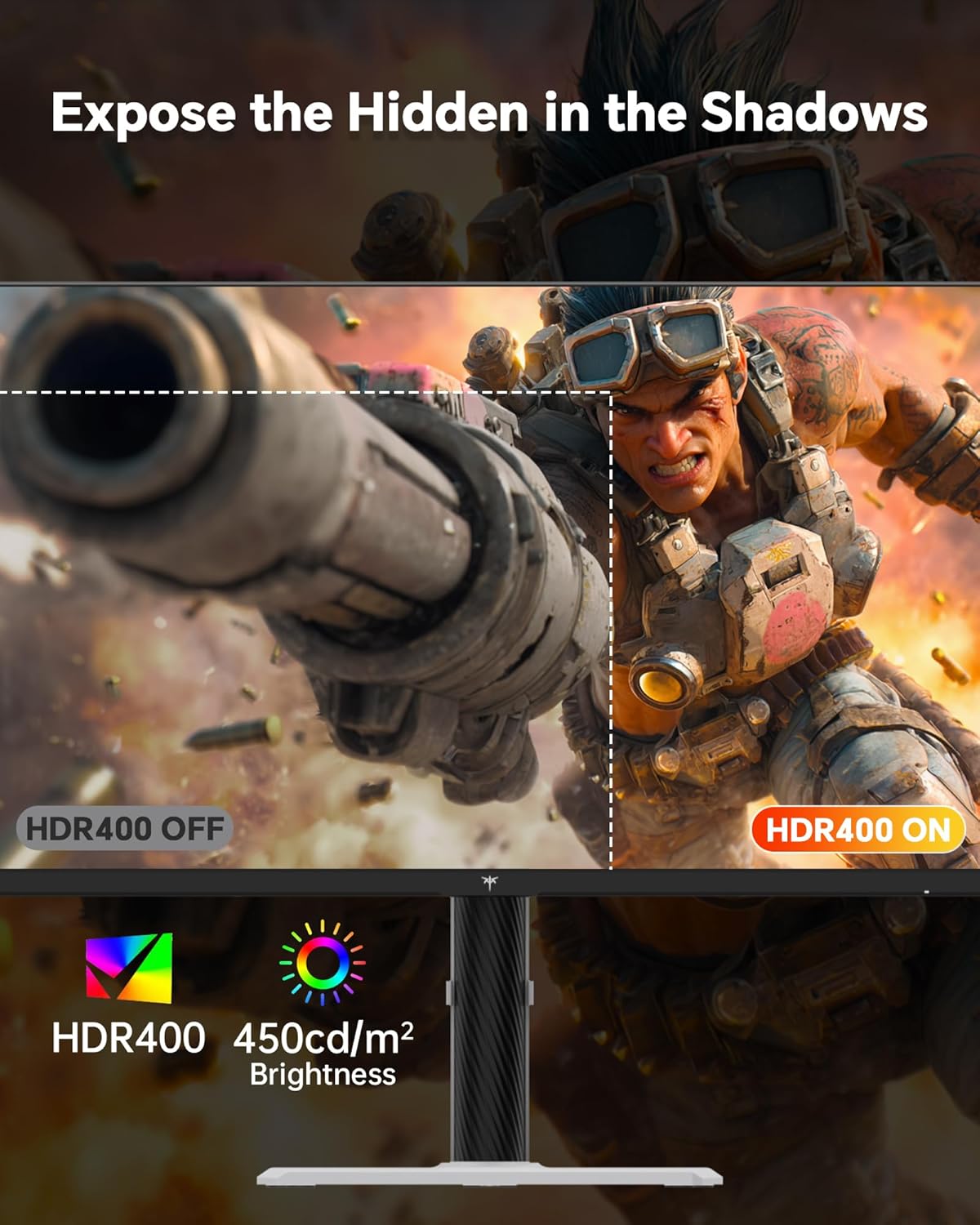
Image 4.2: Illustrates the visual difference with HDR400 enabled, showing improved detail.
5. Maintenance
5.1 Cleaning the Monitor
To clean the monitor screen, gently wipe it with a soft, lint-free cloth. For stubborn marks, lightly dampen the cloth with water or a mild, non-abrasive screen cleaner. Avoid using harsh chemicals, alcohol, or abrasive materials, as these can damage the screen surface.
For the monitor casing, use a soft, dry cloth. Ensure the monitor is powered off and unplugged before cleaning.
6. Troubleshooting
If you encounter issues with your monitor, refer to the following common problems and solutions:
| Problem | Possible Solution |
|---|---|
| No image on screen | Ensure power cable is securely connected. Verify video cable (DP/HDMI) is connected to both monitor and computer. Select correct input source via OSD menu. |
| Image is blurry or distorted | Check display resolution settings on your computer. Ensure it is set to 2560x1440. Adjust OSD picture settings like sharpness. |
| No audio from speakers/earphone jack | Check monitor's OSD volume settings. Verify audio output settings on your computer. Ensure earphone/speaker cable is fully inserted. |
| Screen flickering or tearing | Ensure Adaptive Sync is enabled in both monitor OSD and graphics card settings. Update graphics card drivers. |
| Monitor does not turn on | Check power outlet and power connections. Test with a different power cord/outlet if possible. |
For further assistance, please contact KTC customer support.
7. Specifications
| Feature | Detail |
|---|---|
| Model Number | H27T6 |
| Screen Size | 27 Inches |
| Panel Type | Fast IPS |
| Resolution | 2560 x 1440 (QHD) |
| Aspect Ratio | 16:9 |
| Refresh Rate | 200Hz (up to 210Hz Overclock) |
| Response Time | 1ms (MPRT) |
| Brightness | 450 cd/m² |
| Contrast Ratio | 1000:1 (Static) |
| Color Gamut | 131% sRGB |
| Color Support | 1.07 Billion Colors (8-bit + Hi-FRC) |
| HDR Support | HDR 400 |
| Adaptive Sync | Yes |
| Built-in Speakers | Dual 2W |
| Connectivity | 2x DisplayPort 1.4, 2x HDMI 2.0, 1x USB 2.0 (Service Only), 1x Earphone Jack |
| Ergonomics | Tilt (-5°~20°), Swivel (±45°), Pivot (±90°), Height Adjustment (130mm) |
| VESA Mount | 100mm x 100mm |
| Product Dimensions | 4.14 x 19.73 x 24.85 inches (without stand) |
| Item Weight | 13.1 pounds (without stand) |
8. Warranty and Support
8.1 Warranty Information
KTC provides a three-year warranty for this product. This warranty covers manufacturing defects and ensures responsive customer support for any issues encountered during normal use.
8.2 Customer Support
If you have any questions, require technical assistance, or need to claim warranty service, please contact KTC customer support through the official website or your purchase platform. Please have your model number (H27T6) and purchase details ready when contacting support.


