
Roku Select Series 50-Inch 4K UHD Smart TV
Roku Select Series 50-Inch 4K UHD Smart TV
User Manual
Introduction
Welcome to the world of brilliant entertainment with your new Roku Select Series 50-Inch 4K UHD Smart TV. This television is designed to deliver stunning 4K Ultra HD resolution with advanced HDR support, providing deep contrast, rich color accuracy, and an immersive viewing experience for all your favorite movies, shows, and sports.
Equipped with the intuitive Roku OS, your TV offers seamless access to thousands of streaming channels and apps, including Netflix, Prime Video, Disney+, and many more. The included voice remote simplifies navigation and search, making it easier than ever to find content. This energy-efficient smart TV is perfect for any modern home entertainment setup, supporting Dolby Audio for clear, rich sound performance.

Image: The Roku TV highlighting its 4K picture, Bluetooth Headphone Mode, and Dolby Audio capabilities.
What's in the Box
Please ensure all items listed below are present in your package.

Image: A visual representation of the main components included in the Roku TV package, such as the TV, remote, and stands.
- Roku Select Series 50-Inch 4K UHD Smart TV
- Stands and Screws
- Roku Enhanced Voice Remote with Batteries
- Power Cable
- Quick Start Guide
- UAX HDMI 2.0 Cable (Bundle Item)
- 12 Month CPS Protection Plan Information (Bundle Item)
- Streaming Bundle Access (Brain.fm, Daily Burn, Galaxy TV - Bundle Item)
Initial Setup
- Unpack the TV: Carefully remove the TV and all components from the packaging. Place the TV screen-down on a soft, clean surface to avoid scratches.
- Attach the Stands: Align the TV stands with the screw holes on the bottom of the TV. Secure them firmly using the provided screws. If wall-mounting, follow the instructions provided with your wall mount kit (sold separately).
- Connect Power: Plug the power cable into the TV's power input, then plug the other end into a wall outlet.
- Connect Devices: Connect your external devices (cable box, gaming console, Blu-ray player, soundbar) to the TV's HDMI ports using the included UAX HDMI 2.0 Cable or other compatible cables.
- 3× HDMI 2.0 ports
- 1× USB input
- 1× Ethernet port (for wired internet connection)
- 1× Optical Audio output
- 1× RF input (for antenna/cable)
- Insert Remote Batteries: Open the battery compartment on the back of the Roku Voice Remote and insert the included batteries, matching the polarity indicators.
- Initial Power On: Turn on the TV using the power button on the remote or the TV itself. Follow the on-screen instructions to complete the guided setup, including connecting to your Wi-Fi network and activating your Roku account.
Operating Your Roku TV
Smart TV Features
Your Roku TV provides a personalized home screen for easy access to all your entertainment.

Image: The Roku TV home screen, showing recommended content and a selection of popular streaming applications like Netflix, Disney+, and Prime Video.
- Home Screen: Navigate easily between streaming channels, live TV, and connected devices.
- Streaming Channels: Access thousands of free and paid streaming channels. Use the Streaming Store to add new apps.
- Search: Use the search function to find movies, TV shows, actors, and directors across top channels.
- Live TV: Enjoy free live TV channels through the Roku Channel or connected antenna.

Image: A collage of popular streaming services available on Roku TV, including Netflix, Hallmark+, Disney+, Vix, ABC News Live, and AMC+.
Using the Voice Remote
The enhanced voice remote allows for quick and easy control of your TV.

Image: The Roku enhanced voice remote, highlighting its features such as a lost remote finder, customizable shortcuts, and direct access to live TV.
- Voice Control: Press and hold the microphone button and speak commands like "Launch Netflix," "Search for comedies," or "Switch to HDMI 1."
- Customizable Shortcuts: Program shortcut buttons for quick access to your favorite channels or functions.
- Lost Remote Finder: Use the button on the TV to make the remote play a sound, helping you locate it.
Smart Home Integration
Your Roku TV seamlessly integrates with popular smart home ecosystems.

Image: The Roku TV demonstrating compatibility with various smart home platforms, including Roku Smart Home, Apple Home, Amazon Alexa, and Google Home.
- Alexa & Google Home: Control your TV with voice commands through compatible Amazon Alexa or Google Home devices.
- Apple Home: Integrate your Roku TV into your Apple Home ecosystem for unified control.
Care and Maintenance
- Screen Cleaning: Gently wipe the screen with a soft, dry microfiber cloth. For stubborn smudges, lightly dampen the cloth with water or a screen-specific cleaning solution (avoid harsh chemicals). Do not spray liquid directly onto the screen.
- Cabinet Cleaning: Use a soft, dry cloth to clean the TV's cabinet.
- Ventilation: Ensure proper ventilation around the TV. Do not block the ventilation openings on the back or sides of the TV.
- Power Cord: Regularly check the power cord for any damage. If damaged, discontinue use and contact customer support.
- Remote Control: Keep the remote clean and dry. Replace batteries when necessary.
Troubleshooting Common Issues
| Problem | Solution |
|---|---|
| No Power | Ensure the power cable is securely plugged into both the TV and a working wall outlet. Try a different outlet. |
| No Picture/Sound | Check HDMI cable connections. Ensure the correct input source is selected on the TV. Verify external devices are powered on. |
| Remote Not Responding | Replace the batteries in the remote. Ensure there are no obstructions between the remote and the TV. Re-pair the remote if necessary (refer to Quick Start Guide). |
| Cannot Connect to Wi-Fi | Check your Wi-Fi password. Restart your router and modem. Move the TV closer to the router or use a wired Ethernet connection. |
| Apps Not Loading/Buffering | Check your internet connection speed. Restart the TV. Update the app if an update is available. Clear app cache (if option is available in Roku settings). |
Technical Specifications
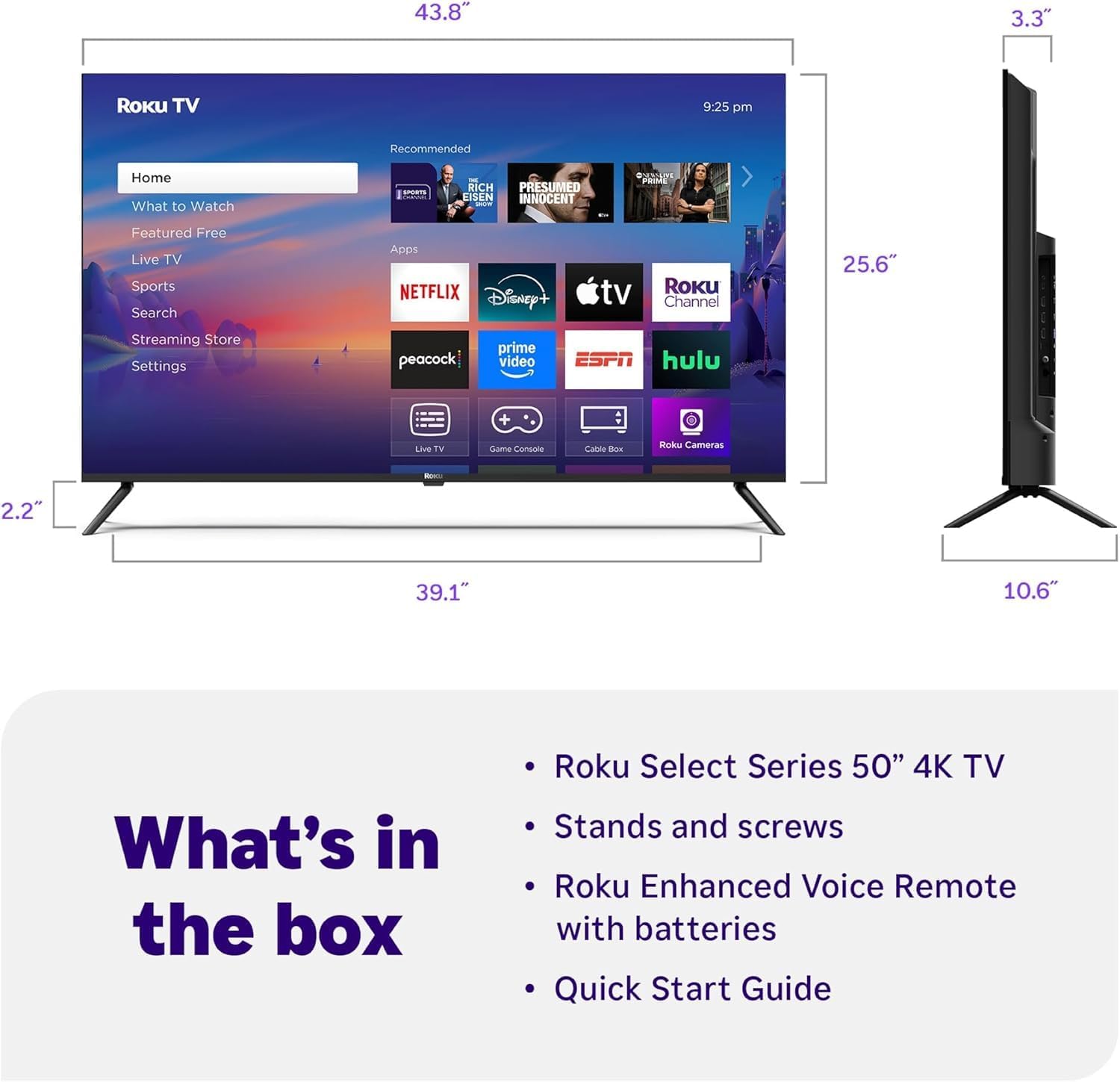
Image: Diagram showing the physical dimensions of the 50-inch Roku TV, including width, height, and depth.
| Feature | Detail |
|---|---|
| Brand | Roku |
| Model | Select Series 50-Inch 4K UHD Smart TV |
| Screen Size | 50 Inches (127 cm diagonal) |
| Display Technology | OLED |
| Resolution | 4K Ultra HD (3840 x 2160) |
| Refresh Rate | 60 Hz |
| HDR Support | Yes |
| Audio Technology | Dolby Audio, Built-In Speaker |
| Connectivity | Wi-Fi, Ethernet, Bluetooth, 3x HDMI 2.0, 1x USB, 1x Optical Audio, 1x RF Input |
| Smart Features | Roku OS, Voice Remote, Compatible with Alexa, Google Home, Apple Home |
| Aspect Ratio | 16:9 |
| Item Weight | 28 Pounds |
| Special Features | Bezel-Less Design |
Warranty and Support
Your Roku Select Series 50-Inch 4K UHD Smart TV comes with a 12-month CPS Protection Plan, providing extended coverage for your peace of mind. Please refer to the documentation included with your protection plan for full terms and conditions.
For technical assistance, troubleshooting, or warranty claims, please contact Roku Customer Support. You can find contact information and additional resources on the official Roku support website: support.roku.com.
For information regarding the bundled CPS Protection Plan, please refer to the contact details provided with your plan documentation.
Related documentsSelect Series 50-Inch 4K UHD Smart TV


Ask a question about this manual
Ask about setup, troubleshooting, compatibility, parts, safety, or missing instructions. Manuals+ will review the question and use this page’s manual context to help answer it.