
1. Overview
The Srhythm NiceComfort 35 (2nd Gen) headphones offer an immersive audio experience with advanced features designed for comfort and superior sound quality. These headphones integrate hybrid active noise cancellation, Bluetooth 6.0 connectivity, and spatial audio technology to deliver clear sound and effective noise reduction.

Image: The Srhythm NiceComfort 35 (2nd Gen) headphones in black, showcasing their sleek design.
2. What's in the Box
Your Srhythm NiceComfort 35 package includes the following items:
- 1 x Gift Box Packing
- 1 x NC35 Headphone
- 1 x Quick Start Guide
- 1 x Quick Start Guide with Srhythm APP information
- 1 x 1m Type-C Charging Cable with Audio Function
- 1 x 1.2m 3.5mm Audio Cable
- 1 x Airplane Adaptor (for airplane use only)

Image: All items included in the Srhythm NiceComfort 35 headphone package, neatly arranged.
3. Setup
3.1. Powering On/Off
- To Power On: Press and hold the Power button located on the right earcup until the indicator light illuminates.
- To Power Off: Press and hold the Power button until the indicator light turns off.
3.2. Bluetooth Pairing
- Ensure the headphones are powered off.
- Press and hold the Power button for approximately 5 seconds until the indicator light flashes blue and red, indicating pairing mode.
- On your device (smartphone, tablet, computer), enable Bluetooth and search for available devices.
- Select "Srhythm NC35" from the list of available devices to connect.
- Once connected, the indicator light will turn solid blue.
3.3. Wired Connection
For a wired connection, use the provided 1.2m 3.5mm audio cable or the 1m Type-C charging cable with audio function. Plug one end into the headphone's audio port and the other into your audio source. The headphones can be used in wired mode even if the battery is depleted or powered off.
3.4. Srhythm App Installation
To unlock full customization features, download the official Srhythm App from your device's app store (App Store for iOS or Google Play Store for Android). Follow the in-app instructions to connect your headphones and access custom EQ settings, ambient sound modes, and more.
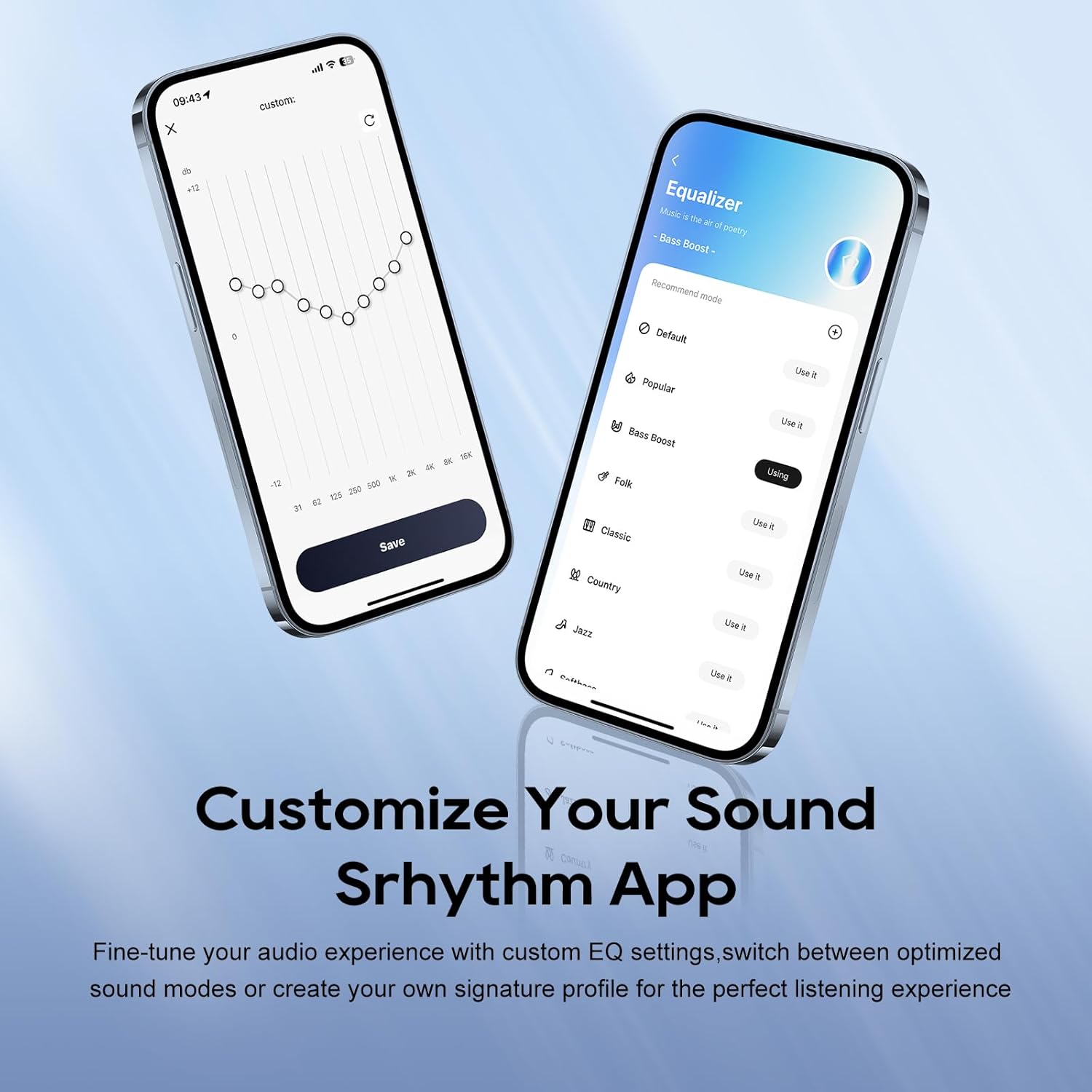
Image: A smartphone screen displaying the Srhythm App interface, highlighting equalizer and ambient sound customization options.
4. Operating the Headphones
4.1. Basic Controls
- Volume Up/Down: Use the dedicated volume buttons on the earcup.
- Play/Pause: Press the multi-function button once.
- Next Track: Double-press the multi-function button.
- Previous Track: Triple-press the multi-function button.
- Answer/End Call: Press the multi-function button once during an incoming call or active call.
- Reject Call: Press and hold the multi-function button for 2 seconds during an incoming call.
4.2. Noise Cancellation and Ambient Sound Modes
The headphones feature Hybrid Active Noise Cancellation (ANC) and Transparency Mode. These modes can be toggled using the dedicated ANC button on the earcup or through the Srhythm App.
- Noise Cancellation (ANC): Blocks up to 98% of ambient noise, ideal for travel or focused work.
- Normal Mode: ANC is inactive.
- Transparency Mode: Allows you to hear your surroundings while listening to audio, enhancing situational awareness.
You can adjust the noise cancellation depth and select specific modes (Commuting, Indoor, Outdoor) via the Srhythm App for optimized performance.

Image: A man wearing the Srhythm NiceComfort 35 headphones, illustrating the 98% noise cancellation feature in a busy environment.
4.3. AI-Powered Call Clarity
Equipped with 5 advanced microphones and Environmental Noise Cancellation (ENC), the headphones ensure your voice is clear during calls, even in noisy environments. This technology reduces background distractions for flawless communication.

Image: A man smiling while using the Srhythm NiceComfort 35 headphones with a smartphone, highlighting the AI-Powered Call Clarity feature.
4.4. Spatial Audio
Experience immersive sound with 4-speaker spatial audio technology. This feature delivers precision-tuned sound with distinct highs, deep bass, and stunning clarity across an ultra-wide 40kHz frequency range, creating a 3D audio experience for music, movies, and games.

Image: An exploded view diagram illustrating the 4-speaker spatial audio technology inside the Srhythm NiceComfort 35 headphones.
4.5. Custom EQ via App
The Srhythm App allows you to fine-tune your audio experience with custom Equalizer (EQ) settings. You can switch between optimized sound modes (e.g., Bass Boost, Folk, Classic, Country, Jazz, Softbass, Softpitch) or create your own signature profile for personalized listening.
5. Maintenance
5.1. Cleaning
- Use a soft, dry cloth to clean the exterior surfaces of the headphones.
- For earcups, gently wipe with a slightly damp cloth and mild soap if necessary, then dry thoroughly. Avoid excessive moisture.
- Do not use harsh chemicals, cleaning solvents, or strong detergents.
5.2. Storage
- Store the headphones in a cool, dry place away from direct sunlight and extreme temperatures.
- The headphones feature a space-saving foldable design, allowing them to be folded for compact storage and transport.
- Avoid placing heavy objects on top of the headphones.
5.3. Battery Care
- Charge the headphones regularly, even if not in frequent use, to maintain battery health.
- Avoid fully depleting the battery frequently.
6. Troubleshooting
- No Power: Ensure the headphones are fully charged. Connect the Type-C charging cable and allow sufficient time for charging.
- Cannot Pair via Bluetooth: Ensure the headphones are in pairing mode (flashing blue and red light). Turn off and on your device's Bluetooth, then try re-pairing. Make sure the headphones are not connected to another device.
- No Sound: Check the volume levels on both the headphones and your connected device. Ensure the headphones are properly paired or the audio cable is securely connected.
- Poor Sound Quality: Ensure the audio source is of good quality. If using Bluetooth, try moving closer to your device to avoid interference. Adjust EQ settings via the Srhythm App.
- Noise Cancellation Not Effective: Ensure the earcups form a tight seal around your ears. Adjust ANC settings via the Srhythm App.
- Finding Lost Headphones: Use the "Find It" feature within the Srhythm App, which can play a loud sound to help locate your headphones if they are within Bluetooth range.
7. Specifications
| Model Name | NC35 |
| Noise Control | Hybrid Noise Cancellation |
| Frequency Response | 40 KHz |
| Sensitivity | 97 dB |
| Headphones Jack | 3.5 mm Jack |
| Connectivity Technology | Wired, Wireless |
| Wireless Communication Technology | Bluetooth |
| Bluetooth Version | 6.0 |
| Bluetooth Range | 10 Meters |
| Battery Life | 140 Hours (ANC OFF, 40% Volume), 70 Hours (ANC ON, 40% Volume) |
| Charging Time | 2.5 Hours |
| Audio Driver Type | Dynamic Driver |
| Audio Driver Size | 40 Millimeters |
| Item Weight | 276 Grams (9.7 ounces) |
| Product Dimensions | 5.91 x 3.94 x 2.36 inches |
| Material | Acrylonitrile Butadiene Styrene (ABS), Faux Leather, Metal, Polycarbonate (PC) |
| Special Features | Adjustable Headband, Built-In Voice Assistant, Foldable, Microphone Included, Noise Cancellation |

Image: A woman running outdoors wearing the Srhythm NiceComfort 35 headphones, illustrating the long battery life.
8. Warranty & Support
Each Srhythm product comes with an 18-month aftersales warranty. For any inquiries or assistance, our 7*24-hour online service is available to provide support and address any concerns you may have.
For further assistance, please refer to the contact information provided in your Quick Start Guide or visit the official Srhythm website.


