Introduction
This manual provides detailed instructions for the Redragon K521KS Tri-Mode Wireless Gaming Keyboard. It covers setup, operation, maintenance, and troubleshooting to ensure optimal performance and user experience. The K521KS keyboard offers versatile connectivity options, customizable RGB backlighting, and features designed for gaming and productivity.
Setup Guide
1. Initial Charging
Before first use, fully charge the keyboard using the provided USB-C cable. Connect the USB-C end to the keyboard and the USB-A end to a power source (e.g., computer USB port, USB wall adapter). The charging indicator will show the charging status.
2. Connection Modes
The Redragon K521KS supports three connection modes: USB-C Wired, 2.4GHz Wireless, and Bluetooth Wireless.
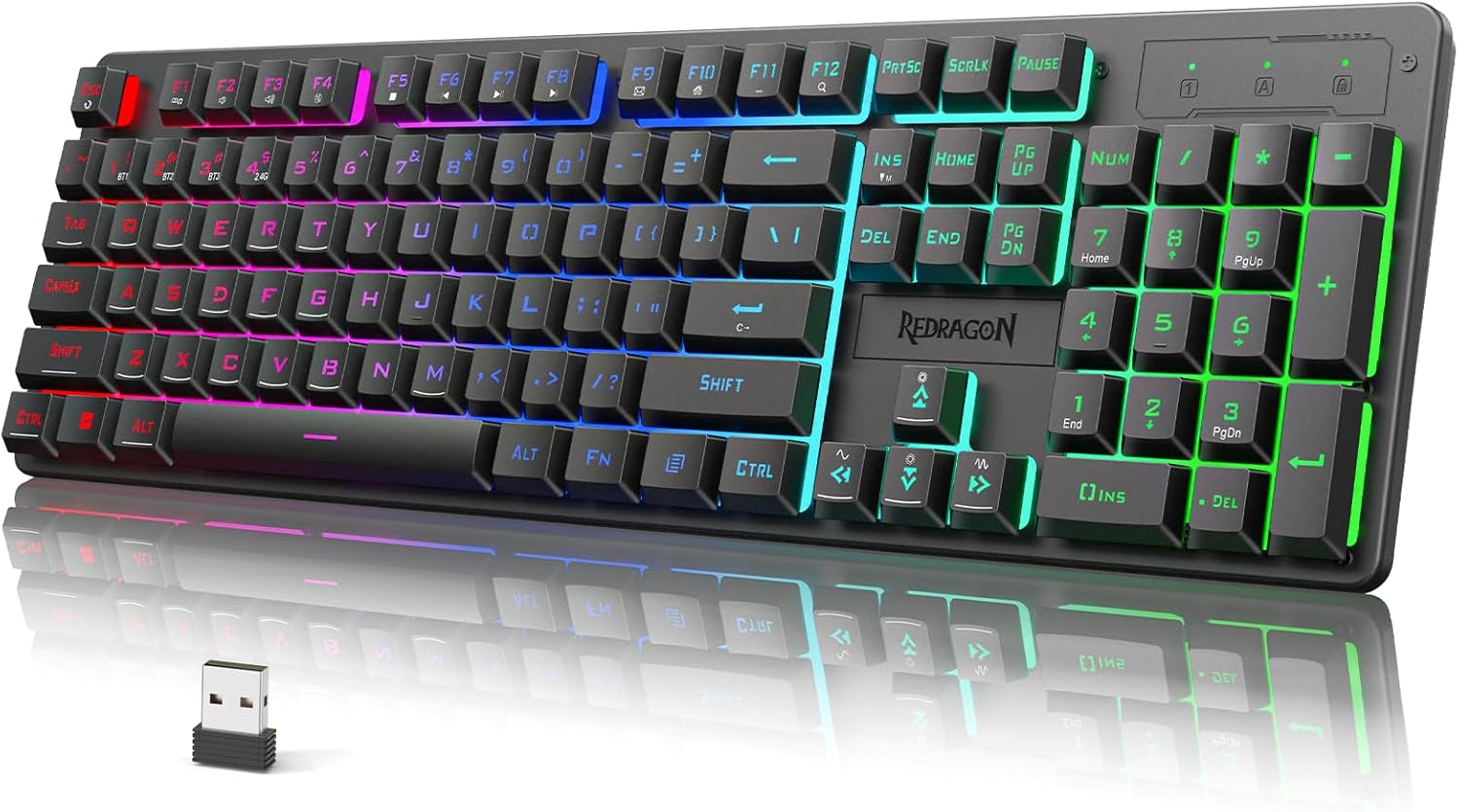
Image: Overview of the Redragon K521KS keyboard highlighting its three connection modes: USB-C, 2.4GHz wireless with a dongle, and Bluetooth.
USB-C Wired Connection:
Connect the keyboard directly to your computer using the USB-C cable. The keyboard will be recognized automatically and is ready for use. This mode also charges the keyboard.
2.4GHz Wireless Connection:
- Locate the 2.4GHz USB dongle, usually stored in a compartment on the keyboard.
- Plug the USB dongle into an available USB port on your computer.
- Turn on the keyboard and select the 2.4GHz mode (refer to the keyboard's mode switch or indicator). The keyboard should connect automatically.
Bluetooth Wireless Connection:
The K521KS supports connecting up to five Bluetooth devices simultaneously.
- Ensure the keyboard is in Bluetooth pairing mode (refer to the keyboard's specific key combination for Bluetooth pairing, often FN + BT1/BT2/BT3).
- On your device (PC, tablet, etc.), enable Bluetooth and search for new devices.
- Select "Redragon K521KS" or a similar name from the list of available devices to pair.
- To switch between paired Bluetooth devices, use the designated FN key combinations (e.g., FN+BT1, FN+BT2, FN+BT3).
Operating Instructions
1. RGB Backlighting Control
The keyboard features multiple RGB backlighting modes and customization options.

Image: The Redragon K521KS keyboard showcasing its RGB backlighting with various colors.
- Adjust RGB Backlight Mode: Press FN + INS to cycle through 8 different RGB backlighting modes and 7 monochrome colors.
- Adjust Backlight Brightness: Press FN + Up Arrow to increase brightness, FN + Down Arrow to decrease brightness.
- Adjust Backlight Speed: Press FN + Left Arrow to decrease animation speed, FN + Right Arrow to increase animation speed.
- Turn Lights On/Off: Use the dedicated light control key or a specific FN combination if available.
2. Multimedia Combination Keys
The K521KS keyboard includes 12 multimedia keys accessible via the FN key for enhanced control over media and system functions.

Image: Diagram illustrating the FN key combinations for multimedia controls on the Redragon K521KS keyboard.
| Key Combination | Function |
|---|---|
| FN + F1 | Media Player |
| FN + F2 | Volume - |
| FN + F3 | Volume + |
| FN + F4 | Mute |
| FN + F5 | Stop |
| FN + F6 | Previous Track |
| FN + F7 | Play/Pause |
| FN + F8 | Next Track |
| FN + F9 | |
| FN + F10 | Home Page |
| FN + F11 | Lock Keyboard |
| FN + F12 | Calculator |
3. Programmable Software
The Redragon K521KS keyboard supports programmable software for advanced customization of RGB lighting, key functions, and macros. This allows users to personalize their keyboard settings.
- Software Download: The official software can be downloaded from the Redragon website: redragon.com.
- Customization Options: Use the software to:
- Edit RGB lighting effects and colors.
- Remap key functions.
- Create and assign macros.
4. Anti-Ghosting and Win Lock
The keyboard features 25-key anti-ghosting to ensure that multiple key presses are registered accurately, which is crucial for gaming. It also includes a Windows key lock function.

Image: The Redragon K521KS keyboard illustrating the 25-key anti-ghosting feature and the FN+WIN key combination to lock the Windows key.
- Anti-Ghosting: The 25-key anti-ghosting ensures that simultaneous key presses are registered correctly, preventing input conflicts during intense gaming sessions.
- Windows Key Lock: Press FN + WIN to lock or unlock the Windows key. Locking the Windows key prevents accidental presses that could interrupt gameplay.
5. Ergonomic Design
The Redragon K521KS keyboard is designed with user comfort in mind, featuring a foldable stand to adjust the typing angle.

Image: The side view of the Redragon K521KS keyboard with its foldable stand extended, illustrating the ergonomic design.
- Foldable Stand: Utilize the integrated foldable stand at the rear of the keyboard to elevate the typing angle, reducing wrist strain during prolonged use.
Battery Information
The Redragon K521KS keyboard is equipped with a built-in 4000mAh high-capacity rechargeable battery, providing extended usage time in wireless modes.

Image: Visual representation of the keyboard's 4000mAh battery capacity.
- Battery Capacity: 4000mAh.
- Charging: Charge the keyboard using the supplied USB-C cable. Connect to a powered USB port.
- Battery Indicator: The keyboard features an indicator light to show battery status and charging progress. Refer to the specific indicator behavior in the quick start guide for details.
- Power Saving: To conserve battery life, the keyboard may enter a sleep mode after a period of inactivity. Press any key to wake it up.
Maintenance
Proper maintenance ensures the longevity and performance of your Redragon K521KS keyboard.
- Cleaning: Use a soft, dry cloth to wipe the surface of the keyboard. For deeper cleaning, you may use a slightly damp cloth with mild soap, ensuring no liquid enters the keyboard.
- Keycap Cleaning: Keycaps can be carefully removed for thorough cleaning. Use a keycap puller (if provided) or gently pry them off. Clean keycaps with water and mild soap, then ensure they are completely dry before reattaching.
- Dust Removal: Use compressed air to remove dust and debris from between the keys.
- Storage: When not in use for extended periods, store the keyboard in a dry, cool place away from direct sunlight and extreme temperatures.
Troubleshooting
If you encounter issues with your Redragon K521KS keyboard, refer to the following common solutions:
- Keyboard Not Responding (Wired Mode):
- Ensure the USB-C cable is securely connected to both the keyboard and the computer.
- Try connecting to a different USB port on your computer.
- Test the keyboard on another computer to rule out system-specific issues.
- Keyboard Not Responding (2.4GHz Wireless Mode):
- Ensure the 2.4GHz USB dongle is properly inserted into a USB port.
- Verify the keyboard is switched to 2.4GHz mode.
- Check the keyboard's battery level and charge if necessary.
- Try re-pairing the keyboard with the dongle (refer to the quick start guide for specific re-pairing instructions).
- Keyboard Not Responding (Bluetooth Mode):
- Ensure Bluetooth is enabled on your device and the keyboard is in Bluetooth mode.
- Check the keyboard's battery level.
- Try unpairing and re-pairing the keyboard with your device.
- Ensure you are selecting the correct Bluetooth channel (BT1, BT2, BT3) on the keyboard.
- RGB Backlighting Not Working or Incorrect:
- Ensure the backlight is turned on (check FN key combinations).
- Cycle through different RGB modes using FN + INS.
- Adjust brightness using FN + Up/Down Arrow.
- If using programmable software, ensure settings are correctly applied and saved.
- Note: Some users report that lighting settings may reset after power cycling the computer. This is a known characteristic for some models without persistent memory for lighting settings.
- Keys Not Registering or Double-Typing:
- Clean under the affected keycaps to remove any debris.
- Ensure the keyboard firmware is up to date (check Redragon website).
Specifications
| Feature | Detail |
|---|---|
| Model Number | K521KS |
| Connectivity Technology | USB-C, 2.4GHz Wireless, Bluetooth |
| Keyboard Description | Gaming Keyboard |
| Switch Type | Mechanical Feeling |
| Battery Capacity | 4000mAh (1 Nonstandard Battery included) |
| Special Features | RGB Backlit, Anti-Ghosting (25 Keys), Multimedia Keys, Programmable Software |
| Compatible Devices | PC |
| Color | Black |
| Material | Plastic |
| Item Weight | 1.83 pounds |
| Package Dimensions | 17.87 x 6.42 x 1.65 inches |
| Manufacturer | Redragon |
Warranty and Support
Redragon products are designed for reliability and performance. For warranty information, technical support, or service inquiries, please visit the official Redragon website or contact their customer support directly.
- Official Website: www.redragon.com
- Customer Support: Refer to the "Support" or "Contact Us" section on the official website for contact details.