
1. Introduction
This manual provides detailed instructions for the DGTenk Android MP3 Player, model MA377. It covers device setup, operational procedures, maintenance guidelines, and troubleshooting tips to ensure optimal performance and user experience. This device features a 4-inch touch screen, 160GB storage (32GB ROM + 128GB card), Wi-Fi, Bluetooth 5.0, and parental control functionalities, running on Android 11 OS.
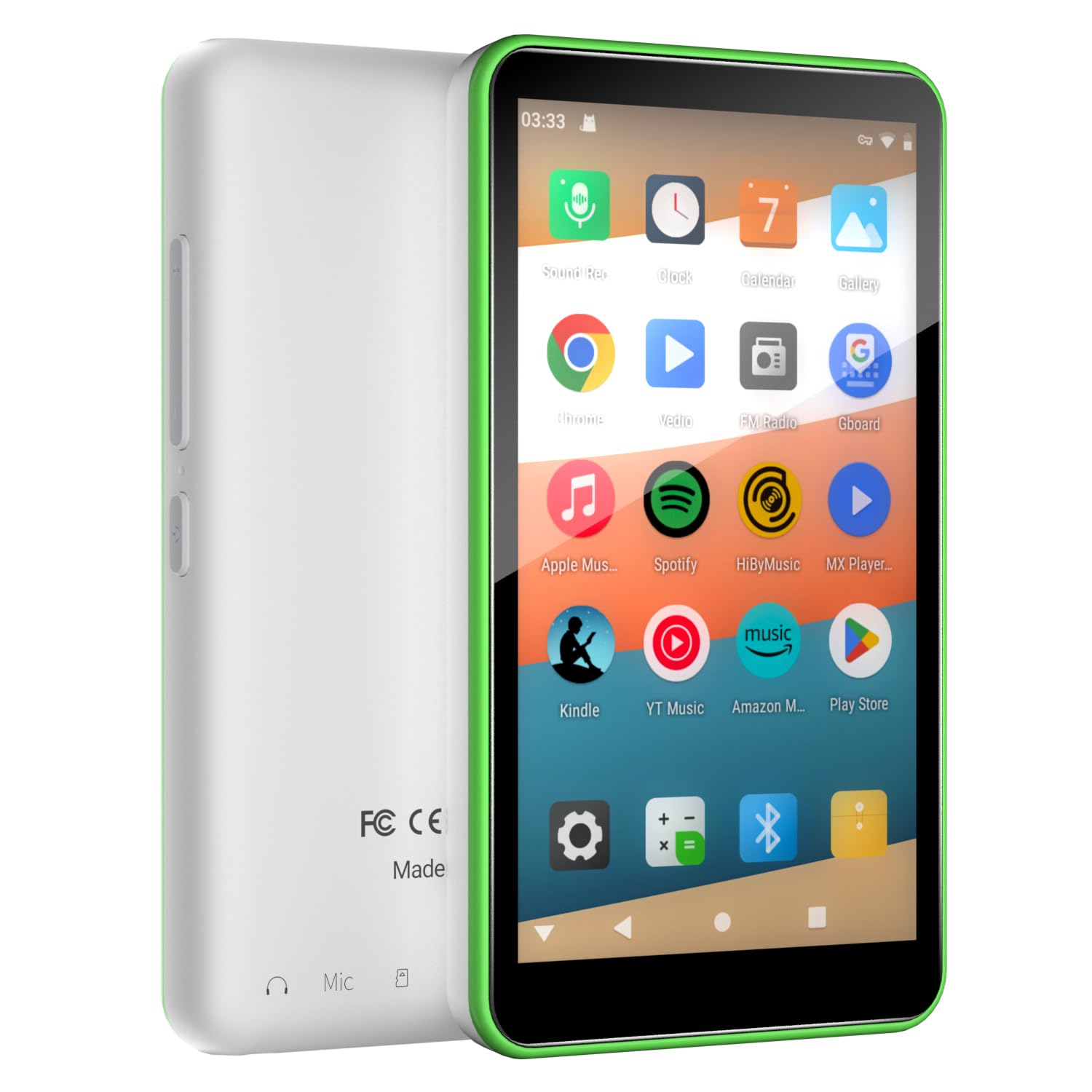
Image 1.1: Front view of the DGTenk Android MP3 Player MA377.
2. What's in the Box
Verify that all items are present in the package before proceeding with setup.
- DGTenk Android MP3 Player (MA377)
- Protective Case
- USB Cable (for charging and data transfer)
- Protective Film

Image 2.1: Package contents including the MP3 player, protective case, USB cable, and protective film.
3. Setup Guide
3.1 Charging the Device
Before initial use, fully charge the MP3 player. Connect the provided USB cable to the device's USB-C port and the other end to a compatible USB power adapter (not included) or a computer's USB port. The device features a 2000mAh battery, providing approximately 10 hours of audio playback or 5 hours of video playback. A full charge typically takes about 60 minutes.
3.2 Powering On/Off
- To Power On: Press and hold the power button located on the side of the device until the screen illuminates.
- To Power Off: Press and hold the power button, then select 'Power Off' from the on-screen options.
3.3 Initial Setup and Wi-Fi Connection
Upon first power-on, follow the on-screen prompts to complete the initial Android setup. This includes selecting your language, region, and connecting to a Wi-Fi network.
- From the home screen, tap the 'Settings' icon.
- Select 'Network & Internet'.
- Toggle Wi-Fi 'On'.
- Select your desired Wi-Fi network from the list.
- Enter the network password if prompted, then tap 'Connect'.
3.4 Google Account and Parental Controls
The device is Google Mobile Services (GMS) certified, allowing access to the Google Play Store and Family Link parental controls. It is recommended to set up a Google account and configure parental controls for safe usage.
- Go to 'Settings' > 'Accounts'.
- Add your Google account or create a new one.
- To set up parental controls, navigate to 'Settings' > 'Digital Wellbeing & Parental Controls' or use the Google Family Link app on a parent's device.
- Configure app blocking, screen time limits, and content filtering as needed.

Image 3.1: Screenshot showing Google Mobile Services certification and parental control settings menu.
4. Operating Instructions
4.1 Navigating the Interface
The device features a 4-inch HD touchscreen. Swipe left/right to navigate between home screens, swipe down from the top for notifications and quick settings, and use the on-screen navigation buttons (Back, Home, Recent Apps) at the bottom.
4.2 Music and Video Playback
The device supports various audio and video formats and comes with pre-installed apps like Spotify and YouTube Music. You can also download other media players from the Google Play Store.
- Streaming: Open pre-installed apps like Spotify or YouTube Music, or download others like Netflix, and log in to stream content over Wi-Fi.
- Offline Playback: Transfer music and videos to the device's 160GB internal storage (32GB ROM + 128GB card) via USB or download content within streaming apps for offline access.

Image 4.1: Display of pre-installed applications including Spotify, YouTube, and Google Play Store.
4.3 Bluetooth Connectivity
Connect Bluetooth headphones, speakers, or other compatible devices using Bluetooth 5.0.
- Go to 'Settings' > 'Connected devices' > 'Bluetooth'.
- Toggle Bluetooth 'On'.
- Ensure your Bluetooth accessory is in pairing mode.
- Select the accessory from the list of available devices to pair.
4.4 Downloading Apps from Google Play Store
Access millions of apps, games, music, and books through the Google Play Store.
- Tap the 'Play Store' icon on the home screen.
- Search for the desired app.
- Tap 'Install' to download and install the app.
5. Maintenance
5.1 Cleaning the Device
Use a soft, lint-free cloth to clean the screen and body of the MP3 player. Avoid using abrasive cleaners or solvents, which can damage the device's finish or screen coating.
5.2 Battery Care
- Avoid exposing the device to extreme temperatures.
- Do not allow the battery to fully discharge for extended periods.
- Use only the provided USB cable for charging.
5.3 Software Updates
Periodically check for software updates to ensure optimal performance and security. Go to 'Settings' > 'System' > 'System update'.
6. Troubleshooting
| Problem | Possible Cause | Solution |
|---|---|---|
| Device does not power on | Low battery; software glitch | Charge the device for at least 30 minutes. If still unresponsive, perform a force restart by holding the power button for 10-15 seconds. |
| Cannot connect to Wi-Fi | Incorrect password; router issue; Wi-Fi disabled | Verify Wi-Fi password. Restart your Wi-Fi router. Ensure Wi-Fi is enabled in device settings. |
| Apps crashing or freezing | Insufficient memory; app conflict; outdated app | Close background apps. Clear app cache/data (Settings > Apps). Update the app or the device software. |
| Bluetooth device not pairing | Device not in pairing mode; interference | Ensure Bluetooth accessory is in pairing mode. Move closer to the accessory. Toggle Bluetooth off and on on the MP3 player. |
| Slow performance | Too many apps running; low storage | Close unused apps. Clear cache. Delete unnecessary files or apps to free up storage. |
7. Specifications

Image 7.1: Visual representation of the internal hardware, highlighting CPU, RAM, and ROM.
| Feature | Detail |
|---|---|
| Model Number | MA377 |
| Operating System | Android 11 |
| Processor | MTK 8-core 2.0GHz CPU |
| RAM | 3GB LPDDR4 |
| Internal Storage (ROM) | 32GB |
| Expandable Storage | 128GB Micro SD card included (Total 160GB) |
| Screen Size | 4-inch HD Touchscreen |
| Connectivity | Wi-Fi (802.11), Bluetooth 5.0 |
| Battery Capacity | 2000mAh |
| Battery Life (Audio) | Up to 10 hours |
| Battery Life (Video) | Up to 5 hours |
| Charging Port | USB-C |
| Dimensions | 4.17 x 2.32 x 0.42 inches (112.8 x 62.5 x 11 mm) |
| Weight | 8 ounces (approximately 119g) |
| Special Features | Built-In Speaker, Parental Control, Google Play Store Access |

Image 7.2: Product dimensions in millimeters and inches.
8. Warranty Information
Specific warranty details for the DGTenk Android MP3 Player MA377 are not provided in the product information. Please refer to the warranty card included with your purchase or contact DGTenk customer support for detailed warranty terms and conditions.
9. Customer Support
For technical assistance, troubleshooting beyond this manual, or inquiries regarding your DGTenk Android MP3 Player MA377, please contact DGTenk customer support. Contact information can typically be found on the product packaging, the official DGTenk website, or through your retailer's support channels.
