
1. Introduction
Thank you for choosing the CHUBORY A77 Drone. This manual provides essential information for the safe operation, setup, and maintenance of your drone. Please read it thoroughly before your first flight to ensure proper usage and to maximize your flying experience.
2. Safety Guidelines
- Pre-Flight Check: Always inspect the drone, propellers, and batteries for any damage before each flight.
- Environmental Conditions: Fly in open areas, away from people, animals, buildings, and power lines. Avoid flying in strong winds (as the drone is sensitive to wind), rain, or snow.
- Battery Safety: Use only original CHUBORY batteries. Do not overcharge or puncture batteries. Discontinue use if batteries are damaged or swollen.
- Respect Privacy: Be mindful of privacy laws when using the camera function.
- Legal Compliance: Understand and comply with local drone regulations, including any registration requirements (note: this drone weighs less than 249g and typically does not require FAA registration in the US).
- Age Recommendation: This product is intended for adults.
3. Package Contents
The CHUBORY A77 Drone package includes the following items:
- CHUBORY A77 Drone
- Remote Controller
- 3 x Flight Batteries
- USB Charging Cable
- Spare Propellers
- Propeller Guards
- Screwdriver
- User Manual
- Portable Carrying Case

Image: The CHUBORY A77 drone, remote controller, three batteries, charging cable, spare propellers, propeller guards, screwdriver, and a carrying case.
4. Component Overview
4.1 Drone
The CHUBORY A77 drone features a foldable design for portability, brushless motors for efficient flight, and an integrated 4K HD camera.
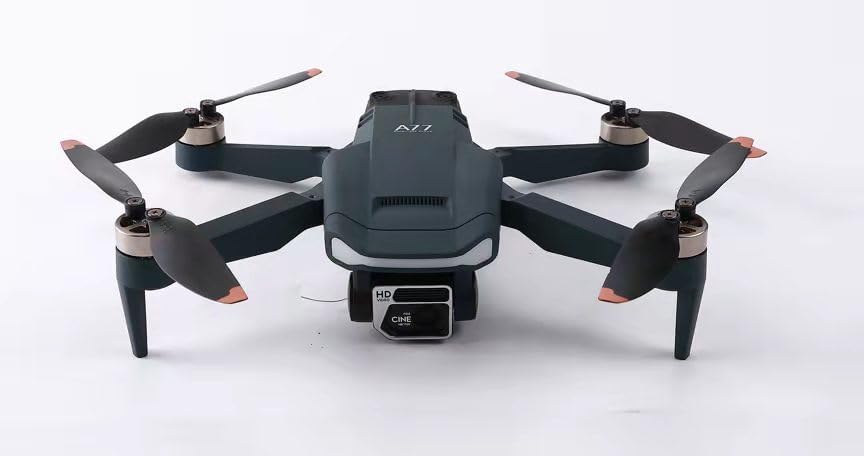
Image: A front view of the CHUBORY A77 drone, unfolded and ready for flight, highlighting its sleek design and front-facing camera.
4.2 Remote Controller
The remote controller provides intuitive controls for flight and camera functions, with a mount for your smartphone to view the FPV feed.

Image: A user holding the remote controller with a smartphone attached, showing the drone's live camera view and control interface.
5. Setup
5.1 Charging Batteries
Fully charge all drone flight batteries and the remote controller battery before first use. Use the provided USB charging cable. The LED indicator on the battery will change when fully charged.
5.2 Installing Flight Batteries
- Ensure the drone is powered off.
- Insert a fully charged flight battery into the battery compartment on the drone until it clicks into place.
5.3 Propeller Installation and Guards
- Attach the propellers according to the markings (A and B) on the propellers and motor arms. Ensure they are securely fastened.
- For added safety, attach the propeller guards to the drone arms.
5.4 App Download and Connection
- Download the official CHUBORY drone app from your smartphone's app store.
- Power on the drone and your remote controller.
- Connect your smartphone to the drone's Wi-Fi network (usually named 'CHUBORY-A77-XXXX').
- Open the app to establish a connection and view the FPV feed.
5.5 Calibration
Before each flight, perform a compass calibration as instructed in the app or remote controller manual to ensure stable flight.
6. Operating Instructions
6.1 Powering On/Off
- Power On: Press and hold the power button on the drone and then on the remote controller until the indicator lights illuminate.
- Power Off: Press and hold the power button on the remote controller and then on the drone until the indicator lights turn off.
6.2 One Key Take-off/Landing
After successful calibration and connection, press the 'One Key Take-off' button on the remote or in the app. The drone will automatically ascend to a safe altitude. Press the 'One Key Landing' button to initiate an automatic descent and landing.
6.3 Basic Flight Controls
- Altitude Hold: The drone maintains a stable altitude, allowing for easier control of horizontal movement.
- Headless Mode: In Headless Mode, the drone's orientation is relative to the pilot, simplifying control regardless of the drone's front direction.
- Speed Adjustment: Use the speed switch on the remote to adjust flight speed (e.g., low, medium, high) to suit your skill level and wind conditions.

Image: A hand holding the CHUBORY A77 drone, emphasizing its compact size and ease of handling for simple operation.
7. Flight Functions
7.1 Optical Flow Positioning
The Optical Flow Positioning system helps the drone maintain its position stably, especially in indoor environments or when GPS signals are weak.
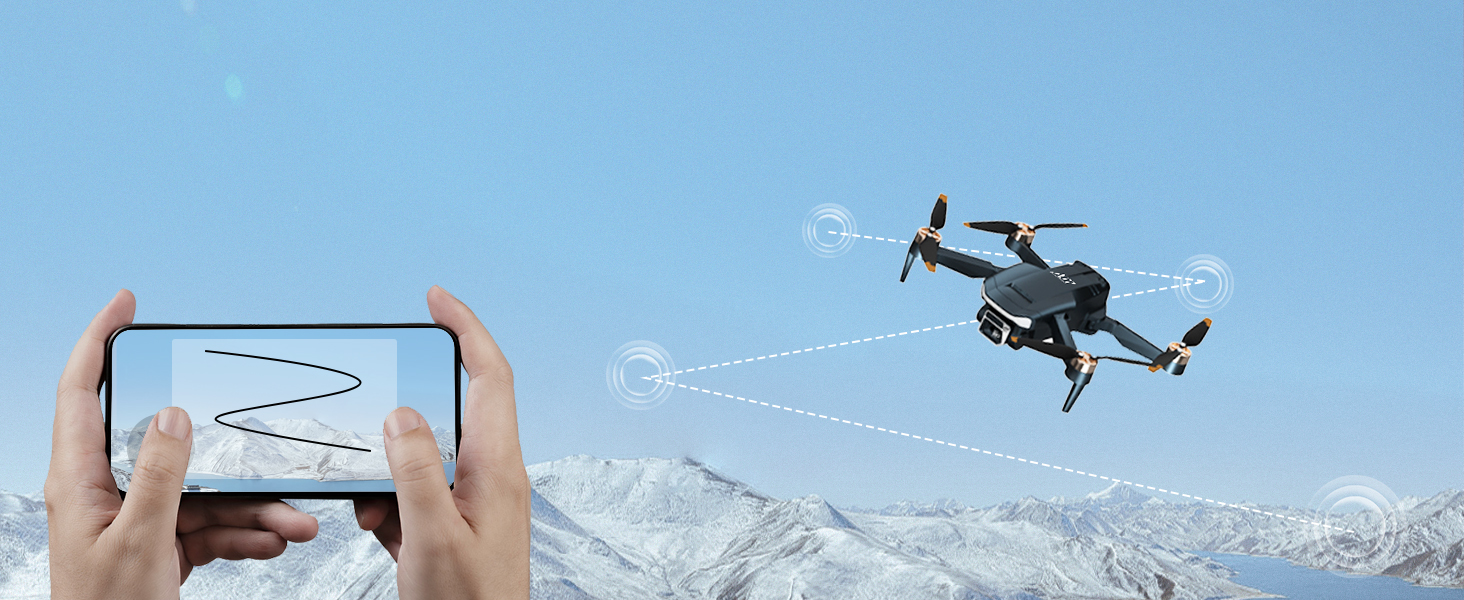
Image: Visual representation of the drone utilizing Optical Flow Positioning to maintain a stable hover and Altitude Hold for consistent height.
7.2 Follow Me Function
Activate the Follow Me mode via the app, and the drone will automatically track your movement, keeping you in the frame for dynamic video recording.

Image: A CHUBORY A77 drone autonomously following a person during a run, showcasing its 'Follow Me' capability.
7.3 3D Flips
Perform impressive aerial acrobatics with the 3D Flip function. Ensure sufficient altitude and clear surroundings before attempting.

Image: A graphic depicting the CHUBORY A77 drone executing a 360-degree flip, highlighting its acrobatic capabilities.
7.4 Trajectory Flight
Draw a flight path on your smartphone screen within the app, and the drone will automatically follow the designated trajectory.
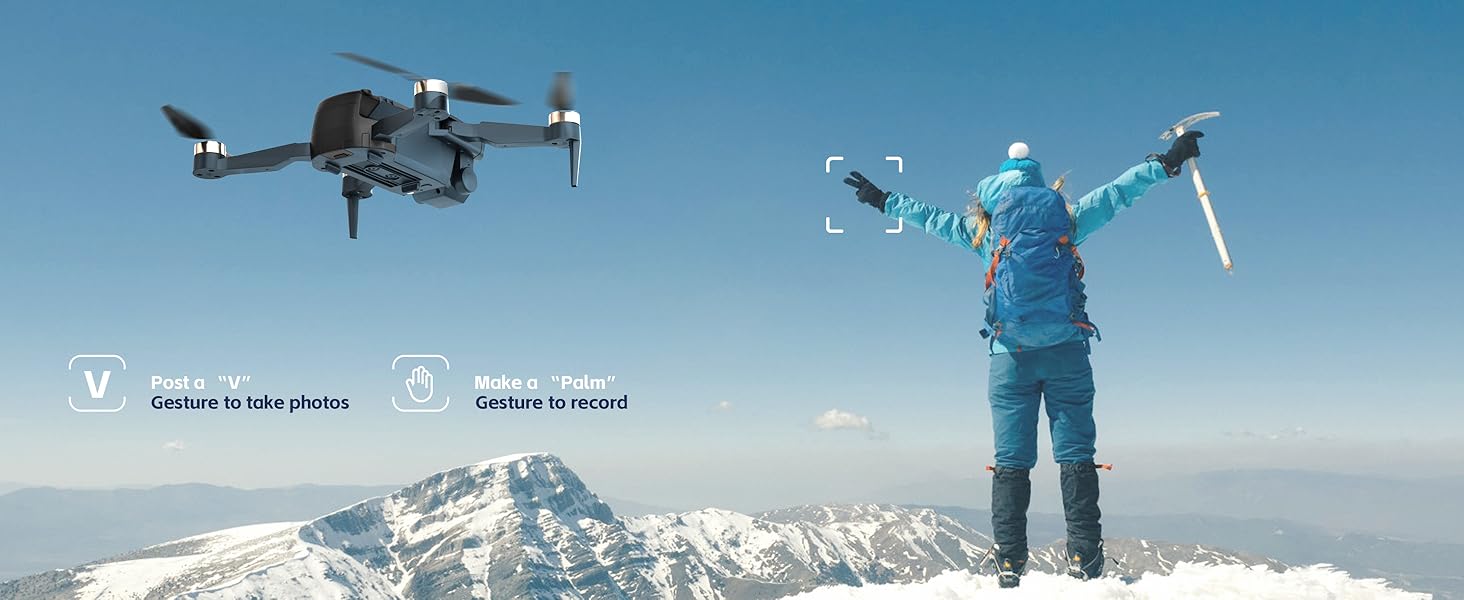
Image: A smartphone displaying a drawn flight trajectory, with the drone flying over mountains, illustrating the Trajectory Flight feature.
7.5 Long-Distance Control
The CHUBORY A77 offers an extended control range of up to 2650 feet, allowing for expansive exploration.
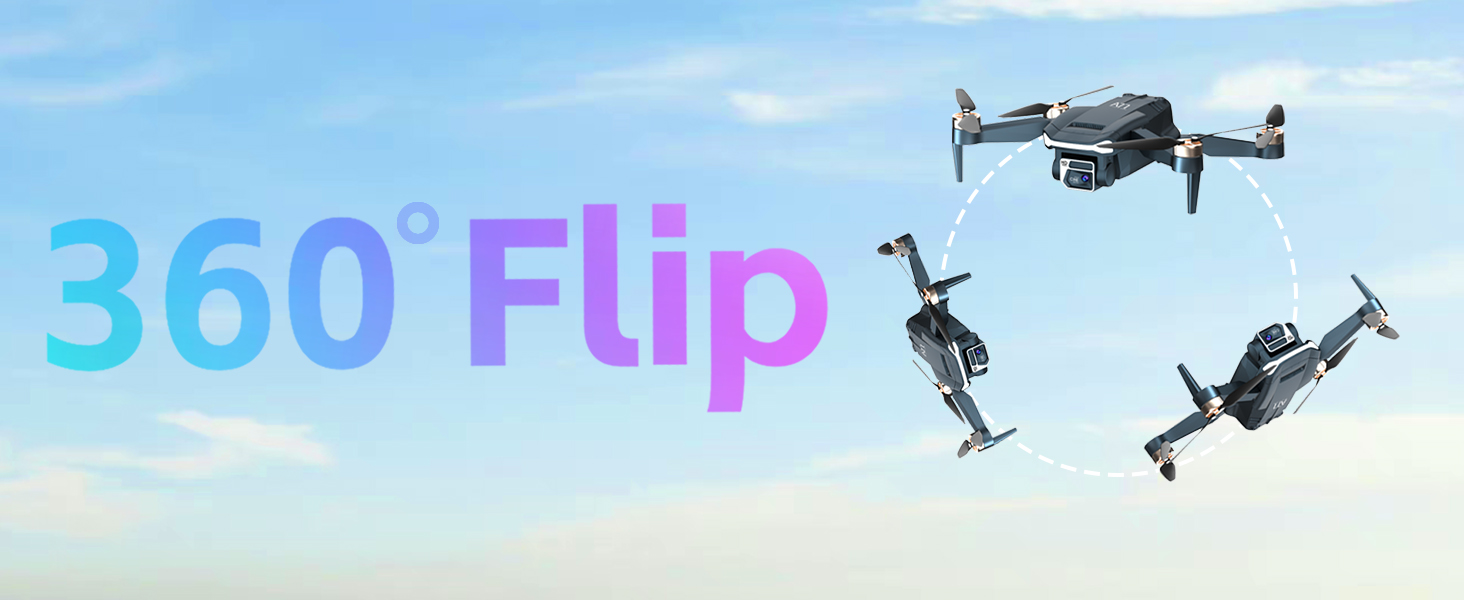
Image: The CHUBORY A77 drone flying high above a lake and mountains, with an overlay indicating its 2650-foot control range.
8. Camera Operation
8.1 4K HD Adjustable Camera
The drone is equipped with a 4K HD camera featuring a 130-degree wide-angle lens. The camera angle can be adjusted up to 90 degrees via the remote control or the app to capture various perspectives.

Image: A detailed view of the CHUBORY A77 drone's 4K camera, illustrating its 90-degree adjustable tilt capability.
8.2 Gesture Selfie
Utilize gesture controls for convenient photo and video capture:
- 'V' Gesture: Make a 'V' sign with your fingers to trigger a photo.
- 'Palm' Gesture: Show an open palm to start or stop video recording.
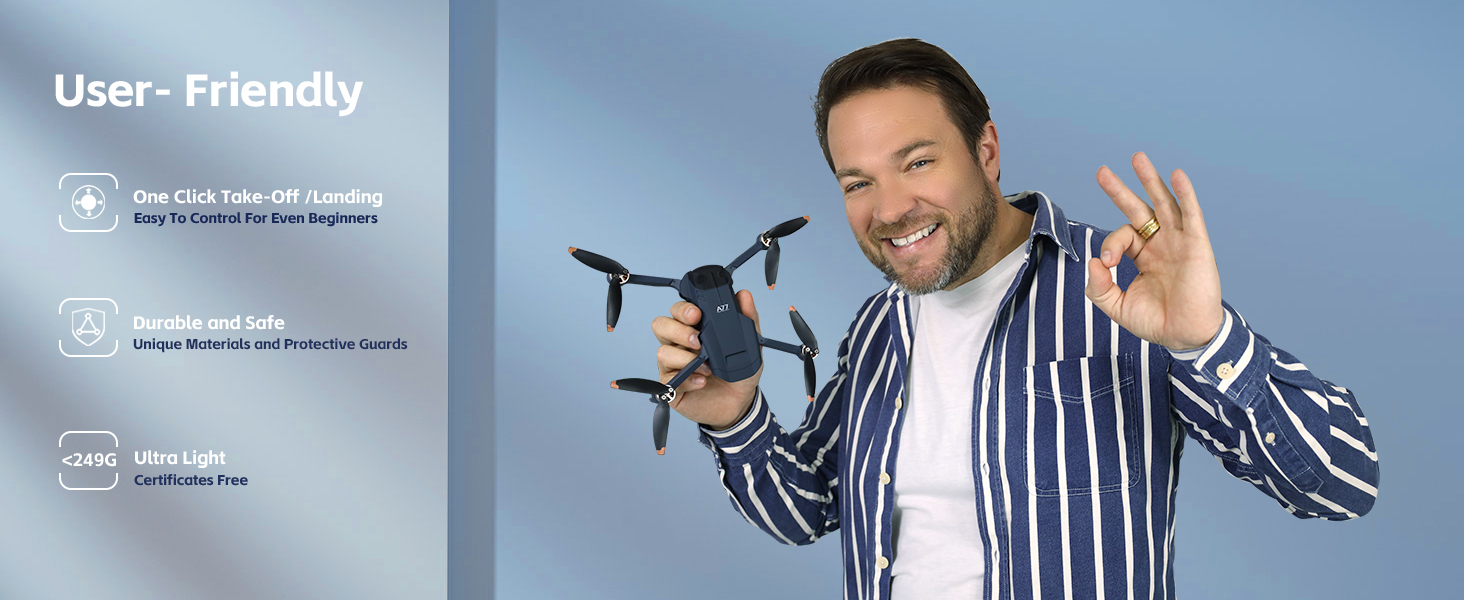
Image: A person on a mountain peak using hand gestures ('V' for photo, 'palm' for video) to control the drone's camera, demonstrating the Gesture Selfie feature.
9. Maintenance
9.1 Battery Care
- Store batteries in a cool, dry place.
- Do not leave batteries fully charged or fully discharged for extended periods. Charge them to about 50-60% for storage.
- If a battery appears swollen or damaged, discontinue use immediately and dispose of it properly.
9.2 Propeller Inspection and Replacement
- Regularly inspect propellers for cracks, bends, or chips. Damaged propellers can affect flight stability and safety.
- Replace damaged propellers using the provided spare parts and screwdriver. Ensure correct orientation (A/B).
9.3 Cleaning
Wipe the drone and remote controller with a soft, dry cloth. Avoid using liquids or solvents that could damage electronic components.
10. Troubleshooting
- Drone not powering on: Ensure batteries are fully charged and correctly inserted.
- No FPV feed: Check Wi-Fi connection between your smartphone and the drone. Restart the app and drone.
- Unstable flight: Perform compass calibration. Check for damaged propellers. Ensure you are flying in calm conditions.
- Short flight time: Ensure batteries are fully charged. Flight time can be affected by aggressive flying or strong winds.
- Drone drifts: Recalibrate the drone. Adjust trim settings on the remote controller if available.
11. Specifications
| Feature | Specification |
|---|---|
| Brand | CHUBORY |
| Model | A77 (Manufacturer Part Number: X10-231214) |
| Item Weight | 235 Grams (8.3 ounces) |
| Maximum Control Range | 2650 Feet |
| Flight Duration | Up to 84 minutes (with 3 included batteries) |
| Camera | 4K HD, 130° FOV, 90° Adjustable |
| Motors | Brushless Motors |
| Batteries | 3 x 12V rechargeable batteries (included) |
| Product Dimensions | 3.74"L x 3.74"W x 1.18"H |
| UPC | 718027812130 |
12. Warranty and Support
The CHUBORY A77 Drone comes with a one-year warranty. For any technical assistance, troubleshooting, or warranty claims, please contact CHUBORY customer support. We offer permanent support to ensure your satisfaction.
For further assistance, please visit the official CHUBORY store: CHUBORY Store


