
1. Introduction
The PGST A107F Wireless Home Alarm System provides comprehensive security for your home or office. This smart system integrates 4G SMS and Tuya App instant alerts, motion detection, and door alarm sensors, offering reliable protection without monthly fees. It supports voice control via Alexa and Google Assistant for convenient operation.
Key Features:
- App Control: Manage your system and receive alerts via the Smart Life or Tuya App.
- Customizable & Expandable: Add various sensors (door, motion, camera) to suit your security needs.
- SOS Function: One-click SOS button for immediate distress signals and contact to pre-set numbers.
- Easy Installation: Simple setup process, suitable for all users.
- Voice Control: Compatible with Alexa and Google Assistant for hands-free arming and disarming.
- No Monthly Fees: Enjoy security without recurring subscription costs.
2. Package Contents
Upon opening your PGST A107F Wireless Home Alarm System package, you should find the following components:
- 1 x PGST A107F Home Alarm System Control Panel
- Motion Detectors (quantity varies by package)
- Door/Window Sensors (quantity varies by package)
- Remote Controls (quantity varies by package)
- Power Adapter
- User Manual
Please verify all items are present and undamaged. If any components are missing or damaged, contact customer support.
3. System Overview
Familiarize yourself with the main components and interfaces of the PGST A107F control panel.

Figure 3.1: PGST A107F Control Panel Main Parameters. This diagram illustrates the various parts of the alarm system's main panel, including the speaker, capacitive touch and IPS display, SOS button, RFID card sensing area, anti-prying switch, Type C power interface, battery switch, SIM card interface (for 2G/4G version), and wall hanging plates with screw holes. Dimensions are also indicated.
Control Panel Features:
- Speaker: For audible alerts and system prompts.
- Capacitive Touch & IPS Display: User interface for system configuration and status.
- SOS Button: Emergency call button.
- RFID Card Sensing Area: For quick arm/disarm using RFID tags.
- Anti-Prying Switch: Triggers an alarm if the panel is tampered with.
- Type C Power Interface: For connecting the power adapter.
- Battery Switch: To manage the internal backup battery.
- SIM Card Interface: (For 2G/4G versions) For cellular communication and SMS alerts.
- Wall Hanging Plates: For secure wall mounting.
4. Setup and Installation
4.1 Initial Power-Up
- Connect the power adapter to the Type C power interface on the control panel.
- Plug the power adapter into a standard electrical outlet.
- Ensure the battery switch is in the 'ON' position to activate the backup battery.
- The control panel display will light up, indicating the system is powering on.
4.2 App Installation and Account Creation
The PGST A107F system is controlled via the Smart Life or Tuya App. Download the app from your smartphone's app store (iOS App Store or Google Play Store).
- Search for "Smart Life" or "Tuya Smart" in your app store.
- Download and install the app.
- Open the app and register a new account if you don't already have one. Follow the on-screen prompts to complete registration.

Figure 4.1: All-in-One App Control. This image displays a smartphone with the Tuya Smart Life app open, showing options to add various smart home devices such as electrical, sensors (Wi-Fi, Zigbee), cameras, and alarms, highlighting the system's comprehensive control capabilities.
4.3 Network Configuration
To connect your alarm system to the internet via Wi-Fi, follow one of the methods below:

Figure 4.2: Network Configuration Steps. This diagram outlines two methods for connecting the alarm system to your network: Method 1 (Soft AP Configure) involves selecting Wi-Fi and Soft AP on the host, then using the Smart Life app to add devices via Bluetooth. Method 2 (Airlink Configure) involves selecting Wi-Fi and Airlink on the host, then using the Smart Life app to add devices by selecting Alarm, Wi-Fi, and blinking quickly.
Method 1: Soft AP Configure
- Host Operation: On the control panel, navigate to Menu > Wi-Fi > Soft AP Configure.
- Phone Operation: Open the Smart Life app. Ensure your phone's Wi-Fi (2.4GHz) and Bluetooth are enabled. In the app, select Add Device and follow the prompts to connect via Bluetooth.
Method 2: Airlink Configure
- Host Operation: On the control panel, navigate to Menu > Wi-Fi > Airlink Configure.
- Phone Operation: Open the Smart Life app. Ensure your phone's Wi-Fi (2.4GHz) is enabled. In the app, select Add Device > Sensors > Alarm > Wi-Fi. Follow the instructions, which may include a "Blink Quickly" step to confirm pairing.
4.4 Sensor Pairing and Placement
The included sensors are typically pre-paired with the control panel. If you purchase additional sensors or need to re-pair them, use the Smart Life/Tuya App.
- Door/Window Sensors: Install these on doors and windows. Ensure the two parts of the sensor are aligned and within 1 cm of each other when the door/window is closed.
- Motion Detectors: Place motion detectors in areas where intruders are likely to pass, such as hallways or living rooms. Mount them at a height of approximately 2-2.5 meters for optimal coverage. Avoid placing them near heat sources or direct sunlight.
- Adding New Sensors: In the Smart Life/Tuya App, navigate to the alarm system device, then select "Add Sub-device" or a similar option. Follow the app's instructions to put the new sensor into pairing mode.

Figure 4.3: Door and PIR Detection Technology. This image illustrates how the system detects intrusions: a door sensor is triggered by an intruder, and a motion sensor (PIR) would detect movement. Simultaneously, a smartphone receives an instant alert notification, ensuring real-time awareness.
5. Operating Instructions
5.1 Arming and Disarming the System
You can arm or disarm your PGST A107F system using the control panel, remote controls, the mobile app, or voice commands.
- Arm: Activates all sensors. Any triggered sensor will initiate an alarm.
- Stay Arm (Home Arm): Activates perimeter sensors (e.g., door/window sensors) while allowing free movement within the property (motion sensors may be disarmed).
- Disarm: Deactivates all sensors, allowing you to move freely without triggering an alarm.
Control Panel:
Use the touch screen interface to select Arm, Stay Arm, or Disarm options.
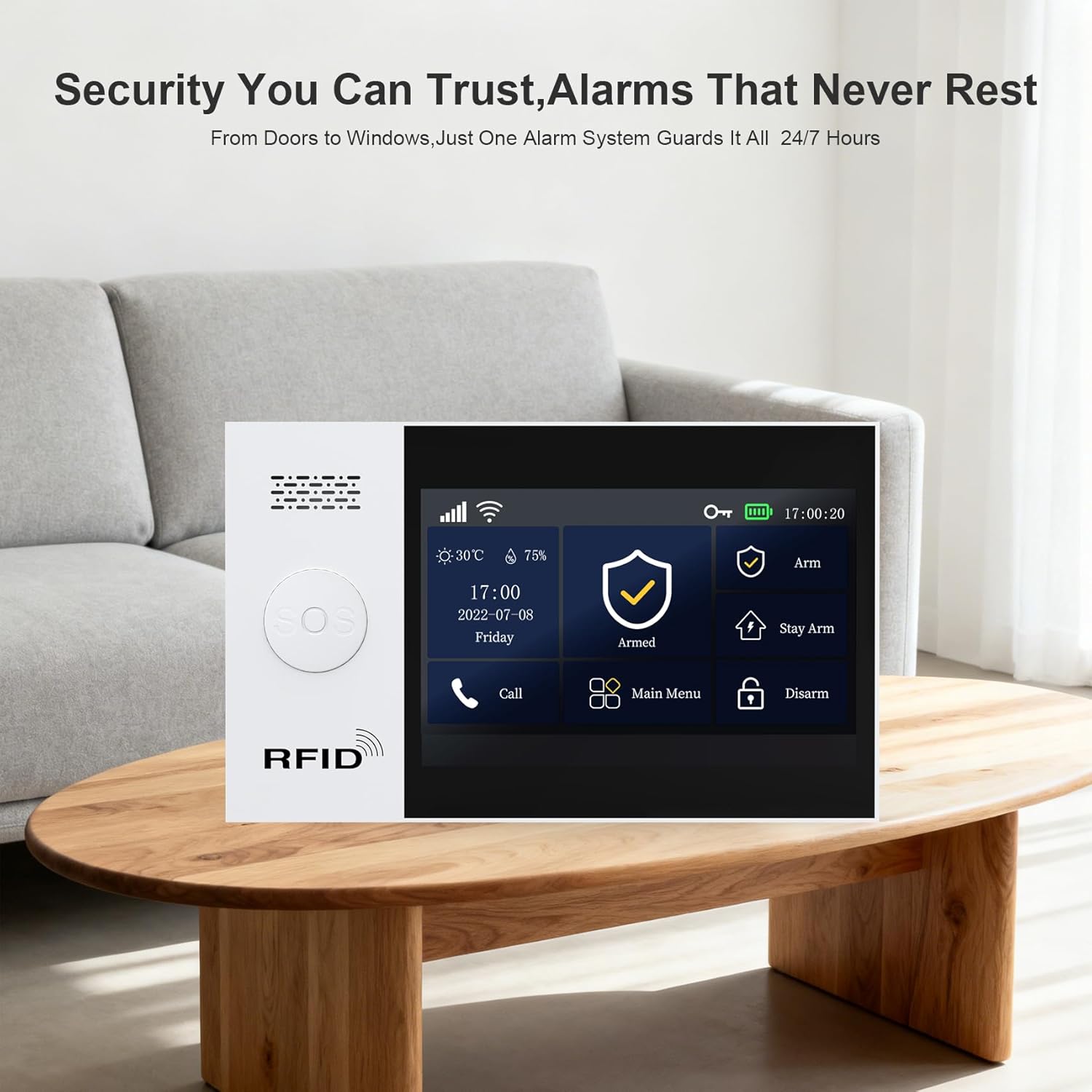
Figure 5.1: Control Panel Interface. This image shows the PGST A107F control panel's display, featuring clear icons for Arm, Stay Arm, Disarm, Call, and Main Menu, indicating its user-friendly interface for managing security settings.
Mobile App:
Open the Smart Life/Tuya App, select your alarm system, and tap the corresponding Arm, Stay Arm, or Disarm button.
Voice Control (Alexa/Google Assistant):
Integrate your alarm system with Alexa or Google Assistant through the Smart Life/Tuya App settings. Once linked, you can use voice commands such as:
- "Alexa, arm my home."
- "Hey Google, disarm the alarm."
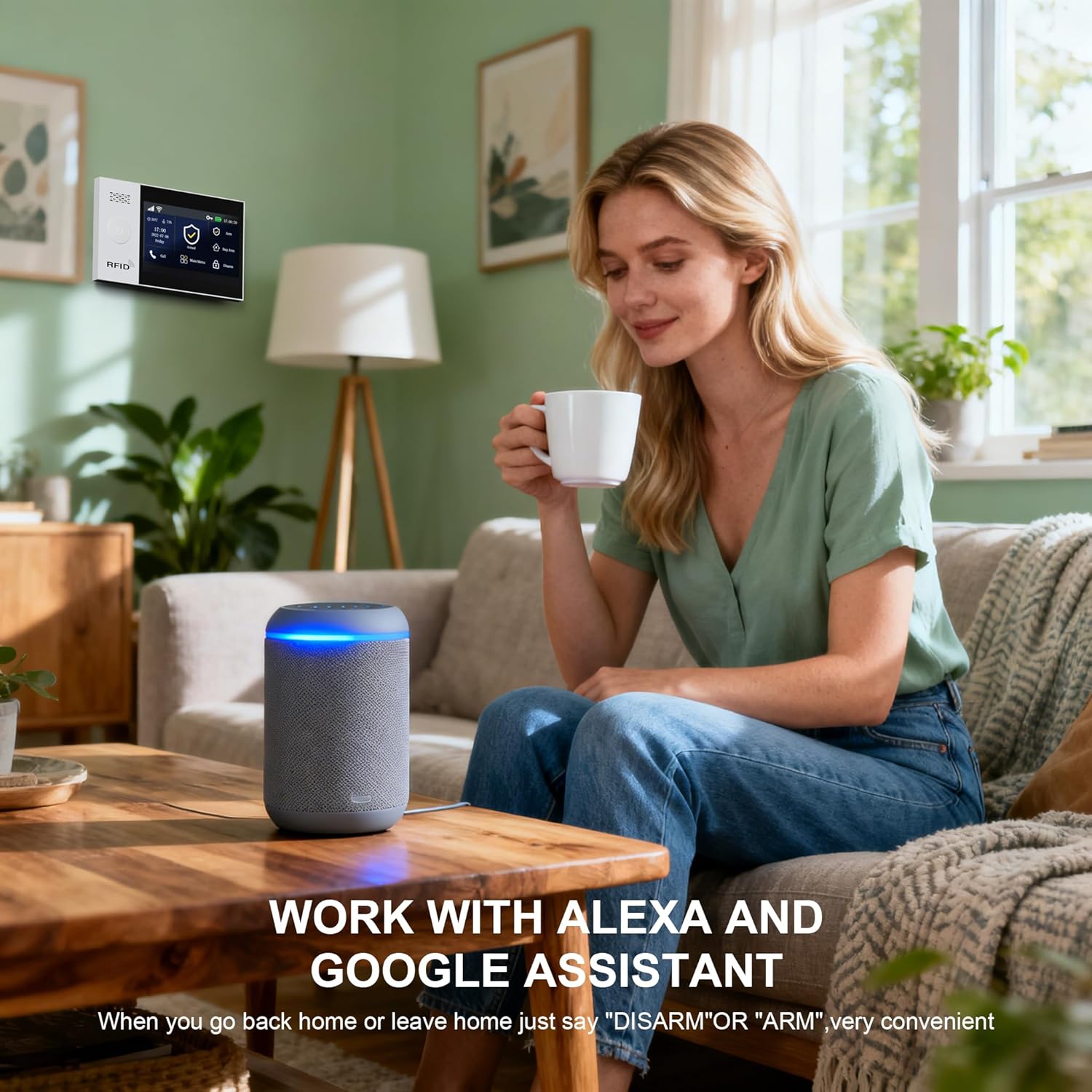
Figure 5.2: Voice Control with Alexa. This image shows a woman using an Alexa smart speaker to control her home security system, illustrating the convenience of voice commands for arming or disarming the alarm.

Figure 5.3: Voice Control by Alexa and Google Assistant. This image depicts a couple in a modern kitchen, with a smart speaker on the counter, illustrating how the PGST A107F system can be controlled using voice commands like "Disarm my home!" through Alexa or Google Assistant, offering convenient hands-free operation.
5.2 Receiving Alerts
When an alarm is triggered, the system will notify you through multiple channels:
- App Push Notifications: Instant alerts sent to your smartphone via the Smart Life/Tuya App.
- SMS Alerts: Text messages sent to pre-set phone numbers (requires a SIM card in the control panel for 4G versions).
- Phone Calls: The system can automatically call pre-set phone numbers.
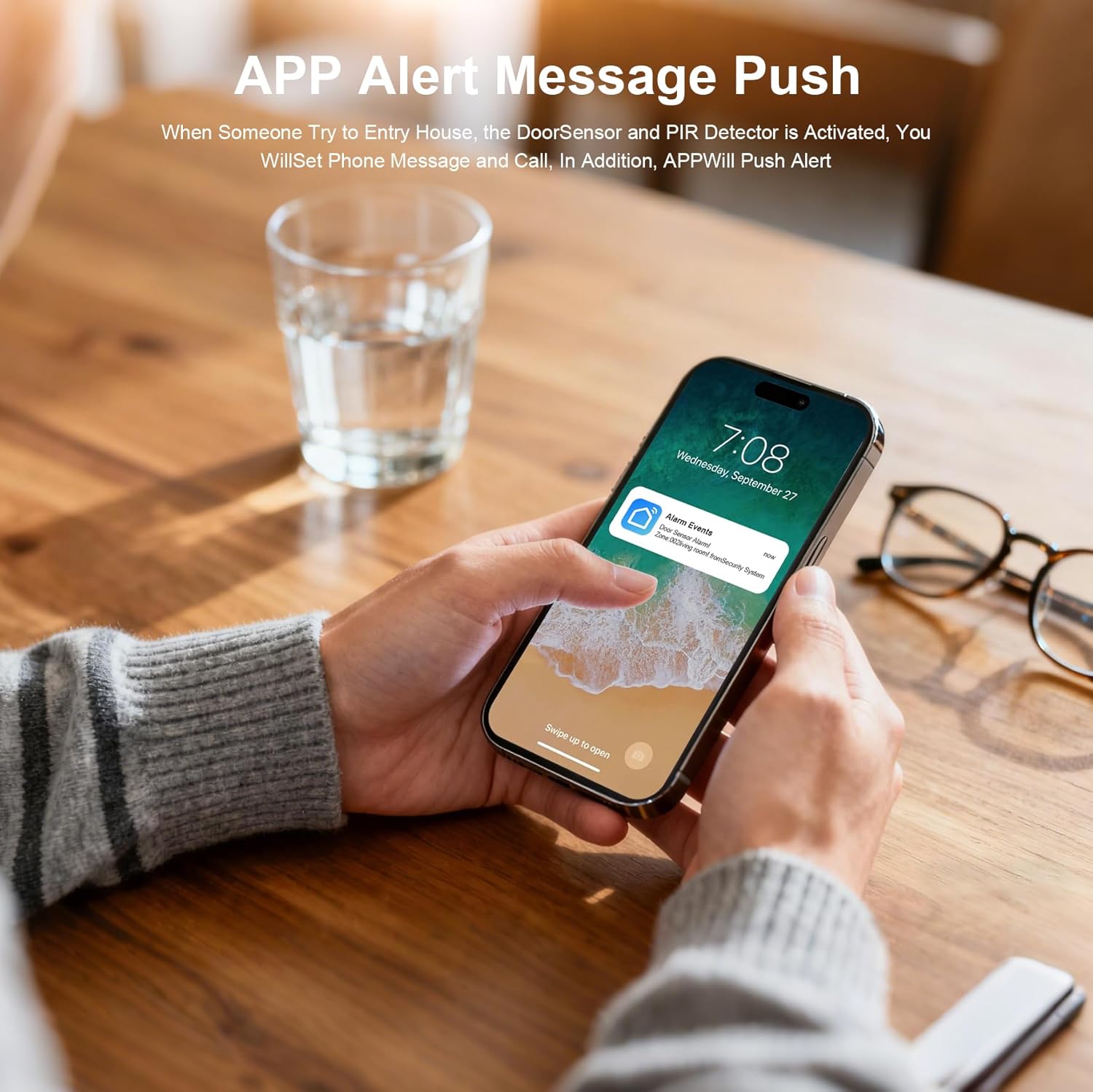
Figure 5.4: App Alert Message Push. This image shows a smartphone receiving an "Alarm Events" push notification on its lock screen, demonstrating how the system provides instant alerts when a sensor is activated.
5.3 SOS Button Functionality
The SOS button on the control panel (and potentially on remote accessories) is for emergency situations.
- Pressing the SOS button will immediately send a distress signal.
- The system will call and send messages to pre-set emergency contacts.
5.4 Monitoring Schedule
You can set up a monitoring schedule to automatically arm or disarm the system at specific times, aligning with your daily routine.

Figure 5.5: Monitoring Schedule. This graphic demonstrates how users can set a daily schedule for the alarm system, automatically arming it when leaving for work (08:00) or going to bed (22:20), and disarming it upon returning from work (19:00) or waking up (06:30).
Configure these schedules within the Smart Life/Tuya App under the alarm system settings.
6. Maintenance
6.1 Battery Management
- Control Panel: The control panel has a built-in backup battery. Ensure the battery switch is ON. The system will automatically switch to battery power during a power outage.
- Sensors: Wireless sensors are powered by alkaline batteries. Replace batteries promptly when the low battery indicator appears on the control panel or in the app. Refer to individual sensor manuals for specific battery types and replacement instructions.
6.2 Cleaning
- Wipe the control panel and sensors with a soft, dry cloth.
- Do not use liquid cleaners or abrasive materials, as these can damage the devices.
6.3 Firmware Updates
Periodically check the Smart Life/Tuya App for available firmware updates for your alarm system. Updates can improve performance, add new features, and enhance security.
7. Troubleshooting
| Problem | Possible Cause | Solution |
|---|---|---|
| System not powering on | No power, battery switch OFF | Check power adapter connection, ensure battery switch is ON. |
| Cannot connect to Wi-Fi | Incorrect Wi-Fi password, 5GHz network, weak signal | Verify password, ensure 2.4GHz Wi-Fi, move closer to router, retry network configuration. |
| Sensors not triggering alarm | Sensor battery low, sensor not paired, system disarmed | Replace sensor battery, re-pair sensor via app, ensure system is armed. |
| No app notifications | App permissions, phone settings, internet connectivity | Check app notification permissions, ensure phone has internet, verify system's internet connection. |
| Voice control not working | Incorrect linking, voice assistant issues | Ensure Alexa/Google Assistant is correctly linked to Smart Life/Tuya app. Check voice assistant settings. |
8. Specifications
| Feature | Detail |
|---|---|
| Brand | PGST |
| Model Number | A107F |
| Power Source | Corded Electric |
| Connectivity Technology | Wireless (Wi-Fi, 4G/2G for SIM card versions) |
| Compatible Devices | Smartphone (Tuya/Smart Life App), Alexa, Google Assistant |
| Alert Type | Audio & Motion, App Push, SMS, Phone Call |
| Control Method | App, Control Panel, Remote Control, Voice |
| Sensor Technology | Motion Sensor, Door/Window Sensor |
| Item Dimensions (L x W x H) | 8 x 6 x 4 inches (Control Panel) |
| Battery Cell Type | Alkaline (for sensors), Built-in rechargeable (for control panel backup) |
9. Warranty and Support
9.1 Warranty Information
The PGST A107F Home Alarm System comes with a 1-year warranty from the date of purchase. This warranty covers manufacturing defects and malfunctions under normal use. Please retain your proof of purchase for warranty claims.
9.2 Customer Support
If you encounter any issues during installation, operation, or maintenance, or have any questions regarding your PGST A107F system, please contact PGST customer support. Refer to the contact information provided in your product packaging or on the official PGST website.


