
Introduction
The Turtle Beach Rematch Advanced Wired Gaming Controller is designed for enhanced gaming performance across Xbox Series X|S, Xbox One, and Windows PC platforms. This manual provides detailed instructions for setup, operation, customization, and maintenance to ensure optimal use of your controller.
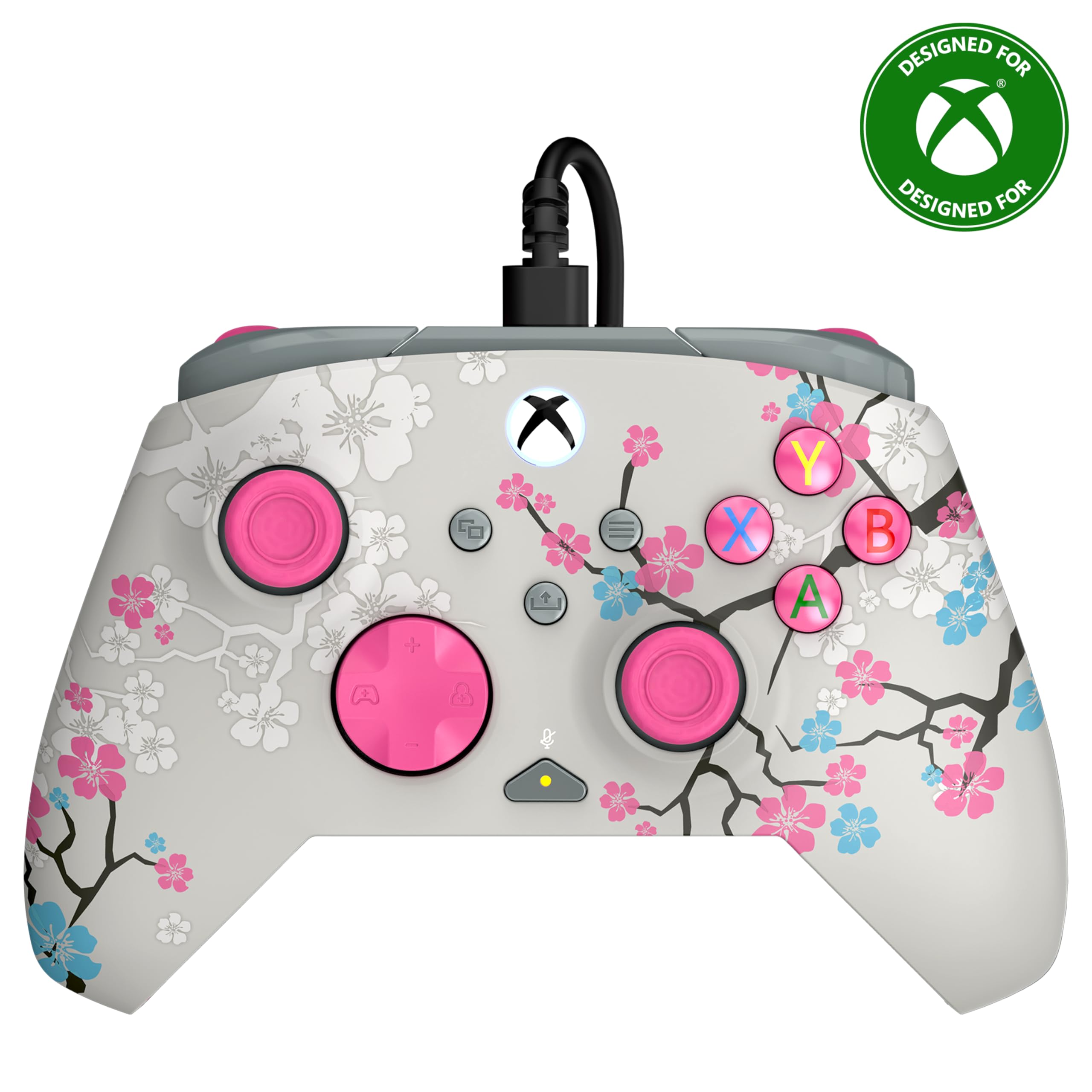
Image: The Turtle Beach Rematch Advanced Wired Gaming Controller in Cherry Blossom design, showcasing its vibrant aesthetic.
Package Contents
- Turtle Beach Rematch Advanced Wired Gaming Controller
- Detachable 8ft / 2.5m USB-C Wired Connection Cable
Setup
Connecting the Controller
- Locate the USB-C port on the top of your Rematch Advanced controller.
- Connect the smaller end of the provided USB-C cable to the controller's port.
- Connect the larger USB-A end of the cable to an available USB port on your Xbox console or Windows PC.
- The controller will automatically power on and connect. The Xbox button on the controller will illuminate to indicate a successful connection.
Operating Instructions
Basic Controls
The Rematch Advanced controller features standard Xbox button layouts including A, B, X, Y buttons, D-pad, left and right analog sticks, bumpers (LB, RB), and triggers (LT, RT). Familiarize yourself with these controls for basic gameplay.
On-Board Audio Controls
The controller includes integrated audio controls for convenient management of game and chat audio. Use the dedicated buttons on the D-pad for quick adjustments.

Image: The D-pad area of the controller, highlighting the built-in audio controls for game/chat mix, master volume, and mic mute.
- Game/Chat Mix: Adjust the balance between game audio and chat audio.
- Master Volume: Control the overall volume level.
- Mic Mute: Quickly mute or unmute your microphone.
Remappable Quick-Action Back Buttons
Two programmable quick-action buttons are located on the back of the controller, allowing you to assign frequently used functions for improved responsiveness.

Image: The back of the controller, illustrating the placement of the two mappable quick-action buttons.
To map these buttons, refer to the Control Hub App section or the video below for detailed instructions.
Video: A demonstration on how to set up functions for the remappable back buttons on the controller.
2-Stop True Hall Effect Hair Triggers
The hair triggers feature two stop points, allowing for faster reaction times in games. Adjust the trigger stops to your preference for short or full pull distances.

Image: A detailed view of the controller's trigger, highlighting the 2-stop True Hall Effect Hair Trigger functionality.
Dual Rumble Motors and Impulse Triggers
Experience immersive feedback through dual rumble motors in the grips and impulse triggers, providing realistic vibrations for in-game events.
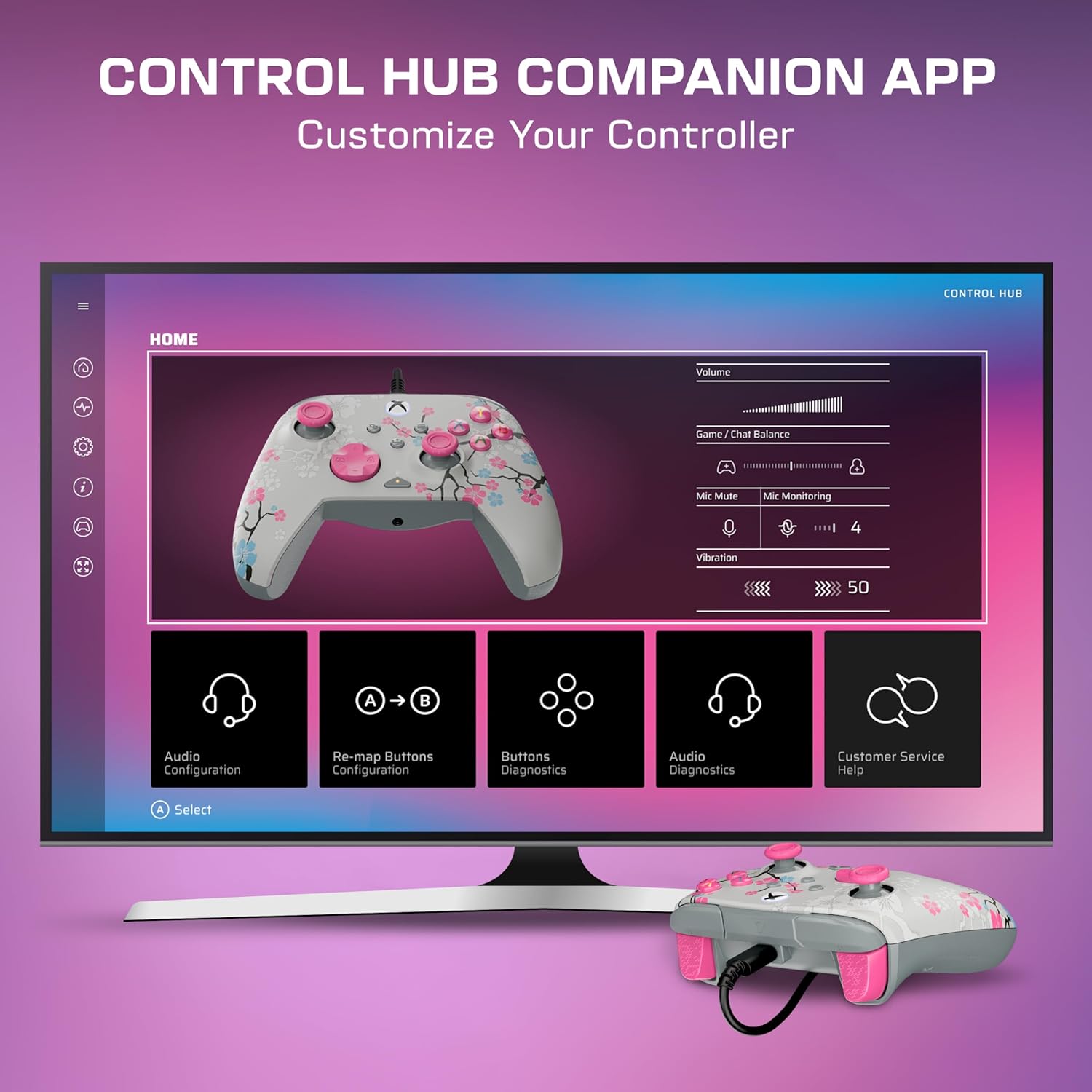
Image: A transparent view of the controller's side, revealing the internal dual rumble motors and impulse triggers for enhanced haptic feedback.
Control Hub App
Download the Turtle Beach Control Hub App for comprehensive controller configuration and diagnostics. The app allows you to customize button mappings, adjust audio settings, and perform diagnostic tests.

Image: A display showing the Turtle Beach Control Hub App, illustrating the various customization and diagnostic options available for the controller.
Special Features
Glow-in-the-Dark Design
The Cherry Blossom design features elements that glow in the dark after exposure to UV light, adding a unique visual effect to your controller.

Image: The Cherry Blossom controller design illuminated with a glow-in-the-dark effect.
Ergonomic Design
The controller is designed for extended comfort during long gaming sessions, featuring a comfortable grip and balanced weight.
Maintenance
Cleaning
- Use a soft, dry cloth to wipe down the controller's surface.
- For stubborn dirt, slightly dampen the cloth with water. Avoid harsh chemicals or abrasive cleaners.
- Ensure the controller is disconnected from any power source before cleaning.
Storage
Store the controller in a cool, dry place away from direct sunlight and extreme temperatures to prevent damage.
Troubleshooting
Controller Not Responding
- Ensure the USB-C cable is securely connected to both the controller and the console/PC.
- Try connecting the controller to a different USB port.
- Restart your Xbox console or PC.
- Verify that the controller's firmware is up to date using the Control Hub App.
Audio Issues
- Check headphone connections to the controller's 3.5mm jack.
- Adjust game/chat mix and master volume using the on-board controls.
- Ensure your microphone is not muted.
- Test audio settings within your console or PC's system settings.
Specifications
| Feature | Detail |
|---|---|
| Compatible Devices | PC, Windows, Xbox One, Xbox Series S, Xbox Series X |
| Controller Type | Gamepad |
| Connectivity Technology | USB A, USB C (Wired) |
| Additional Features | Ergonomic, Headphone Jack, Multiuse, Rumble |
| Button Quantity | 14 |
| Item Weight | 13.76 ounces |
| Item Dimensions (D x W x H) | 2.82"D x 6.9"W x 6.9"H |
| Model Name | Rematch Advanced (TBC-2004-85) |
| UPC | 840454400540 |
Warranty and Support
For detailed warranty information and support resources, please visit the official Turtle Beach support page:
Turtle Beach Warranty and End-User License
For further assistance, contact Turtle Beach customer support through their website.

Image: The product packaging displaying the 'Officially Licensed By Xbox' badge.


