
1. Introduction
The nuphy Air75 V3 is an 84-key, 75% layout low-profile mechanical keyboard designed for versatility and performance. It features hot-swappable switches, RGB backlighting, gasket-mounted construction, and multiple connectivity options including Bluetooth, 2.4GHz wireless, and USB-C wired. This manual provides detailed instructions for setting up, operating, and maintaining your keyboard.

Image: The nuphy Air75 V3 mechanical keyboard in black, showcasing its compact 75% layout and vibrant keycap accents.
2. Package Contents
Please verify that all items are present in your nuphy Air75 V3 package:
- 1 x nuphy Air75 V3 Keyboard
- 1 x USB-C to USB-C Cable
- 1 x High-Profile Knob Module
- 1 x Low-Profile Knob Module
- 1 x 2.4G Dongle
- Keycap/Switch Puller (not explicitly listed but common accessory)
- Quick Guide & FAQ (documentation)
Video: An unboxing demonstration of the nuphy Air75 V3, showing the keyboard and its included accessories.
3. Product Features
- Gasket Mount Design: Ensures a smooth and quiet typing experience by absorbing keystrokes and reducing vibration.
- Low-Profile & Compact: With a thickness of 13.2mm and a 75% layout, it saves desktop space and is highly portable.
- Multi-Device Connectivity: Supports Bluetooth, 2.4GHz wireless, and USB-C wired connections, allowing simultaneous connection to up to four devices.
- NuPhyIO Customization Software: Enables personalized keyboard configurations, including key remapping and macro creation.
- Removable Knobs: Customizable knobs can be set for volume control, zoom, or other functions via NuPhyIO.
- Low Latency: Achieves a 1000Hz polling rate in wired and 2.4GHz modes for responsive performance.
- RGB Backlight & PBT Keycaps: Features extensive theme effects and durable, colorfast Doubleshot PBT keycaps.
- Long Battery Life: Equipped with a 4000 mAh battery for extended wireless use.

Image: The nuphy Air75 V3 keyboard with a graphic emphasizing its 4000mAh high-capacity battery.
4. Setup
4.1 Initial Charging
Before first use, connect the keyboard to a USB-C power source using the provided cable to ensure it is fully charged. The battery indicator lights will show charging status.
4.2 Connectivity Modes
The Air75 V3 supports three connection types:
- USB-C Wired: Connect the keyboard directly to your device using the USB-C cable.
- 2.4GHz Wireless: Insert the 2.4G dongle into your device's USB port. The keyboard will automatically connect.
- Bluetooth: The keyboard can pair with up to three Bluetooth devices.
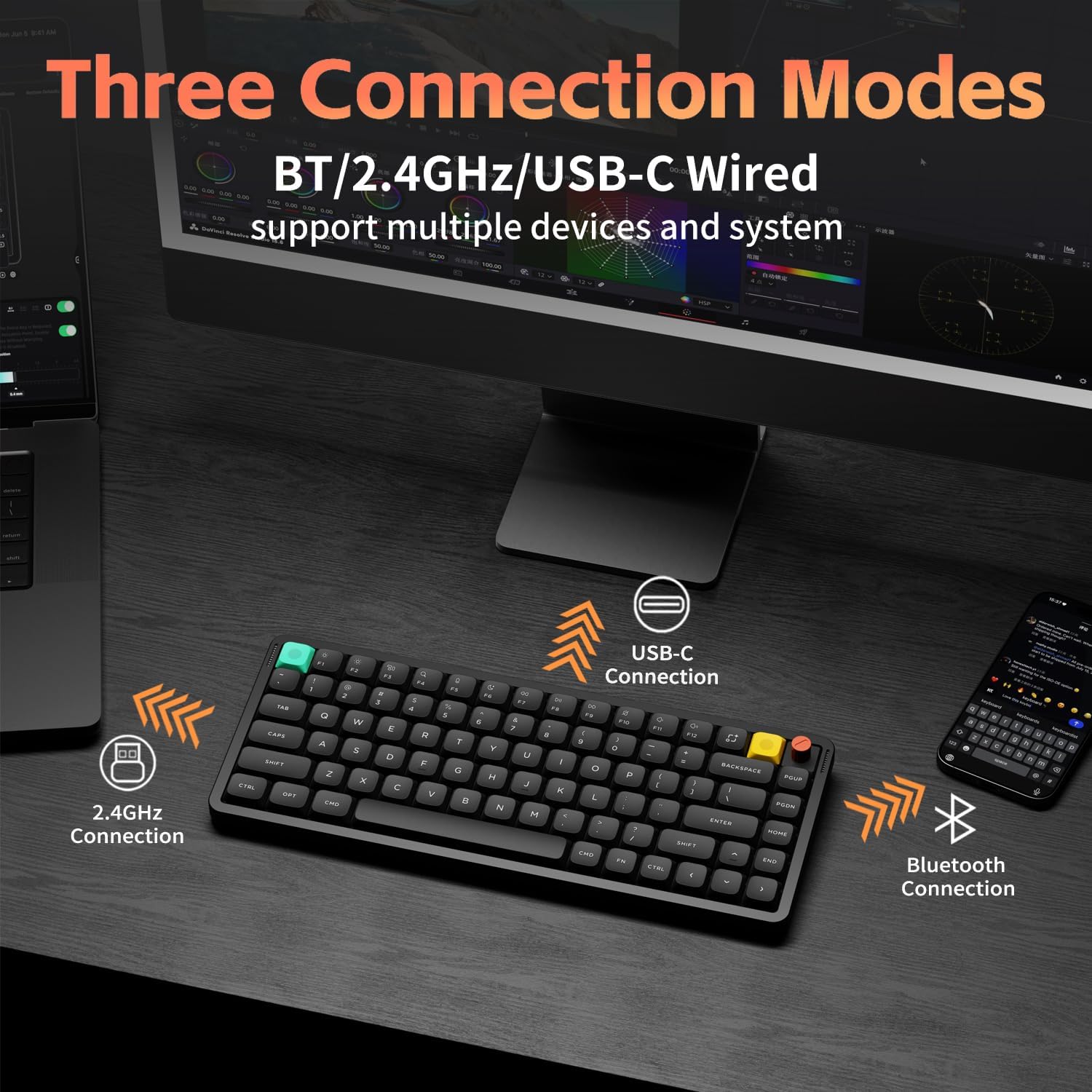
Image: Visual representation of the nuphy Air75 V3's three connection modes: Bluetooth, 2.4GHz wireless, and USB-C wired, connecting to a phone, laptop, and monitor.
4.3 Switching Between Devices (Wireless)
To switch between paired Bluetooth devices or the 2.4GHz dongle:
- Ensure the keyboard is in wireless mode (switch on the back).
- Press and hold the Fn key.
- Press 1, 2, or 3 for Bluetooth channels, or 4 for the 2.4GHz dongle.
Video: A demonstration of switching between wireless devices on the nuphy Air75 V3 keyboard using function keys.
4.4 Operating System Switch
Use the switch on the back of the keyboard to select between Windows (WIN) and Mac (MAC) layouts for optimal key functionality.
4.5 Adjustable Feet
The keyboard features a 3-stage adjustable kickstand, allowing you to set the typing angle to 4°, 8°, or 10° for ergonomic comfort.

Image: The nuphy Air75 V3 keyboard demonstrating its three adjustable typing angles (4°, 8°, 10°) for ergonomic customization.
5. Operating Instructions
5.1 Power On/Off
Locate the power switch on the back of the keyboard to turn it on or off.
5.2 Backlight Control
The Air75 V3 features customizable RGB backlighting:
- Change Color: Press Fn + Right Arrow.
- Change Effect: Press Fn + Left Arrow.
- Adjust Brightness: Press Fn + Up Arrow (increase) or Fn + Down Arrow (decrease).

Image: The nuphy Air75 V3 keyboard illuminated with colorful RGB backlighting, showcasing its dynamic lighting effects.
5.3 Knob Functionality
The included knobs are removable and customizable. By default, they may control volume or other media functions. Use the NuPhyIO software to reassign their actions.
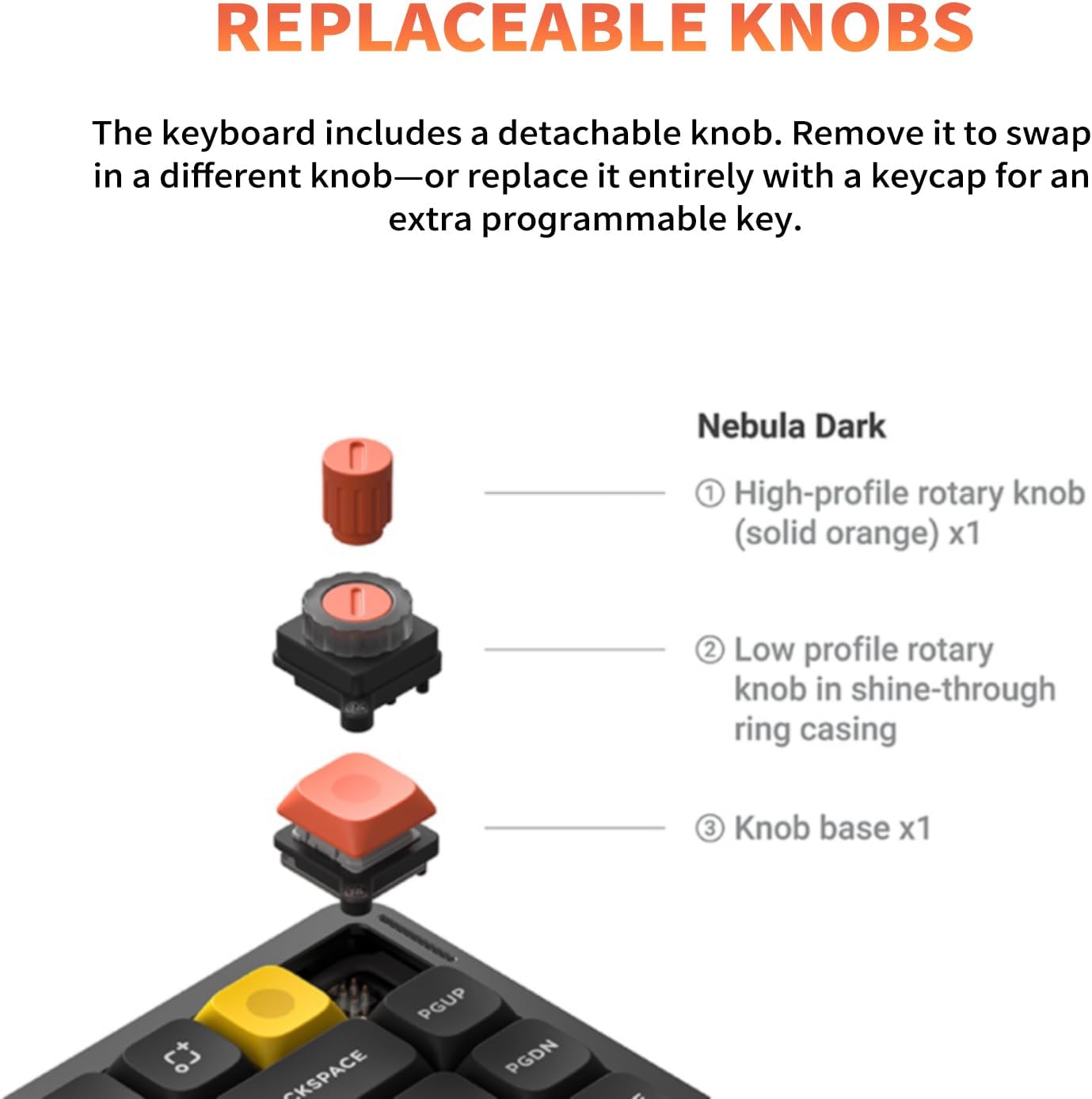
Image: A diagram illustrating the replaceable knob components of the nuphy Air75 V3 keyboard, including high-profile and low-profile options.
5.4 NuPhyIO Software
The NuPhyIO software allows for advanced customization of your Air75 V3 keyboard. You can remap keys, create macros, and fine-tune lighting effects. Access the software via the official nuphy website.

Image: A screenshot of the NuPhyIO software interface displayed on a monitor, showing options for key remapping, lighting effects, and macro recording for the nuphy Air75 V3 keyboard.
6. Maintenance
- Cleaning: Use a soft, dry cloth to clean the keyboard surface. For keycaps, a damp cloth with mild soap can be used, ensuring no liquid enters the switches.
- Keycap/Switch Replacement: Use the provided keycap and switch puller for safe removal and replacement of components.
- Storage: Store the keyboard in a cool, dry place away from direct sunlight and extreme temperatures.
7. Troubleshooting
- Connectivity Issues: Ensure the keyboard is charged and the correct mode (Bluetooth, 2.4GHz, or wired) is selected. Re-pair Bluetooth devices if necessary.
- Keys Not Responding: Check if the keyboard is powered on and connected. If hot-swappable, ensure switches are properly seated.
- Backlight Not Working: Adjust brightness using Fn + Up/Down Arrow. Check settings in NuPhyIO software.
- Lag in Wireless Mode: Ensure the 2.4GHz dongle is used for optimal low-latency performance, especially during gaming.
8. Specifications
| Product Dimensions | 12.56 x 5.07 x 1.76 inches |
| Item Weight | 1.6 pounds |
| Manufacturer | nuphy |
| Item Model Number | Air75 V3 |
| Batteries | 1 x 12V battery required (4000 mAh capacity) |
| Connectivity Technology | USB-C/2.4GHz/Bluetooth |
| Compatible Devices | Laptop, PC, Tablet (Windows/macOS/Linux support) |
| Keyboard Backlighting | RGB |
| Material | Acrylonitrile Butadiene Styrene, Aluminum, Polybutylene Terephthalate |
9. Warranty and Support
For warranty information and technical support, please refer to the official nuphy website or contact their customer service. Keep your purchase receipt for warranty claims.


