
UPERFECT U27
UPERFECT 14.5" 4K UHD Portable Monitor Instruction Manual
Model: U27
1. Introduction
This manual provides detailed instructions for the setup, operation, and maintenance of your UPERFECT 14.5" 4K UHD Portable Monitor. Please read this manual thoroughly before using the product to ensure optimal performance and longevity.

Image 1.1: UPERFECT 14.5" 4K UHD Portable Monitor.
2. Package Contents
Verify that all items listed below are present in your product package:
- 1 * 14.5" 4K Portable Monitor
- 1 * Mini HDMI Cable (4K)
- 2 * Type C to Type C Cable
- 1 * PD 30W Power Charger
- 1 * User Manual
3. Product Features
The UPERFECT 14.5" 4K UHD Portable Monitor offers advanced features for enhanced visual experience and portability:
- Stunning 4K UHD Display: 14.5-inch screen with 3840×2400 resolution and a 16:10 aspect ratio for detailed visuals and increased vertical workspace.
- Vivid Color Reproduction: Supports 1.06 billion colors (8-bit + FRC) and 100% sRGB for accurate and smooth color gradients.
- Matte IPS Panel: Anti-glare display with 500 nits brightness, 2000:1 contrast ratio, and 178° wide viewing angles for clear visibility in various lighting conditions.
- Ultra-Thin and Lightweight Design: Measures just 0.2 inches thick and weighs approximately 1 lb, featuring a durable aluminum frame.
- Smart Cover Stand: Includes a foldable leather smart cover that functions as a protective cover and an adjustable stand.
- Plug-and-Play Connectivity: Equipped with dual USB-C and Mini HDMI ports for broad compatibility with laptops, tablets, smartphones, cameras, and gaming consoles without requiring drivers.
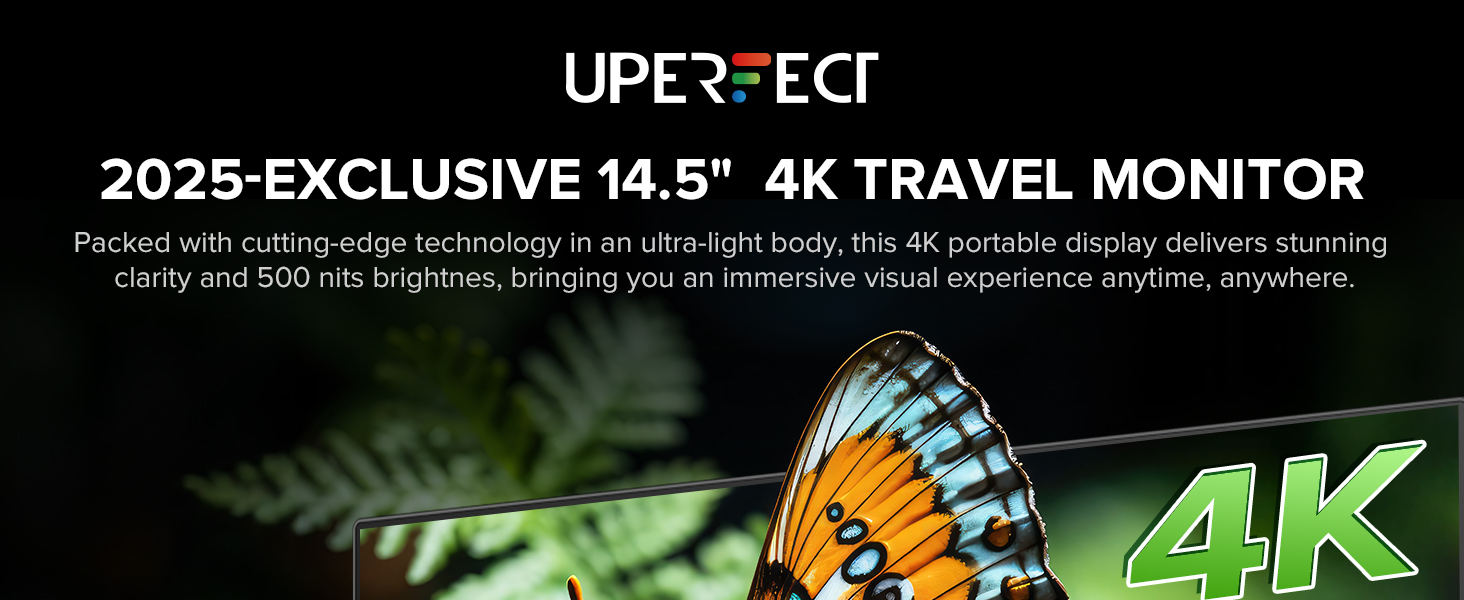
Image 3.1: The monitor's ultra-light aluminum display.
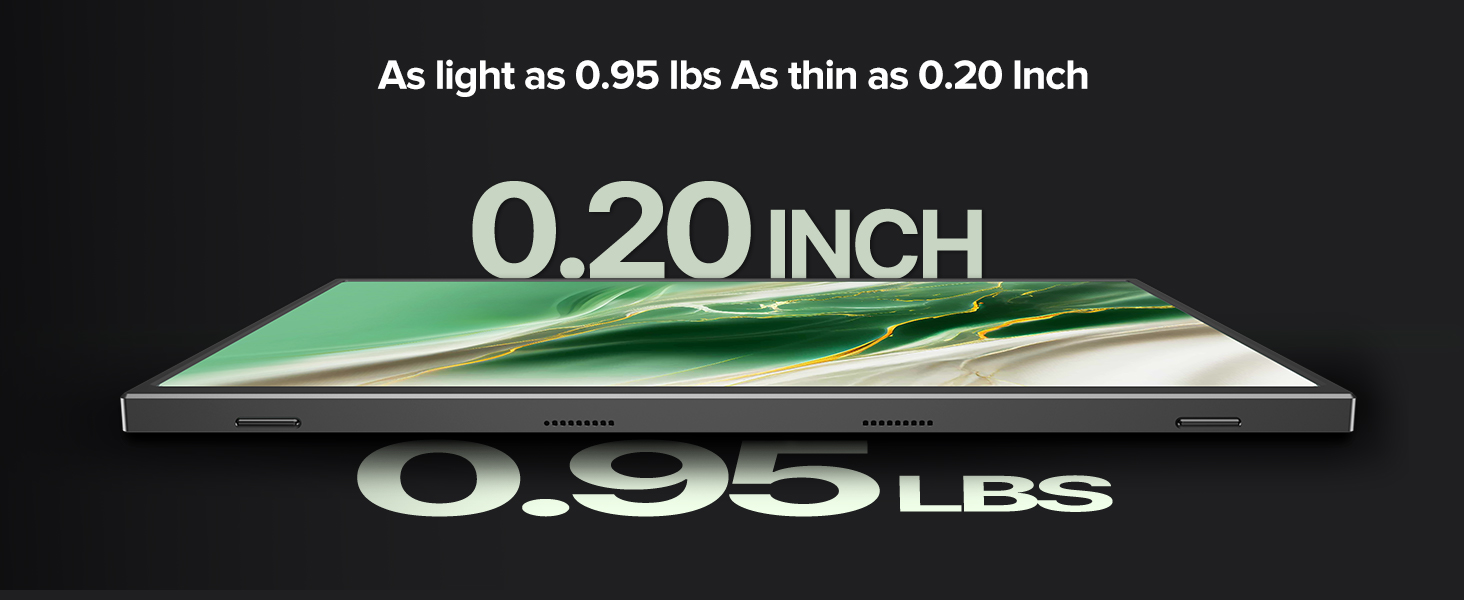
Image 3.2: 4K UHD NanoEdge Precision display.

Image 3.3: Display with 500 Nits Brightness and 1.06 Billion Colors.
4. Monitor Layout and Ports
Familiarize yourself with the physical layout and available ports on your UPERFECT portable monitor:

Image 4.1: Monitor Ports and Controls.
- Type-C (Full-featured USB-C): Two ports for power, video, and data transmission. Compatible with devices like Nintendo Switch, smartphones, iPads, MacBooks, and laptops.
- Mini HDMI: For video input from PCs, Xbox, PlayStation consoles, and cameras.
- OTG Port: For connecting USB peripherals.
- Up+/Menu/Down Power Buttons: Used for navigating the On-Screen Display (OSD) menu and adjusting settings.
- Power/Back Button: Powers the monitor on/off and acts as a 'back' button in the OSD menu.
- 3.5mm Audio Jack: For connecting external headphones or speakers.
5. Setup and Connection
Follow these steps to connect your UPERFECT portable monitor to various devices:
5.1. Connecting to a Laptop/PC (USB-C)
- Ensure your laptop/PC has a full-featured USB-C port that supports DisplayPort Alternate Mode and power delivery.
- Connect one end of the provided Type-C to Type-C cable to your laptop/PC's USB-C port.
- Connect the other end of the Type-C to Type-C cable to one of the monitor's Type-C ports.
- The monitor should automatically detect the signal and power on. If not, press the Power/Back button.
5.2. Connecting to a Laptop/PC (Mini HDMI)
- Connect one end of the provided Mini HDMI cable to the monitor's Mini HDMI port.
- Connect the other end of the Mini HDMI cable to your laptop/PC's HDMI port.
- For power, connect the provided PD 30W Power Charger to the monitor's second Type-C port using a Type-C cable.
- The monitor should display the content. If not, press the Power/Back button.
5.3. Connecting to a Smartphone/Tablet (USB-C)
- Ensure your smartphone/tablet supports DisplayPort Alternate Mode via its USB-C port.
- Connect one end of the provided Type-C to Type-C cable to your smartphone/tablet.
- Connect the other end of the Type-C to Type-C cable to one of the monitor's Type-C ports.
- The monitor will draw power from your device. For extended use, connect the PD 30W Power Charger to the monitor's second Type-C port.

Image 5.1: Monitor connected to a laptop via USB-C.

Image 5.2: Monitor connected to a laptop, showing screen rotation capability.
Image 5.3: Monitor connected to a Nintendo Switch.
6. Operating the Monitor
6.1. Power On/Off
- To power on the monitor, press the Power/Back Button.
- To power off the monitor, press and hold the Power/Back Button for a few seconds until the screen turns off.
6.2. On-Screen Display (OSD) Menu Navigation
The OSD menu allows you to adjust various display settings:
- Press the Up+/Menu/Down Power button to open the OSD menu.
- Use the Up+ and Down Power buttons to navigate through menu options.
- Press the Up+/Menu/Down Power button again to select an option or enter a sub-menu.
- Press the Power/Back Button to go back to the previous menu or exit the OSD.
6.3. Audio Output
The monitor includes built-in speakers and a 3.5mm audio jack:
- Built-in Speakers: Audio will play automatically through the monitor's integrated speakers when connected via HDMI or USB-C.
- 3.5mm Audio Jack: Connect headphones or external speakers to this port for private listening or enhanced audio output.
Image 6.1: Monitor with built-in speakers.
7. Maintenance
Proper care ensures the longevity and performance of your monitor:
- Cleaning the Screen: Gently wipe the screen with a soft, lint-free cloth. For stubborn marks, lightly dampen the cloth with water or a screen-cleaning solution. Avoid harsh chemicals or abrasive materials.
- Cleaning the Body: Use a soft, dry cloth to clean the monitor's frame and back.
- Storage: When not in use, store the monitor in a cool, dry place, preferably in its protective smart cover or a carrying case. Avoid exposing it to extreme temperatures or direct sunlight.
- Handling: Always handle the monitor by its edges. Avoid applying pressure to the screen.

Image 7.1: Storing the portable monitor in a bag.
8. Troubleshooting
If you encounter issues with your monitor, refer to the following common problems and solutions:
- No Signal / Black Screen:
- Ensure all cables (USB-C or Mini HDMI and power) are securely connected.
- Verify that your source device (laptop, phone, console) is powered on and outputting a signal.
- If using USB-C, confirm your device's USB-C port supports DisplayPort Alternate Mode.
- Try connecting the monitor to a different device or using different cables to rule out cable or source issues.
- No Power:
- If powered via USB-C from a device, ensure the device has sufficient battery or is also connected to power.
- If using the external power adapter, ensure it is properly connected to a working power outlet and the monitor's Type-C power input.
- Press the Power/Back button to ensure the monitor is not just in standby mode.
- Image Flickering / Unstable Display:
- Ensure the cables are not damaged and are properly seated.
- Reduce the display resolution or refresh rate on your source device if it's exceeding the monitor's capabilities or bandwidth of the cable.
- Ensure adequate power supply, especially if the monitor is drawing power from a laptop or phone. Connect the external power adapter if available.
- Color or Brightness Issues:
- Access the OSD menu to adjust brightness, contrast, color temperature, and other display settings.
- Reset display settings to factory defaults via the OSD menu.
- No Sound from Speakers/Headphones:
- Check the volume settings on both the monitor (via OSD) and your source device.
- Ensure headphones are fully plugged into the 3.5mm audio jack.
- Verify that the audio output on your source device is set to the UPERFECT monitor.
9. Specifications
| Feature | Specification |
|---|---|
| Product Dimensions | 0.39 x 13.98 x 8.66 inches |
| Item Weight | 2.65 pounds |
| Item Model Number | U27 |
| Standing Screen Display Size | 14.5 Inches |
| Aspect Ratio | 16:10 |
| Voltage | 5 Volts |
| Resolution | 3840 x 2400 Pixels (4K UHD) |
| Image Brightness | 500 Candela (Nits) |
| Total USB Ports | 2 (Type-C) |
| Screen Surface Description | Matte |
10. Warranty and Support
UPERFECT products are designed for reliability and performance. For warranty information and technical support, please refer to the official UPERFECT website or contact their customer service directly.
You can visit the UPERFECT Store for more information: UPERFECT Official Store
Related documentsU27


Ask a question about this manual
Ask about setup, troubleshooting, compatibility, parts, safety, or missing instructions. Manuals+ will review the question and use this page’s manual context to help answer it.