
1. Introduction
The hohem iSteady V3 Ultra is an advanced 3-axis gimbal stabilizer designed for smartphones, offering enhanced video recording capabilities. It features AI auto-tracking, a detachable touchscreen remote, a built-in extension rod, a tripod, and an integrated fill light. This manual provides detailed instructions for the proper use and maintenance of your device.
2. Package Contents
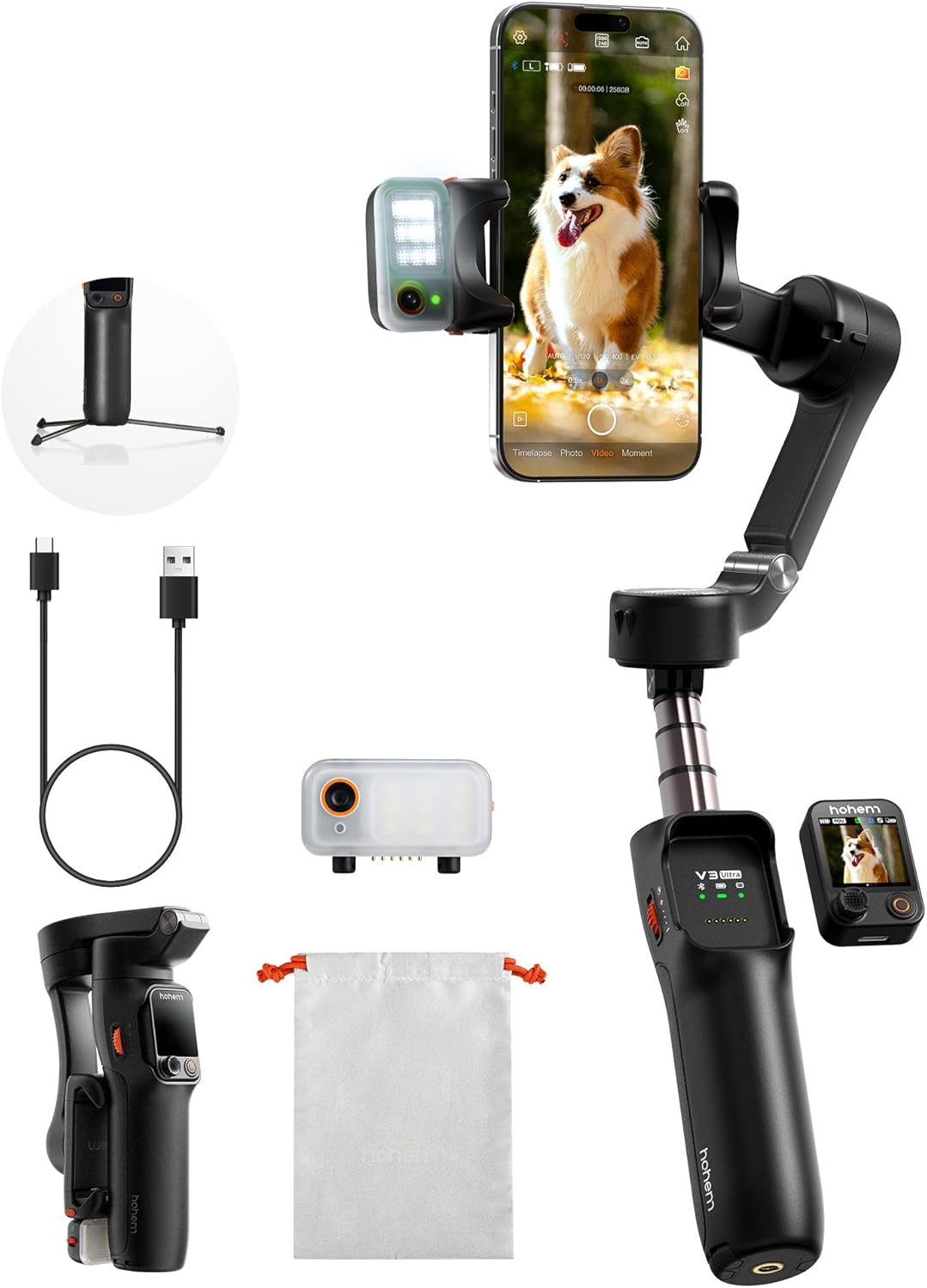
Verify that all items listed below are present in your package:
- iSteady V3 Ultra Gimbal Stabilizer
- Magnetic AI Tracker with Fill Light
- Detachable Touchscreen Remote Controller
- USB-C Charging Cable
- Hex Key
- Storage Pouch
- Quick Start Guide
- Warranty Card and Safety Guidelines
3. Setup
- Charge the Gimbal: Connect the USB-C charging cable to the gimbal's charging port and a power source. Ensure the gimbal is fully charged before first use. The battery indicator lights will show charging status.
- Mount Your Smartphone: Extend the phone clamp and securely place your smartphone in the center. Ensure the phone is balanced to prevent motor strain. The gimbal supports phones up to 14.11 oz (400g).
- Attach AI Tracker and Fill Light: The magnetic AI tracker with built-in fill light can be attached to the top of your smartphone. Ensure it is securely seated.
- Attach Detachable Remote: The 1.22" touchscreen remote controller magnetically attaches to the gimbal handle. It can be detached for remote operation.
- Power On: Press and hold the power button on the gimbal until the indicator lights illuminate.
- App Connection (Hohem Joy): Download the "Hohem Joy" app from your smartphone's app store. Open the app and follow the on-screen instructions to connect your gimbal via Bluetooth. This enables advanced features and firmware updates.
4. Operating Instructions
4.1 AI Auto Tracking
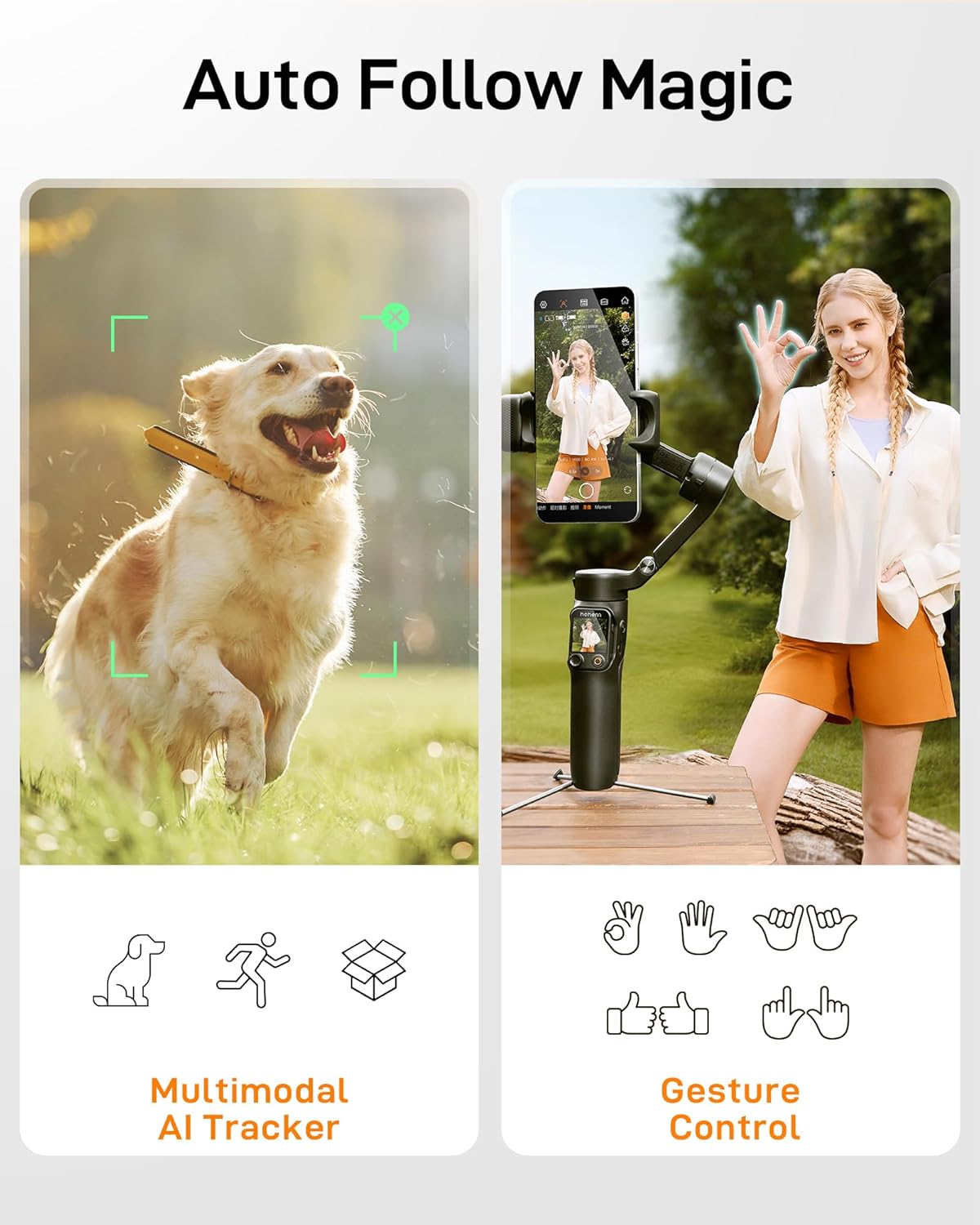
The iSteady V3 Ultra features intelligent AI tracking for faces, pets, and objects. This allows the gimbal to automatically follow your subject, keeping it centered in the frame.
- Activation: Activate AI tracking via the detachable touchscreen remote or the Hohem Joy app.
- Subject Selection: The AI tracker can detect and lock onto a subject automatically.
- Gesture Control: Use specific hand gestures to initiate or stop tracking, or to switch between landscape and portrait modes.
4.2 Detachable Touchscreen Remote Control
The 1.22" full-color touchscreen remote provides control over the gimbal from up to 33 feet (10 meters) away.
- Functions: Adjust tracking modes, preview shots, fine-tune settings, and control recording.
- Detachment: The remote can be easily detached from the gimbal handle for flexible operation.

4.3 3-Axis Stabilization
The iSteady V3 Ultra utilizes upgraded iSteady 9.0 technology to provide smooth, stable footage across three axes (pan, tilt, roll), minimizing shakes and jitters.
- Pan Axis: Allows for 360° infinite rotation.
- Tilt Axis: Range of -35° to 45°.
- Roll Axis: Range of -195° to 135°.

4.4 Built-in Extension Rod and Tripod
The gimbal integrates an 8-inch extension rod and a foldable tripod for versatile shooting angles and stable placement.
- Extension Rod: Extend the rod for higher or wider shots, ideal for selfies or group photos.
- Tripod: Unfold the base to use the gimbal as a stationary tripod for stable recording or time-lapses.

4.5 Smart Fill Light Control
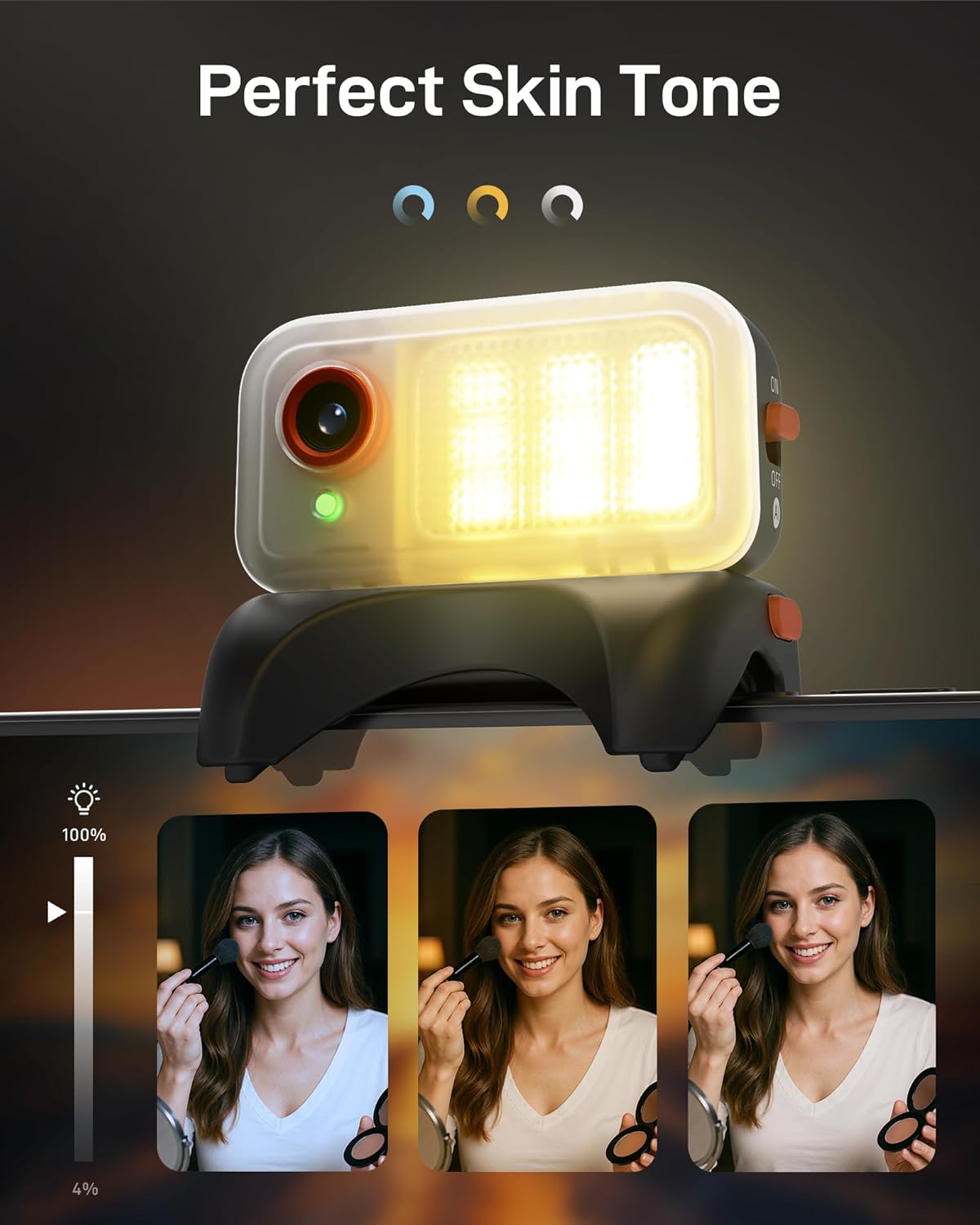
The integrated fill light provides adjustable brightness and color temperature to enhance lighting conditions for your videos and photos.
- Adjustment: Control the fill light settings remotely via the touchscreen remote or the Hohem Joy app.
- Color Temperature: Choose between various color temperatures (e.g., cool, neutral, warm) to match your environment.
4.6 Hohem Joy App Features
The companion Hohem Joy app unlocks the full potential of your iSteady V3 Ultra, offering creative modes and intelligent templates.
- Intelligent Templates: Access pre-set shooting modes for various scenarios.
- Creative Modes: Explore features like Dolly Zoom, Inception, and Panorama.
- Firmware Updates: Keep your gimbal updated with the latest features and performance improvements.
5. Maintenance
- Cleaning: Use a soft, dry cloth to clean the gimbal. Avoid using liquid cleaners or solvents.
- Storage: Store the gimbal in its storage pouch in a cool, dry place when not in use. Avoid extreme temperatures.
- Battery Care: For optimal battery life, charge the gimbal regularly, even if not in frequent use. Avoid fully discharging the battery for extended periods.
- Motor Calibration: If the gimbal appears unbalanced or drifts, perform a motor calibration through the Hohem Joy app.
6. Troubleshooting
- Gimbal does not power on:
- Ensure the battery is charged. Connect the gimbal to a power source using the USB-C cable and try again after a few minutes.
- Gimbal is unstable or vibrating:
-
- Ensure your smartphone is properly mounted and balanced in the clamp.
- Perform a motor calibration via the Hohem Joy app.
- Check for any obstructions preventing free movement of the gimbal axes.
- Cannot connect to Hohem Joy app:
-
- Ensure Bluetooth is enabled on your smartphone.
- Restart both the gimbal and your smartphone.
- Make sure the Hohem Joy app has necessary permissions.
- AI tracking is not working:
-
- Ensure the magnetic AI tracker is securely attached and powered on.
- Verify that the AI tracking feature is activated in the app or via the remote.
- Ensure sufficient lighting and clear visibility of the subject.
7. Specifications
| Feature | Detail |
|---|---|
| Model | iSteady V3 Ultra |
| Product Dimensions | 7.48"D x 4.84"W x 2.64"H |
| Folded Size | 3.9" x 1.7" x 6.3" |
| Item Weight | 15.1 ounces (430g) |
| Max. Payload | 14.11 oz (400g) |
| Battery | 1 Lithium Ion battery (included) |
| Battery Capacity | 1600mAh (approx. 9 hours runtime) |
| Charging Time | Approx. 2.5 hours |
| Stabilization | 3-Axis (iSteady 9.0) |
| Controllable Angle (Pan) | 360° Infinite |
| Controllable Angle (Roll) | -195° to 135° |
| Controllable Angle (Tilt) | -35° to 45° |
| AI Tracking Control | Touchscreen & Gesture Control |
| AI Tracker Sensor | 2MP |
| Remote Control | Detachable 1.22" Full-Color Touchscreen Remote |
| Extension Rod Length | 8 inches (approx.) |
| Compatible Devices | Various smartphones including iPhone 17/16/15/14/13/12/11 Pro Max, Samsung Galaxy S21/S21 Ultra S23 Ultra, OnePlus, Huawei, etc. |

8. Warranty & Support
Your hohem iSteady V3 Ultra Gimbal Stabilizer is covered by a manufacturer's warranty. Please refer to the included Warranty Card for specific terms and conditions, including warranty period and coverage details.
For technical support, troubleshooting assistance, or service inquiries, please visit the official hohem website or contact their customer service department. You can also find additional resources and FAQs on the hohem Store on Amazon.


