
Blackview Tab9WiFi
Blackview Tab9WiFi Android 15 Tablet User Manual
Model: Tab9WiFi
1. Introduction
This manual provides essential information for the proper setup, operation, and maintenance of your Blackview Tab9WiFi Android 15 Tablet. Please read this guide thoroughly to ensure optimal performance and longevity of your device.
2. Package Contents
Verify that all items listed below are included in your product package:
- Blackview Tab9WiFi Tablet
- Protective Case
- Charger
- Type-C Charging Cable
- User Manual
- SIM Eject Pin

Image: Blackview Tab9WiFi Tablet with included accessories.

Image: Detailed diagram illustrating the contents of the Blackview Tab9WiFi package.
3. Initial Setup
3.1 Powering On and Initial Configuration
- Press and hold the Power button located on the side of the tablet until the Blackview logo appears.
- Follow the on-screen prompts to select your language, region, and connect to a Wi-Fi network.
- Sign in with your Google account to access the Google Play Store and synchronize your data.
3.2 Expanding Memory
The tablet supports memory expansion up to 2TB via a TF card (not included). To expand memory:
- Go to Settings.
- Navigate to About Tablet.
- Tap on Running Memory RAM.
- Drag the Expansion Bar to the Right.
- Restart the tablet for changes to take effect.
4. Operating Instructions
4.1 Android 15 with Gemini AI
Your Blackview Tab9WiFi runs on Android 15 and integrates Google Gemini AI for enhanced functionality. Gemini AI acts as a voice-controlled assistant for daily tasks, language translation, and more.
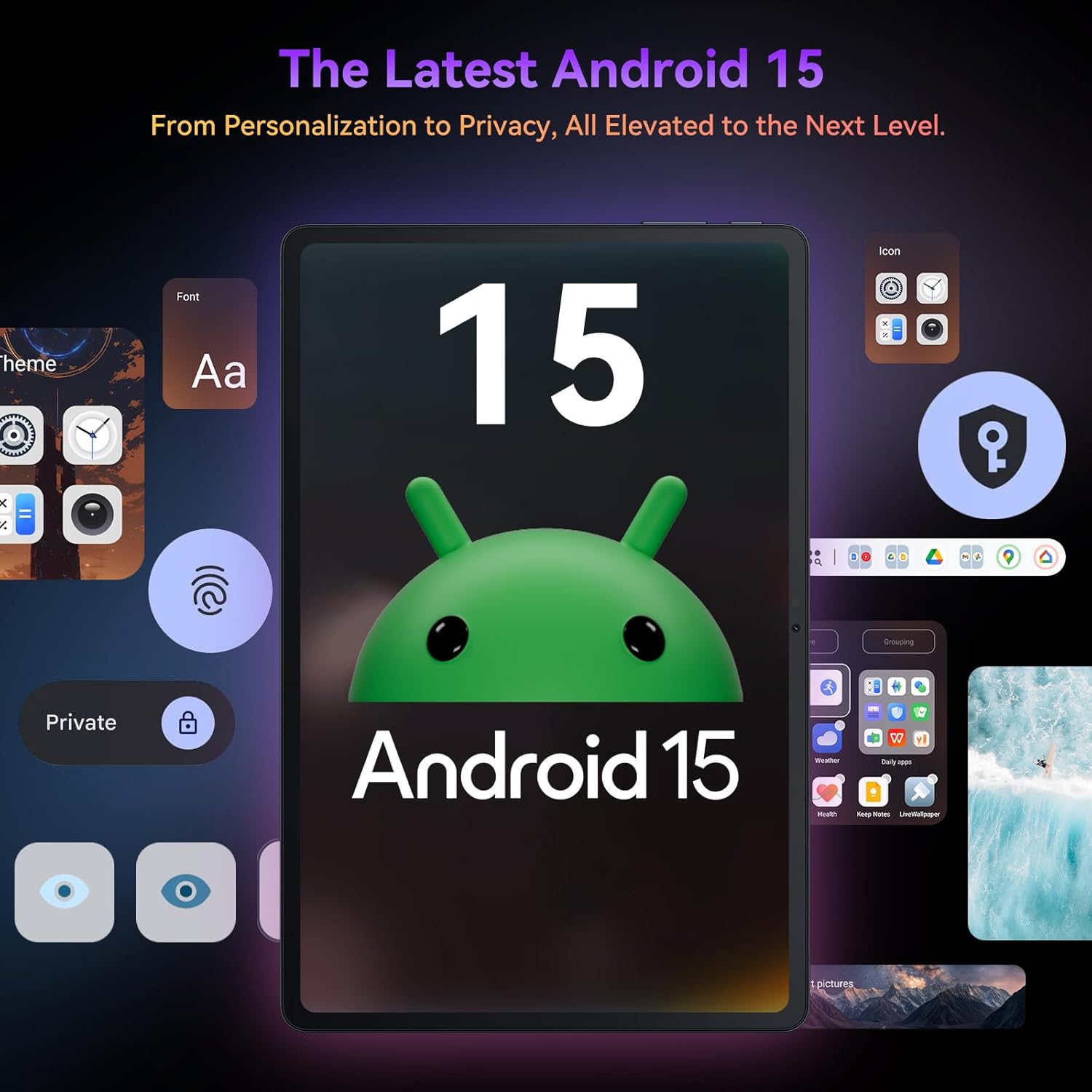
Image: The Blackview Tab9WiFi displaying the Android 15 operating system interface.
4.2 DokeOS_P 4.0 Features
The tablet features DokeOS_P 4.0, offering improved convenience, fluency, privacy, and personalization. Key features include:
- Screen Attention: Keeps the screen on while you're looking at it.
- Real-time Subtitle: Never miss a word with live captioning.
- Pre-installed Professional WPS Office Suite: For document creation and editing.
- Drag-and-drop Function: Easier way to copy and paste content.
- Privacy Features: Cleared Clipboard History, Set Privacy Boundaries.
- Personalization: Full Set of Personal Theme, Larger Folders.

Image: Visual representation of DokeOS_P 4.0 features on the Blackview Tab9WiFi.
4.3 Display Modes and PC Mode
The 11-inch 2K Incell display offers various eye-comfort modes:
- Dark Mode: Reduces eye strain in low light.
- Reading Mode: Optimizes display for reading.
- Night Light Mode: Filters blue light for better sleep.
Utilize PC Mode for a laptop-like experience, enhancing productivity with multi-window functionality.

Image: The Blackview Tab9WiFi demonstrating various display modes and its PC Mode functionality.
4.4 Camera Features
The tablet is equipped with AI-powered 8MP front and 16MP rear cameras. The Magic AI Photo Editor includes features like AI Magic Erase, AI One-Tap Sky Replacement, AI Portrait Unblur, and AI Color Focus to enhance your photos.
Use Smart Google Lens to explore the world with ease, including instant text translation, object identification, and price finding.

Image: The Blackview Tab9WiFi highlighting its AI-powered camera features and capabilities.
4.5 Connectivity
The tablet supports dual-band 5G WiFi for fast and stable internet connectivity.
5. Specifications
| Feature | Detail |
|---|---|
| Brand | Blackview |
| Model Name | Tab9WiFi |
| Operating System | Android 15 |
| Processor | Unisoc T606 Octa-Core CPU |
| RAM | 24GB (8GB + 16GB virtual RAM) |
| Internal Storage | 256GB ROM |
| Expandable Storage | Up to 2TB TF card |
| Screen Size | 11 Inches |
| Display Type | 2K Incell Display |
| Max Screen Resolution | 2048x1536 Pixels |
| Rear Camera | 16MP AI Camera |
| Front Camera | 8MP AI Camera |
| Battery Capacity | 8200mAh |
| Wireless Connectivity | 5G WiFi (802.11ac) |
| Dimensions (LxWxH) | 8 x 3 x 0.5 inches |
| Item Weight | 2.59 pounds |
6. Maintenance
6.1 Battery Care
The 8200mAh battery is optimized with AI smart battery-saving technology. To maximize battery life:
- Avoid extreme temperatures.
- Use the provided charger and cable.
- Enable minimalist power saving mode for extended standby.

Image: The Blackview Tab9WiFi highlighting its large 8200mAh battery and AI power-saving features.
6.2 General Care
- Keep the tablet clean and free from dust.
- Avoid dropping the device or exposing it to liquids.
- Use the protective case to prevent scratches and damage.
7. Troubleshooting
If you encounter any issues with your Blackview Tab9WiFi, try the following common solutions:
- Device not turning on: Ensure the battery is charged. Connect the charger and wait at least 30 minutes before attempting to power on again.
- Slow performance: Close unused applications, clear cache, or restart the device. Consider expanding memory with a TF card.
- Wi-Fi connectivity issues: Ensure Wi-Fi is enabled and you are within range of a known network. Restart your router and the tablet.
- Screen unresponsiveness: Restart the tablet. If the issue persists, perform a factory reset (backup data first).
8. Warranty and Support
Your Blackview Tab9WiFi comes with a 720-day worry-free warranty. For any questions, technical support, or warranty claims, please contact customer service through your Amazon order page. Blackview products undergo strict examination and high-quality testing to ensure user satisfaction.

Image: Information regarding Blackview's two-year warranty support.
9. Official Product Video
Video: An official product video showcasing the Blackview Android 15 Tablet Tab 9 WiFi with Gemini Ai 2.0. This video provides an overview of the tablet's features and design.
Related documentsTab9WiFi


Ask a question about this manual
Ask about setup, troubleshooting, compatibility, parts, safety, or missing instructions. Manuals+ will review the question and use this page’s manual context to help answer it.