
1. Introduction
Thank you for choosing the Generic X5 Mini WiFi Camera. This compact and versatile camera is designed for various monitoring needs, including home security and outdoor surveillance. It features HD1080P video recording, a wide-angle lens, night vision, and remote access via Wi-Fi. Please read this manual carefully to ensure proper setup and operation of your device.
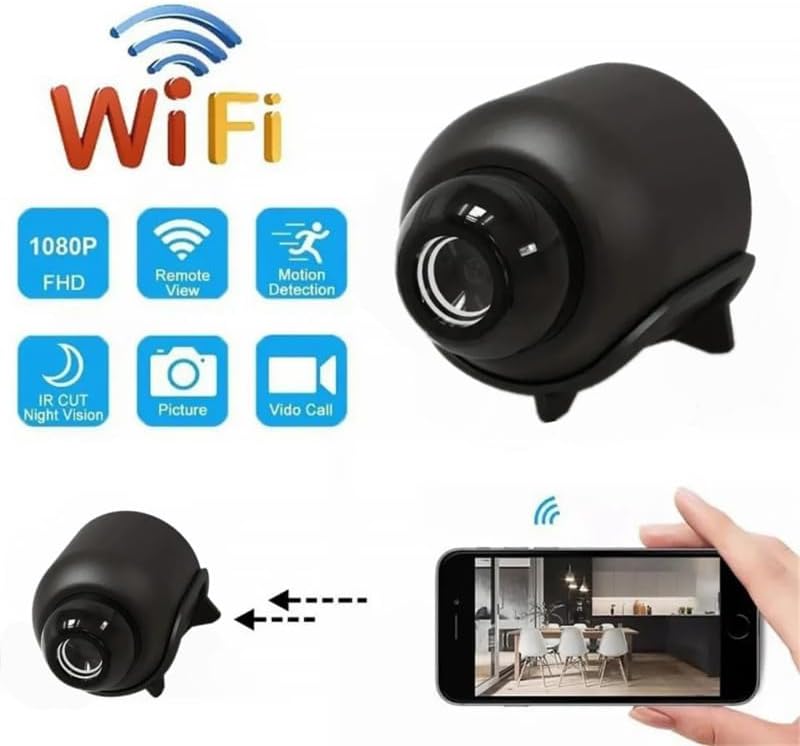
Image 1.1: The X5 Mini WiFi Camera highlighting its key features such as 1080P FHD, Remote View, Motion Detection, IR Cut Night Vision, Picture, and Video Call capabilities.
2. Package Contents
Please check the package for the following items:
- 1 x X5 Mini WiFi Camera
- 1 x User Manual
- 1 x Support Bracket
- 1 x Type-C Cable
3. Product Overview
Familiarize yourself with the camera's components and dimensions.

Image 3.1: Labeled components of the X5 Mini Camera, including the TF Card slot, Infrared Lamp, Button, and Charging Jack.

Image 3.2: Front view of the X5 Mini Camera, indicating the photosensitive sensor, HD lens, and built-in microphone.

Image 3.3: Dimensions of the X5 Mini Camera, showing approximate measurements of 4cm (1.57inch) length, 3.5cm (1.38inch) height, and 3cm (1.18inch) width.
4. Specifications
| Feature | Specification |
|---|---|
| Resolution | 1080P |
| Video Format | AVI |
| Image Format | JPG |
| Image Scale | 16:9 |
| Video Frame Rate | 30fps |
| Wide Angle Lens | 140° |
| Night Vision Range | Up to 10 meters (with four infrared lights) |
| Connectivity | WiFi (2.4GHz band only) |
| App | YsxLite |
| Charging Port | Type-C |
| Material | ABS |
| Dimensions | 4.3 x 3.3 x 3.3 cm (approx.) |
| Special Features | WiFi Remote, Circular Recording, Mobile Detection, Built-in Microphone, Cloud Storage (subscription required) |

Image 4.1: Visual comparison demonstrating the superior clarity and detail of 1080P resolution compared to 720P, ensuring clear footage up to 10 meters.
5. Setup Guide
Follow these steps to set up your X5 Mini WiFi Camera:
- Power Supply: Plug the camera into a 5V/1A power supply using the provided Type-C cable.
- App Download: Download the 'YsxLite' application on your mobile phone. You can find it in your device's app store or by scanning a QR code if provided in the physical manual.
- Router Configuration: Ensure your Wi-Fi router is configured to operate on the 2.4GHz band. The camera only supports 2.4GHz Wi-Fi. If your router uses both 2.4GHz and 5GHz, you may need to adjust settings to ensure the camera connects to the 2.4GHz network.
- Insert Memory Card: Insert an extra purchased memory card (TF card) into the designated slot on the camera. This is required for local recording.
- Connect to App:
- First, connect your mobile phone to the camera's intranet (hotspot) if prompted by the app.
- Then, connect the camera to your router's 2.4GHz Wi-Fi network through the app. Follow the on-screen instructions in the YsxLite app for successful connection.
- Reset if Needed: If the connection process is unsuccessful, please reset the camera and repeat the above steps.

Image 5.1: Illustration of connecting the camera to a WiFi hotspot for real-time viewing and remote access via the YsxLite app on Apple/Android smartphones.
6. Operating Instructions
6.1 Basic Recording
The camera supports circular recording. Once a memory card is inserted and the camera is powered on, it will begin recording. Older footage will be overwritten when the memory card is full.
6.2 Remote Monitoring (WiFi)
After successfully connecting the camera to your home Wi-Fi network via the YsxLite app, you can view live footage and control camera functions remotely from your smartphone.
6.3 Motion Detection
The camera features mobile detection. When motion is detected, the camera can send alerts to your smartphone via the YsxLite app. You can configure motion detection sensitivity and alert settings within the app.

Image 6.1: Demonstration of the AI Human Detection feature, which detects humans or animals in motion and sends activity alerts to your phone.
6.4 Night Vision
Equipped with four infrared lights, the camera provides night vision up to 10 meters, allowing for clear footage in low-light and nighttime conditions. You can control the infrared lights (on/off) from your phone via the app.
6.5 Cloud Storage
Cloud storage is supported for your recordings (subscription required). Refer to the YsxLite app for details on cloud storage plans and activation.
6.6 User Sharing
The camera supports multi-user real-time sharing. The main account can add multiple sub-accounts to view videos, allowing family members to monitor simultaneously.

Image 6.2: Illustration of the user sharing feature, allowing multiple family members to view the camera feed simultaneously.
7. Maintenance
- Cleaning: Use a soft, dry cloth to clean the camera lens and body. Avoid using harsh chemicals or abrasive materials.
- Storage: Store the camera in a cool, dry place away from direct sunlight and extreme temperatures when not in use.
- Battery Care: To prolong battery life, avoid fully discharging the camera frequently. Charge it regularly, especially if storing for extended periods.
8. Troubleshooting
If you encounter issues with your X5 Mini WiFi Camera, refer to the following common problems and solutions:
- Camera not powering on:
- Ensure the camera is properly connected to a 5V/1A power source.
- Check the Type-C cable for damage.
- Press and hold the power button for a few seconds.
- Unable to connect to Wi-Fi:
- Confirm your router is broadcasting a 2.4GHz Wi-Fi signal. The camera does not support 5GHz Wi-Fi.
- Ensure the camera is within range of your Wi-Fi router.
- Reset the camera and attempt the connection process again.
- Verify the Wi-Fi password entered in the app is correct.
- Poor video quality:
- Ensure the camera lens is clean and free from dust or smudges.
- Check your Wi-Fi signal strength; a weak signal can affect streaming quality.
- Ensure adequate lighting for optimal image capture, especially during the day.
- Motion detection not working:
- Verify that motion detection is enabled in the YsxLite app settings.
- Adjust the sensitivity settings for motion detection.
- Ensure the camera's view is not obstructed.
- No recording to memory card:
- Ensure a compatible TF card is inserted correctly.
- Check if the memory card is full; the camera supports circular recording, but initial setup might require formatting.
- Format the memory card through the app if issues persist.
9. Warranty and Support
This product comes with a standard manufacturer's warranty. For specific warranty details, please refer to the product packaging or contact your retailer. For technical support or further assistance, please reach out to the seller or manufacturer through the platform where the product was purchased.


