
Ctronics 870C-5MP
Ctronics 5MP Outdoor Security Camera (Model 870C-5MP) User Manual
Comprehensive instructions for installation, operation, and maintenance.
1. Introduction
This manual provides detailed instructions for the Ctronics 5MP Outdoor Security Camera, Model 870C-5MP. This device is designed for outdoor surveillance, offering high-resolution video, advanced night vision capabilities, and intelligent tracking features. Please read this manual thoroughly before installation and operation to ensure proper use and optimal performance.

Image 1.1: Front view of the Ctronics 5MP Outdoor Security Camera (Model 870C-5MP).
2. Package Contents
Verify that all items listed below are included in your package. If any items are missing or damaged, please contact Ctronics customer support.
- Ctronics 5MP Security Camera (Model 870C-5MP)
- Power Adapter (12V – 2.5A with 3m cable)
- Ethernet Cable (CAT 5E, 1m length)
- Wall Mount Bracket
- Mounting Screws and Wall Plugs
- Waterproof Connector Kit
- Screwdriver
- Antenna
- User Manual (this document)
- Quick Installation Guide
3. Setup
3.1 Physical Installation
The camera is designed for wall mounting. Ensure the chosen location provides a clear view of the area to be monitored and is within reach of a power outlet. The adjustable top bracket allows for optimal angle positioning.
- Mark Drilling Points: Use the provided drilling template to mark the screw holes on the wall.
- Drill Holes: Drill holes at the marked positions and insert the wall plugs.
- Attach Mounting Bracket: Secure the metal mounting bracket to the wall using the screws.
- Hang Camera: Carefully hang the camera onto the fixed metal plate of the bracket.
- Secure Camera: Fasten the camera to the bracket using the connecting screw.
- Connect Antenna: Screw the antenna onto the designated port on the camera.
- Power Connection: Connect the power adapter to the camera's power input and plug it into an electrical outlet.
- Waterproof Connections: Use the provided waterproof caps for all cable connections to protect against outdoor elements.

Image 3.1: Illustration of camera connectivity options including dual-band WiFi and storage.
3.2 Network Connection
The camera supports dual-band Wi-Fi (2.4GHz and 5GHz) and wired Ethernet connections.
- Download App: Download the "Ctronics Pro" app from your smartphone's app store (iOS/Android).
- Bluetooth Quick Setup:
- Ensure Bluetooth is enabled on your smartphone.
- Open the Ctronics Pro app and follow the on-screen instructions to add a new device.
- The app will detect the camera via Bluetooth for a quick setup process (1-2 minutes).
- Select your Wi-Fi network (2.4GHz or 5GHz) and enter the password.
- Wired Connection (Optional):
- Connect one end of the Ethernet cable to the camera's LAN port and the other end to your router.
- Follow the app instructions to add the camera. The app should detect the camera automatically via the wired connection.
- Reset Button: If you encounter connection issues, locate the small reset button on the camera's integrated cable. Press and hold it for approximately 5-10 seconds until you hear a prompt, then release. The camera will reset to factory defaults.

Image 3.2: Fast Bluetooth networking for quick setup.
4. Operating Instructions
Control and monitor your camera using the Ctronics Pro smartphone app or PC client.

Image 4.0: Overview of key camera features including 3D Zoom, Starlight, and Auto-Zoom.
4.1 Live View and PTZ Control
- Open the Ctronics Pro app and select your camera to view the live feed.
- Use the on-screen controls to pan (horizontal movement), tilt (vertical movement), and zoom (PTZ) the camera.
- The camera features a 30X optical zoom for clear magnification of distant objects without loss of image quality.

Image 4.1.1: Demonstrates the clarity of 5MP (2560x1920P) resolution.

Image 4.1.2: The camera's 30X optical zoom allows for detailed viewing of distant subjects.
4.2 Night Vision Modes
The camera offers advanced night vision capabilities:
- Infrared (IR) Night Vision: Provides clear black and white footage up to 180 meters in complete darkness.
- Color Night Vision: Utilizes integrated white lights to deliver full-color video up to 80 meters in low-light conditions.
- You can configure the night vision mode settings within the app.

Image 4.2.1: Demonstrates the range of IR and color night vision.
4.3 Smart Human Detection & Auto Tracking
- The camera can detect human shapes and automatically track their movement within its field of view.
- Auto-Zoom: When tracking, the camera will automatically zoom to keep the human subject in focus.
- After tracking, the camera will return to its preset guard position.
- Configure detection zones and sensitivity settings in the app.

Image 4.3.1: Auto-tracking with auto-zoom feature in action.
4.4 Preset Positions & Patrol Routes
- Preset Positions: Set up to 60 specific camera positions for quick access and monitoring of critical areas.
- Patrol Routes: Configure two distinct patrol routes, allowing the camera to automatically cycle through a series of preset positions for comprehensive area monitoring.
- These settings are managed through the Ctronics Pro app.

Image 4.4.1: Visual representation of preset positions and patrol routes for 360-degree coverage.
4.5 Alarm System
Upon human detection, the camera can trigger various warning actions:
- White Light Activation: The integrated white lights will turn on to deter intruders and enable color night vision.
- Voice Alarm: A customizable voice alarm can be triggered. You can set different sounds for day and night.
- App Alerts: Real-time notifications will be sent to your smartphone via the Ctronics Pro app.

Image 4.5.1: Illustration of the camera's warning system in an industrial setting.
4.6 Video Storage Options
The camera offers multiple storage solutions for recorded footage:
- TF Card (MicroSD): Supports up to 128GB MicroSD cards (not included). Insert the card into the designated slot on the camera.
- Cloud Storage: A 30-day free trial is typically offered. Cloud storage provides remote access and backup of your recordings.
- FTP: Footage can be uploaded to an FTP server.
- NVR/NAS: Compatible with Network Video Recorders (NVR) and Network Attached Storage (NAS) systems for continuous recording and centralized management.

Image 4.6.1: Various storage options including MicroSD, Cloud, and FTP.
4.7 Privacy Masking
To protect privacy in sensitive areas, you can define custom video masking zones. These areas will be blacked out in the live view and recordings, ensuring that private spaces are not monitored.

Image 4.7.1: Illustration of user-defined video masking for privacy.
4.8 Remote Control and Multi-Camera Management
The Ctronics Pro app and PC client allow for comprehensive remote control of your camera. You can view live streams, manage settings, and even control multiple Ctronics cameras simultaneously, supporting up to 36+ cameras for effortless group management. You can also share camera access with family members.
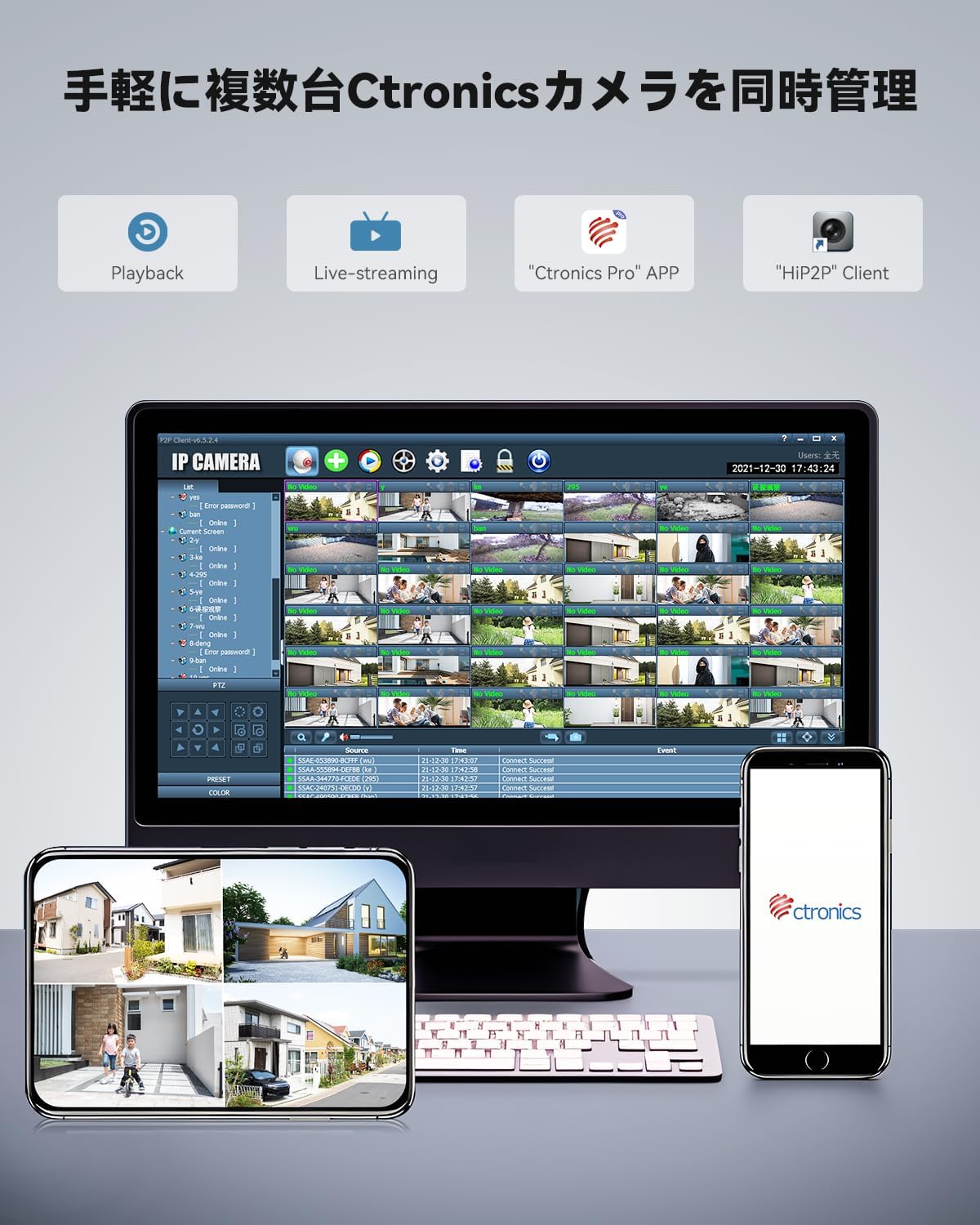
Image 4.8.1: Managing multiple Ctronics cameras via smartphone app and PC client.
5. Maintenance
5.1 Cleaning
- Regularly clean the camera lens and housing to ensure clear image quality.
- Use a soft, damp cloth for cleaning. Avoid abrasive cleaners or solvents that could damage the camera's finish or lens.
- Ensure the camera is powered off before cleaning.
5.2 Firmware Updates
Ctronics may release firmware updates to improve performance, add features, or address security vulnerabilities. Check the Ctronics Pro app periodically for available updates and follow the in-app instructions to install them.
5.3 Outdoor Durability
The camera features a rugged metal housing and is rated IP66 for weather resistance, meaning it is protected against dust ingress and powerful water jets. While designed for outdoor conditions, ensure all cable connections are properly sealed with the provided waterproof accessories during installation to prevent water damage.
6. Troubleshooting
| Problem | Possible Cause | Solution |
|---|---|---|
| Camera not powering on | Power adapter not connected or faulty; power outlet issue. | Check power connections. Try a different power outlet. Ensure the adapter is working. |
| Unable to connect to Wi-Fi | Incorrect Wi-Fi password; camera too far from router; router firewall settings. | Verify Wi-Fi password. Move camera closer to router or use a Wi-Fi extender. Check router settings. Try wired connection first. Reset camera. |
| No live view in app | Network connection issue; app not updated; camera offline. | Check internet connection. Restart camera and router. Update Ctronics Pro app. Ensure camera is online. |
| Poor image quality | Dirty lens; low network bandwidth; insufficient lighting. | Clean the camera lens. Ensure stable and sufficient Wi-Fi bandwidth. Adjust lighting or enable appropriate night vision mode. |
| Auto-tracking not working | Detection sensitivity too low; detection zone not configured; obstructions. | Adjust detection sensitivity in the app. Define or review detection zones. Ensure no physical obstructions. |
7. Specifications
| Feature | Detail |
|---|---|
| Model Name | CTIPC-870C-5MP |
| Indoor/Outdoor Usage | Outdoor |
| Video Capture Resolution | 5MP (2560x1920) |
| Optical Zoom | 30X |
| Night Vision Range (IR) | Up to 180 meters |
| Color Night Vision Range | Up to 80 meters |
| Connectivity Technology | Wireless (Dual-Band Wi-Fi 2.4/5GHz), Wired Ethernet |
| Wireless Communication Technology | Bluetooth, Wi-Fi |
| Controller Type | Ctronics APP |
| Storage Options | TF Card (up to 128GB), Cloud, FTP, NVR, NAS |
| Material | Metal |
| International Protection Rating | IP66 |
| Power Source | Corded Electric (12V) |
| Mounting Type | Wall Mount |
| Item Dimensions (L x W x H) | 5.91 x 5.91 x 5.91 inches |
| Item Weight | 5.39 pounds |
| Frame Rate | 15 frames per second |
| Viewing Angle | 90 Degrees (Optical) |
| Special Feature | All-Metal Construction |
8. Warranty and Support
For warranty information, technical support, or any inquiries regarding your Ctronics 5MP Outdoor Security Camera, please refer to the official Ctronics website or contact their customer service directly. Contact details are typically available on the product packaging or the manufacturer's official support page.
Please retain your purchase receipt as proof of purchase for warranty claims.
Related documents870C-5MP


Ask a question about this manual
Ask about setup, troubleshooting, compatibility, parts, safety, or missing instructions. Manuals+ will review the question and use this page’s manual context to help answer it.