
Introduction
This manual provides essential information for the safe and efficient operation, maintenance, and troubleshooting of your Xiaomi Robot Vacuum 5 Pro. Please read this manual thoroughly before using the product and retain it for future reference.
Important Safety Information
To reduce the risk of injury or damage, read and follow all safety precautions. This device is for household use only.
- Do not use the robot vacuum on wet surfaces or in environments with standing water.
- Keep children and pets away from the robot vacuum during operation.
- Use only the original power adapter and charging dock provided by the manufacturer.
- Ensure the power cord is not damaged or tangled.
- Remove any loose cables, small objects, or fragile items from the floor before cleaning to prevent entanglement or damage.
- Do not operate the robot vacuum near open flames or flammable materials.
- Do not sit on the robot vacuum or place heavy objects on it.
- Turn off the robot vacuum and unplug the charging dock before performing any maintenance or cleaning.
Package Contents
Verify that all components are present in the package:
- Xiaomi Robot Vacuum 5 Pro
- Self-cleaning Base Station
- Power Adapter
- Side Brush
- Main Brush (pre-installed)
- Dustbin (pre-installed)
- Water Tank (pre-installed)
- Mop Pads (x2)
- User Manual
Product Overview
Familiarize yourself with the components and features of your Xiaomi Robot Vacuum 5 Pro.
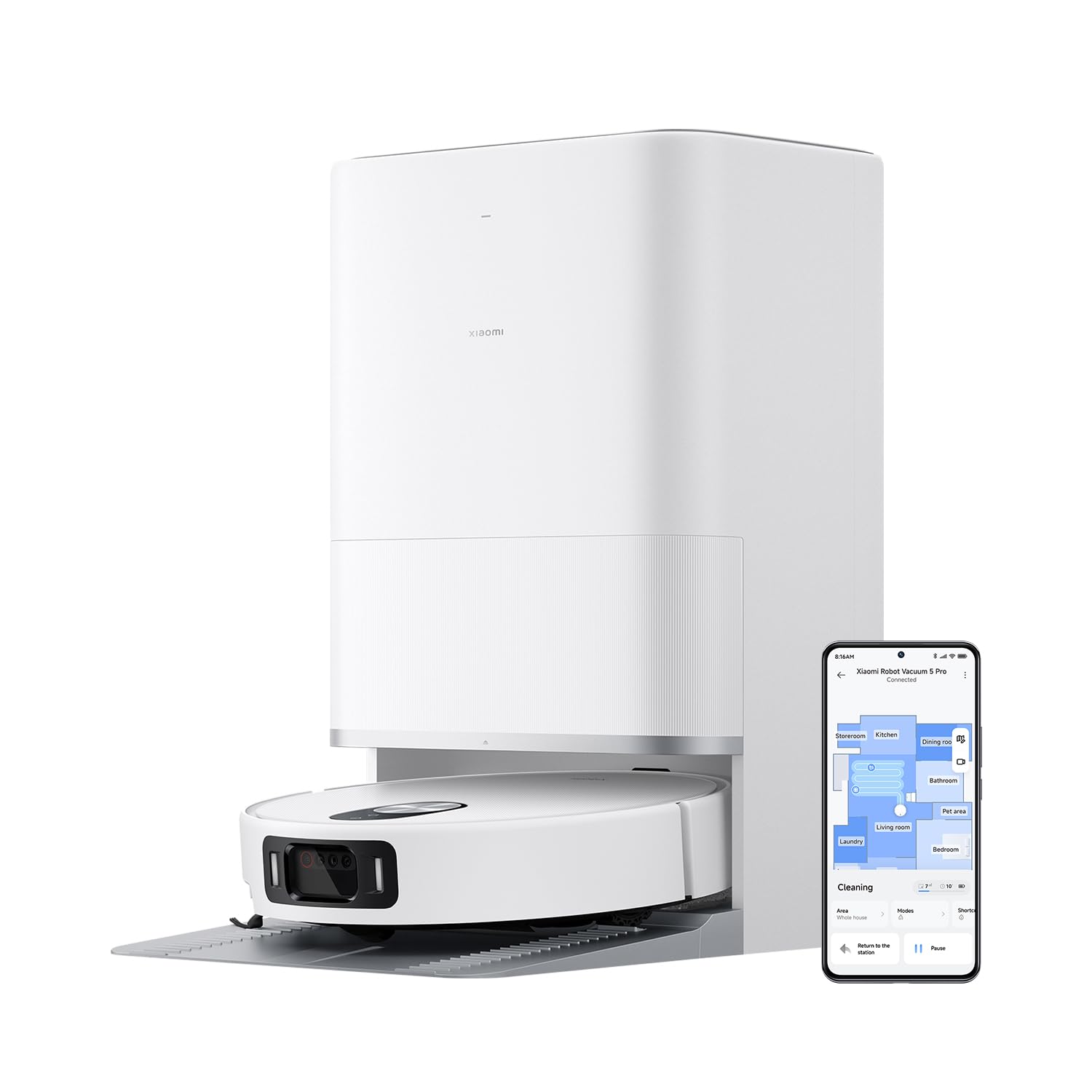
Figure 1: The Xiaomi Robot Vacuum 5 Pro docked in its self-cleaning base station, with a smartphone displaying the control app interface.
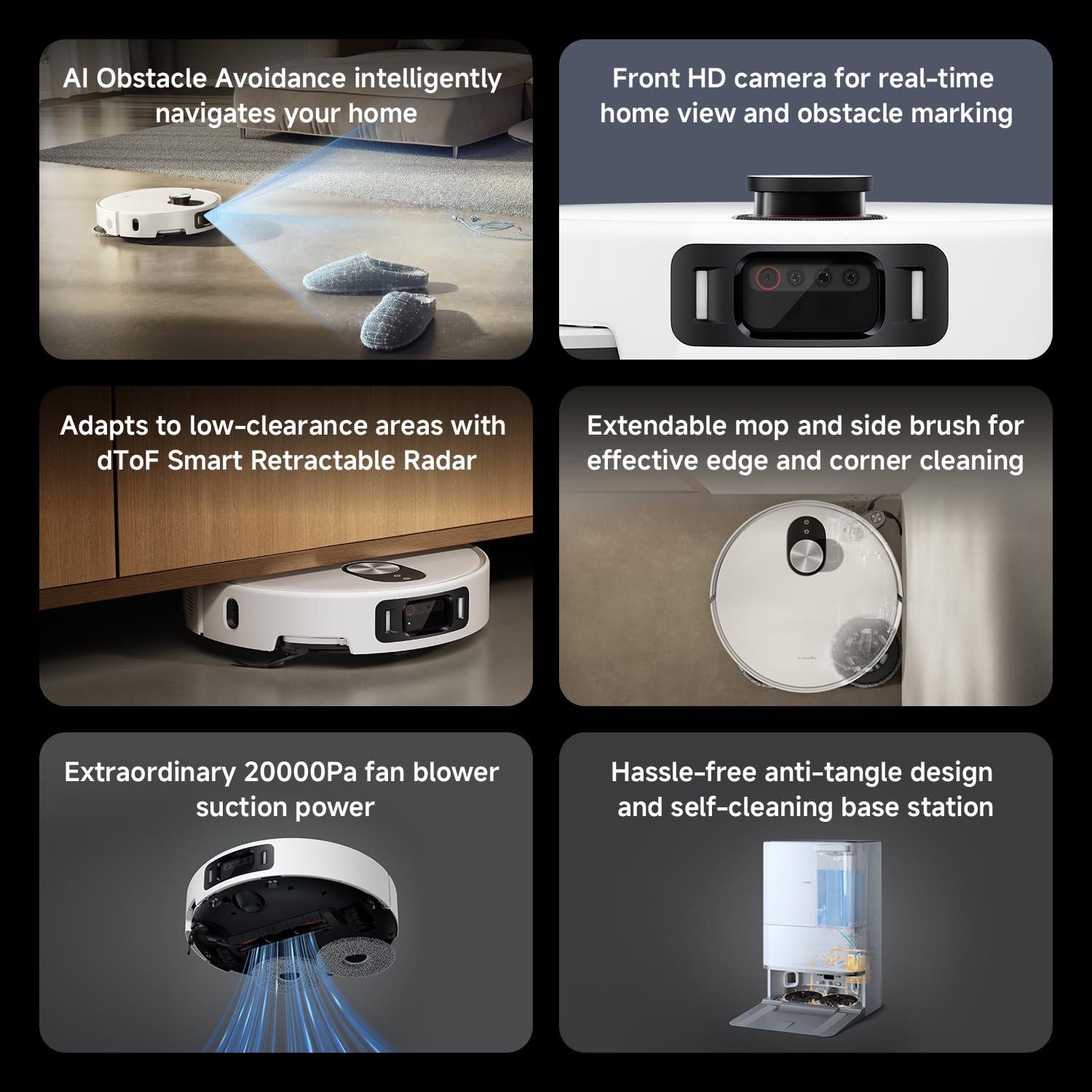
Figure 2: Overview of key features including AI obstacle avoidance, front HD camera, dToF radar, extendable mop, powerful suction, and the self-cleaning base station.

Figure 3: The AI triple-camera smart detection system, comprising an RGB camera, two infrared cameras, and an infrared 3D dot projector for accurate environment sensing.
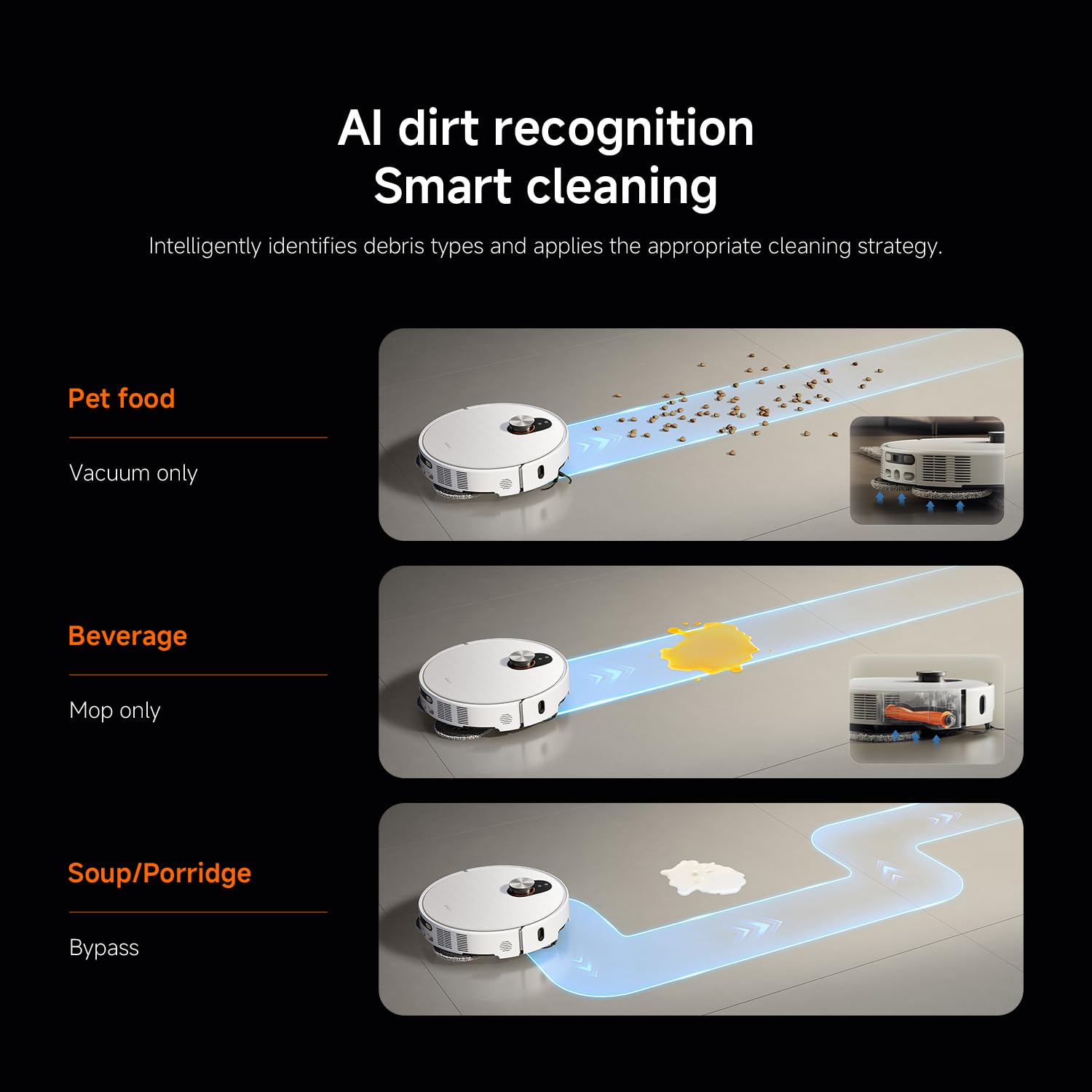
Figure 4: AI dirt recognition system intelligently identifying debris types and applying appropriate cleaning strategies (vacuum, mop, or bypass).
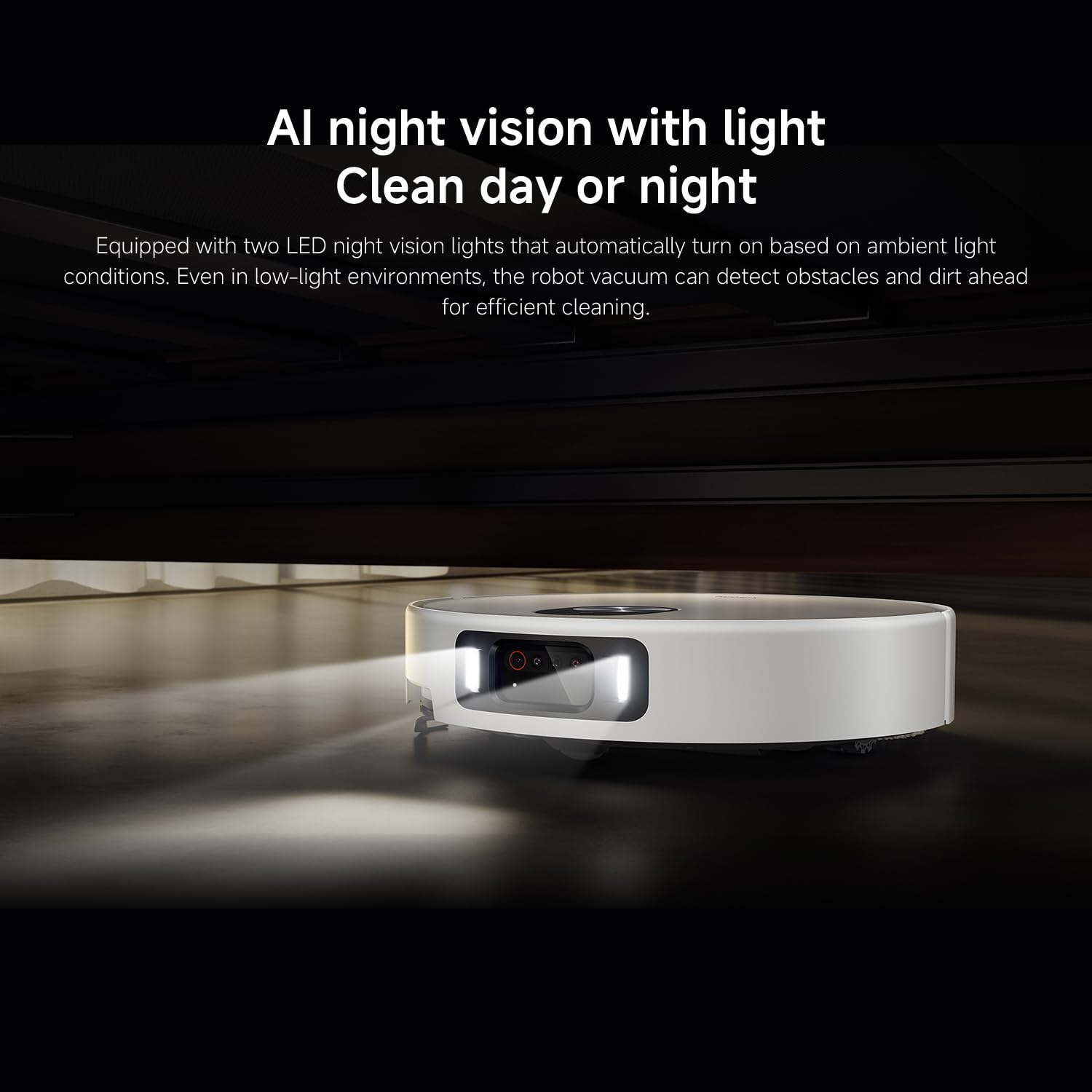
Figure 5: AI night vision with two LED lights, enabling the robot vacuum to detect obstacles and dirt efficiently in low-light conditions.
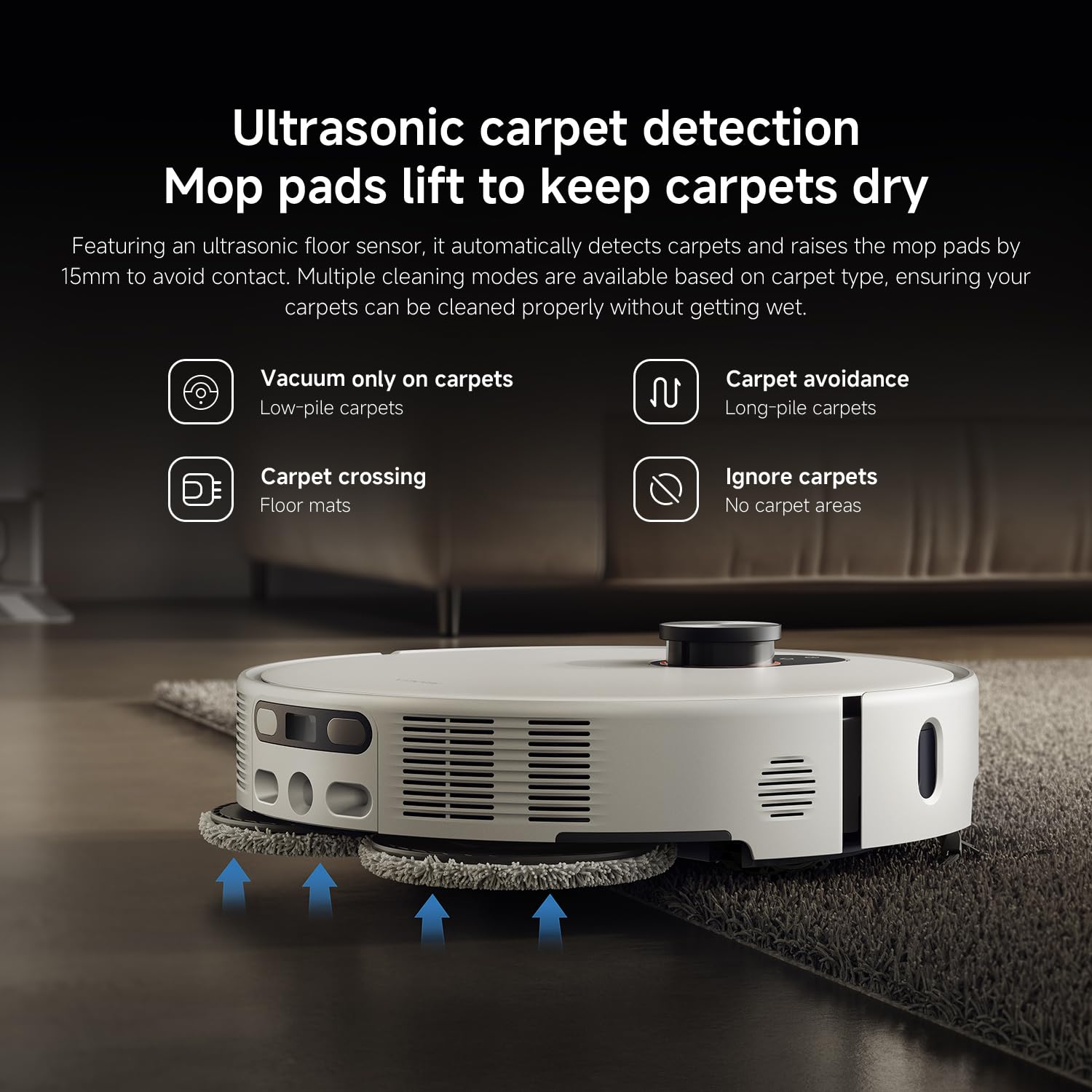
Figure 6: Ultrasonic carpet detection system, which automatically lifts mop pads by 15mm to avoid wetting carpets, offering multiple cleaning modes.
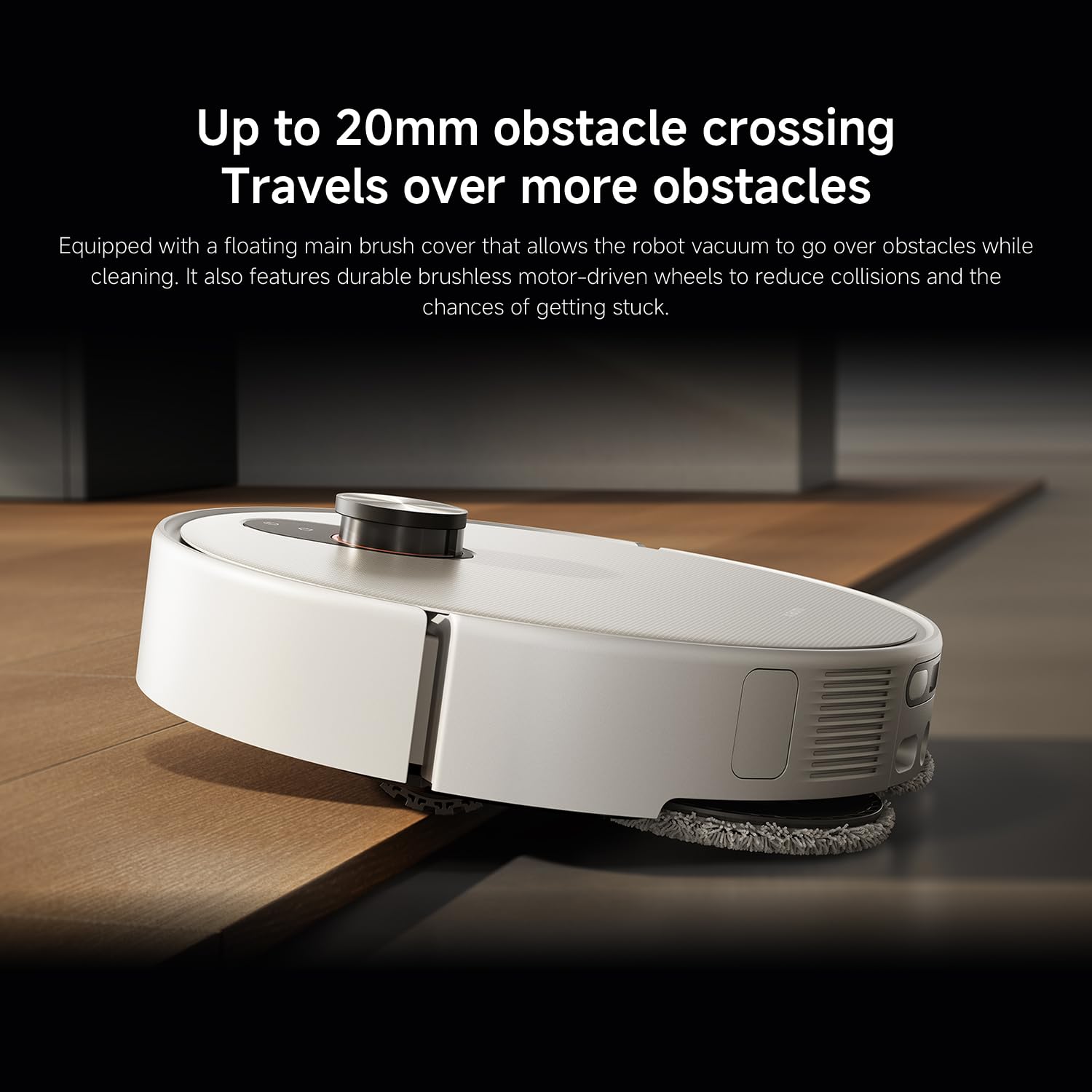
Figure 7: The robot vacuum's ability to cross obstacles up to 20mm high, facilitated by a floating main brush cover and durable wheels.
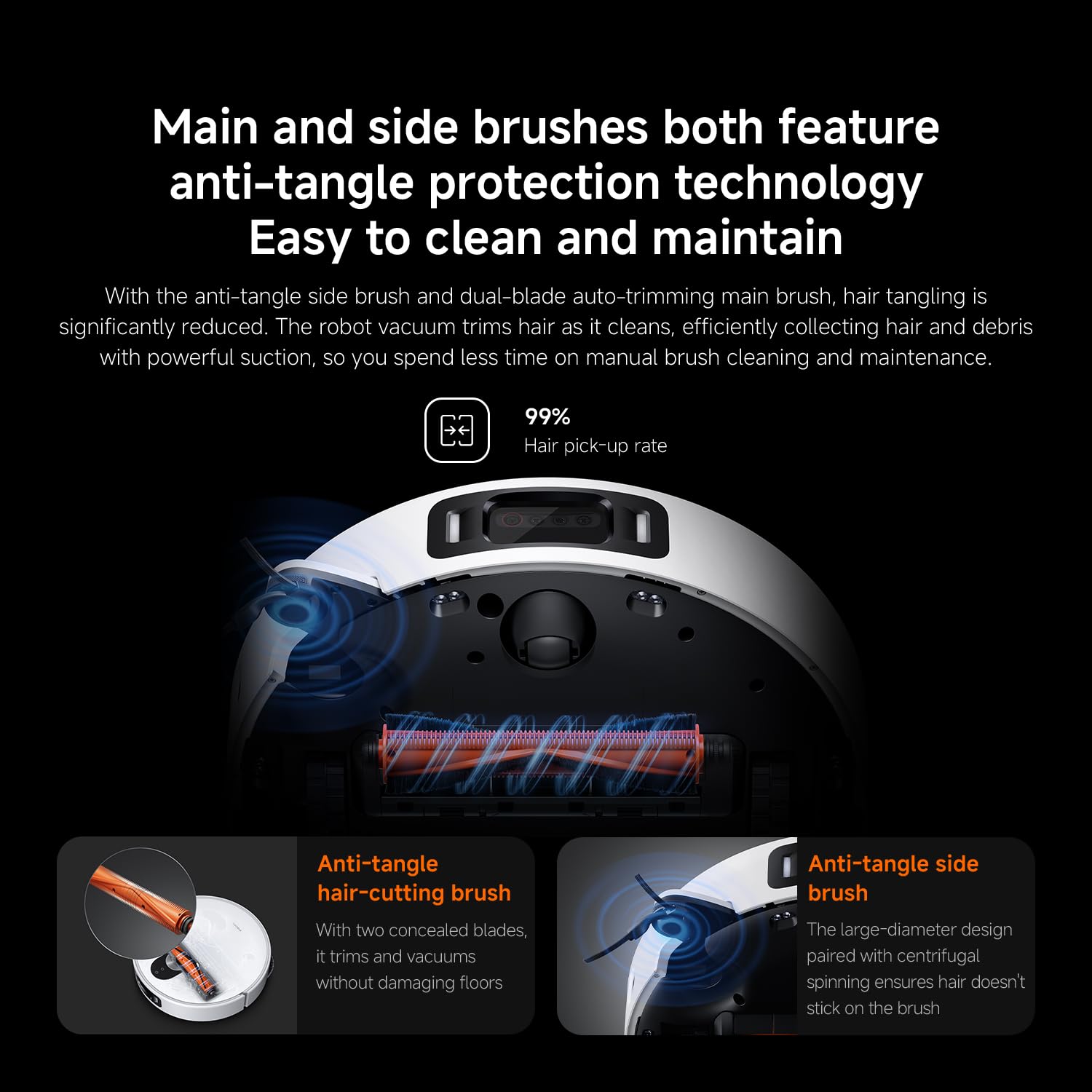
Figure 8: Main and side brushes featuring anti-tangle protection technology, including concealed blades for the main brush and a large-diameter design for the side brush.
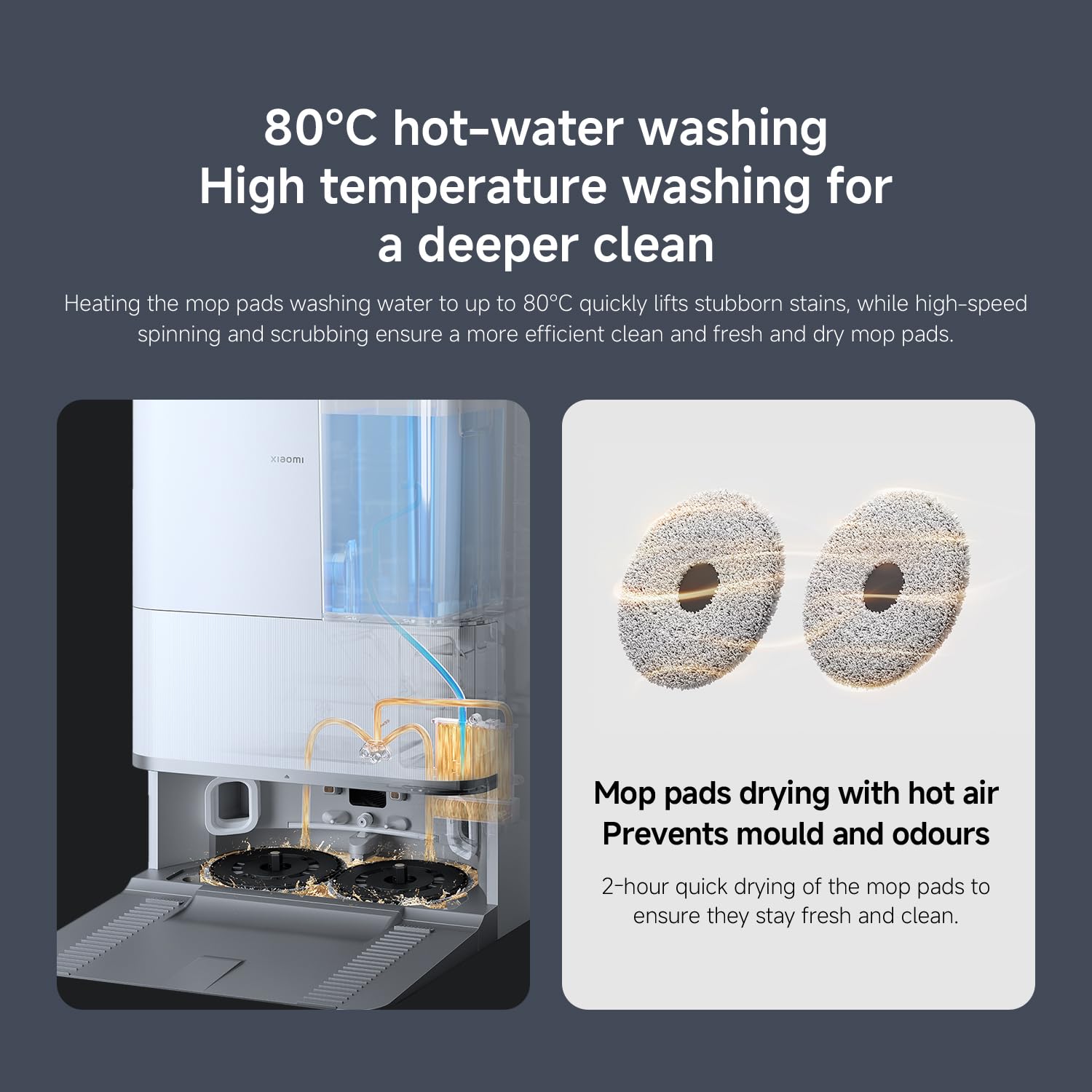
Figure 9: The self-cleaning base station performing 80°C hot-water washing for deep cleaning and 2-hour hot air drying of mop pads to prevent mold and odors.
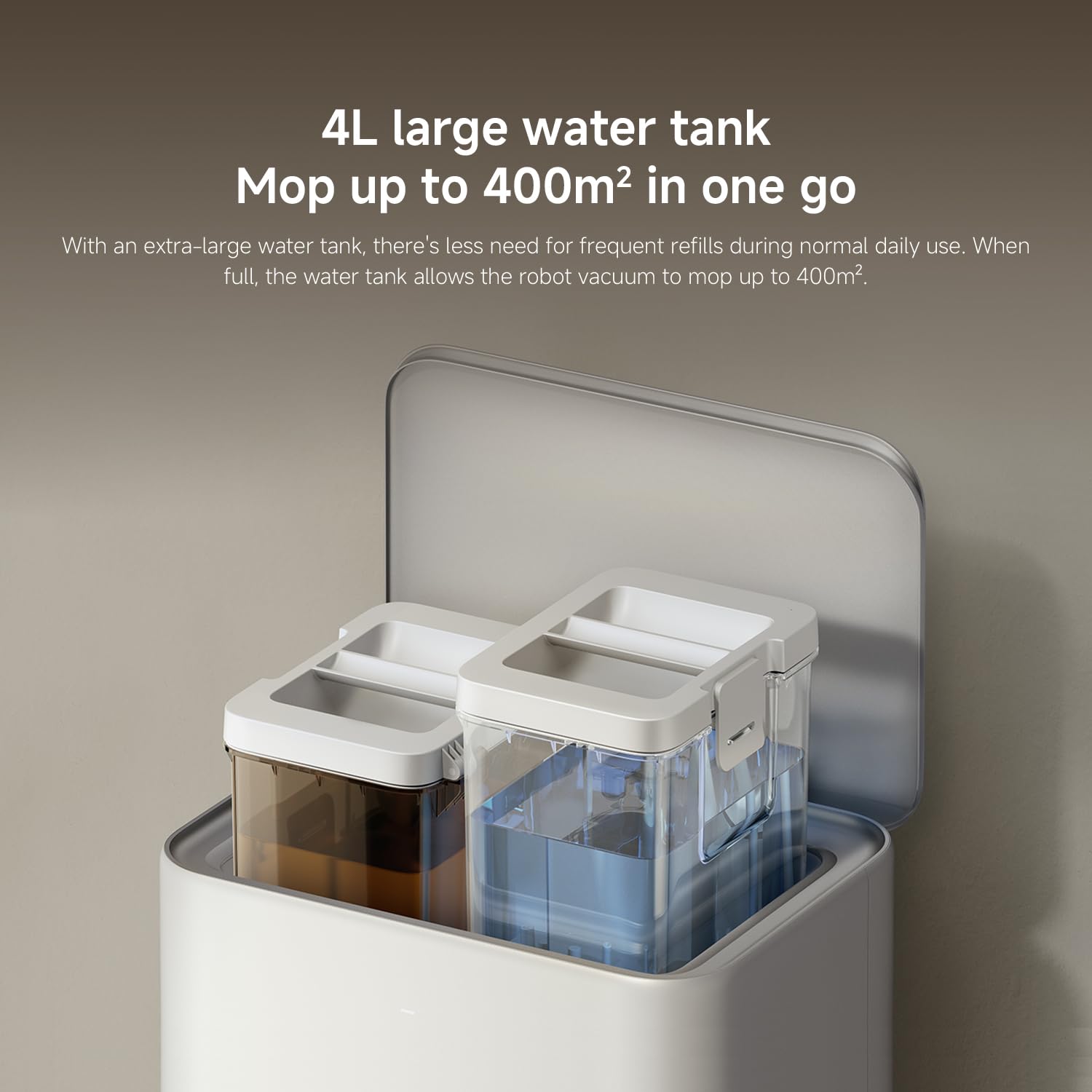
Figure 10: The 4L large water tank system within the self-cleaning base station, designed for extended mopping coverage without frequent refills.
Setup Guide
1. Unpacking and Placement
- Carefully remove all components from the packaging.
- Choose a suitable location for the self-cleaning base station. Ensure there is at least 0.5 meters of clear space on both sides and 1.5 meters in front of the base station.
- Place the base station against a wall on a hard, level surface. Do not place it on carpets.
- Connect the power adapter to the base station and plug it into a power outlet. Ensure the cable is neatly tucked away to prevent entanglement.
2. Initial Charging
- Place the robot vacuum onto the charging contacts of the base station. Ensure the contacts align.
- The robot will automatically power on and begin charging. Allow it to fully charge before first use (approximately 6 hours). The indicator light on the robot will change when fully charged.
3. App Download and Connection
- Download the Xiaomi Home app from your smartphone's app store (App Store for iOS, Google Play Store for Android).
- Open the app and create an account or log in.
- Tap the "+" icon in the top right corner to add a device.
- Select "Xiaomi Robot Vacuum 5 Pro" from the list of available devices or scan the QR code on the robot.
- Follow the in-app instructions to connect the robot to your home Wi-Fi network. Ensure your phone is connected to a 2.4GHz Wi-Fi network during setup.
- Once connected, you can control the robot, view maps, set schedules, and access advanced features through the app.
Operating Instructions
1. Starting and Stopping Cleaning
- Start Cleaning: Press the power button on the robot or tap "Clean" in the Xiaomi Home app. The robot will automatically map your home and begin cleaning.
- Pause Cleaning: Press any button on the robot or tap "Pause" in the app.
- Resume Cleaning: Press the power button again or tap "Resume" in the app.
- Return to Base: Press the home button on the robot or tap "Recharge" in the app. The robot will return to the self-cleaning base station.
2. Cleaning Modes
The Xiaomi Home app allows you to select various cleaning modes:
- Vacuum Only: For dry debris and general vacuuming.
- Mop Only: For wet cleaning with mop pads.
- Vacuum & Mop: Simultaneous vacuuming and mopping.
- Area Cleaning: Select specific rooms or zones on the map to clean.
- Spot Cleaning: Direct the robot to clean a specific small area.
3. Advanced Features via Xiaomi Home App
- Map Management: View and edit your home's map. Set virtual walls and no-go zones to restrict the robot from certain areas.
- Scheduled Cleaning: Set specific times for the robot to clean automatically.
- Cleaning Preferences: Adjust suction power, water flow level, and carpet cleaning modes (e.g., vacuum only on carpets, carpet avoidance).
- Real-time Monitoring: Monitor the robot's cleaning progress and location in real-time.
- AI Dirt Recognition: The robot automatically adjusts its cleaning strategy based on detected dirt types.
- AI Night Vision: Enables cleaning in low-light conditions.
Maintenance
Regular maintenance ensures optimal performance and extends the lifespan of your robot vacuum. Always turn off the robot and unplug the base station before performing maintenance.
1. Dustbin and Filter
- Empty Dustbin: The self-cleaning base station will automatically empty the dustbin. However, manually check and empty the dustbin if the base station is not used or if the dustbin is full.
- Clean Filter: Tap the dustbin to remove loose dirt. Rinse the filter under running water. Ensure it is completely dry before re-installing (allow 24 hours). Replace the filter every 3-6 months, or as needed.
2. Water Tank and Mop Pads
- Refill Water Tank: The base station will manage water levels. Ensure the clean water tank in the base station is filled.
- Clean Mop Pads: The base station automatically washes and dries the mop pads. Periodically remove and hand wash the mop pads for a deeper clean. Replace mop pads every 1-3 months, depending on usage.
3. Brushes
- Main Brush: Remove the main brush cover and lift out the main brush. Use the cleaning tool to remove hair and debris. Check the bearings for any entanglement. Reinstall the brush. Replace every 6-12 months.
- Side Brush: Unscrew the side brush and remove any tangled hair or debris. Reattach the brush. Replace every 3-6 months.
4. Sensors and Charging Contacts
- Wipe all sensors (cliff sensors, wall sensors, dToF radar) and charging contacts on both the robot and the base station with a clean, dry cloth.
Troubleshooting
If you encounter issues with your robot vacuum, refer to the following common problems and solutions:
| Problem | Possible Cause | Solution |
|---|---|---|
| Robot does not power on or charge. | Battery depleted; charging contacts dirty; power adapter not connected. | Ensure robot is properly docked. Clean charging contacts. Check power adapter connection. |
| Robot gets stuck frequently. | Obstacles on floor; low-clearance furniture; cliff sensors dirty. | Clear floor of cables and small items. Use virtual walls in app. Clean cliff sensors. |
| Poor cleaning performance. | Dustbin full; brushes tangled; filter clogged; low suction setting. | Empty dustbin. Clean main and side brushes. Clean/replace filter. Increase suction power in app. |
| Robot cannot return to base station. | Base station obstructed; robot too far from base; charging contacts dirty. | Ensure clear path to base. Move robot closer to base. Clean charging contacts. |
| Mop pads not cleaning effectively or leaving streaks. | Mop pads dirty; water tank empty; low water flow setting. | Clean or replace mop pads. Refill clean water tank. Adjust water flow in app. |
| App connection issues. | Incorrect Wi-Fi password; 5GHz Wi-Fi network; robot too far from router. | Ensure 2.4GHz Wi-Fi. Re-enter password. Move robot closer to router. Restart robot and router. |
Specifications
| Feature | Detail |
|---|---|
| Brand | XIAOMI |
| Model Number | 65238 |
| Part Number | BHR07WEGB |
| Voltage | 240 Volts |
| Power Source | Battery Powered |
| Batteries Included | Yes (1 x 12V battery) |
| Form Factor | Round |
| Product Dimensions | 44.3 x 43.1 x 68.6 cm |
| Item Weight | 15 Kilograms |
| Surface Recommendation | Multi-surface |
| Date First Available | 23 September 2025 |
Warranty and Support
For warranty information and customer support, please refer to the warranty card included with your product or visit the official XIAOMI website. You can also contact XIAOMI customer service for assistance with product inquiries, technical support, or service requests.
Official Website: www.mi.com