
1. Product Overview
The WESECUU Light Bulb Security Camera offers comprehensive home surveillance with easy installation. Designed for both indoor and outdoor use, this camera provides a 360° panoramic view, motion tracking, and AI detection for enhanced security.
- Effortless Installation: Screws into a standard light bulb socket, requiring no drilling or complex wiring.
- 360° Panoramic View & Auto Motion Tracking: Provides full-area coverage and automatically follows detected movement.
- Smart AI Detection: Distinguishes between people and other movements to reduce false alerts.
- Two-Way Audio: Features a built-in speaker and microphone for real-time communication.
- 24/7 Day & Night Monitoring: Ensures continuous surveillance in various lighting conditions.

2. Package Contents
Please verify that all items are present in your package:
- WESECUU Light Bulb Security Camera
- Instruction Manual (this document)
3. Setup Instructions
3.1 Physical Installation
The camera is designed for simple installation into a standard E27/E26 light bulb socket.
- Ensure the power to the light socket is turned off at the circuit breaker before installation.
- Carefully screw the WESECUU Light Bulb Security Camera into the light bulb socket until it is secure. Do not overtighten.
- Turn the power back on at the circuit breaker. The camera will power on and initiate its startup sequence.
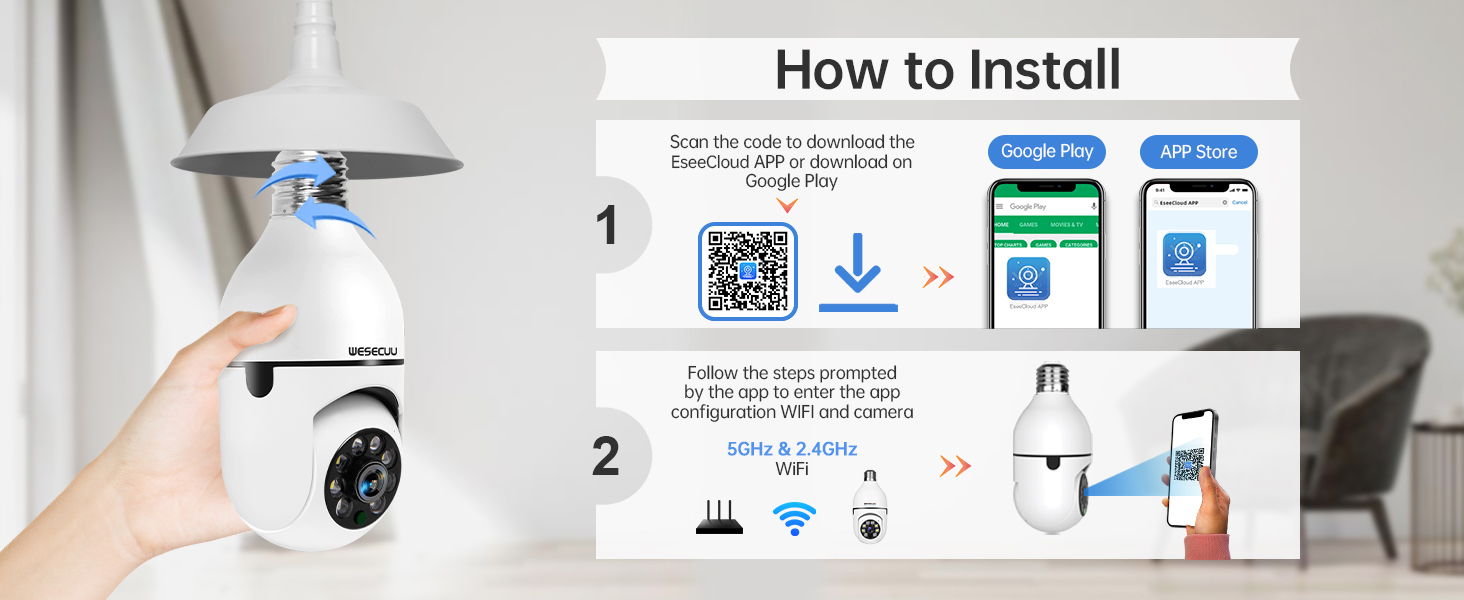
3.2 App Download and Camera Pairing
To operate your camera, you need to download the EseeCloud APP and pair the device.
- Download the EseeCloud APP from the Google Play Store or Apple App Store. You can also scan the QR code provided in the installation image below or visit http://www.e-seenet.com/download/indexm.php?p=tjesee.
- Open the EseeCloud APP and create an account or log in.
- Follow the in-app instructions to add your new camera. Ensure your smartphone is connected to a 2.4GHz or 5GHz Wi-Fi network during the pairing process. The camera supports both 2.4GHz and 5GHz Wi-Fi.
- Once successfully paired, you can access the live feed and camera settings through the app.
4. Operating Instructions
4.1 Live View and Playback
Access the EseeCloud APP to view the live feed from your camera. You can also review recorded footage from the SD card (if installed) or cloud storage (if subscribed).

4.2 Motion Detection and Tracking
The camera features advanced motion detection and automatic tracking. When motion is detected, the camera will pan and tilt to follow the subject, ensuring continuous coverage. Alerts will be sent to your smartphone.

4.3 AI Detection Alerts
The integrated AI technology helps differentiate between human movement and other sources of motion, such as pets or passing vehicles, reducing irrelevant notifications.

4.4 Two-Way Audio
Utilize the two-way audio feature to communicate through the camera. This allows you to speak to visitors, deter intruders, or comfort pets remotely.

4.5 Night Vision
The camera provides both full-color night vision and infrared night vision modes for clear monitoring in low-light conditions.

4.6 Storage Options
The camera supports local storage via an SD card (16-128GB, not included) and offers optional cloud storage plans for continuous recording and advanced features.

5. Maintenance
To ensure optimal performance and longevity of your WESECUU Light Bulb Security Camera, follow these maintenance guidelines:
- Lens Cleaning: Gently wipe the camera lens with a soft, dry microfiber cloth to remove dust or smudges. Avoid abrasive cleaners.
- Power Supply: Ensure the camera receives a stable power supply. Avoid frequent power interruptions.
- Firmware Updates: Regularly check the EseeCloud APP for available firmware updates to ensure your camera has the latest features and security enhancements.
- Environmental Conditions: While designed for outdoor use, avoid direct exposure to extreme weather conditions if possible, and ensure the light socket is weather-protected.
6. Troubleshooting
If you encounter issues with your WESECUU Light Bulb Security Camera, refer to the following common solutions:
- Camera Not Connecting to Wi-Fi:
- Ensure your Wi-Fi network is 2.4GHz or 5GHz and stable.
- Verify the Wi-Fi password is entered correctly in the app.
- Move the camera closer to your Wi-Fi router during setup.
- Restart your router and the camera.
- No Image or Black Screen:
- Check if the camera is properly powered on and the light socket has power.
- Ensure the camera lens is not obstructed.
- Restart the camera by turning off and on the power to the socket.
- Motion Detection Not Working:
- Check motion detection settings in the EseeCloud APP.
- Ensure the detection sensitivity is set appropriately.
- Verify that notification permissions are enabled for the app on your smartphone.
- Poor Image Quality:
- Clean the camera lens.
- Ensure adequate lighting for optimal image clarity, especially for color night vision.
- Check your internet connection speed, as a slow connection can affect streaming quality.

Figure 10: Visual comparison demonstrating the superior clarity of WESECUU's 3MP resolution compared to other standard resolutions.
7. Specifications
| Feature | Specification |
|---|---|
| Model Number | TP-8052BW3 |
| Brand | WESECUU |
| Indoor/Outdoor Usage | Outdoor |
| Connectivity Technology | Wireless (Wi-Fi) |
| Connectivity Protocol | Wi-Fi (2.4GHz & 5GHz) |
| Power Source | Corded Electric |
| Video Capture Resolution | 4K |
| Mounting Type | Ceiling Mount |
| Special Feature | Adjustable |
| Compatible Devices | Amazon Alexa |
| Controller Type | Amazon Alexa |
| Product Dimensions (L x W x H) | 1 x 1 x 1 inches |
| Item Weight | 7.2 ounces (0.21 Kilograms) |
8. Warranty Information
For detailed warranty information, please refer to the warranty card included with your product packaging or visit the official WESECUU website. Warranty terms and conditions may vary by region and purchase date.
9. Customer Support
If you require further assistance or have questions not covered in this manual, please contact WESECUU customer support:
- Customer Hotline: +1-888-9716718
- Working Hours: Pacific Standard Time 6:00 PM - 3:00 AM, Monday to Friday
- Online Support: Visit the official WESECUU website for FAQs, support resources, and contact forms.

