
Introduction
The Razer BlackShark V3 X HyperSpeed is a wireless esports gaming headset designed for high-performance audio and clear communication across multiple platforms. This manual provides essential information for setting up, operating, maintaining, and troubleshooting your headset.
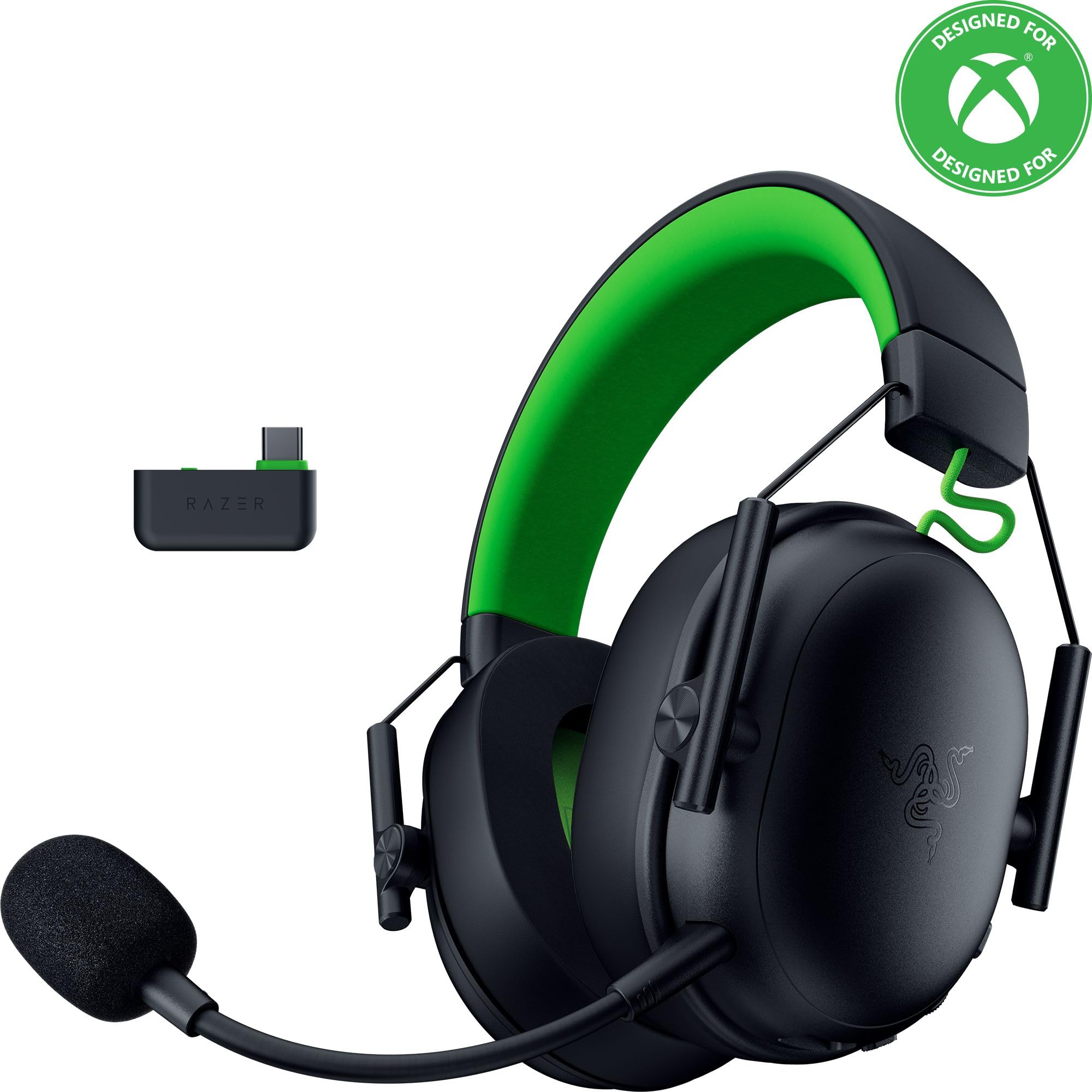
Image: The Razer BlackShark V3 X HyperSpeed Wireless Gaming Headset, showcasing its design and detachable microphone.
What's in the Box
Ensure all the following components are present in your package:
- Razer BlackShark V3 X HyperSpeed Wireless Gaming Headset
- USB Type C Razer HyperSpeed Wireless Dongle
- Detachable Razer HyperClear Cardioid 9.9mm Mic
- USB Type A to Type C Cable (for charging and wired connection)
- USB Type A to Type C Adapter Cable
- User Manual (this document)

Image: The Razer BlackShark V3 X HyperSpeed headset on a stand next to its retail packaging, illustrating the product and its box.
Setup
1. Charging the Headset
Before initial use, fully charge your headset using the provided USB Type A to Type C cable. Connect the USB-C end to the headset's charging port and the USB-A end to a powered USB port.
2. Attaching the Microphone
Insert the detachable Razer HyperClear Cardioid 9.9mm Mic into the microphone port located on the left earcup. Ensure it is securely connected.

Image: Close-up of the Razer BlackShark V3 X HyperSpeed headset showing the detachable HyperClear Cardioid microphone attached.
3. Connectivity Options
The headset supports three modes of connectivity: 2.4 GHz HyperSpeed Wireless, Bluetooth, and wired USB-C.
- 2.4 GHz HyperSpeed Wireless (PC, Mac, PS5, Nintendo Switch, Xbox Series X|S, Xbox One):
Insert the USB Type C Razer HyperSpeed Wireless Dongle into an available USB-C port on your device. If your device only has USB-A ports, use the provided USB Type A to Type C Adapter Cable. Ensure the switch on the dongle is set to 'USB' for PC/Mac/PS5/Switch or 'XBOX' for Xbox consoles. The headset will automatically connect. - Bluetooth (Smartphones, Tablets, Handheld Gaming Devices):
With the headset powered on, press and hold the power button until the LED indicator blinks blue, indicating pairing mode. On your device, search for and select "Razer BlackShark V3 X HyperSpeed" from the list of available Bluetooth devices. - Wired USB-C:
Connect the headset directly to your device using the USB Type A to Type C Cable. This mode provides audio and microphone functionality without relying on battery power.

Image: The Razer BlackShark V3 X HyperSpeed headset alongside its USB-C wireless dongle, illustrating the wireless connectivity component.

Image: A visual representation of the headset's three connectivity modes: 2.4 GHz Wireless, Bluetooth, and USB, highlighting its versatility.
Operating the Headset
1. Controls Overview
The headset features intuitive controls located on the earcups:
- Power Button: Press and hold to power on/off. Single press to switch between 2.4 GHz HyperSpeed Wireless and Bluetooth modes.
- Mic Mute Button: Press to mute or unmute the microphone.
- Volume Wheel: Adjusts the overall audio volume.
- Mic Monitoring Wheel: Adjusts the volume of your own voice heard through the headset (sidetone).

Image: Side view of the Razer BlackShark V3 X HyperSpeed headset, highlighting the location of the power button, volume wheel, and mic mute button.
2. Audio Quality and Features
- Razer TriForce 50mm Drivers Gen-2: Experience powerful, clear audio with enhanced positional accuracy for competitive gaming.
- Razer HyperClear Cardioid 9.9mm Mic: The detachable microphone features a unidirectional pickup pattern to focus on your voice and minimize background noise.
- Surround Sound: Enjoy immersive surround sound with Windows Sonic on Xbox and 7.1 Surround Sound on PC for precise audio cues.

Image: An exploded view of the Razer TriForce 50mm Drivers Gen-2, illustrating their internal components for powerful and clear audio.

Image: The Razer BlackShark V3 X HyperSpeed headset surrounded by sound waves, representing its advanced surround sound capabilities for Xbox and PC.
3. Comfort and Design
Weighing just 270g, the headset is designed for extended gaming sessions with plush memory foam cushions and a fatigue-free design.

Image: The Razer BlackShark V3 X HyperSpeed headset with an icon representing its ultra-lightweight design, emphasizing comfort for long gaming sessions.
4. Official Product Video
Video: An official product video from Razer showcasing the BlackShark V3 headset line, highlighting its features and design for esports performance.
Maintenance
1. Cleaning
- Use a soft, dry cloth to clean the headset's surfaces.
- For earcups, gently wipe with a damp cloth and mild soap if necessary, then dry thoroughly. Avoid excessive moisture.
- Do not use harsh chemicals or abrasive materials.
2. Storage
- Store the headset in a cool, dry place away from direct sunlight and extreme temperatures.
- When not in use, consider placing it on a headset stand to maintain its shape and prevent damage.
Troubleshooting
No Audio/Poor Audio Quality
- Check Volume: Ensure the volume wheel on the headset is turned up.
- Connectivity: Verify the headset is correctly connected via 2.4 GHz dongle, Bluetooth, or USB-C. For 2.4 GHz, ensure the dongle switch is set to the correct platform (USB/XBOX).
- Device Settings: Confirm the headset is selected as the default audio output device in your computer's or console's sound settings.
- Re-pair: For wireless connections, try re-pairing the headset with your device.
Microphone Not Working
- Check Mute: Ensure the mic mute button on the headset is not activated.
- Mic Connection: Verify the detachable microphone is securely inserted into the port.
- Device Settings: Confirm the headset microphone is selected as the default input device in your computer's or console's sound settings.
- Mic Monitoring: Adjust the mic monitoring wheel to hear your own voice, confirming mic functionality.
Connectivity Issues
- Interference: Move away from other wireless devices that might cause interference.
- Range: Ensure you are within the effective range of the wireless dongle or Bluetooth connection.
- Dongle Switch: Double-check that the switch on the USB-C dongle is set to the correct position (USB for PC/Mac/PS5/Switch, XBOX for Xbox).
Battery Life Shorter Than Expected
- Charging: Ensure the headset is fully charged before use.
- Usage: High volume levels or continuous use of certain features can reduce battery life.
Specifications
| Model Name | BlackShark V3 X HyperSpeed |
| Model Number | RZ04-05420200-R3U1 |
| Connectivity Technology | Bluetooth, USB, 2.4 GHz Wireless |
| Audio Driver Type | Dynamic Driver (Razer TriForce 50mm Drivers Gen-2) |
| Frequency Response | 12 Hz - 28 KHz |
| Sensitivity | 106 dB |
| Microphone | Detachable Razer HyperClear Cardioid 9.9mm Mic |
| Noise Control | Sound Isolation |
| Compatible Devices | Xbox Series X|S, Xbox One, PS5, PS4, PC, Mac, Nintendo Switch, Smartphones, Tablets |
| Item Weight | 270 grams (without mic) |
| Batteries | 1 Lithium Ion battery (included) |
| Bluetooth Version | 5.3 |
Warranty and Support
For warranty information, technical support, or further assistance, please visit the official Razer support website. Keep your proof of purchase for warranty claims.
Online Support: www.razer.com/support


