1. Introduction
This manual provides detailed instructions for the Redragon K737 PRO Wireless 87 Keys Gasket Gaming Keyboard. Please read this manual thoroughly before using the product to ensure proper operation and to prevent damage.

Image: The Redragon K737 PRO Wireless Gaming Keyboard, showcasing its compact TKL design and RGB lighting.
2. Package Contents
- Redragon K737 PRO Wireless Gaming Keyboard
- USB-C to USB-A Cable
- 2.4GHz Wireless Receiver
- Keycap Puller
- Switch Puller
- User Manual
3. Setup
3.1 Charging the Keyboard
Before first use, fully charge the keyboard using the provided USB-C cable. Connect the USB-C end to the keyboard and the USB-A end to a powered USB port (e.g., computer, wall adapter). The keyboard features a 4000mAh battery.

Image: The keyboard illustrating how to check the battery level using the FN+E key combination, showing different RGB patterns for 30%, 50%, and 100% charge.
3.2 Connecting the Keyboard
The K737 PRO supports three connection modes: USB-C wired, 2.4GHz wireless, and Bluetooth 3.0/5.0.
3.2.1 Wired Connection
- Locate the USB-C port on the keyboard.
- Connect the provided USB-C cable to the keyboard and the USB-A end to your computer.
- The keyboard will be automatically recognized and ready for use.
3.2.2 2.4GHz Wireless Connection
- Locate the 2.4GHz wireless receiver.
- Plug the receiver into an available USB-A port on your computer.
- Turn on the keyboard using the switch located on the side or back of the keyboard.
- The keyboard should automatically connect to the receiver.
3.2.3 Bluetooth Connection
- Turn on the keyboard and switch to Bluetooth mode (refer to keyboard markings for mode switch).
- On your computer or device, open Bluetooth settings.
- Search for new devices and select "Redragon K737 PRO" from the list.
- Follow any on-screen prompts to complete pairing.
4. Operating Instructions
4.1 Basic Key Functions
The K737 PRO features an 87-key Tenkeyless (TKL) layout. Standard alphanumeric and function keys operate as labeled. Many keys have secondary functions accessible via the Function (FN) key.
4.2 Multimedia and Function Keys
Use the FN key in combination with other keys (typically F1-F12 or other designated keys) to access multimedia controls, volume adjustments, and other system functions. Refer to the keycap legends for specific FN combinations.
4.3 RGB Lighting Control
The keyboard features customizable RGB backlighting with south-facing LEDs and side-printed PBT keycaps. Lighting effects can be adjusted directly on the keyboard using FN key combinations or through the dedicated software.

Image: A detailed view of the Contour Line side-printed PBT keycaps and the south-facing LED illumination on the Redragon K737 PRO keyboard.
4.4 Battery Level Check
To check the current battery level, press the FN + E keys simultaneously. The keyboard's RGB lighting will indicate the charge level as shown in the setup section.
4.5 Software Customization
The Redragon K737 PRO is supported by professional software, allowing for advanced customization:
- Macro Editing: Create and assign custom macros to keys.
- RGB Backlights: Design and apply custom lighting modes and effects.
- Key Redefinition: Remap keys for personalized layouts.
Download the latest software from the official Redragon website.
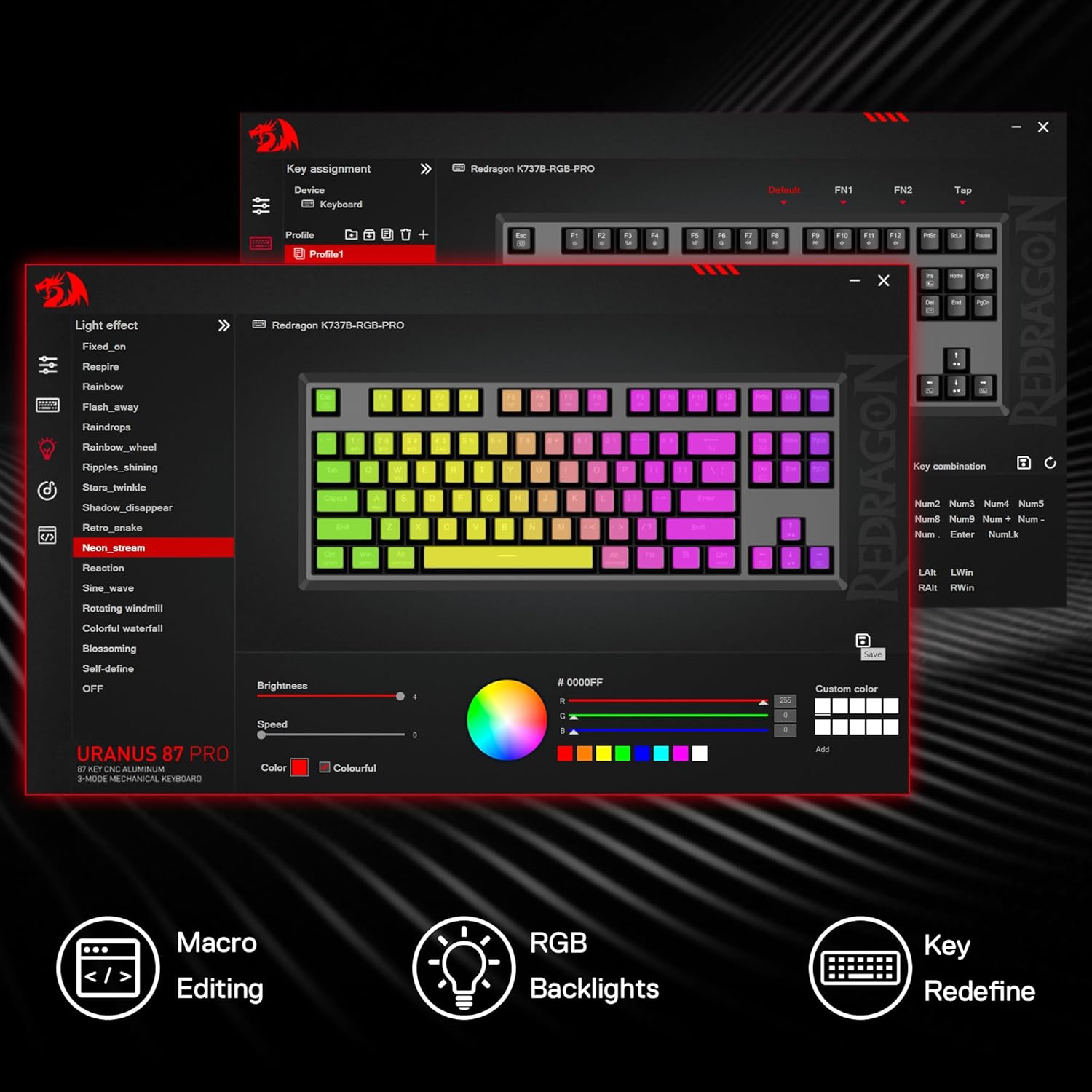
Image: A screenshot of the Redragon K737 PRO software, demonstrating options for macro editing, RGB backlight customization, and key redefinition.
4.6 Hot-Swap Switch Replacement
The K737 PRO features hot-swappable sockets, allowing you to change switches without soldering. It is compatible with both 3-pin and 5-pin mechanical switches.
- Use the provided switch puller to carefully remove the existing switch. Grip the switch firmly and pull straight up.
- Align the pins of the new switch with the holes on the PCB.
- Gently press the new switch into place until it clicks. Ensure it is seated properly and not bent.

Image: An exploded view illustrating the hot-swap stand-alone slotting sockets and the process of replacing a switch, along with a force curve diagram for the Custom Silky Frost Switch.
5. Maintenance
5.1 Cleaning the Keyboard
Regularly clean your keyboard to maintain performance and appearance. Use a soft, dry cloth to wipe the surface. For deeper cleaning, use a can of compressed air to remove dust and debris from between keycaps. Avoid using harsh chemicals or abrasive materials.
5.2 Keycap Removal and Installation
Use the provided keycap puller to remove keycaps. Gently pull straight up to avoid damaging the switch stem. When reinstalling, align the keycap with the switch stem and press down firmly until it snaps into place.
6. Troubleshooting
6.1 Keyboard Not Responding
- Ensure the keyboard is charged.
- Check the connection mode (wired, 2.4GHz, Bluetooth) and ensure it matches your setup.
- For wired connection, try a different USB port or cable.
- For 2.4GHz, ensure the receiver is securely plugged in and try a different USB port.
- For Bluetooth, re-pair the device or try connecting to a different Bluetooth-enabled device.
- Restart your computer.
6.2 RGB Lighting Issues
- Ensure the lighting is not turned off via FN key combinations or software.
- Check software settings for any conflicting profiles or disabled lighting.
- Update keyboard firmware if available.
6.3 Keys Not Registering
- Remove the keycap and visually inspect the switch for any debris.
- If the switch is damaged, consider replacing it using the hot-swap feature.
- Ensure the keycap is properly seated on the switch.
7. Specifications
| Model | K737 PRO |
| Layout | 87-key Tenkeyless (TKL) |
| Connection Modes | USB-C Wired, Bluetooth 3.0/5.0, 2.4GHz Wireless |
| Switches | Custom Silky Frost (Hot-Swap, 3/5 pin compatible) |
| Keycaps | PBT, Contour Line, Side-Printed |
| Construction | CNC Aluminum Frame, Gasket Mount |
| Noise Dampening | 5-Layer (PO foam, IXPE switch foam, PET sound pad, bottom socket foam, bottom PET pad, silicone gasket) |
| Battery Capacity | 4000mAh |
| Dimensions | 42.09 x 19.61 x 7.49 cm |
| Weight | Approximately 2.02 kg |
| LEDs | South-facing RGB |
| Software Support | Yes, for macros and lighting customization |

Image: Overview of the Redragon K737 PRO highlighting key features such as 87 keys, CNC premium metal, Contour Line PBT keycaps, Silky Frost switches, 5-layer sound dampening, Pro software, 3-mode tech, and 4000mAh battery.

Image: An exploded diagram detailing the fully loaded gasket structure of the Redragon K737 PRO, showing layers like Silky Frost Switch, TPR Gasket, PC Slotting Positioning Board, 3.5mm PO Foam, IXPE Switch Foam, PET Sound Pad, PCB Board, Bottom Socket Foam, Silicone Dampener, and CNC Bottom Case.
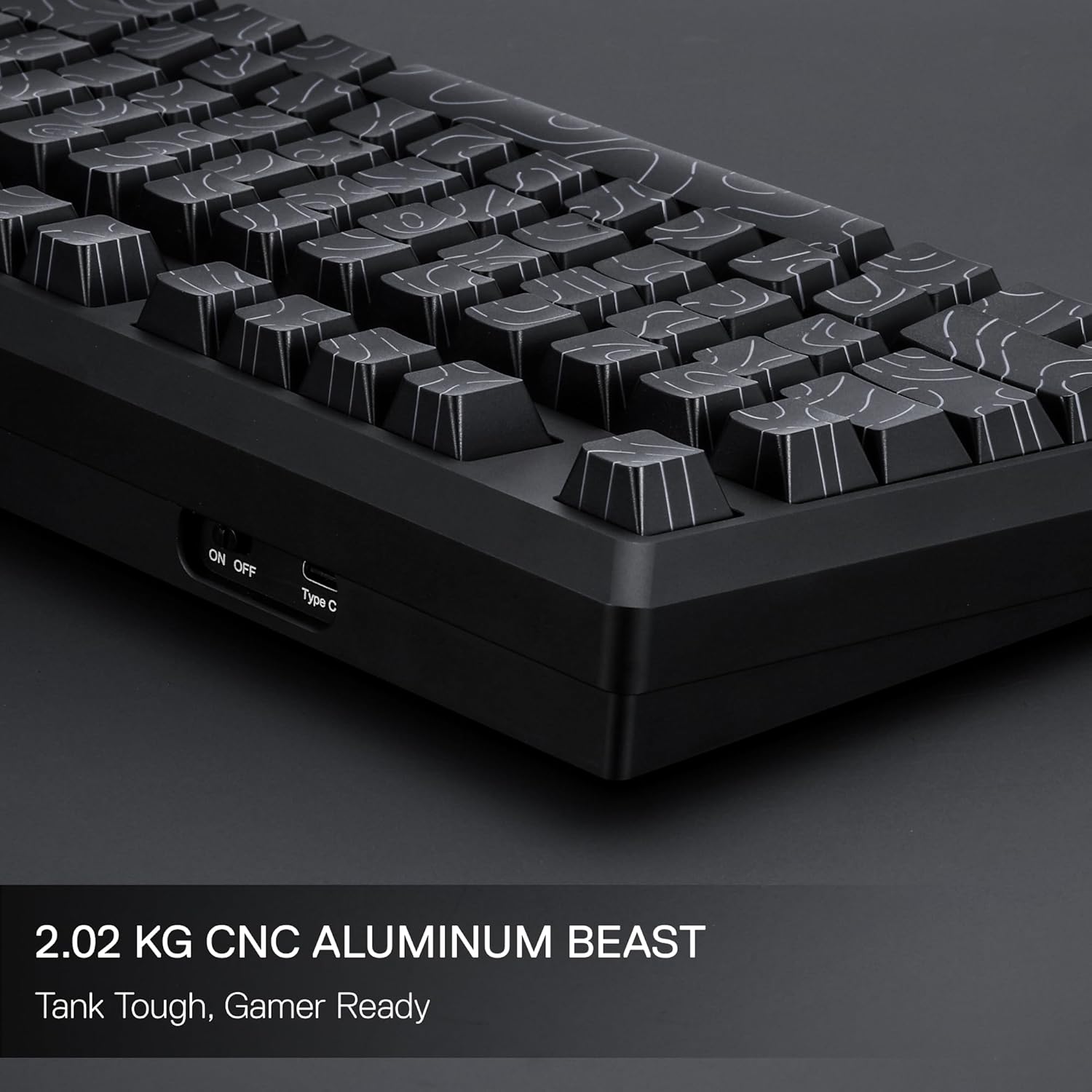
Image: A side profile of the Redragon K737 PRO keyboard, emphasizing its 2.02 kg CNC aluminum construction and the power switch and USB-C port.
8. Warranty and Support
For warranty information and technical support, please refer to the warranty card included with your product or visit the official Redragon website. Contact Redragon customer service for assistance with product issues or inquiries.