
1. Product Overview
The Redragon K525 PRO RGB 3-Mode Wireless Membrane Gaming Keyboard is designed for versatile gaming and computing. It features a full-size layout with dedicated multimedia controls, programmable macro keys, and dynamic RGB backlighting. Its multi-mode connectivity ensures seamless operation across various devices.
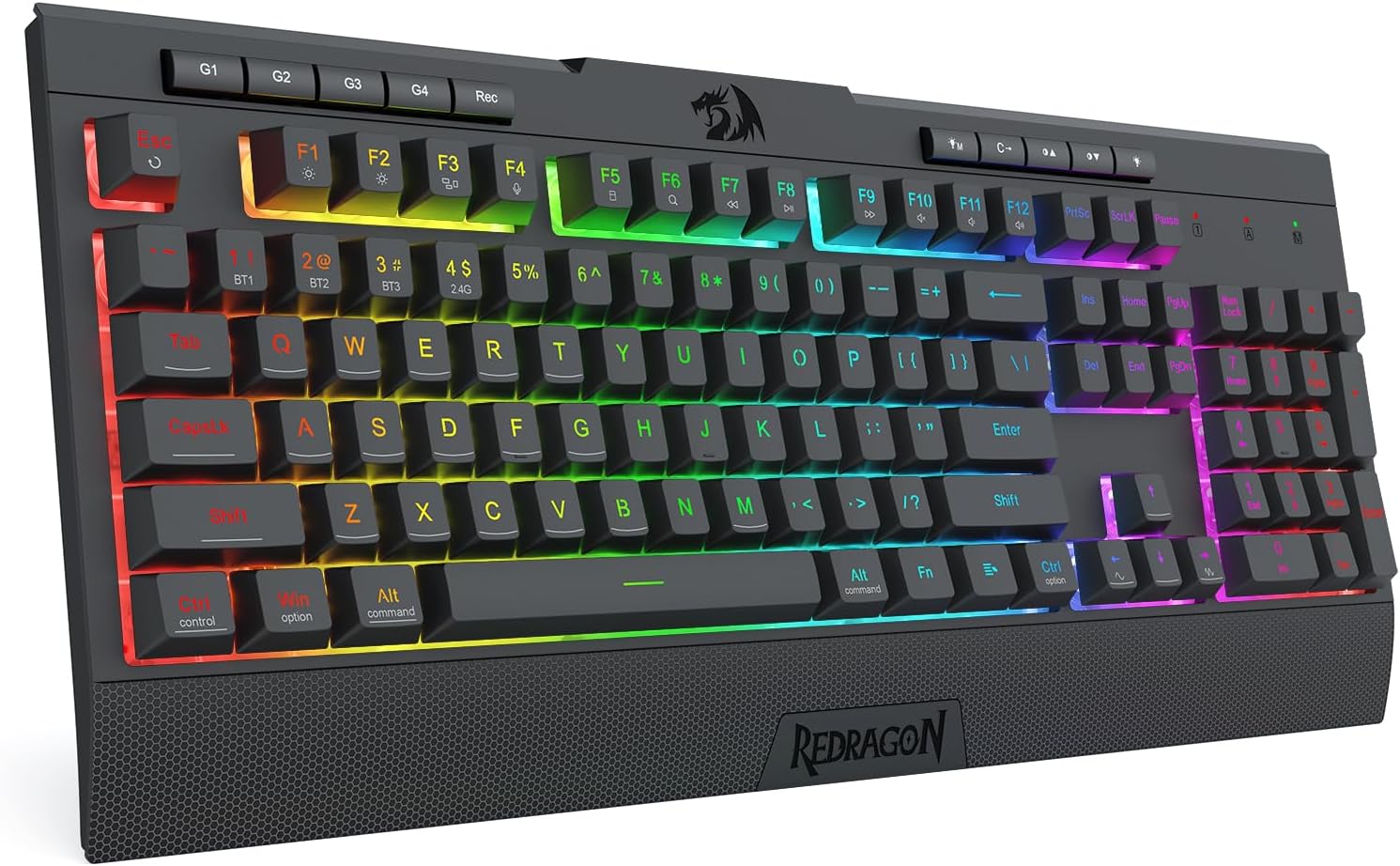
Figure 1: Redragon K525 PRO RGB Gaming Keyboard
2. Key Features
- 4 Onboard Macro Keys (G1~G4): Programmable on-the-fly without additional software, allowing for complex command execution.
- 3-Mode Connection: Offers flexible connectivity via USB-C wired, Bluetooth 3.0/5.0, and 2.4Ghz wireless modes.
- True RGB Backlight: Features dynamic RGB backlighting with 7 pre-set modes and 6 customizable slots, along with adjustable brightness.
- 26 Anti-ghost Keys & Dedicated Media Controls: Ensures simultaneous key presses are registered accurately for fast game responses. Dedicated media keys provide quick access to audio playback.
- Dedicated Wrist-Rest: An ergonomically designed magnetic wrist rest provides support and reduces strain during extended use.
- Professional Software & Durability: Software available for advanced backlight and macro configurations. Built to withstand 10 million keystrokes with double-shot injection molded keycaps for lasting durability.

Figure 2: Dedicated Macro Keys (G1-G4)

Figure 3: True RGB Backlight
3. Setup Guide
3.1 Wired Connection (USB-C)
- Locate the USB-C port on the keyboard and the USB-A port on your computer.
- Connect the provided USB-C cable to the keyboard.
- Connect the USB-A end of the cable to an available USB port on your computer.
- The keyboard will be automatically recognized and ready for use.
3.2 Wireless Connection (2.4Ghz or Bluetooth)
The K525 PRO supports both 2.4Ghz wireless via a USB dongle and Bluetooth 3.0/5.0.

Figure 4: Tri-Mode Smart Connection
2.4Ghz Wireless Mode:
- Locate the 2.4Ghz USB dongle (usually stored in a compartment on the keyboard).
- Plug the USB dongle into an available USB port on your computer.
- Switch the keyboard to 2.4Ghz mode using the switch on the keyboard (refer to the keyboard's physical layout for exact switch location).
- The keyboard should automatically connect.
Bluetooth Mode (BT1, BT2, BT3):
- Switch the keyboard to Bluetooth mode using the switch on the keyboard.
- Press and hold the FN key + BT1 (or BT2/BT3) for 3-5 seconds until the indicator light flashes rapidly, indicating pairing mode.
- On your device (PC, laptop, tablet), go to Bluetooth settings and search for "Redragon K525 PRO".
- Select the keyboard to pair. The indicator light on the keyboard will become solid once connected.
- You can pair up to three Bluetooth devices and switch between them using FN + BT1/BT2/BT3.
4. Operating Instructions
4.1 Basic Typing and Gaming
The K525 PRO functions as a standard 104-key keyboard for all typing and gaming needs. The membrane switches provide a linear mechanical-feel with quiet operation.
4.2 Multimedia Controls
Utilize the dedicated media control keys located on the top right of the keyboard for quick access to:
- Volume Up/Down
- Mute
- Play/Pause
- Previous/Next Track
4.3 Macro Key Programming
The 4 onboard macro keys (G1-G4) can be programmed directly on the keyboard:
- Press the 'Rec' key (located near G4). The indicator light will start flashing.
- Press the desired G-key (G1, G2, G3, or G4) you wish to program.
- Type the sequence of keys you want to record.
- Press the 'Rec' key again to save the macro. The indicator light will stop flashing.
- To use the macro, simply press the programmed G-key.
For more advanced macro settings and customization, refer to the optional professional software available on the Redragon website.
5. RGB Backlight Customization
The K525 PRO offers extensive RGB lighting options:
- Switching Modes: Use FN + various keys (e.g., INS, HOME, PGUP, PGDN, DEL, END) to cycle through 7 pre-set lighting modes.
- Brightness Control: Adjust backlight brightness using FN + Up/Down arrow keys.
- Speed Control: Adjust lighting effect speed using FN + Left/Right arrow keys.
- Customizable Modes: The keyboard supports 6 user-defined lighting modes. Refer to the professional software for detailed instructions on creating and saving custom lighting profiles.
6. Maintenance
6.1 Cleaning
- Disconnect the keyboard from your computer before cleaning.
- Use a soft, lint-free cloth slightly dampened with water or a mild cleaning solution to wipe the surface.
- For dust and debris between keys, use compressed air.
- Avoid using harsh chemicals or abrasive materials.
6.2 Wrist Rest Care
The magnetic wrist rest can be easily detached for cleaning. Wipe it with a damp cloth as needed.

Figure 5: Ergonomic Wrist Rest Design
7. Troubleshooting
| Issue | Possible Solution |
|---|---|
| Keyboard not responding (Wired) | Ensure the USB-C cable is securely connected to both the keyboard and the computer. Try a different USB port or cable. |
| Keyboard not connecting (Wireless) | Ensure the keyboard is in the correct wireless mode (2.4Ghz or Bluetooth). For Bluetooth, ensure it's in pairing mode and your device's Bluetooth is enabled. Re-pair if necessary. Check battery level. |
| RGB lights not working/dim | Adjust brightness using FN + Up arrow key. Ensure the keyboard is not in a mode with lights off. Check software settings if applicable. |
| Macro keys not working | Ensure macros are correctly recorded and saved. Refer to the macro programming section. Check for conflicts with other software. |
| Keys not registering / Ghosting | The K525 PRO features 26 anti-ghosting keys. If issues persist, try cleaning under the keycaps or contact support. |
| Wrist rest not attaching securely | Ensure the magnetic points on both the keyboard and wrist rest are clean and free of debris. Align correctly for magnetic snap. |
8. Specifications
| Feature | Detail |
|---|---|
| Model Name | Shiva Lite (K525) |
| Keyboard Type | 104 Keys Wireless Gaming Membrane Keyboard |
| Connectivity | 2.4Ghz Wireless, Bluetooth (BT 3.0/5.0), USB-C Wired |
| Number of Keys | 104 |
| Macro Keys | 4 On-Board Programmable Macro Keys (G1-G4) |
| Anti-Ghosting | 26 Anti-Ghost Keys |
| Backlight | True RGB Backlight (7 pre-set, 6 customizable modes) |
| Wrist Rest | Dedicated Magnetic Ergonomic Wrist Rest |
| Dimensions (L x W x H) | 18.3" x 8.4" x 0.6" (46.5cm x 21.3cm x 1.5cm) |
| Item Weight | 2.09 pounds (0.95 kg) |
| Battery | 1 Nonstandard Battery (included) |
| Color | Black |
| Manufacturer | Redragon |
9. Warranty and Support
Redragon products typically come with a manufacturer's warranty. For specific warranty details, technical support, driver downloads, and software, please visit the official Redragon website or contact their customer service directly.
Official Redragon Website: www.redragonusa.com


