
Introduction
This manual provides detailed instructions for the setup, operation, maintenance, and troubleshooting of your OnePlus Buds 4 wireless earbuds. Please read this manual thoroughly to ensure proper use and to maximize your listening experience.
Package Contents
Verify that all items are present in your product packaging:
- OnePlus Buds 4 Earbuds (Left and Right)
- Charging Case
- USB-C Charging Cable
- Multiple Sizes of Eartips (S, M, L)
- User Manual (This document)
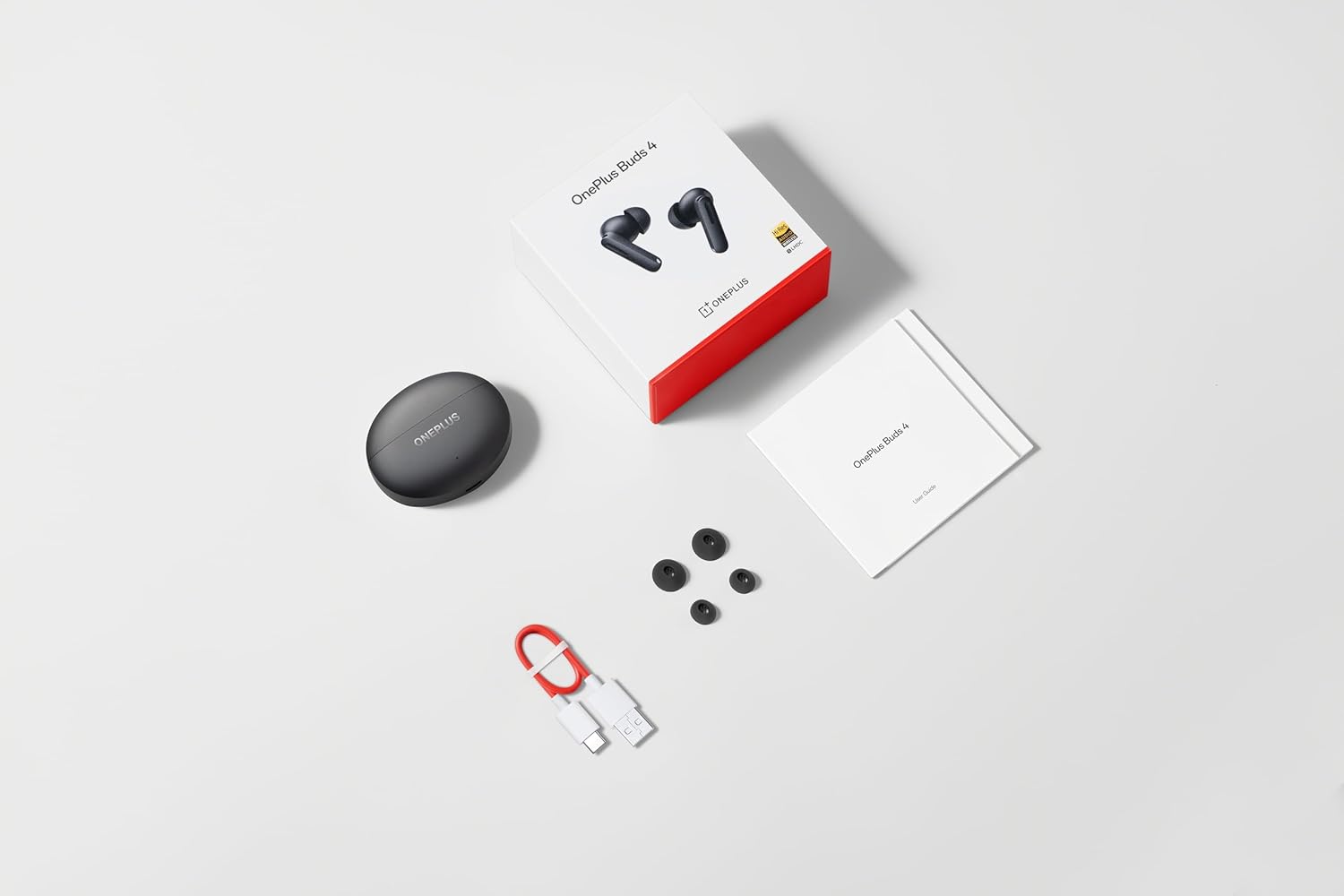
Image: The retail package contents for the OnePlus Buds 4, showing the earbuds, charging case, USB-C cable, and various ear tip sizes.
Product Overview
The OnePlus Buds 4 are advanced wireless in-ear headphones designed for high-quality audio and active noise cancellation. They feature an ergonomic design for comfort and secure fit, housed in a compact charging case.

Image: The OnePlus Buds 4 earbuds resting inside their open charging case. The earbuds and case are in Storm Gray, with the OnePlus logo visible on the case.

Image: This image shows the front perspective of the OnePlus Buds 4 earbuds and their charging case, highlighting the sleek Storm Gray finish.
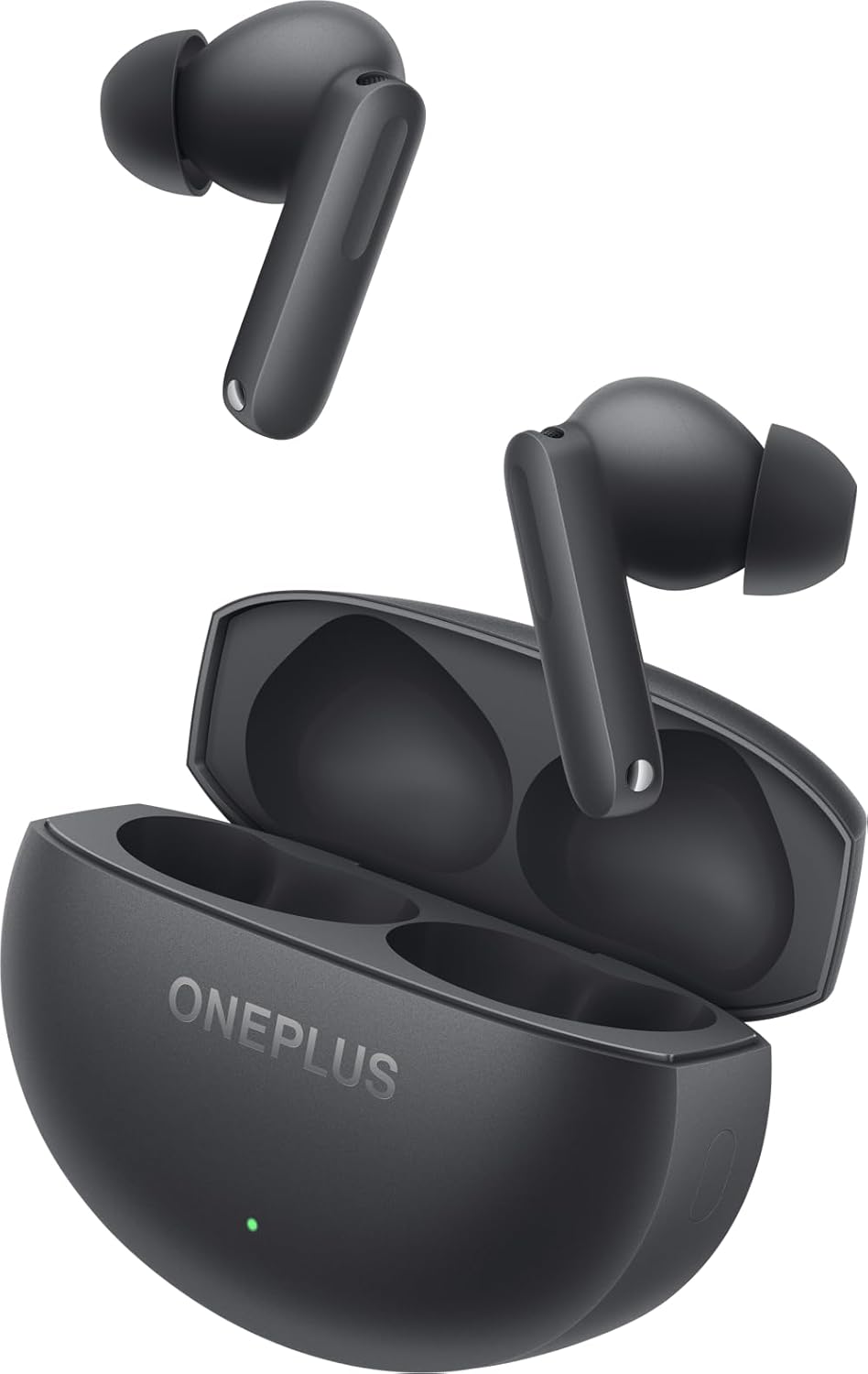
Image: The image features the two OnePlus Buds 4 earbuds separated from their charging case, showcasing their design.
Setup
Initial Charging
Before first use, place both earbuds into the charging case and connect the case to a power source using the provided USB-C cable. Ensure the indicator light on the case illuminates, signifying charging. A full charge is recommended for optimal battery performance.
Pairing with Your Device
- Ensure the charging case has sufficient power.
- Open the charging case with the earbuds inside. The indicator light will flash white, indicating pairing mode.
- On your smartphone or Bluetooth-enabled device, navigate to the Bluetooth settings.
- Select "OnePlus Buds 4" from the list of available devices.
- Once connected, the indicator light on the case will turn off.
For subsequent connections, the earbuds will automatically connect to the last paired device when the case is opened.
Installing the HeyMelody App
For advanced features, customization, and firmware updates, download and install the HeyMelody app from your device's app store. This app allows you to personalize touch controls, adjust sound profiles, and manage noise cancellation settings.
Selecting the Right Ear Tips
Choosing the correct ear tip size is crucial for sound quality, noise cancellation, and comfort. Experiment with the included small, medium, and large ear tips to find the best fit for your ears. A good seal will enhance bass response and active noise cancellation effectiveness.

Image: This image illustrates the different sizes of silicone ear tips included with the OnePlus Buds 4, essential for a comfortable and secure fit.
Operating Instructions
Touch Controls
The OnePlus Buds 4 feature intuitive touch controls on the stem of each earbud. These controls can be customized via the HeyMelody app.

Image: A close-up image of a single OnePlus Buds 4 earbud, indicating the specific area for touch controls on the stem.
- Single Tap: Play/Pause music, Answer/End call.
- Double Tap: Next track, Reject call.
- Triple Tap: Previous track.
- Press and Hold: Switch between Active Noise Cancellation, Transparency Mode, and Noise Cancellation Off.
- Swipe Up/Down (on stem): Adjust volume.
Active Noise Cancellation (ANC) and Transparency Mode
The earbuds offer advanced noise control features:
- Active Noise Cancellation (ANC): Reduces ambient noise for an immersive listening experience.
- Transparency Mode: Allows you to hear your surroundings while still enjoying your audio, enhancing situational awareness.
Switch between these modes by pressing and holding the touch area on either earbud, or through the HeyMelody app.

Image: This graphic depicts the concept of Active Noise Cancellation, showing how the OnePlus Buds 4 reduce ambient sound for an immersive listening experience.
Audio Features
The OnePlus Buds 4 are equipped with features to deliver high-fidelity audio:
- Hi-Res Audio and LHDC 5.0: Supports high-resolution audio codecs for detailed and clear sound reproduction.
- Immersive 3D Spatial Audio: Provides a multi-directional sound experience, enhancing immersion in music and videos.

Image: An image highlighting the Hi-Res Audio and LHDC 5.0 capabilities of the OnePlus Buds 4, indicating high-fidelity sound reproduction.
Image: This graphic illustrates the immersive 3D Spatial Audio feature, suggesting a multi-directional sound experience provided by the earbuds.
Calls and Gaming
The earbuds feature enhanced voice cancellation for clear calls and low-latency connectivity for an optimized gaming and video watching experience.
Charging Your Earbuds and Case
To charge the earbuds, place them into the charging case. The earbuds will begin charging automatically. To charge the case, connect the provided USB-C cable to the charging port on the back of the case and to a power adapter (not included).

Image: The rear of the OnePlus Buds 4 charging case, clearly showing the USB-C port for charging.
The charging case provides extended battery life, allowing for over 24 hours of total listening time with multiple recharges of the earbuds.
Maintenance and Care
- Cleaning: Regularly clean the earbuds and charging case with a soft, dry, lint-free cloth. Do not use harsh chemicals or abrasive materials.
- Ear Tips: Remove and clean ear tips with water and mild soap if necessary. Ensure they are completely dry before reattaching.
- Storage: When not in use, store the earbuds in their charging case to protect them and keep them charged.
- Water Resistance: The earbuds are water-resistant (IP55 rated), meaning they can withstand splashes and sweat. They are not designed for swimming or submersion in water. Ensure the earbuds are dry before placing them back in the charging case.
Troubleshooting
If you encounter issues with your OnePlus Buds 4, refer to the table below for common problems and solutions.
| Problem | Possible Cause | Solution |
|---|---|---|
| No sound from earbuds | Low battery; Not paired; Volume too low. | Charge earbuds; Re-pair with device; Increase device volume. |
| Earbuds not pairing | Out of range; Pairing mode not active; Interference. | Ensure earbuds are in pairing mode (open case); Move closer to device; Turn off other Bluetooth devices. |
| Active Noise Cancellation not effective | Improper ear tip fit; ANC mode not active. | Try different ear tip sizes for a better seal; Ensure ANC is enabled via touch control or app. |
| Charging case not charging | Cable issue; Power source issue. | Check USB-C cable connection; Try a different power adapter or USB port. |
| One earbud has no sound | Earbud not connected; Low battery. | Place both earbuds in the case, close, then reopen; Ensure both earbuds are charged. |
Specifications
| Feature | Detail |
|---|---|
| Model Name | OnePlus Buds 4 |
| Model Number | E513A |
| Connectivity Technology | Bluetooth 5.4 |
| Noise Control | Active Noise Cancellation |
| Audio Driver Size | 11 Millimeters |
| Frequency Range | 40 Hz - 20,000 Hz |
| Sensitivity | 100 dB |
| Impedance | 18 Ohm |
| Control Method | Touch Controls |
| Water Resistance Level | IP55 (Earbuds) |
| Battery Life (Earbuds + Case) | Over 24 hours (with charging case) |
| Compatible Devices | Smartphones, Laptops, Desktops, Gaming Consoles, Tablets, Televisions |
Safety Information
Please observe the following safety guidelines to prevent damage to your device or personal injury:
- Hearing Protection: Avoid listening at high volume levels for extended periods to prevent hearing damage.
- Driving Safety: Do not use earbuds while driving or cycling in situations where it may distract you or pose a hazard.
- Battery Care: Do not attempt to replace the battery yourself. Do not expose the device to extreme temperatures or direct sunlight.
- Disposal: Dispose of the device and its batteries according to local regulations. Do not dispose of with household waste.
Warranty and Support
Your OnePlus Buds 4 are covered by a limited warranty. For detailed warranty terms and conditions, please refer to the warranty card included in your package or visit the official OnePlus support website. For technical assistance or customer service, please contact OnePlus customer support.


