
Introduction
The KLIM K2 Mobile Film Scanner is designed to help you digitize your cherished 35mm films and slides using your smartphone. This manual provides detailed instructions for setting up, operating, and maintaining your scanner, ensuring you can preserve your memories effectively.
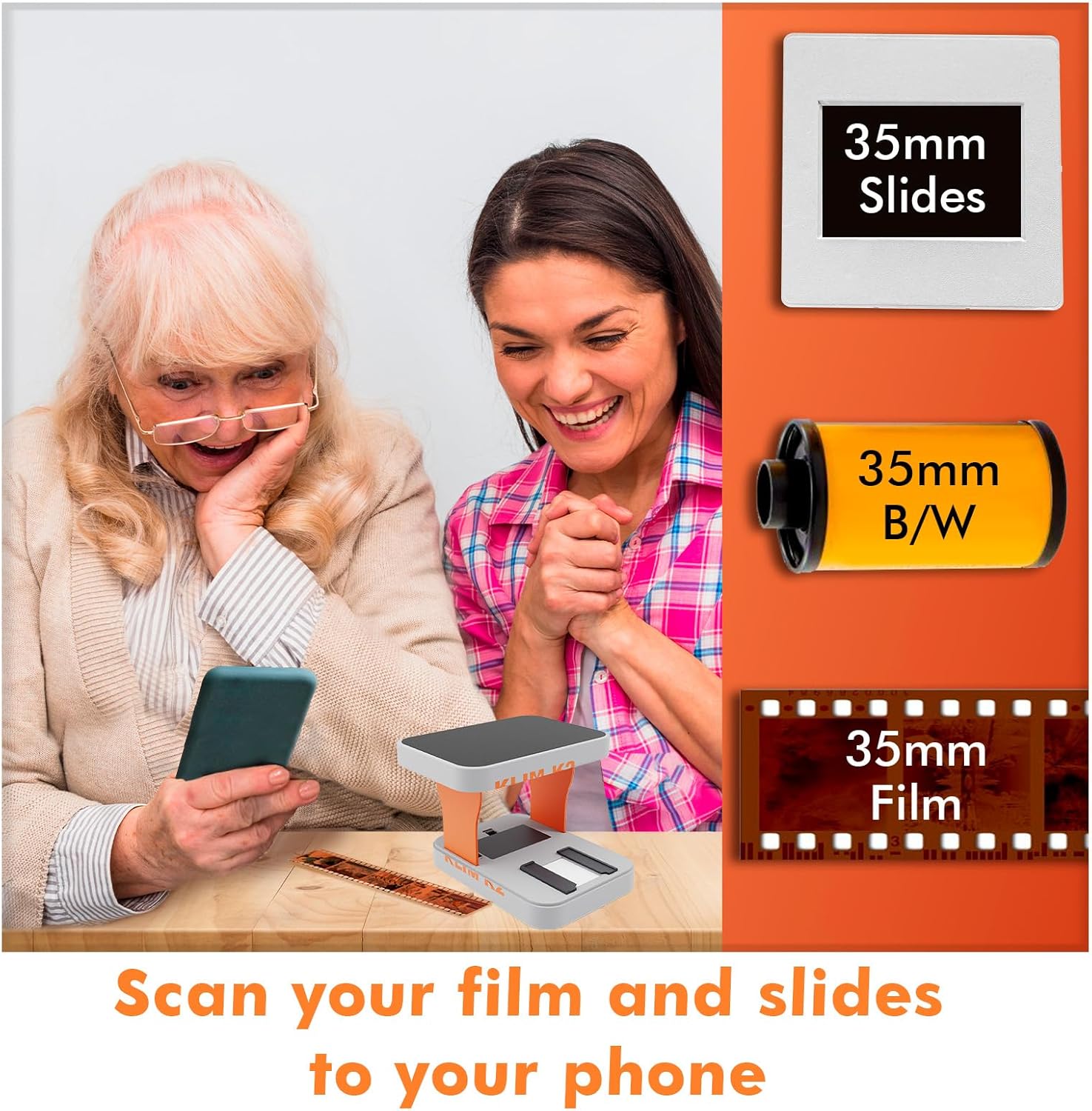
Image: The KLIM K2 Mobile Film Scanner ready to digitize 35mm slides and film.
What's in the Box
Please ensure all the following items are included in your package:
- KLIM K2 Mobile Film Scanner unit
- 2 x AA Batteries
- Cleaning Cloth
- Magnetic Plate (for larger smartphones)
- Shorter Brackets (for phones with specific focal lengths)

Image: Contents of the KLIM K2 Film Scanner package, including the scanner, batteries, cleaning cloth, and magnetic plate.
Setup
- Unfold the Scanner: Gently unfold the KLIM K2 scanner until it is in its upright, ready-to-use position.

Image: Illustration of unfolding the KLIM K2 scanner from its compact form.
- Insert Batteries: Open the battery compartment located on the underside of the scanner. Insert the two AA batteries provided, ensuring correct polarity. Close the compartment securely.

Image: Close-up view of the battery compartment with two AA batteries installed.
- Turn on LED Light: Locate the ON/OFF switch near the battery compartment and slide it to the 'ON' position. The internal LED light will illuminate, providing backlighting for your films and slides.

Image: Detail of the ON/OFF switch for the LED light on the scanner base.
- Download the KLIM Film Scanner App: Download the official KLIM Film Scanner app from the Google Play Store (for Android) or the Apple App Store (for iOS). Search for "KLIM Film Scanner".

Image: Instructions to download the KLIM Film Scanner app from mobile app stores.
Operating Instructions
- Prepare Your Film or Slides: Ensure your 35mm film strips or mounted slides are clean and free of dust or fingerprints. Use the provided cleaning cloth if necessary.
- Insert Film/Slides: Carefully insert your 35mm film strip or slide into the designated slot on the scanner base. Ensure it lies flat and is correctly aligned.

Image: Demonstrates how to insert film strips and slides into the scanner's slots.
- Position Your Smartphone: Place your smartphone face down on the top platform of the scanner, ensuring its camera lens is centered over the opening. For larger phones, attach the magnetic plate to the top platform for better stability. If your phone has a shorter focal length and struggles to focus, use the shorter brackets provided to adjust the camera distance.

Image: A smartphone positioned on the scanner's top platform, ready for scanning.
- Use the KLIM Film Scanner App: Open the KLIM Film Scanner app on your smartphone. The app will display a live view of your film or slide. Adjust the position of your phone slightly if needed to center the image.
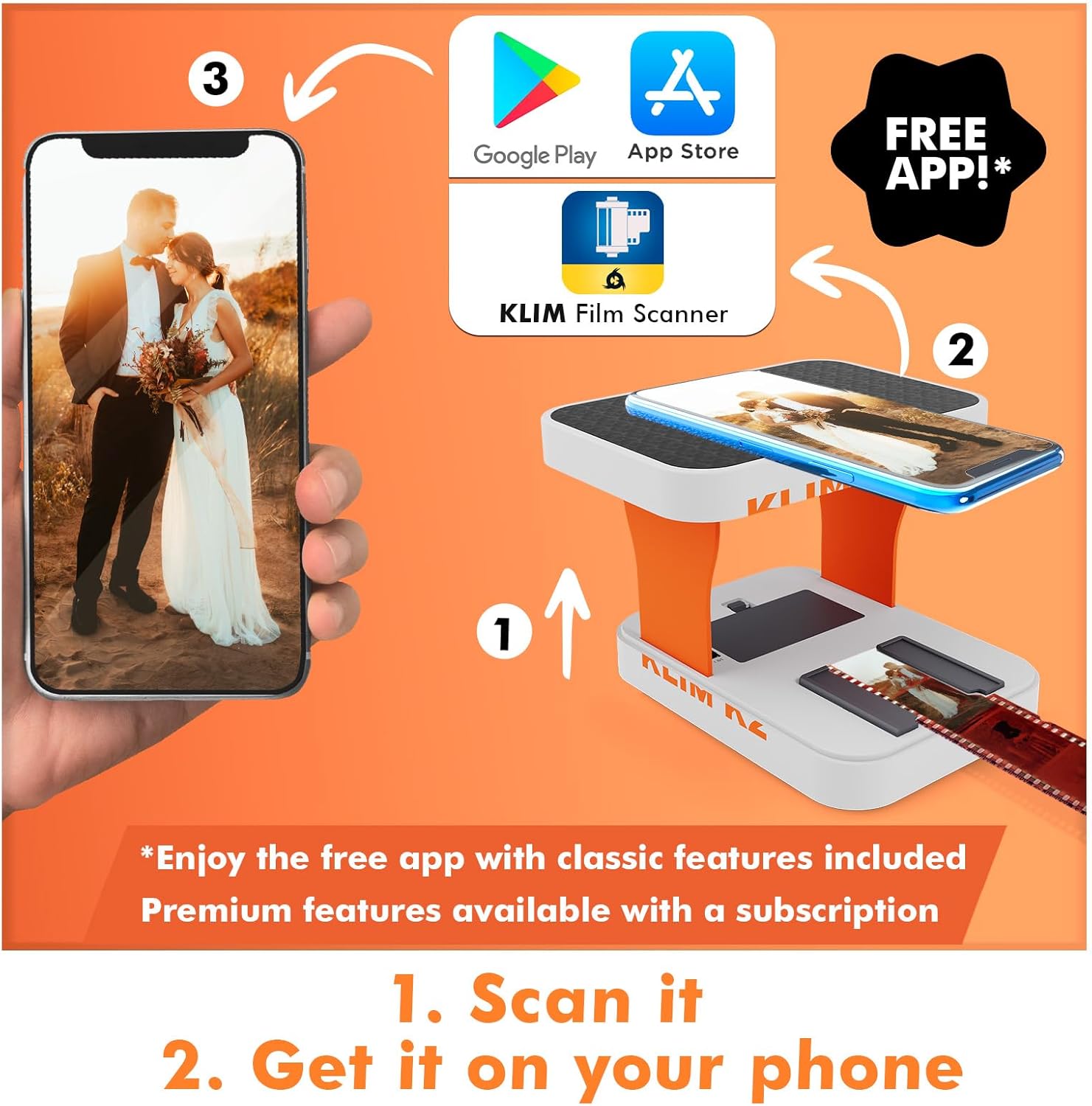
Image: The KLIM Film Scanner app interface showing a film image ready for scanning and editing.
- Scan and Edit: Within the app, you can capture the image, convert negatives to positives, and perform basic edits such as adjusting contrast, saturation, and exposure. The app offers free classic features for scanning, editing, and saving. Premium features are available through an optional subscription.
- Save Your Digital Memories: Once satisfied with the scan and edits, save the digital image to your phone's gallery. You can then share these memories or transfer them to other devices for long-term storage.

Image: A user viewing a successfully digitized old photograph on a smartphone.
Maintenance
- Cleaning: Use the provided cleaning cloth to gently wipe the scanner's light panel and film/slide slots. Avoid using liquid cleaners directly on the device.
- Battery Replacement: Replace the AA batteries when the LED light dims or fails to turn on.
- Storage: When not in use, fold the scanner for compact storage. Store it in a dry, dust-free environment.
Troubleshooting
| Problem | Possible Cause / Solution |
|---|---|
| Scanner does not turn on. | Check if batteries are correctly inserted and not depleted. Replace batteries if necessary. Ensure the ON/OFF switch is in the 'ON' position. |
| Scanned images are blurry or out of focus. | Ensure your smartphone camera lens is clean. Verify the film/slide is lying flat. Some phones may require a closer distance; use the shorter brackets provided to adjust the height. Adjust focus manually within your phone's camera settings or the KLIM app if available. |
| Images appear grainy or low resolution. | The final image quality depends heavily on your smartphone's camera resolution and the original film/slide quality. While the KLIM K2 provides a convenient way to digitize, it may not match the resolution of professional film scanners. Ensure good lighting conditions (the scanner provides its own light, but external ambient light can affect results). |
| App requires payment or subscription. | The KLIM Film Scanner app offers core scanning and basic editing features for free. Advanced or premium features may require an optional subscription. You can still use the essential functions without a subscription. |
| Cannot fit larger phone on the platform. | Use the magnetic plate provided to secure larger smartphones to the top platform. |
Specifications
| Feature | Detail |
|---|---|
| Scanner Type | Photo, Slide & Negative |
| Compatible Media Size | 35mm Film (negatives and positives), 35mm Slides |
| Resolution (App Dependent) | 600-1200 dpi (dependent on smartphone camera resolution) |
| Power Source | 2 x AA Batteries (included) |
| Battery Life | Approximately 15,000 scans |
| Item Weight | 1.19 pounds (0.54 Kilograms) |
| Folded Dimensions | Approx. 15.5 cm x 11 cm x 3.7 cm (6.1 x 4.3 x 1.5 inches) |
| Unfolded Height | Approx. 11.4 cm (4.5 inches) |
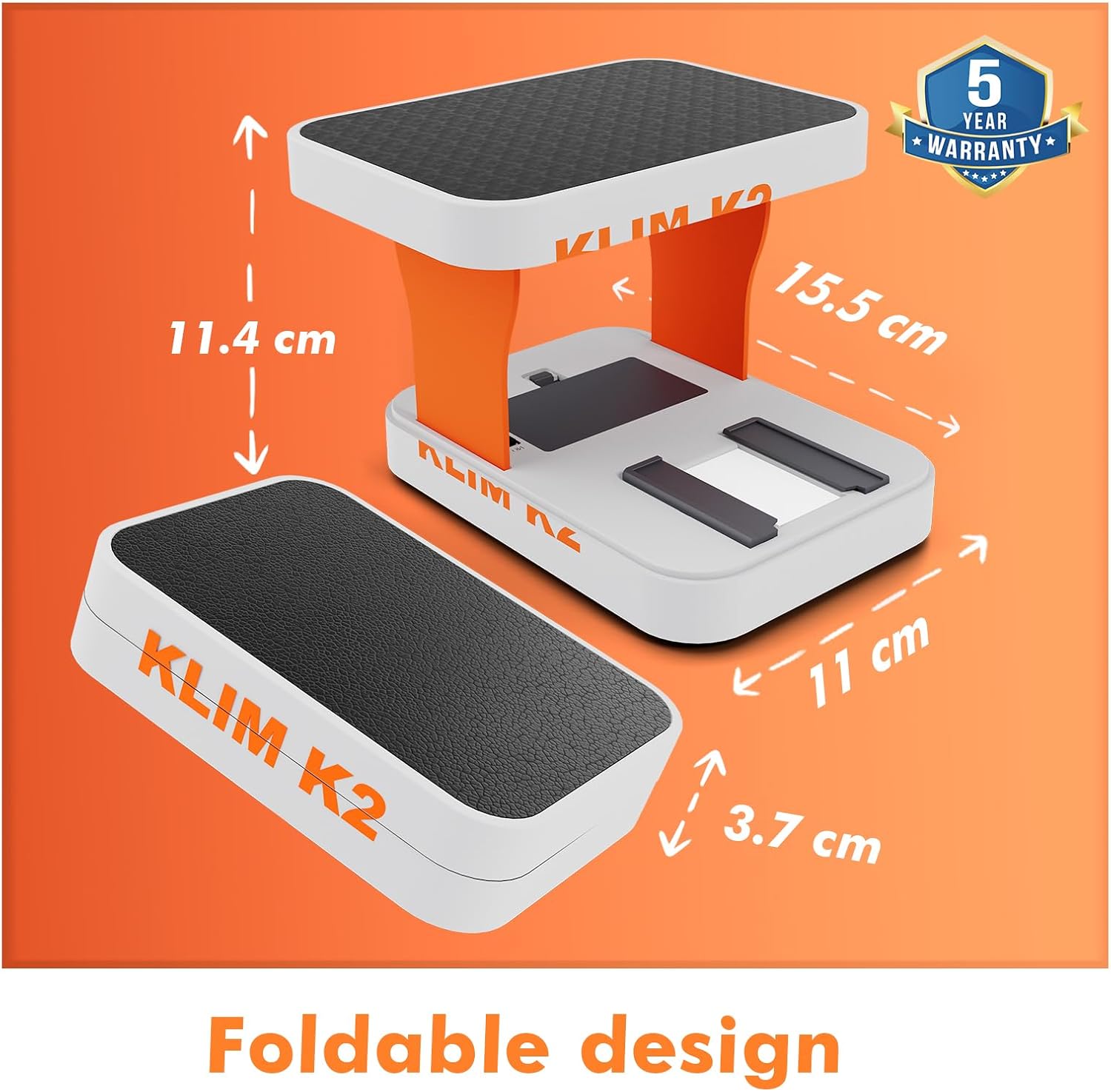
Image: The KLIM K2 scanner in both folded and unfolded configurations, with key dimensions highlighted.
Warranty
The KLIM K2 Mobile Film Scanner is covered by a 5-year assurance. This warranty covers manufacturing defects and ensures the product's longevity. For any issues encountered during this period, please contact KLIM customer support.
Support
For further assistance, technical support, or warranty claims, please visit the official KLIM website or contact their customer service. You can also find more information and resources on the KLIM Brand Store on Amazon.

