1. Introduction
This manual provides essential instructions for the safe and efficient operation of your artfone CF241A GSM Flip Phone. Please read this manual thoroughly before using the device and keep it for future reference.
The artfone CF241A is designed with user-friendliness in mind, featuring large buttons, a clear display, and essential functions for reliable communication.

Figure 1.1: The artfone CF241A Flip Phone, showcasing its design with large buttons and a clear display, suitable for easy use.
2. Product Overview
The artfone CF241A is a compact and robust flip phone, specifically designed for ease of use. Key features include:
- User-Friendly Design: Features a 2.4-inch color screen, extra-large backlit keys, and clear menu icons for enhanced visibility and intuitive operation.
- SOS Emergency Button: A dedicated button allows for quick dialing of up to 5 pre-set emergency contacts and sending predefined SMS messages.
- Long-Lasting Battery: Equipped with a 1300 mAh Lithium-ion battery, providing extended talk time and standby duration.
- Essential Daily Functions: Includes a flashlight, FM radio, basic camera, Bluetooth connectivity, alarm clock, and calculator.
- Dual SIM Support: Allows for the use of two SIM cards simultaneously.
- Voice Number Broadcast: Announces dialed numbers to prevent errors, beneficial for users with visual impairments.
- Loud Speaker: Ensures clear conversations even in noisy environments.

Figure 2.1: Detail of the large, easy-to-read buttons and clear display of the artfone CF241A.

Figure 2.2: Overview of the artfone CF241A's features, including battery, flashlight, and user-centric design.
3. Setup
3.1. SIM Card and MicroSD Card Installation
The phone supports Dual SIM cards and a MicroSD card for expanded storage (up to 32GB).
- Open the back cover of the phone.
- Remove the battery.
- Carefully insert your SIM card(s) into the designated slot(s). Ensure the gold contacts face downwards.
- If using a MicroSD card, insert it into its dedicated slot.
- Replace the battery and then the back cover.

Figure 3.1: Illustration of SIM and MicroSD card insertion points.
3.2. Battery Installation and Charging
- Ensure the battery is correctly placed in its compartment with the contacts aligned.
- Connect the charger cable to the USB Type C port on the phone.
- Plug the charger into a power outlet. The phone will indicate charging status.
- Allow the phone to charge fully before first use.
3.3. Initial Power On
Press and hold the Power/End Call button (red button) until the screen lights up. Follow any on-screen prompts for initial setup, such as language selection.
4. Operating Instructions
4.1. Basic Functions
- Making a Call: Enter the phone number using the keypad and press the Green Call button.
- Receiving a Call: Press the Green Call button to answer an incoming call.
- Ending a Call: Press the Red End Call button.
- Sending SMS: Navigate to the 'Messages' menu, select 'Write message', enter your text, and choose a recipient from your contacts or enter a number.
4.2. SOS Emergency Function
The SOS button is located on the back of the phone. To activate:
- Go to 'Settings' > 'SOS Settings' to program up to 5 emergency contact numbers.
- In an emergency, press and hold the SOS button for 3 seconds.
- The phone will automatically call the programmed numbers in sequence until one is answered. It will also send a predefined emergency SMS to these contacts.

Figure 4.1: Using the one-button SOS emergency call feature.
4.3. Phonebook
You can store up to 250 contacts. To add a contact:
- Go to 'Menu' > 'Phonebook' > 'Add New Contact'.
- Enter the name and phone number.
- Save the contact.
Speed Dial: Assign frequently called numbers to M1, M2, and keys 2-9 for quick dialing. Access this feature via 'Menu' > 'Settings' > 'Speed Dial'.

Figure 4.2: Features like Speed Dial, Backlit Keyboard, and Voice Dialing for ease of use.
4.4. Multimedia Functions
- Camera: Access the camera from the main menu to take photos. Photos are saved to the phone's memory or MicroSD card.
- FM Radio: Plug in headphones (acting as an antenna) and select 'FM Radio' from the menu.
- Flashlight: Activate the flashlight via a dedicated side button or through the menu.

Figure 4.3: The integrated flashlight feature in use.
4.5. Settings
- Language: Change the phone's language (German, English, French, Spanish, Italian are supported).
- Time & Date: Adjust these settings manually or set to automatic update.
- Volume: Adjust ringtone, call, and media volumes.
- Backlight: Adjust screen brightness and keypad backlight duration.
- Voice Broadcast: Enable or disable the feature that announces dialed numbers.
- Airplane Mode: Deactivates all wireless functions.

Figure 4.4: The voice number broadcast feature in action.
5. Maintenance
5.1. Battery Care
- Avoid extreme temperatures, which can reduce battery life.
- Do not expose the battery to water or fire.
- Use only the original or approved charger.
- If the phone will not be used for an extended period, charge it to about 50% and store it in a cool, dry place.
5.2. Cleaning
- Wipe the phone with a soft, dry cloth.
- Do not use harsh chemicals or abrasive cleaners.
5.3. Storage and Disposal
- Store the phone in a dry place away from direct sunlight.
- Dispose of the phone and battery according to local regulations for electronic waste. Do not dispose of in household waste.

Figure 5.1: Recycling information for the product and its components.
6. Troubleshooting
If you encounter issues with your artfone CF241A, please refer to the following common problems and solutions:
| Problem | Possible Cause | Solution |
|---|---|---|
| Phone does not power on | Low battery; Battery not installed correctly | Charge the battery; Reinstall the battery ensuring correct alignment. |
| Cannot make or receive calls | No SIM card; SIM card not installed correctly; No network signal | Install SIM card; Reinstall SIM card; Move to an area with better network coverage. |
| Poor call quality | Weak network signal; Obstructions | Move to an open area; Ensure no physical obstructions are blocking the signal. |
| Battery drains quickly | Frequent use; Background applications; Old battery | Reduce screen brightness; Close unused applications; Consider replacing the battery if it's old. |
| SOS button not working | Emergency numbers not set; Button not pressed long enough | Program emergency numbers in settings; Press and hold the SOS button for 3 seconds. |
If the problem persists, please contact customer support.
7. Specifications
Detailed technical specifications for the artfone CF241A:
| Feature | Detail |
|---|---|
| Brand | artfone |
| Model Name | CF241A |
| Product Type | Flip Phone |
| Operating System | artfone OS |
| Screen Size | 2.4 Inches |
| Connections | Bluetooth, 3.5 mm Jack, USB Type C |
| Effective Fixed Resolution (Camera) | 1.0 MP |
| Special Features | Dual SIM, Basic Phone, SOS Button, Large Keys, Backlit Keyboard, Voice Dialing, FM Radio, Flashlight |
| Battery Composition | Lithium-ion (1300 mAh) |
| RAM Size | 32 MB |
| CPU Model | Cortex A13 1.2 GHz Processor |
| CPU Speed | 1000 MHz |
| Memory Storage Capacity | 128 MB (expandable up to 32GB with MicroSD) |
| Cellular Technology | 2G (850/900/1800/1900 MHz) |

Figure 7.1: Physical dimensions of the artfone CF241A.
8. Warranty Information
Specific warranty details are typically provided with your purchase documentation or on the manufacturer's official website. Please refer to these resources for the most accurate and up-to-date warranty terms and conditions.
9. Support & Contact Information
For further assistance, technical support, or inquiries, please refer to the contact information provided with your product packaging or visit the official artfone website.
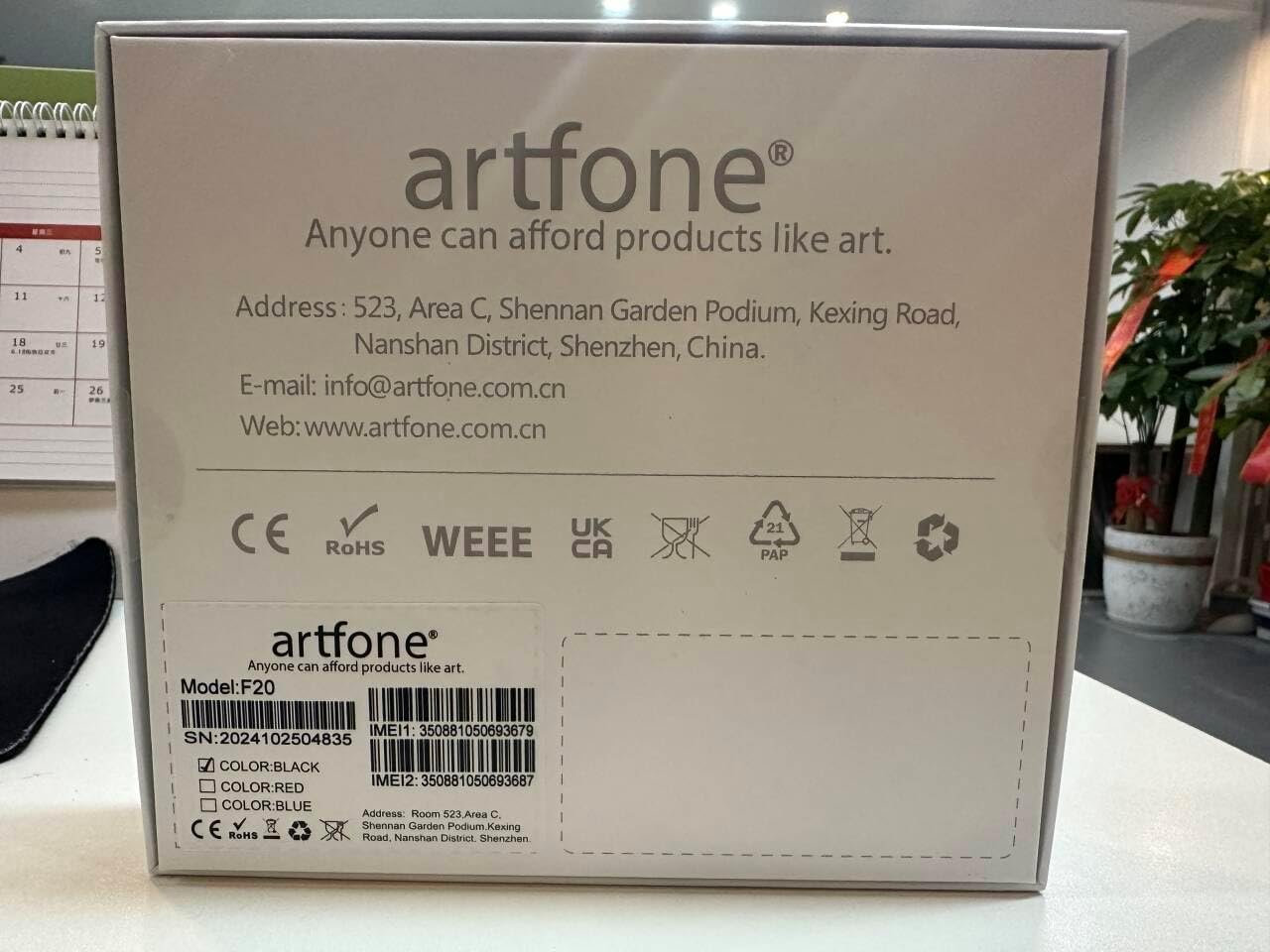
Figure 9.1: Manufacturer contact details from product packaging.
Manufacturer: artfone
Website: www.artfone.com.cn
Email: info@artfone.com.cn


