
1. Introduction
Thank you for choosing the Dierya DK68 65% Wireless Mechanical Gaming Keyboard. This manual provides detailed instructions on how to set up, operate, and maintain your keyboard, ensuring optimal performance and longevity. The DK68 features a compact 65% layout, tri-mode connectivity (Bluetooth 5.0, 2.4G wireless, and USB-C wired), customizable RGB backlighting, and durable mechanical switches.
2. Package Contents
Please check the package for the following items:
- Dierya DK68 Wireless Mechanical Gaming Keyboard
- USB-C Cable
- Keycap Puller
- User Manual (this document)
3. Product Overview
The Dierya DK68 is a compact 68-key mechanical keyboard designed for both gaming and productivity. It offers a minimalist design while retaining essential functionality through FN key combinations. The keyboard supports multiple connection types and features vibrant RGB lighting.

Image: The Dierya DK68 Wireless Mechanical Gaming Keyboard in white, showcasing its compact layout and RGB backlighting.

Image: An overview of the Dierya DK68's key features, including BT5.0/2.4G/Wired connectivity, 60% compact layout, RGB Backlit, 3000mAh battery, Mechanical Switches, Double-Shot Keycaps, Full N-Key Rollover (NKRO), and Detachable Cable.

Image: Illustration of the keyboard's tri-mode connection options: Type-C wired, Bluetooth 5.0, and 2.4GHz wireless, compatible with Windows, Mac, iOS, Android, Xbox, PC, Laptop, and Tablet devices.
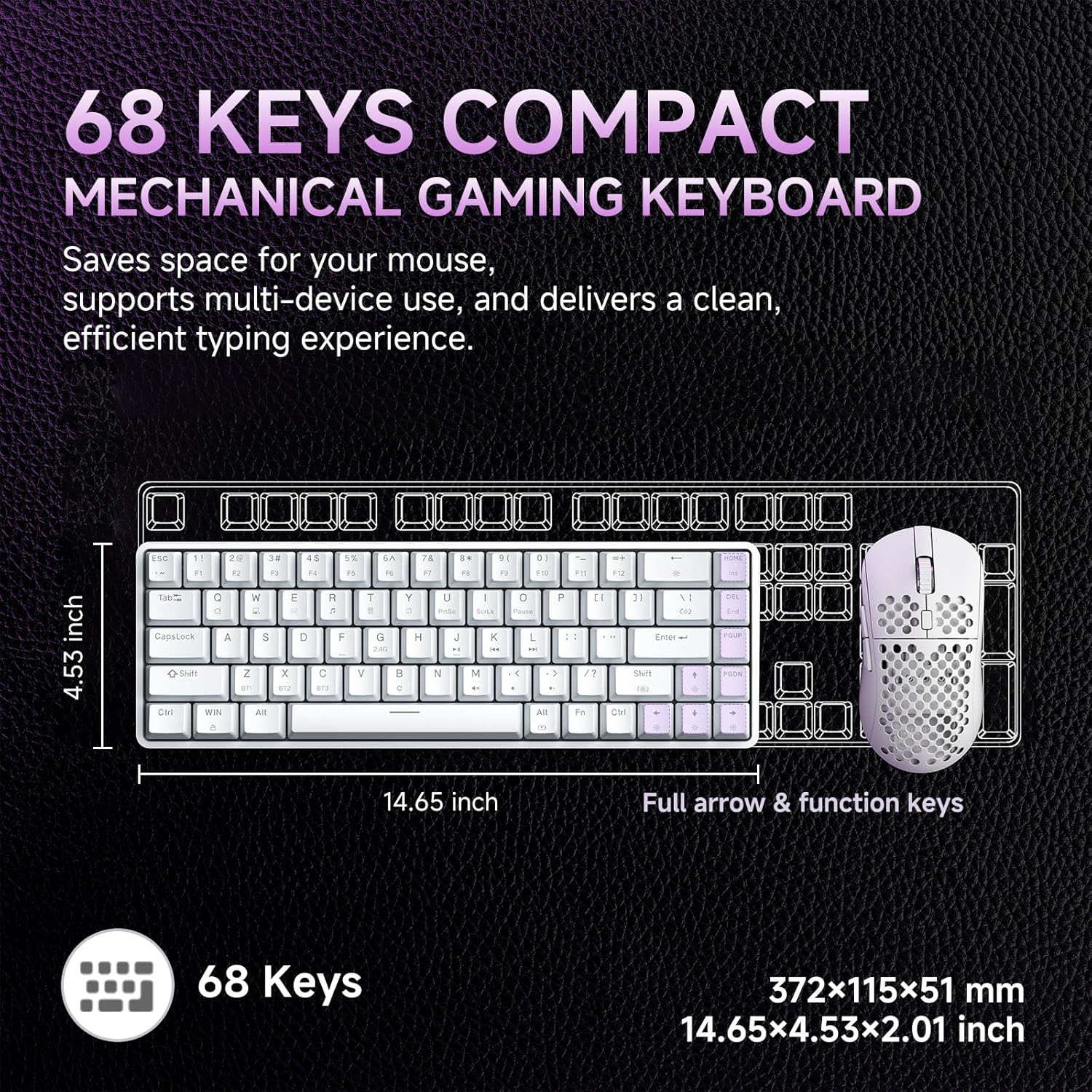
Image: Diagram showing the compact 68-key layout of the Dierya DK68, highlighting its dimensions (14.65 inches length, 4.53 inches width) and its space-saving design.

Image: Close-up view of the mechanical blue switches, detailing their clicky feel, tactile feedback, 60gf actuation force, 2.3mm travel, and 50 million keystroke lifespan. The image also indicates pre-lubed switches.

Image: Visual representation of the keyboard's 3000 mAh high-capacity lithium battery, showing usage times: 12 hours with light on, 333 hours with light off, 3 minutes auto stop, and Type-C charging.

Image: Diagram illustrating the FN key combinations for controlling the vibrant RGB backlighting, including turning the light on/off (Fn + Backspace), switching light colors (Fn + Shift), switching light modes (Fn + |), and adjusting brightness/speed (Fn + Arrow keys).

Image: Details of the keyboard's design, including OEM double-shot keycaps for durability, two-stage feet for dual tilt options, and anti-slip pads for secure positioning.

Image: A detailed diagram showing the exact dimensions of the Dierya DK68 keyboard: 372 x 115 x 51 mm (14.65 x 4.53 x 2.01 inches) and a weight of 820g.
4. Setup
4.1 Wired Connection
- Connect the provided USB-C cable to the keyboard's USB-C port.
- Connect the other end of the USB-C cable to an available USB port on your computer.
- The keyboard will automatically be recognized by your system and is ready for use.
4.2 2.4G Wireless Connection
- Locate the 2.4G USB receiver (usually stored in a compartment on the keyboard).
- Plug the 2.4G USB receiver into an available USB port on your computer.
- Turn on the keyboard. The keyboard should automatically connect to the receiver.
4.3 Bluetooth Connection
The keyboard supports Bluetooth 5.0 and can connect to up to three devices.
- Turn on the keyboard.
- Press and hold FN + Z, FN + X, or FN + C for 3-5 seconds to enter Bluetooth pairing mode for BT1, BT2, or BT3 respectively. The corresponding key's backlight will flash rapidly.
- On your device (PC, Mac, tablet, smartphone), enable Bluetooth and search for new devices.
- Select "Dierya DK68" from the list of available devices to pair.
- Once paired, the key's backlight will stop flashing and remain steadily lit for a few seconds.
- To switch between paired Bluetooth devices, press FN + Z, FN + X, or FN + C briefly.
4.4 Charging the Keyboard
Connect the USB-C cable to the keyboard and a power source (e.g., computer USB port, USB wall adapter). The keyboard has a 3000 mAh battery. A low battery indicator may flash, and the backlight may dim when charging is required. The backlight will indicate charging status and turn off or change color when fully charged.
5. Operating Instructions
5.1 FN Key Combinations
The DK68 utilizes FN key combinations to access various functions due to its compact layout:
- FN + Backspace: Turn RGB backlight on/off.
- FN + |: Switch between different RGB lighting modes (21 effects available).
- FN + Shift: Adjust RGB lighting colors.
- FN + ↑: Increase backlight brightness.
- FN + ↓: Decrease backlight brightness.
- FN + ←: Decrease backlight speed.
- FN + →: Increase backlight speed.
- FN + Z/X/C: Switch between Bluetooth devices BT1/BT2/BT3.
- FN + Q/W/E/R/T/Y: (Specific media or function keys, refer to keycaps for exact labels if present).
5.2 RGB Lighting Customization
The keyboard offers 16.8 million colors and 21 lighting effects. Use the FN key combinations described above to cycle through modes, adjust colors, and control brightness and speed. For advanced customization, including macro programming and custom shortcut keys, download the official Dierya software from the manufacturer's website.
6. Maintenance
To ensure the longevity and performance of your Dierya DK68 keyboard, follow these maintenance guidelines:
- Cleaning: Use a soft, dry cloth to wipe the keyboard surface. For deeper cleaning, use a can of compressed air to remove dust and debris from between the keycaps.
- Keycap Removal: Use the provided keycap puller to carefully remove keycaps for cleaning or replacement. Gently pull straight up to avoid damaging the switch.
- Switch Maintenance: The mechanical switches are designed for durability. Avoid spilling liquids on the keyboard. If a switch feels inconsistent, it may require cleaning or replacement.
- Storage: When not in use for extended periods, store the keyboard in a cool, dry place away from direct sunlight and extreme temperatures.
7. Troubleshooting
If you encounter issues with your Dierya DK68 keyboard, refer to the following common solutions:
- Keyboard Not Responding (Wired): Ensure the USB-C cable is securely connected to both the keyboard and the computer. Try a different USB port or cable.
- 2.4G Wireless Connection Issues: Ensure the 2.4G receiver is properly plugged in and the keyboard is turned on. Try plugging the receiver into a different USB port. Ensure there are no strong interferences nearby.
- Bluetooth Pairing Failure: Make sure the keyboard is in pairing mode (key flashing). Ensure Bluetooth is enabled on your device and it's within range. Try unpairing and re-pairing the device.
- Keys Not Registering: Check for physical obstructions under the keycap. If using wireless, ensure the battery is charged. Try connecting via USB-C to rule out wireless issues.
- RGB Backlight Not Working: Ensure the backlight is turned on (FN + Backspace). Adjust brightness (FN + ↑/↓). If issues persist, try resetting the keyboard (if a reset function is available, consult the manufacturer's website).
- Battery Draining Quickly: Reduce backlight brightness or turn off RGB when not needed. Ensure the keyboard is fully charged.
For further assistance, please contact Dierya customer support.
8. Specifications
| Feature | Detail |
|---|---|
| Brand | Dierya |
| Model Number | DK68 |
| Color | White |
| Keyboard Description | Wireless Gaming Keyboard |
| Connectivity Technology | Bluetooth/2.4G/Type-C |
| Compatible Devices | Laptop, PC, Tablet |
| Dimensions (L x W x H) | 31.3 x 10.4 x 4.4 cm (14.65 x 4.53 x 2.01 inches) |
| Weight | 820 g |
| Battery Capacity | 3000 mAh |
| Battery Life (Light Off) | Up to 90 hours |
| Battery Life (RGB On) | Up to 8 hours |
| Standby Time | 360 hours |
| Backlight | RGB (21 effects, 16.8 million colors) |
| Switch Type | Mechanical (Blue/Red options) |
| Switch Lifespan | 60 million keystrokes |
| Material | Plastic |
| Included Components | USB Cable, Keycap Puller |
9. Warranty and Support
The Dierya DK68 keyboard typically comes with a manufacturer's warranty. Please refer to the warranty card included with your purchase or visit the official Dierya website for detailed warranty terms and conditions.
For technical support, troubleshooting assistance, or any product-related inquiries, please contact Dierya customer service through their official website or the contact information provided in your product packaging.


