
1. Introduction
This manual provides detailed instructions for the installation, operation, and maintenance of your AWESAFE Android 13 Car Radio Stereo. This unit is designed to enhance your in-car entertainment and navigation experience with advanced features like Wireless CarPlay, Android Auto, and a high-resolution display.
1.1 Applicable Car Models
- Chevy Silverado 1500 (2007-2013)
- Chevy Silverado 2500HD (2007-2013)
- Chevy Silverado 3500HD (2007-2013)
- Chevrolet Avalanche (2007-2011)
- Chevrolet Express Van (2008-2011)
- Chevrolet Impala (2006-2012)
- GMC Acadia (2007-2012)
- GMC Savana (2008-2013)
- GMC Sierra (2007-2011)
- GMC Yukon (2007-2013)

Image: AWESAFE Car Radio Stereo installed in a Chevy Silverado dashboard, demonstrating vehicle compatibility.
2. Product Features
The AWESAFE Car Radio Stereo is equipped with advanced hardware and software to provide a seamless user experience.
2.1 Core System
- Processor: 8-Core CPU for smooth performance.
- Operating System: Android 13, the newest system for enhanced functionality.
- Memory: 4GB RAM for efficient multitasking.
- Storage: 64GB ROM for ample space for apps, music, and maps.

Image: Diagram illustrating the 8-Core processor, Android 13 operating system, 4GB RAM, and 64GB ROM for the car stereo.
2.2 Connectivity & Navigation
- 5G WiFi: Fast and reliable internet connectivity for streaming and online services.
- GPS Navigation: Real-time map updates and accurate route information to avoid traffic.
- Bluetooth: Built-in Bluetooth for faster transfer speeds, phonebook synchronization, hands-free calls, and music streaming.

Image: GPS Navigation interface displayed on the car stereo screen, showing route mapping and directions.
2.3 Smartphone Integration
- Wireless CarPlay: Connect your iPhone wirelessly for navigation, calls, messages, and music.
- Android Auto: Connect your Android phone wirelessly or via USB for a safer way to use phone features while driving.

Image: The car stereo screen showing both Wireless CarPlay and Android Auto interfaces, demonstrating smartphone integration.
2.4 Audio & Display
- Ultra HD 1280*720 Display: High-resolution screen for clarity and vivid content, even in direct sunlight.
- Built-in DSP: Digital Sound Processor allows customization of sound effects and music styles.
- FM Radio: Access real-time traffic, news, and weather broadcasts.
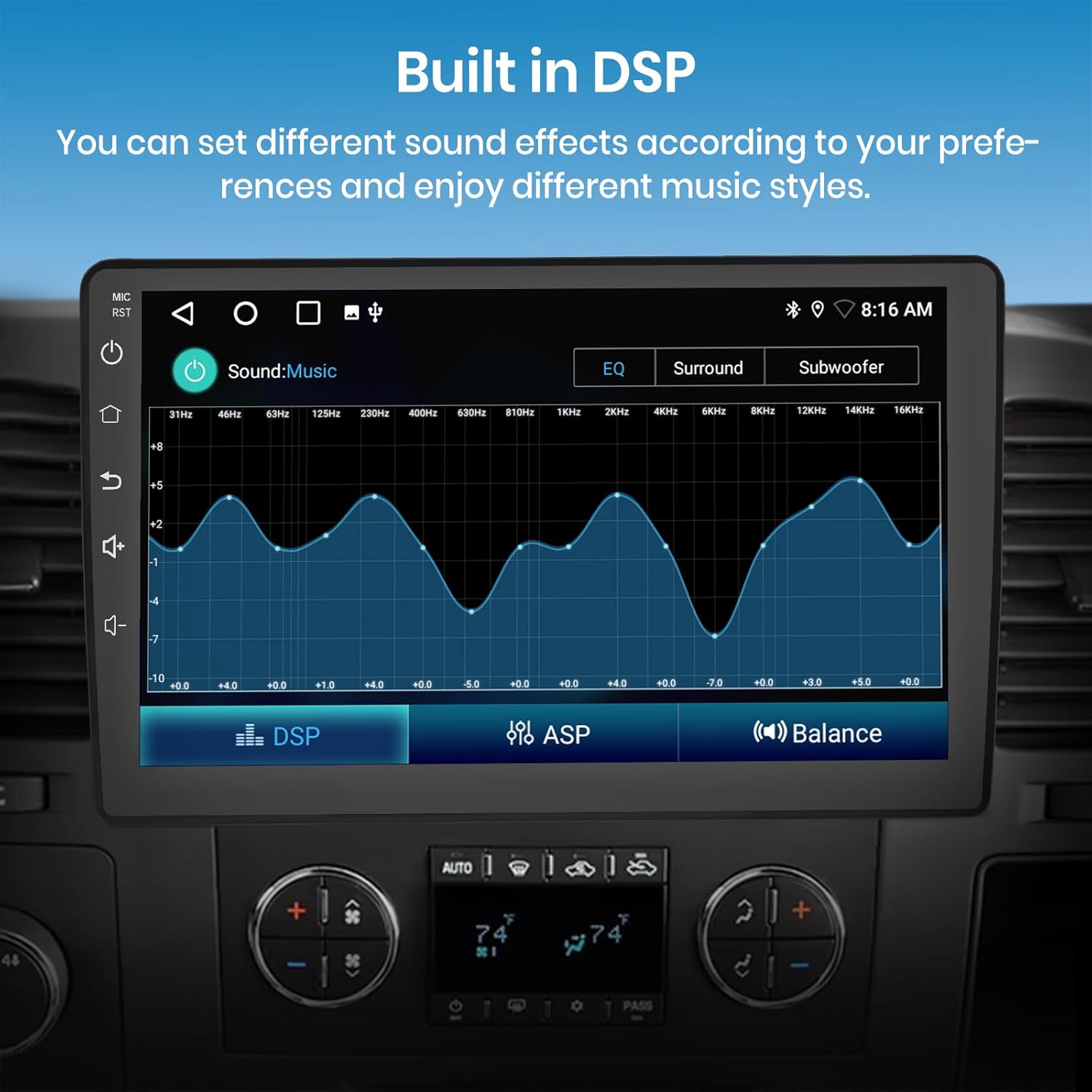
Image: The car stereo screen displaying the Built-in DSP interface, allowing users to adjust sound effects and equalizer settings.
2.5 Additional Functions
- Backup Camera Support: Supports rear view image input with a 140-degree ultra-wide angle, waterproof camera. The screen automatically switches when reversing.
- Retained SWC Function: Supports original steering wheel controls for convenient radio operation.
- Split Screen: Simultaneously launch and view two applications on the screen.
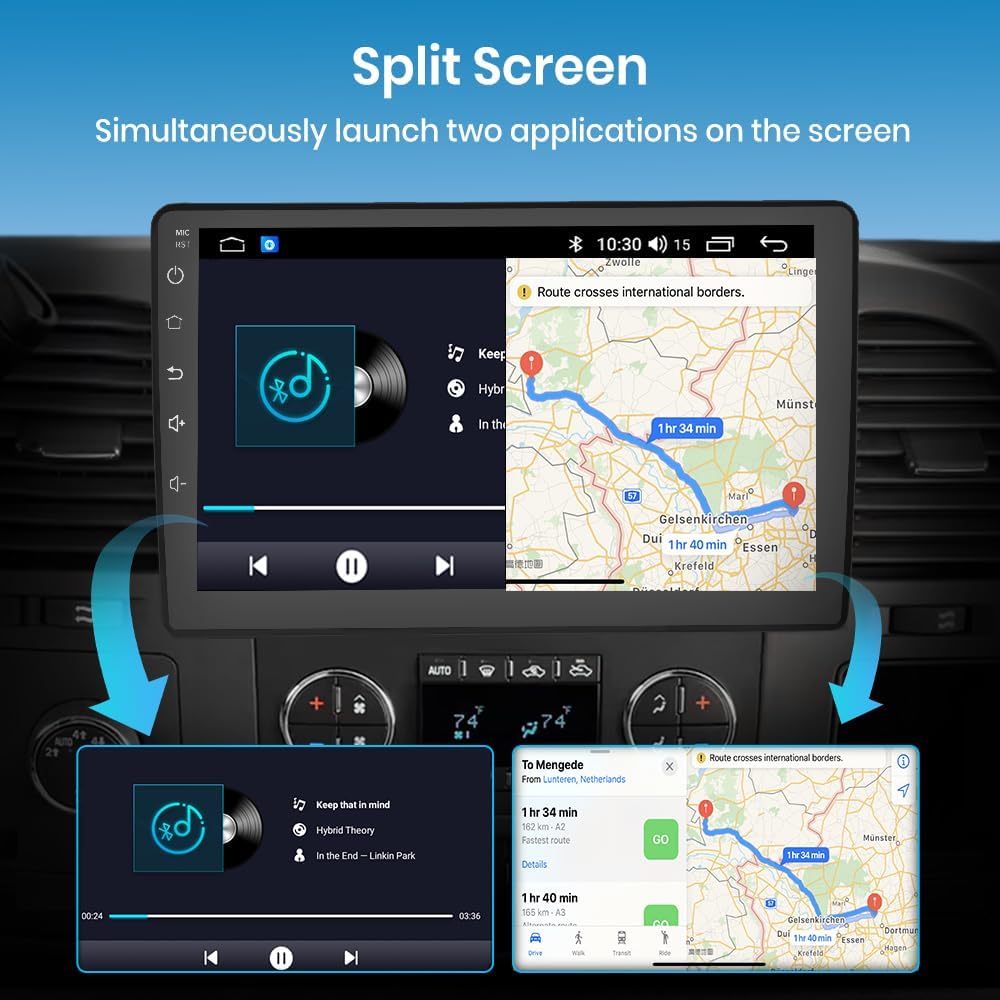
Image: The car stereo screen demonstrating split-screen functionality, with two applications running side-by-side.
3. Package Contents
Verify that all components are present in the package before proceeding with installation.
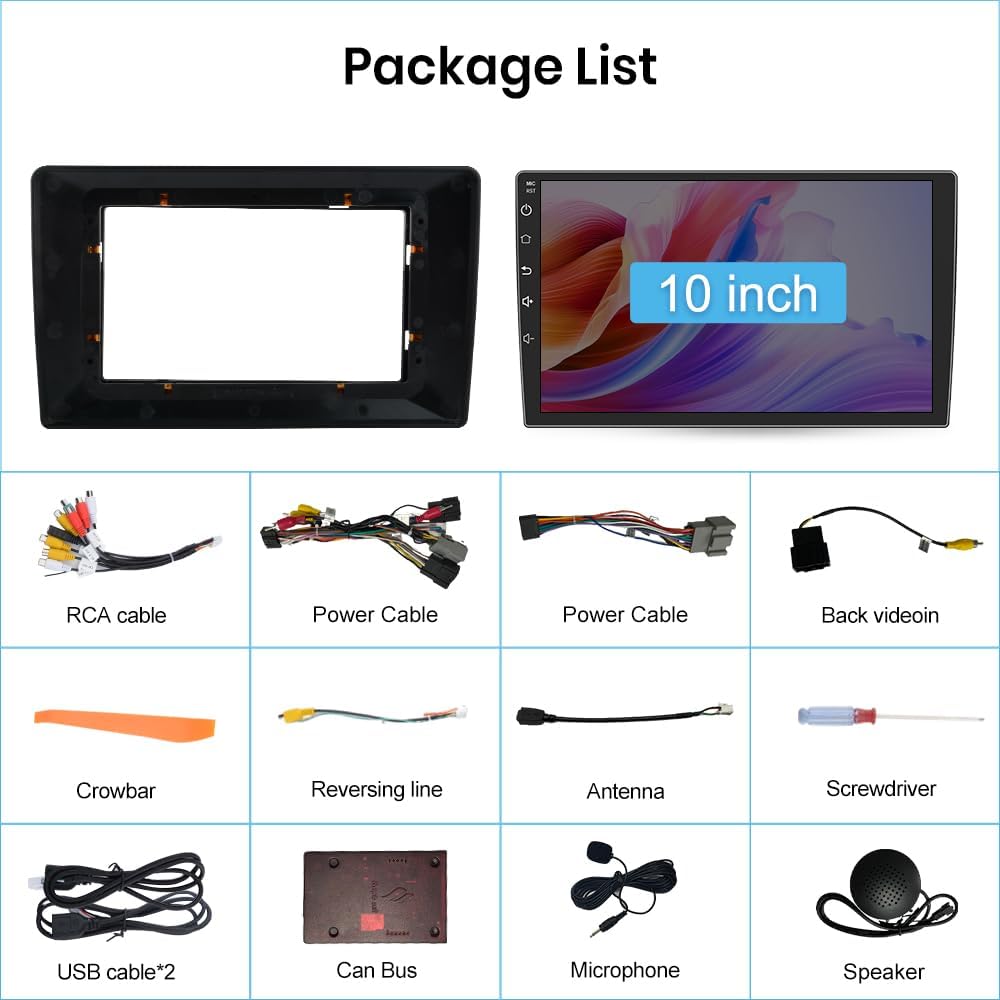
Image: A visual representation of all items included in the AWESAFE car radio package, such as the head unit, cables, and tools.
- AWESAFE Car Radio Stereo Unit (10-inch display)
- Vehicle-specific Frame
- RCA Cable Set
- Power Cable (x2, specific to vehicle model)
- Back Video Input Cable
- Crowbar (for trim removal)
- Reversing Line (for backup camera connection)
- Antenna
- Screwdriver
- USB Cable (x2)
- Can Bus Decoder
- Microphone
- Speaker
4. Installation Guide
Professional installation is recommended. Ensure the vehicle's battery is disconnected before starting the installation process.
4.1 Wiring Diagram Overview

Image: Detailed wiring diagram illustrating connections for power, RCA, camera, antenna, GPS, and USB cables.
- Remove Existing Unit: Carefully remove the factory radio and trim using the provided crowbar and screwdriver.
- Connect Power Cables: Connect the vehicle-specific power cables to the corresponding ports on the new unit. Ensure a secure connection.
- Can Bus Connection: Connect the Can Bus decoder if your vehicle requires it for steering wheel controls or other integrated features.
- USB Cables: Connect the two USB cables (4-pin and 6-pin) to the unit. Route them to a convenient location in the dashboard or glove compartment.
- RCA Cables: Connect the RCA cable set for audio output (front, rear, subwoofer), AUX input, and video input/output as needed. Refer to the diagram for specific connections (AMP Control, AUX L/R, Video Out, Subwoofer Out, Mic Port).
- Rear Camera Input: Connect the 10-pin rear camera input cable. If installing a new backup camera, connect its video output to this input.
- Radio Antenna: Connect the vehicle's radio antenna to the unit.
- GPS Antenna: Connect the GPS antenna and mount it in a location with a clear view of the sky (e.g., on the dashboard or under the windshield).
- Microphone: Connect the external microphone for improved call quality and voice commands. Mount it in an optimal position.
- Test Connections: Before fully reassembling the dashboard, reconnect the vehicle battery and test all functions of the radio.
- Secure Unit: Once all functions are verified, secure the new head unit into the dashboard using the provided frame and screws. Reinstall all trim pieces.
5. Setup
After installation, perform the initial setup to configure your device.
5.1 Initial Power On
- Turn on the vehicle ignition. The unit should power on automatically.
- Follow any on-screen prompts for initial language and time zone settings.
5.2 Wi-Fi Connection
- Go to Settings > Network & Internet > Wi-Fi.
- Select your desired Wi-Fi network and enter the password.
- A stable Wi-Fi connection is essential for online maps, app downloads, and system updates.
5.3 Bluetooth Pairing
- On the car stereo, open the Bluetooth application.
- Ensure Bluetooth is enabled on your smartphone and set to discoverable.
- Search for available devices on the car stereo and select your phone.
- Confirm the pairing code on both devices.
- Once paired, you can make hands-free calls and stream audio.

Image: The car stereo screen displaying the Bluetooth interface, showing phone dialing and music playback options.
5.4 CarPlay / Android Auto Setup
- For Wireless CarPlay: Ensure your iPhone's Wi-Fi and Bluetooth are enabled. Open the CarPlay app on the stereo and follow the on-screen instructions to connect wirelessly.
- For Android Auto: Connect your Android phone via USB or wirelessly (if supported by your phone and the unit). Open the Android Auto app on the stereo and follow the prompts.
6. Operating Instructions
Familiarize yourself with the main functions of your AWESAFE car stereo.
6.1 Basic Navigation
- The main interface provides access to common applications like Radio, Music, Navigation, and Bluetooth.
- Swipe left or right to access additional app pages.
- Use the touch screen for all interactions.
6.2 Steering Wheel Control (SWC)
- If your vehicle has steering wheel controls and the Can Bus is correctly installed, the controls should function automatically.
- If not, navigate to Settings > Steering Wheel Control to manually map the buttons. Follow the on-screen instructions to assign functions (e.g., Volume Up/Down, Next/Previous Track, Answer/Hang Up Call).

Image: The car stereo screen showing the Steering Wheel Control learning interface, with examples of assignable functions.
6.3 DSP Sound Settings
- Access the DSP or Equalizer app from the main menu.
- Adjust frequency bands, balance, fader, and subwoofer settings to customize your audio experience.
- Pre-set equalizer modes may be available for different music genres.
6.4 Split Screen Function
- To activate split screen, open an application. Then, press and hold the recent apps button (usually a square icon) or drag an app to one side of the screen.
- Select a second application to occupy the other half of the screen.
- This allows simultaneous use of navigation and music playback, for example.
6.5 FM Radio Operation
- Open the FM Radio app.
- Use the scan function to automatically find and save available stations.
- Manually tune by frequency or select from saved presets.

Image: The car stereo screen displaying the FM Radio interface, showing frequency tuning and station presets.
7. Maintenance
Proper maintenance ensures the longevity and optimal performance of your car stereo.
- Screen Cleaning: Use a soft, lint-free cloth to gently wipe the screen. Avoid abrasive cleaners or solvents.
- Software Updates: Periodically check for system updates via Wi-Fi in the settings menu to ensure you have the latest features and security patches.
- Cable Connections: Ensure all cables remain securely connected. Loose connections can lead to intermittent issues.
- Environmental Conditions: Avoid exposing the unit to extreme temperatures or direct sunlight for prolonged periods when the vehicle is parked.
8. Troubleshooting
Refer to this section for common issues and their solutions.
| Problem | Possible Cause | Solution |
|---|---|---|
| Unit does not power on. | Loose power connection, blown fuse, vehicle battery issue. | Check power cable connections. Inspect vehicle fuses. Verify vehicle battery health. |
| No sound. | Volume too low, mute activated, loose speaker wires, incorrect DSP settings. | Increase volume. Check mute status. Verify speaker wire connections. Reset DSP settings. |
| GPS signal lost or inaccurate. | GPS antenna obstructed or disconnected. | Ensure GPS antenna has a clear view of the sky and is securely connected. |
| Bluetooth not connecting. | Bluetooth off on phone/stereo, incorrect pairing, interference. | Ensure Bluetooth is enabled on both devices. Delete previous pairings and re-pair. Move away from other wireless devices. |
| Backup camera not displaying. | Camera cable loose, camera malfunction, incorrect wiring. | Check the rear camera input cable connection. Ensure camera is powered. |
| Steering wheel controls not working. | Can Bus not connected, controls not mapped. | Verify Can Bus connection. Perform manual SWC mapping in settings. |
| System slow or freezing. | Too many apps running, low storage, software glitch. | Close unnecessary apps. Clear cache. Perform a system restart. Check for software updates. |
If the issue persists after attempting these solutions, please contact AWESAFE customer support.
9. Specifications
| Feature | Detail |
|---|---|
| Brand | AWESAFE |
| Model Number | B0FD6WJ7R |
| Operating System | Android 13 |
| Processor | 8-Core |
| RAM | 4 GB |
| Memory Storage Capacity | 64 GB |
| Screen Size | 10 Inches |
| Display Resolution | 1280*720 (Ultra HD) |
| Display Type | Touchscreen (Capacitive) |
| Connectivity Technology | Bluetooth, 5G WiFi |
| Special Features | Wireless CarPlay, Android Auto, Built-in DSP, FM Radio, Backup Camera Support, Steering Wheel Control |
| Supported Satellite Navigation System | GPS (North America Map Type) |
| Human-Interface Input | Microphone, Touchscreen |
| Control Method | App, Touch, Voice |
| Included Components | Car radio, wiring harnesses, accessories (as listed in Package Contents) |
10. Warranty Information
This AWESAFE Car Radio Stereo comes with a 1-year warranty from the date of purchase. This warranty covers manufacturing defects and malfunctions under normal use. It does not cover damage caused by improper installation, accident, misuse, abuse, unauthorized modifications, or natural disasters.
Please retain your proof of purchase for warranty claims.
11. Support
For technical assistance, troubleshooting beyond this manual, or warranty inquiries, please contact AWESAFE customer support through the retailer where the product was purchased or visit the official AWESAFE website for contact information.
When contacting support, please have your product model number (B0FD6WJ7R) and proof of purchase readily available.


