1. Product Overview
The NGTeco SL01-A730N is a WiFi-enabled fingerprint smart lock designed for enhanced home and office security. It offers multiple access methods including fingerprint, password, RFID card, mechanical key, and remote unlocking via the NGTeco Home App. This manual provides essential information for installation, setup, operation, and maintenance of your smart lock.

Image 1.1: Front view of the NGTeco SL01-A730N Smart Lock, showcasing the keypad and handle.
Key Features:
- Multiple Access Methods: Fingerprint, Password, RFID Card, Mechanical Key, Mobile App.
- Remote Unlocking: Control and manage your lock from anywhere using the NGTeco Home App.
- Wi-Fi Connectivity: Built-in Wi-Fi for seamless smart home integration without additional hubs.
- Emergency Power: USB Type-C port for temporary power in case of battery depletion.
- Voice Guidance: Audio instructions for simplified setup and operation.
- Temporary Access: Generate time-limited access codes or app permissions for guests.
- Reversible Handle: Suitable for both right-hand and left-hand door installations.
- Doorbell Function: Integrated electronic doorbell.

Image 1.2: Visual representation of the smart lock's key features, including remote unlocking, Wi-Fi communication, capacitive fingerprint sensor, random passcode, audio instructions, temporary access, smart alerts, NFC, and emergency charging port.
2. Package Contents
Verify that all components are present in the package before proceeding with installation.
- Exterior Assembly
- Interior Assembly
- Latch Kit
- Mechanical Key (2x)
- IC Card (2x)
- Studs & Screws Kit
- Installation Template
- Installation Guide & User Manual (this document)

Image 2.1: All components included in the NGTeco SL01-A730N smart lock package, laid out for verification.
3. Lock Overview and Dimensions
Familiarize yourself with the different parts of the smart lock and its dimensions to ensure compatibility with your door.
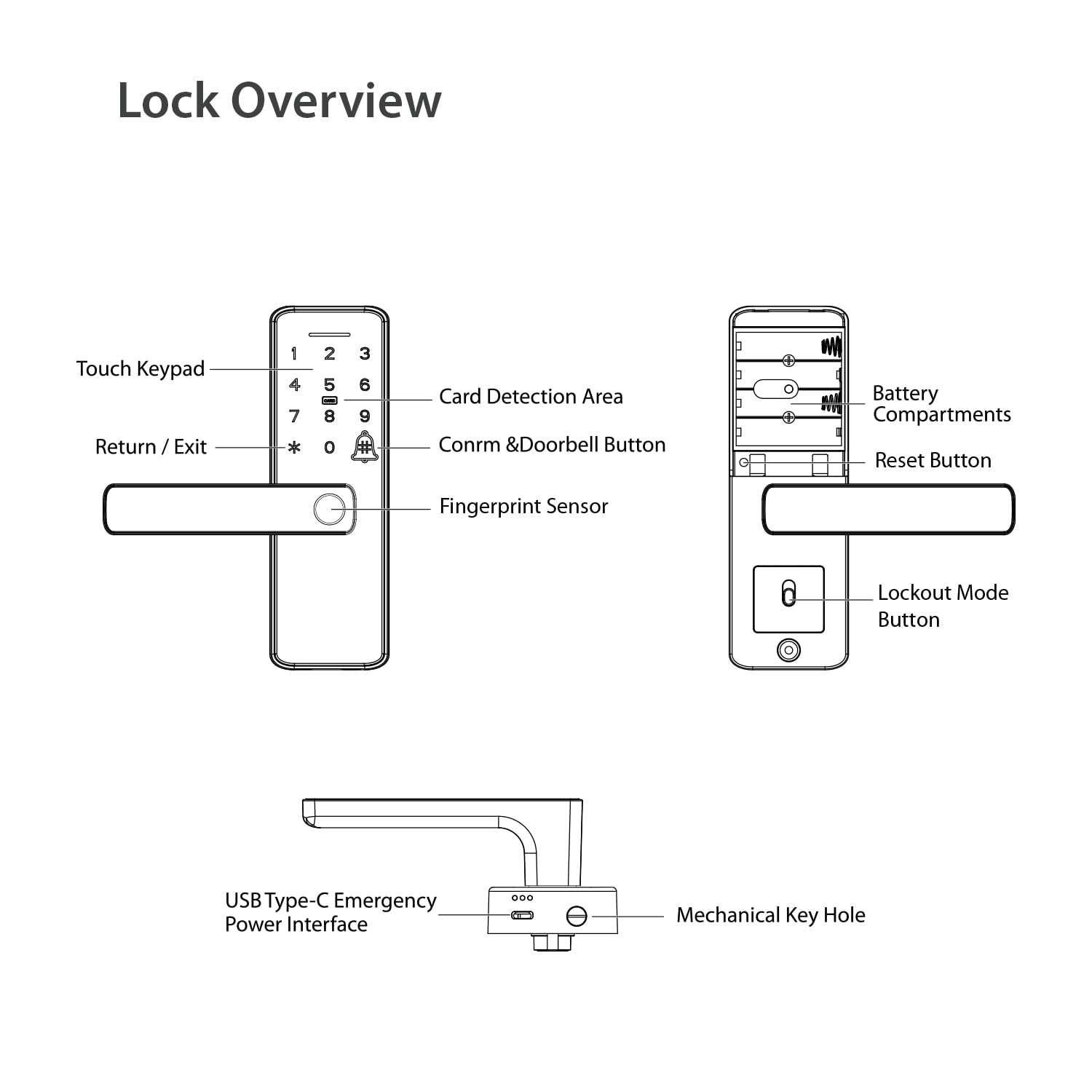
Image 3.1: Diagram illustrating the various components of the smart lock, including the touch keypad, card detection area, fingerprint sensor, battery compartments, reset button, USB Type-C emergency power interface, and mechanical keyhole.

Image 3.2: Detailed dimensions of the NGTeco SL01-A730N smart lock, indicating suitability for door thicknesses between 35-60 mm.
The lock is designed for doors with a thickness between 35 mm and 60 mm. Please refer to the detailed dimensions in Image 3.2 to confirm compatibility with your door.
4. Installation
This section provides a general overview of the installation process. For detailed, step-by-step instructions, please refer to the dedicated Installation Guide included in your package.
- Prepare the Door: Use the provided installation template to mark and drill necessary holes on your door. Ensure the door thickness is within the supported range (35-60 mm).
- Install the Latch: Insert the latch kit into the door edge and secure it with screws.
- Install Exterior Assembly: Mount the exterior part of the lock, ensuring the spindle passes through the latch.
- Install Interior Assembly: Connect the interior assembly to the exterior assembly using the provided screws and studs. Ensure all cables are properly connected and not pinched.
- Insert Batteries: Open the battery cover on the interior assembly and insert four AA alkaline batteries (not included).
- Test Operation: After installation, test the mechanical key and handle operation to ensure smooth movement before proceeding with smart features setup.
Note: The handle design is reversible. Adjust the handle direction according to your door's opening direction (left-hand or right-hand) during installation if necessary. Refer to the Installation Guide for specific instructions on handle reversal.
5. Initial Setup and Configuration
After physical installation, configure your smart lock using the NGTeco Home App and register your access credentials.
5.1. NGTeco Home App Installation
The NGTeco Home App is essential for managing your smart lock's features, including remote unlocking, user management, and access logs.
- Download the NGTeco Home App from the Google Play Store or Apple App Store. You can scan the QR code below or visit the provided link.
- Register for a new account or log in with an existing one.

Image 5.1: Instructions for downloading the NGTeco Home App and its interface for controlling the smart lock.
Download the NGTeco Home App: https://a.smart321.com/ngtecongtecohome
5.2. Connecting the Lock to Wi-Fi
Follow the in-app instructions to add your SL01-A730N smart lock and connect it to your home Wi-Fi network (2.4GHz only). The lock provides audio instructions to guide you through the process.
- Ensure your smartphone is connected to a 2.4GHz Wi-Fi network.
- In the NGTeco Home App, select "Add Device" and follow the prompts for smart lock setup.
- The lock will provide voice guidance during the pairing process.
5.3. Registering Access Credentials
Register fingerprints, passwords, and RFID cards for convenient access.
- Administrator Setup: The first user registered (fingerprint or password) will typically be designated as the administrator.
- Fingerprint Registration: On the lock's keypad, follow the voice prompts to place your finger on the sensor multiple times until registration is complete. You can also register fingerprints via the app.
- Password Registration: Enter your desired password on the keypad, followed by the '#' key. Confirm the password. Ensure your password is between 6-10 digits.
- RFID Card Registration: Present the IC card to the card detection area on the lock when prompted during registration.
- Adding Users via App: Use the NGTeco Home App to add and manage multiple users, assign specific fingerprints, passwords, or RFID cards, and set access schedules.
6. Operating the Smart Lock
Learn how to use the various methods to unlock and manage your NGTeco SL01-A730N smart lock.
6.1. Unlocking Methods
- Fingerprint: Place your registered finger on the fingerprint sensor. The lock will unlock upon successful verification.
- Password: Enter your registered password on the touch keypad, then press '#'.
- RFID Card: Present your registered IC card to the card detection area.
- Mechanical Key: In case of emergency or battery failure, use the physical key to unlock the door.
- NGTeco Home App: Open the app, select your lock, and tap the unlock button.

Image 6.1: Visual guide to the various ways to unlock the NGTeco SL01-A730N smart lock: Fingerprint, Pass Code, Card, and Remote Control via app.
6.2. Remote Unlocking and Temporary Access
The NGTeco Home App allows for remote management and temporary access creation.
- Remote Unlock: From the app, you can unlock your door from anywhere with an internet connection.
- Share Temporary Password: Generate time-sensitive passwords for guests or service providers. These passwords can be set to expire after a certain period or number of uses.
- Check Records: View a log of all lock and unlock events, including the method used and the user.
- Lock Setup: Access advanced settings, manage users, and configure notifications directly from the app.

Image 6.2: Screenshots of the NGTeco Home App demonstrating features like App Control, Sharing Temporary Passwords, Checking Records, and Lock Setup.
6.3. Anti-Peeping Password
To prevent others from guessing your password, you can enter random digits before or after your actual password. For example, if your password is "123456", you can enter "987123456098#" and the lock will still recognize the correct sequence.
6.4. Doorbell Function
The lock includes a built-in electronic doorbell. Press the doorbell icon on the keypad to activate it.
7. Maintenance
Proper maintenance ensures the longevity and optimal performance of your smart lock.
- Battery Replacement: The lock operates on four AA alkaline batteries. Replace them when the low battery indicator appears or when voice prompts indicate low power.
- Emergency Charging: If batteries are completely drained, connect a power bank to the USB Type-C port on the exterior assembly for temporary power to unlock the door.
- Cleaning: Wipe the lock's surface with a soft, dry cloth. Avoid using abrasive cleaners or solvents that could damage the finish or electronic components.
- Fingerprint Sensor: Keep the fingerprint sensor clean and dry for accurate readings.
8. Troubleshooting
Refer to this section for solutions to common issues you might encounter.
| Problem | Possible Cause | Solution |
|---|---|---|
| Lock does not respond. | Dead batteries. | Replace batteries. Use USB Type-C for emergency power if needed. |
| Fingerprint not recognized. | Finger is wet/dirty, sensor is dirty, or fingerprint not registered correctly. | Ensure finger and sensor are clean and dry. Re-register fingerprint if issue persists. |
| Password not working. | Incorrect password entered, or password not registered. | Verify the password. Ensure you are pressing '#' after the password. Re-register password if necessary. |
| Cannot connect to Wi-Fi. | Incorrect Wi-Fi password, 5GHz network, or weak signal. | Ensure correct 2.4GHz Wi-Fi network and password. Move router closer or use a Wi-Fi extender. |
| Remote unlock not working. | No internet connection on lock or phone, or app not properly configured. | Check Wi-Fi connection of the lock and internet connection of your phone. Ensure the app is updated and logged in. |
9. Specifications
| Feature | Detail |
|---|---|
| Brand | NGTeco |
| Model Name | SL01-A730N |
| Lock Type | Mortise Lock |
| Material | Aluminium |
| Color | Black |
| Item Dimensions (L x W x H) | 18.6 x 6 x 2 Centimeters |
| Item Weight | 1.25 Kilograms |
| Connectivity Protocol | Wi-Fi (2.4GHz) |
| Control Method | App, Fingerprint, Password, RFID Card, Key |
| Special Feature | Anti-Peeping Password, Emergency USB Type-C Charging |
| Recommended Uses | Homes, Offices |
| Door Thickness Compatibility | 35 - 60 mm |
10. Warranty and Support
The NGTeco SL01-A730N Smart Lock comes with a 1-year warranty from the date of purchase.

Image 10.1: The NGTeco SL01-A730N Smart Lock prominently displaying a "1 Year Warranty" badge.
Customer Support:
For any technical assistance, warranty claims, or product inquiries, please contact NGTeco customer support.
- Comprehensive Call Support: Assistance throughout your product journey, including pre-sales and after-sales support.
- Personalized Remote Assistance: Expert guidance for hardware and software configuration.
- Professional Training on Software: Unlock the full potential of software platforms with step-by-step training.
- Reliable Tech Support: Responsive technical team available on all working days.

Image 10.2: Information detailing the comprehensive customer care services provided by NGTeco.
Image 10.3: Contact information for NGTeco customer support, including phone numbers and email address.
Contact Details:
- Phone: 080-68281333/42, +91 80975 38492
- Email: ecommerceindia@zkteco.in
- Support Hours: Mon-Sat 9:30 AM - 6:30 PM


