
1. Introduction
The Machenike KG98 is a versatile mechanical keyboard designed for various applications, including gaming, typing, and general computer use across Windows and Mac operating systems. It features a compact 98-key layout, tri-mode connectivity (Bluetooth, 2.4GHz wireless, and wired USB-C), hot-swappable switches, and customizable RGB backlighting. This manual provides detailed instructions for setting up, operating, and maintaining your KG98 keyboard to ensure optimal performance and longevity.
2. Package Contents
Please verify that all items listed below are included in your package:
- Machenike KG98 Mechanical Keyboard
- USB Cable (Type-C)
- 2.4GHz Wireless Dongle (typically stored in the keyboard)
- Keycap Puller
- Extra 2 Grey Pre-lubed Linear Switches
- User Manual (this document)
3. Product Overview
The Machenike KG98 keyboard integrates several features for enhanced user experience and customization.

Image: Front view of the Machenike KG98 Mechanical Keyboard, showcasing its 98-key layout and RGB lighting.
Key Features:
- Tri-Mode Connectivity: Supports Bluetooth 5.0, 2.4GHz wireless, and wired USB-C connections for versatile device compatibility.
- Hot-Swappable Switches: Allows for easy replacement of switches without soldering, enabling personalized typing feel.
- Pre-lubed Linear Switches: Equipped with factory-lubed linear switches for smooth and consistent keystrokes.
- RGB Backlighting: Features 16.8 million colors and various adjustable lighting effects.
- 98-Key Compact Layout: Offers a full-sized typing experience while saving desk space.
- Multi-functional Toggle Switch: Provides quick control over volume, mute, and RGB lighting modes.
- Ergonomic Design: Gasket structure and PCB single-key slotting design enhance typing comfort and reduce noise.
- Long-Lasting Battery: Built-in high-capacity battery for extended wireless use.

Image: Diagram illustrating key features such as tri-mode connectivity, 8000mAh battery, RGB backlight, 98 keys, advanced structure, PBT keycaps, hot-swappable switches, and multifunction toggle switch.
Internal Structure:
The KG98 incorporates a premium 5-layer acoustic filling and GASKET design for improved sound and feel.

Image: Exploded view diagram showing the 5-layer acoustic filling components: Keycaps, Switches, Top Case, Flex-Cut PC Positioning Plate, Sandwich Foam, IXPE Switch Pad, PET Acoustic Mat, Per-Key Flex-Cut PCBA Board, Damping Bottom Foam, Silicone Base Pad, Bottom Shell, and Aluminum-Alloy Counterweight.
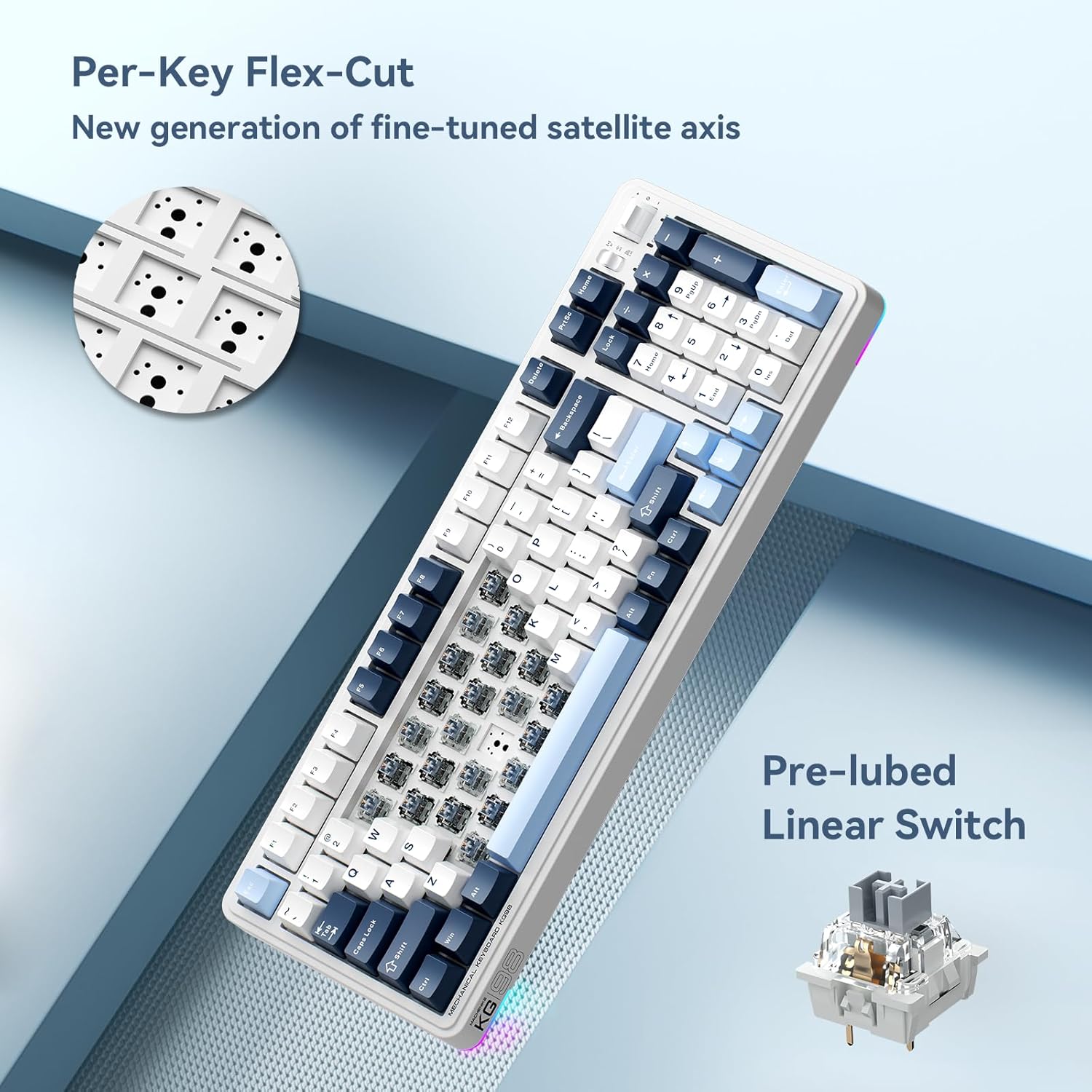
Image: Close-up view of the Per-Key Flex-Cut design for enhanced acoustic performance and a detailed view of a pre-lubed linear switch.
Switch Types:
The KG98 is compatible with various linear switch types, offering different actuation forces and travel distances.
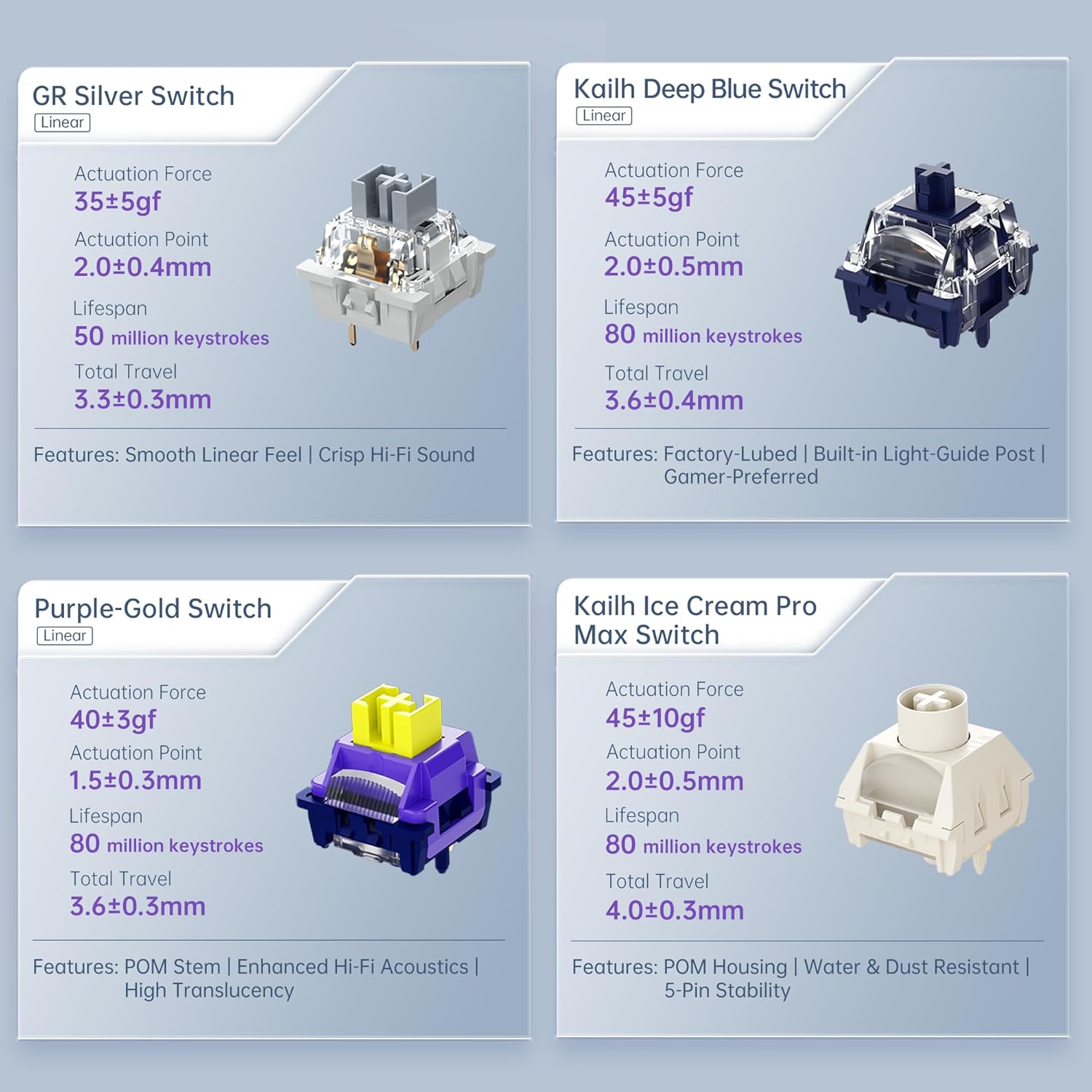
Image: Comparison of different linear switch types including GR Silver, Kailh Deep Blue, Purple-Gold, and Kailh Ice Cream Pro Max, detailing their actuation force, actuation point, lifespan, and total travel.
4. Setup
4.1 Initial Charging
Before first use, connect the keyboard to a USB power source using the provided USB-C cable to ensure it is fully charged. The charging indicator will typically show the charging status and turn off or change color when fully charged.
4.2 Connectivity Modes
The KG98 supports three connection modes: Wired (USB-C), 2.4GHz Wireless, and Bluetooth 5.0. Use the toggle switch located on the top right side of the keyboard to select your desired mode.

Image: Close-up of the multifunction toggle switch and the tri-mode connectivity selector switch on the top right of the keyboard.
4.2.1 Wired Mode (USB-C)
- Set the mode switch on the keyboard to the 'Wired' or 'USB' position.
- Connect the USB-C cable to the keyboard and the other end to your computer's USB port.
- The keyboard will be recognized automatically by your operating system.
4.2.2 2.4GHz Wireless Mode
- Locate the 2.4GHz USB dongle, typically stored in a slot on the keyboard.
- Set the mode switch on the keyboard to the '2.4G' position.
- Plug the USB dongle into an available USB port on your computer.
- The keyboard should connect automatically.
4.2.3 Bluetooth Mode
- Set the mode switch on the keyboard to the 'BT' position.
- The keyboard will enter pairing mode (an indicator light may flash).
- On your device (computer, tablet, smartphone), open Bluetooth settings.
- Search for available devices and select 'Machenike KG98' (or similar name).
- Follow any on-screen prompts to complete the pairing process.
5. Operating Instructions
5.1 Standard Key Functions
The KG98 features a standard 98-key layout, including a numeric keypad, function row, and navigation keys. All keys operate as labeled in their default configuration.
5.2 RGB Backlighting Control
The keyboard offers 16.8 million colors and multiple dynamic RGB lighting effects. Use the dedicated function keys or the multi-functional toggle switch to cycle through presets and adjust brightness.

Image: The Machenike KG98 keyboard displaying its vibrant 16.8 million color RGB backlighting.
5.3 Multi-functional Toggle Switch
The toggle switch located on the top right of the keyboard provides quick access to media controls and lighting adjustments:
- Volume Control: Push the toggle up or down to adjust the system volume.
- Mute/Unmute: Press the toggle switch inwards to mute or unmute audio.
- RGB Mode Cycle: Press and hold the toggle switch to cycle through different RGB lighting effects.
5.4 Hot-Swapping Switches and Keycaps
The KG98 features hot-swappable sockets, allowing you to change mechanical switches without soldering. You can also replace keycaps to customize the keyboard's appearance.
- Removing Keycaps: Use the provided keycap puller to gently grip and lift keycaps straight up.
- Removing Switches: Use a switch puller (not always included, but compatible with the provided keycap puller for some designs) to carefully unclip and pull the switch straight up from its socket.
- Installing Switches: Align the pins of the new switch with the holes on the PCB. Gently push the switch down until it clicks into place. Ensure pins are not bent.
- Installing Keycaps: Align the keycap with the switch stem and press down firmly until it is seated.
6. Maintenance
Regular maintenance helps preserve the keyboard's functionality and appearance.
- Cleaning Keycaps: Remove keycaps using the keycap puller. Clean them with a mild soap solution and a soft cloth, then rinse and dry thoroughly before reattaching.
- Cleaning the Keyboard Body: Use a soft, dry cloth to wipe down the keyboard's surface. For stubborn dirt, a slightly damp cloth can be used, ensuring no liquid enters the keyboard.
- Dust Removal: Use compressed air to remove dust and debris from between the keycaps and switches.
- Storage: When not in use for extended periods, store the keyboard in a dry, cool place away from direct sunlight.
7. Troubleshooting
If you encounter issues with your Machenike KG98 keyboard, refer to the following common problems and solutions:
| Problem | Possible Cause | Solution |
|---|---|---|
| Keyboard not responding (Wired) | Loose cable connection, incorrect mode selected, faulty USB port. | Ensure USB-C cable is securely connected. Check if the mode switch is set to 'Wired'. Try a different USB port on your computer. |
| Keyboard not responding (2.4GHz/Bluetooth) | Low battery, incorrect mode, dongle not plugged in (2.4GHz), not paired (Bluetooth), interference. | Charge the keyboard. Ensure the mode switch is set correctly ('2.4G' or 'BT'). For 2.4GHz, ensure dongle is plugged in. For Bluetooth, re-pair the device. Move closer to the receiver or reduce interference. |
| RGB lighting not working or incorrect | Lighting mode off, brightness too low, software conflict. | Cycle through RGB modes using the multi-functional toggle switch or dedicated keys. Increase brightness. Restart the keyboard or computer. |
| Keys not registering or double-typing | Faulty switch, debris under keycap/switch. | Remove the keycap and switch. Clean the area. Replace the switch with one of the spares provided or a new compatible switch. |
| Battery drains quickly | High RGB brightness, frequent wireless use, aging battery. | Reduce RGB brightness or turn off lighting when not needed. Use wired mode when possible. If the battery life significantly degrades, contact support. |
8. Specifications
| Feature | Detail |
|---|---|
| Model | KG98 |
| Connectivity Technology | BT5.0, 2.4G Wireless, USB-C Wired |
| Keyboard Layout | 98 Keys |
| Switch Type | Pre-lubed Linear Mechanical Switches (Hot-Swappable) |
| Backlighting | RGB (16.8 Million Colors) |
| Battery Capacity | 8000mAh (typical) |
| Compatible Devices | PC, Laptop, Gaming Console, Smartphone, Tablet |
| Product Dimensions | 16.61"L x 7.48"W x 2.16"H (42.19 x 19.00 x 5.49 cm) |
| Item Weight | 3.52 pounds (1.6 kg) |
| Manufacturer | Machenike |
9. Warranty and Support
Machenike products are manufactured to high-quality standards. For warranty information, technical support, or service inquiries, please refer to the official Machenike website or contact their customer service department. Keep your purchase receipt as proof of purchase for warranty claims.


