
1. Introduction
This manual provides detailed instructions for the operation and maintenance of your TECKNET Wireless Headset, Model TK-HS017. Designed for clear communication in various environments, this headset features advanced AI noise cancellation, Bluetooth 5.2 connectivity, and a comfortable single-ear design. Please read this manual thoroughly before using the product to ensure optimal performance and longevity.
2. Package Contents
- TECKNET Wireless Headset (TK-HS017)
- USB Type-C Charging Cable
- User Manual
3. Product Overview

Figure 1: TECKNET Wireless Headset TK-HS017. This image displays the headset from a front-side angle, highlighting its single earcup, adjustable headband, and microphone boom.
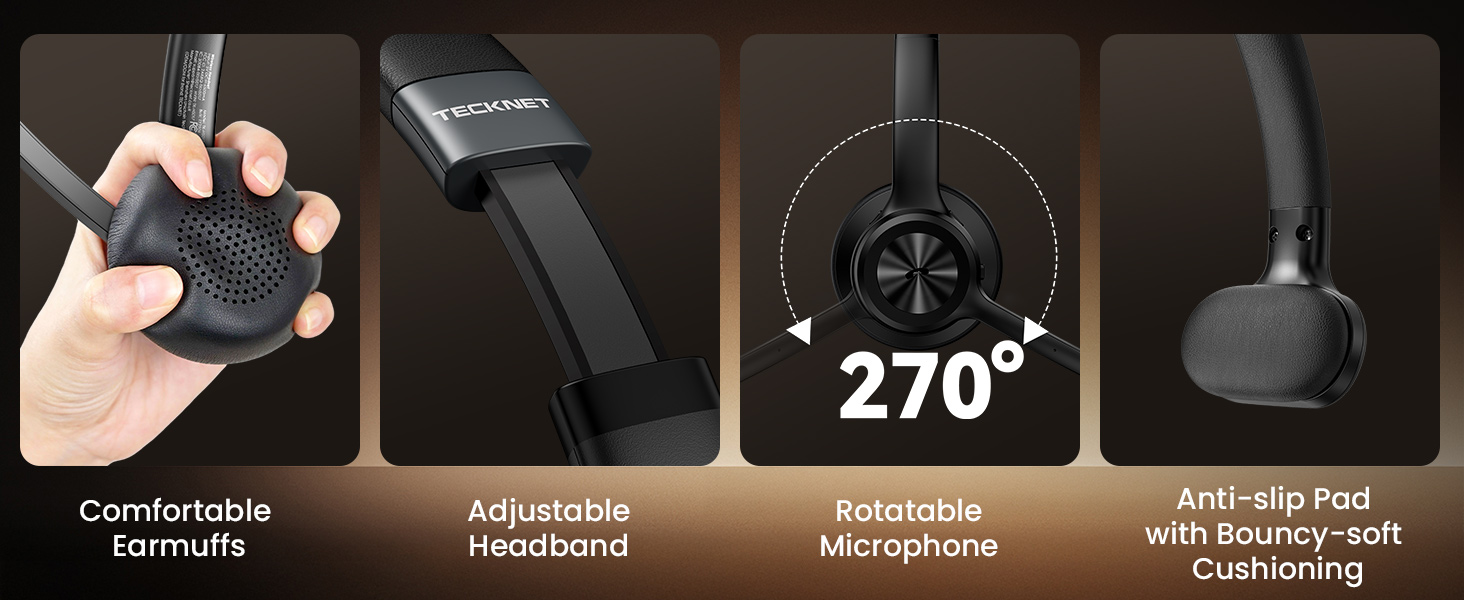
Figure 2: Key controls and features of the TECKNET Wireless Headset. This diagram illustrates the location of the Volume +/-, Power On/Off Button, Multi-function Button, Indicator Light, and Mute Button on the headset.
4. Setup
4.1 Charging the Headset
Before first use, fully charge the headset. Connect the provided USB Type-C charging cable to the headset's charging port and a compatible USB power source. The indicator light will show charging status. A full charge takes approximately 1.5 hours and provides up to 50 hours of talk time or 60 hours of music playback.
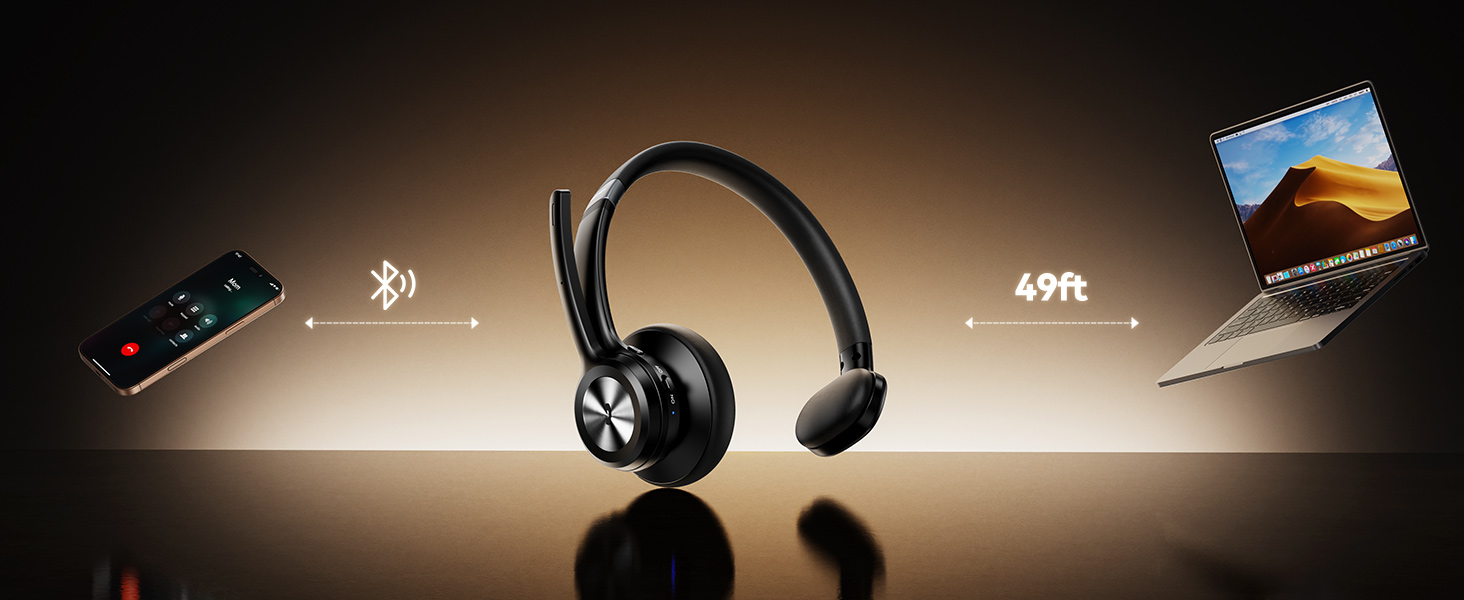
Figure 3: Battery performance details, showing up to 60 hours of music time and 50 hours of talk time.
4.2 Bluetooth Pairing
- Ensure the headset is powered off.
- Slide the Power On/Off switch to the 'On' position. The indicator light will flash blue, indicating it's in pairing mode.
- On your device (smartphone, computer, laptop, tablet), enable Bluetooth and search for available devices.
- Select 'TK-HS017' from the list of devices.
- Once connected, the indicator light will turn solid blue.
4.3 Dual-Device Connectivity
The headset supports simultaneous connection to two devices. After pairing with the first device, disable Bluetooth on that device. Pair the headset with the second device. Once the second device is paired, re-enable Bluetooth on the first device. The headset will automatically connect to both devices, allowing seamless switching between them.
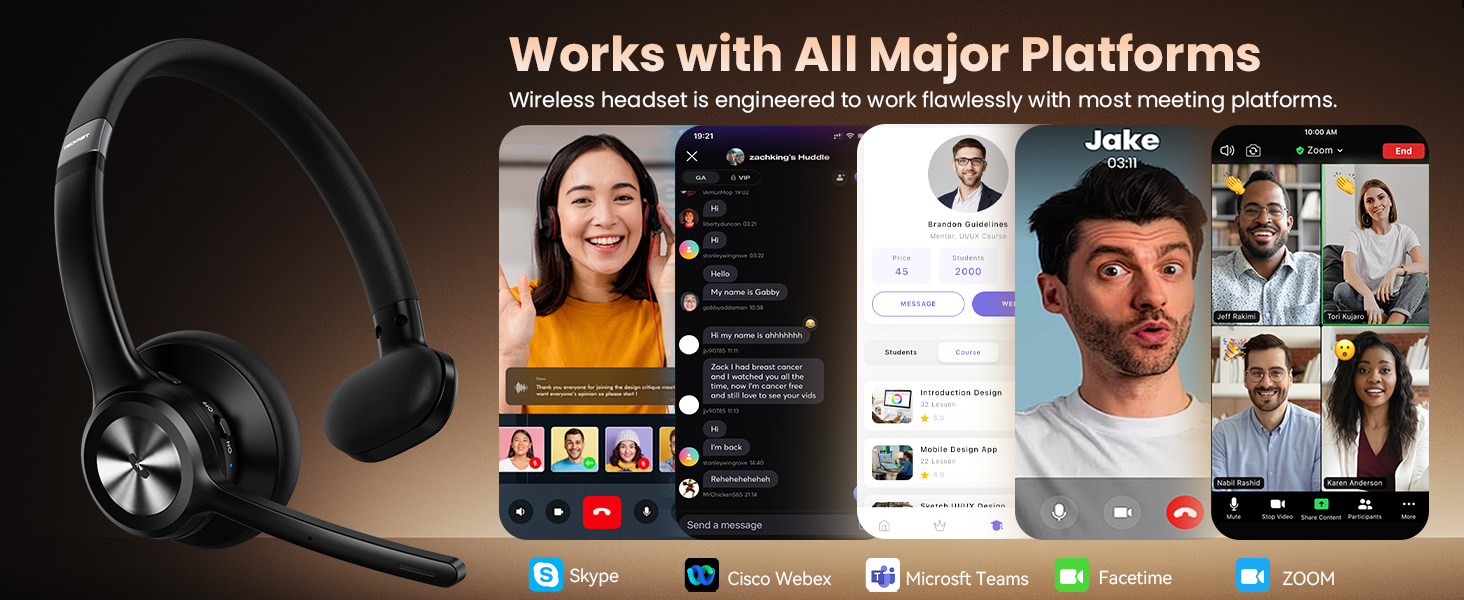
Figure 4: Illustration of the headset's ability to connect to two devices simultaneously, such as a laptop and a smartphone, using Bluetooth 5.2.
5. Operating Instructions
5.1 Power On/Off
- Power On: Slide the Power On/Off switch to the 'On' position.
- Power Off: Slide the Power On/Off switch to the 'Off' position.
5.2 Call & Audio Controls
- Answer/End Call: Press the Multi-function Button (MFB) once.
- Reject Call: Press and hold the MFB for 2 seconds.
- Play/Pause Music: Press the MFB once.
- Volume Up/Down: Use the '+' and '-' buttons located on the earcup.
- Microphone Mute: Press the dedicated mute button on the microphone boom to toggle mute on/off.

Figure 5: The Multi-function Button (MFB) on the earcup, used for answering/ending calls and playing/pausing music.

Figure 6: The dedicated mute button on the microphone boom for quick privacy control during calls.
5.3 Microphone Adjustment
The microphone features a 270° rotatable design, allowing you to position it optimally for voice pickup or to move it out of the way when not in use. This flexibility ensures clear voice transmission regardless of which ear you wear the headset on.

Figure 7: The microphone's 270-degree rotation capability for optimal positioning.
5.4 AI Noise Cancellation
The integrated AI noise-cancelling microphone effectively reduces up to 96% of background noise, ensuring your voice is clear and distinct during calls, even in loud environments.

Figure 8: Visual representation of the AI noise cancellation technology, demonstrating its effectiveness in reducing background noise during calls.
6. Comfort and Design
The headset is designed for extended wear. It features soft, skin-friendly ear cushions that conform to your ear contours and an adjustable headband for a secure, personalized fit. The single-ear design allows you to remain aware of your surroundings while communicating.
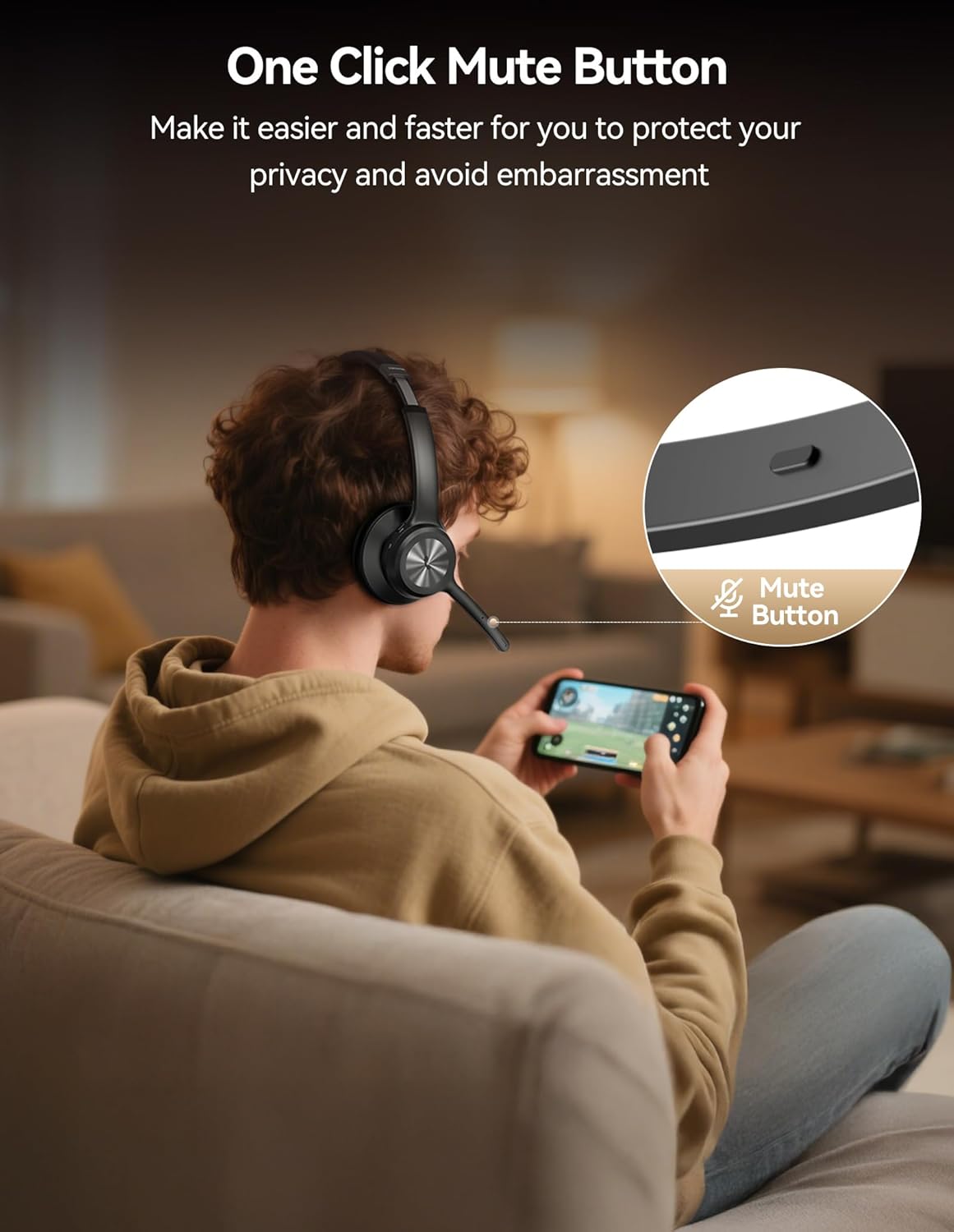
Figure 9: Close-up view of the headset's comfortable ear cushions and adjustable headband, designed for all-day wear.
7. Usage Scenarios
The TECKNET Wireless Headset is suitable for a variety of applications:
- Office & Remote Work: Ideal for video conferences, online meetings (Teams, Zoom), and general office communication.
- Call Centers: Ensures clear communication with customers.
- Driving: Single-ear design allows awareness of surroundings, suitable for truck drivers.
- Online Classes: Provides clear audio for learning and participation.
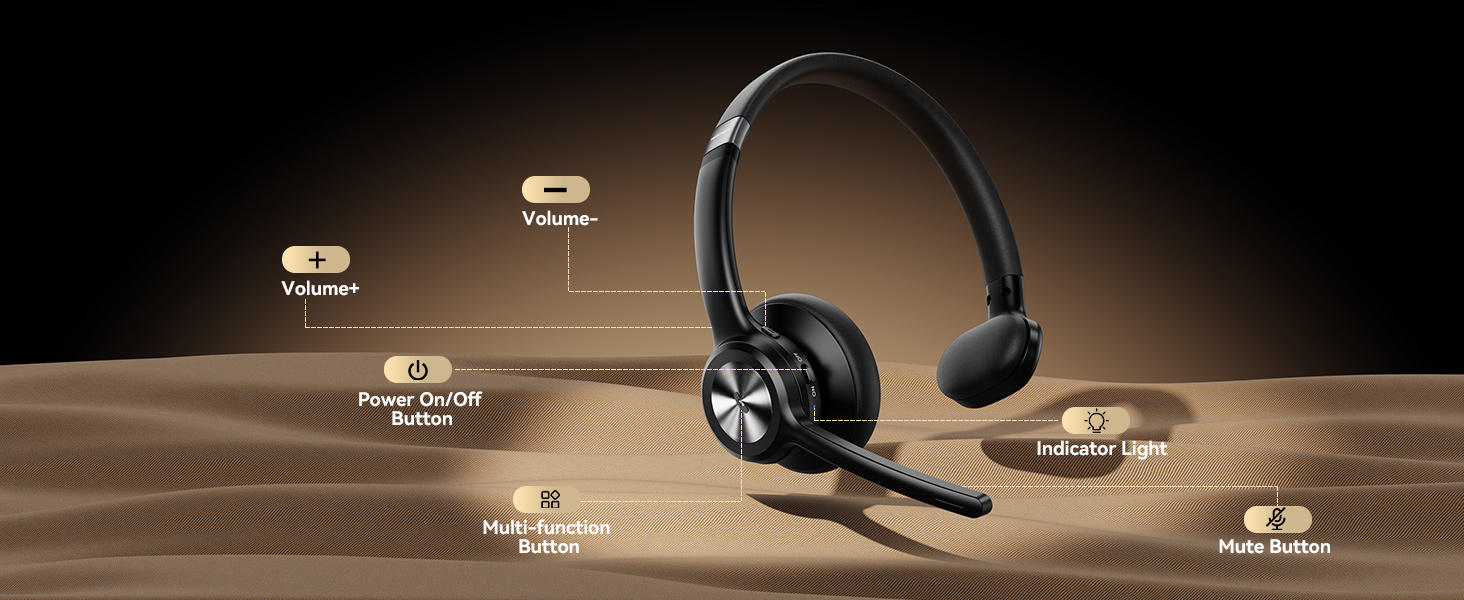
Figure 10: A truck driver using the TECKNET Wireless Headset, demonstrating its suitability for professional driving environments where environmental awareness is crucial.

Figure 11: An individual using the TECKNET Wireless Headset in an office setting, highlighting its utility for professional communication.
7.1 Official Product Video
Video 1: An official TECKNET product video showcasing the Wireless Bluetooth Headset with Mic for Work, highlighting its features and benefits for various users, including drivers.
8. Specifications
| Feature | Detail |
|---|---|
| Model Name | TK-HS017 |
| Connectivity Technology | Wireless (Bluetooth 5.2) |
| Wireless Range | Up to 49 feet (15 meters) |
| Microphone | AI Noise Cancelling, 270° Rotatable |
| Battery Life (Talk Time) | Up to 50 Hours |
| Battery Life (Music Playback) | Up to 60 Hours |
| Charging Time | Approx. 1.5 Hours (via USB Type-C) |
| Control Method | Push Button (MFB, Volume, Mute) |
| Ear Placement | On Ear (Single-ear design) |
| Material | PC+ABS |
| Item Weight | 8.8 ounces |
9. Troubleshooting
- Cannot Pair: Ensure the headset is in pairing mode (flashing blue light) and within range of your device. Check your device's Bluetooth settings.
- No Sound: Verify the headset is connected and the volume is turned up on both the headset and your device.
- Poor Sound Quality: Ensure the headset is within Bluetooth range and there are no significant obstructions. Check for interference from other wireless devices.
- Microphone Not Working: Ensure the microphone is not muted and is positioned correctly. Check your device's audio input settings.
- Headset Not Charging: Verify the charging cable is securely connected to both the headset and the power source. Try a different USB port or cable.
10. Warranty and Support
TECKNET provides a 36-month warranty for registered users. If you encounter any issues with your headset, please contact TECKNET customer support for assistance. Refer to the official TECKNET website for contact information and warranty registration details.


