
Introduction
This manual provides essential information for setting up, operating, maintaining, and troubleshooting your NIMO 15.6-inch FHD Gaming Laptop, model Nimo N153. Please read this manual thoroughly before using your device to ensure proper function and longevity.

Image: The NIMO 15.6-inch FHD Gaming Laptop, showcasing its sleek design.
What's in the Box
Upon unboxing, verify that all items listed below are present:
- 1 x Nimo N153 Laptop
- 1 x Type-C 100W PD Fast Charger
- 1 x User Manual (this document)
- Windows 11 Home (pre-installed)
- Warranty and Return Information
Setup
1. Initial Power On and Charging
Before first use, connect the laptop to the power adapter and a wall outlet. The Type-C 100W PD Fast Charger is designed for efficient charging. Allow the battery to charge sufficiently before disconnecting.

Image: The compact Type-C 100W PD Fast Charger included with the laptop.
2. Operating System Setup (Windows 11)
Upon first boot, follow the on-screen instructions to complete the Windows 11 Home setup. This includes selecting your region, language, connecting to a Wi-Fi network, and creating a user account.
3. Fingerprint Reader Setup
For enhanced security, set up the integrated fingerprint reader. Navigate to Windows Settings > Accounts > Sign-in options and follow the prompts to register your fingerprint.

Image: Close-up of the laptop's keyboard, highlighting the fingerprint reader and backlit keys.
4. Connecting Peripherals
The laptop features various ports for connecting external devices:
- USB Ports: Connect USB devices such as mice, keyboards, and external storage.
- HDMI Port: Connect to an external monitor or TV for extended display.
- Type-C Ports: For data transfer, charging, and connecting compatible Type-C accessories.
- Micro SD Card Slot: Insert Micro SD cards for additional storage or data transfer.
- Headphone Jack: Connect headphones or external speakers.
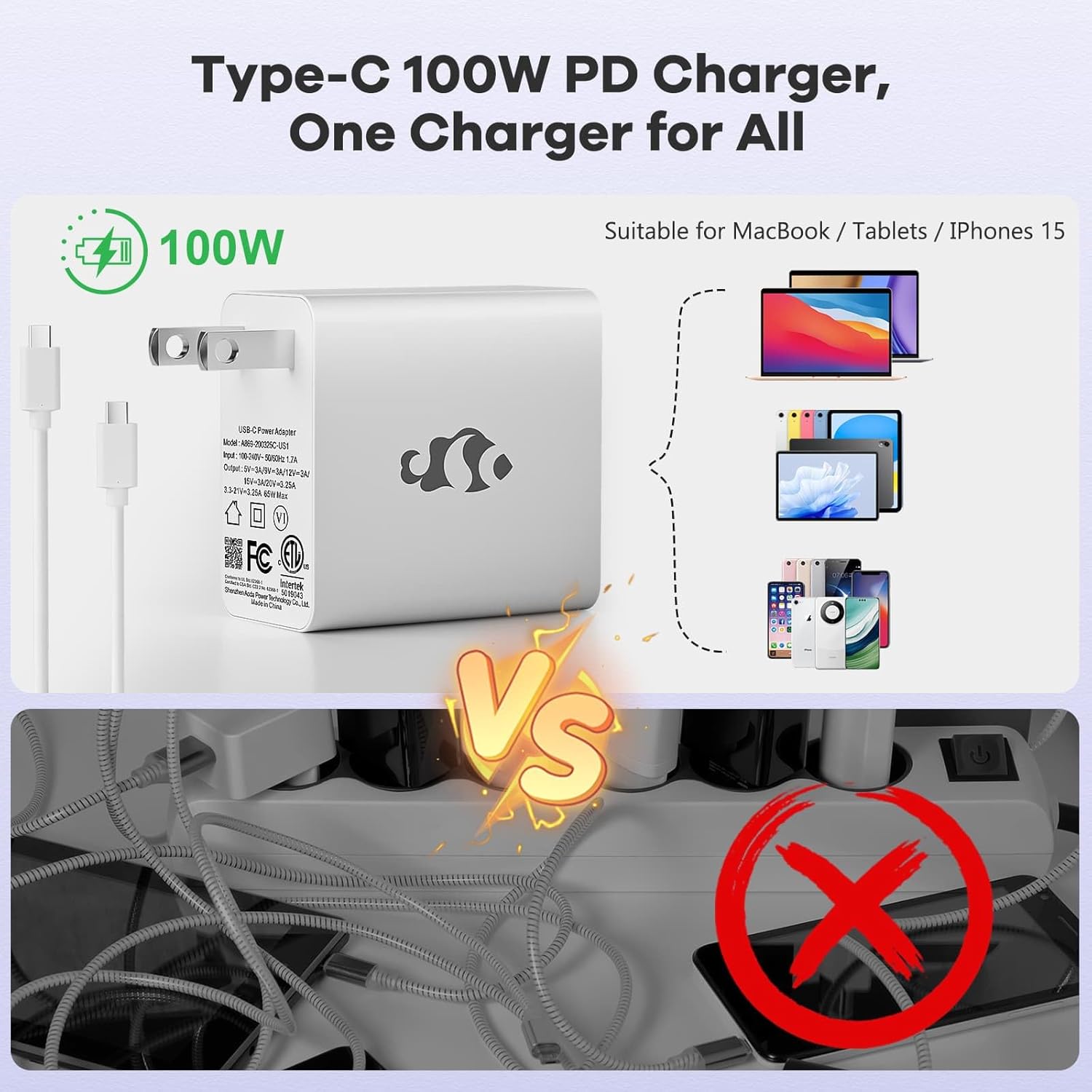
Image: Diagram illustrating the various ports available on the NIMO laptop, including USB, HDMI, Type-C, Micro SD, and headphone jack.
Operating Instructions
1. Power On/Off and Sleep Mode
- Power On: Press the power button located on the keyboard.
- Power Off: Click the Start button in Windows, then select Power > Shut down.
- Sleep Mode: Close the laptop lid or click the Start button, then select Power > Sleep.
2. Keyboard and Touchpad Functions
- Backlit Keyboard: The keyboard features backlighting for use in low-light conditions. Use the dedicated function key (Fn + F key combination, typically) to adjust brightness or toggle it on/off.
- Numeric Keypad: The full-size keyboard includes a numeric keypad for convenient data entry.
- Multi-touch Touchpad: Supports various gestures for navigation and control within Windows. Refer to Windows settings for touchpad gesture customization.
3. Wireless Connectivity
- Wi-Fi: To connect to a wireless network, click the Wi-Fi icon in the taskbar, select your desired network, and enter the password if required.
- Bluetooth: To pair Bluetooth devices, go to Windows Settings > Bluetooth & devices, and follow the instructions to add a new device.
4. Webcam Shield
The laptop is equipped with a physical webcam shield for privacy. Slide the shield to cover or uncover the webcam as needed.
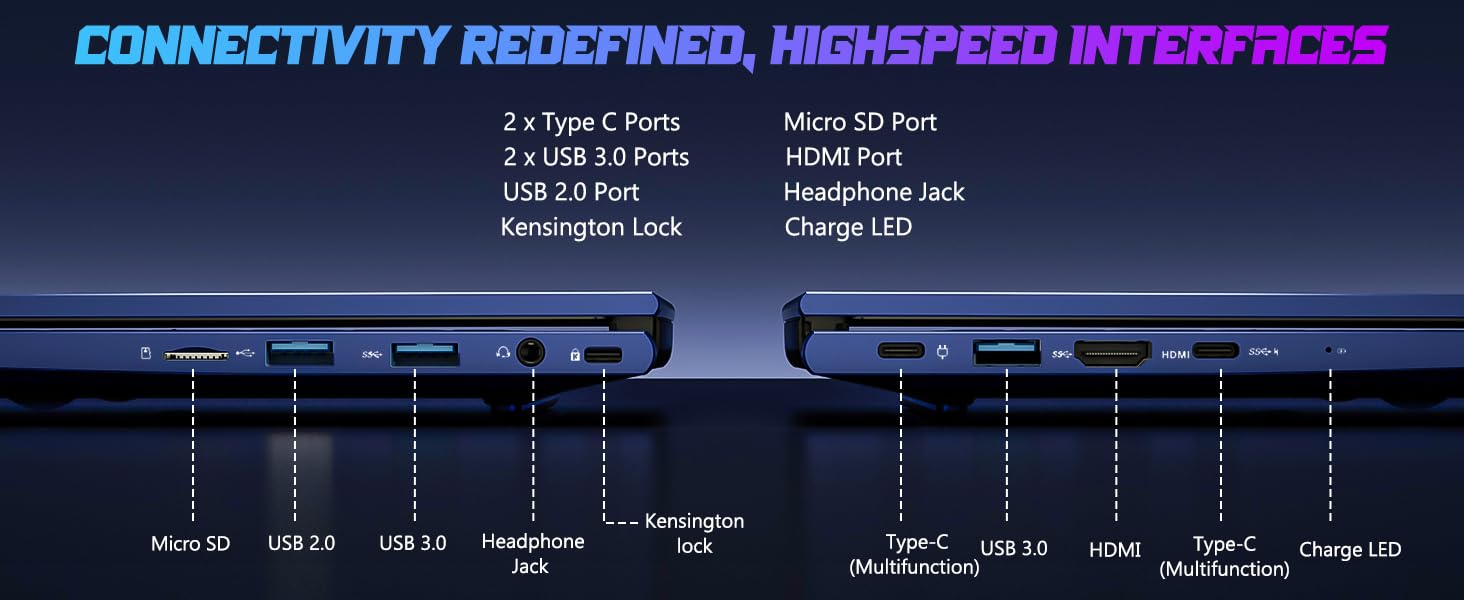
Image: Illustration of the laptop's webcam with a privacy shield feature.
5. Display Features
The 15.6-inch FHD IPS anti-glare display (1920x1080 resolution) provides clear visuals. Adjust display settings such as brightness and resolution through Windows Display Settings.

Image: The NIMO laptop displaying a vibrant image on its 15.6-inch FHD IPS screen.
Maintenance
1. Cleaning the Laptop
- Screen: Use a soft, lint-free cloth lightly dampened with water or a screen cleaner. Do not spray liquid directly onto the screen.
- Keyboard and Chassis: Use a soft, dry cloth. For stubborn dirt, a slightly damp cloth can be used, ensuring no liquid enters openings.
- Ports: Keep ports free of dust and debris. Use compressed air if necessary, holding the can upright.
2. Software Updates
Regularly check for and install Windows updates to ensure system stability, security, and optimal performance. Go to Windows Settings > Windows Update.
3. Upgradability
The Nimo N153 laptop supports upgradable dual-channel memory and detachable RAM/SSD. If you plan to upgrade components, it is recommended to consult a qualified technician or refer to NIMO's official support resources to avoid voiding your warranty or damaging the device.
Troubleshooting
If you encounter issues with your NIMO laptop, try the following basic troubleshooting steps:
- No Power: Ensure the charger is securely connected to both the laptop and a working power outlet. Check the charge LED indicator.
- Display Issues: If the screen is blank, try connecting an external monitor via HDMI to check if the issue is with the laptop's internal display. Ensure display drivers are up to date.
- Connectivity Problems (Wi-Fi/Bluetooth): Restart the laptop and your router/Bluetooth device. Check Windows network settings to ensure Wi-Fi and Bluetooth are enabled.
- Slow Performance: Close unnecessary applications, check for malware, and ensure sufficient free storage space on the SSD.
- System Freezes: Press and hold the power button for 10-15 seconds to force a shutdown, then restart the laptop.
For more complex issues or if the problem persists, please contact NIMO customer support.
Specifications
| Feature | Detail |
|---|---|
| Brand | NIMO |
| Model Name | Nimo N153 |
| Screen Size | 15.6 Inches |
| Resolution | 1920x1080 Pixels (FHD IPS Anti-glare) |
| CPU Model | AMD Ryzen 5 6600H (6 Cores, 12 Threads, up to 4.5 GHz) |
| Graphics Coprocessor | AMD Radeon 660M (Integrated GPU) |
| RAM Memory Installed Size | 16 GB DDR5 (4800 MHz) |
| Hard Disk Size | 1 TB SSD (PCIe 4.0) |
| Operating System | Windows 11 Home |
| Special Features | Backlit Keyboard, Fingerprint Reader, HD Audio, Numeric Keypad, Webcam Shield |
| Connectivity Technology | Wi-Fi (802.11a/b/g/n/ac), Bluetooth |
| Ports | 2x Type-C, 2x USB 3.0, 1x USB 2.0, 1x HDMI, 1x Micro SD, 1x Headphone Jack, Kensington Lock |
| Battery Life | Up to 5 Hours (Usage), Up to 7 Hours (Standby) |
| Battery Capacity | 53.58 Watt Hours |
| Charger | 100W GaN Type-C PD Fast Charger |
| Item Weight | 3.8 Pounds |
| Dimensions (L x W x Th) | 14.07" x 8.98" x 0.76" |
Note: Specifications are subject to change without prior notice.
Warranty and Support
1. Manufacturer's Warranty
Your NIMO N153 laptop is covered by a 2-year manufacturer's warranty from Nimo Direct Inc. This warranty covers defects in materials and workmanship under normal use. Please retain your proof of purchase for warranty claims.
2. Return Policy
NIMO offers a 90-day hassle-free return policy. If you are not satisfied with your purchase, you may return the product within 90 days of purchase. Refer to your purchase documentation for specific return procedures.
3. Customer Support
For technical assistance, warranty claims, or any product-related inquiries, please contact NIMO customer support:
- Email: service@nimopc.com
- Online: Visit the official NIMO website for support resources and contact options.
Our dedicated support team is available to assist you.

Image: NIMO customer service representatives ready to assist.


