
1. Introduction
This manual provides detailed instructions for the installation, operation, and maintenance of your SINOVCLE 7-inch Wireless CarPlay & Android Auto Portable Car Stereo. Please read this manual thoroughly before using the device to ensure proper functionality and safety. Keep this manual for future reference.
2. Product Overview
2.1 Package Contents
Verify that all items are present in the package:
- Car Stereo Display
- Mounting Hardware (High Freedom Stand)
- User Manual
- Reversing Camera (Optional, if included in your package)
- 64G TF Card (Optional, if included in your package)
- 1 USB Cigarette Lighter Power Plug
- AV IN Input Cable
- AUX Cable

Image: Contents of the SINOVCLE Portable Car Stereo package, including the main unit, mounting stand, cables, and optional accessories.
2.2 Key Features
- 7-inch IPS Touch Screen: Provides a clear display with 1024x600 resolution.
- Wireless & Wired CarPlay/Android Auto: Seamless integration with your smartphone for navigation, music, and communication.
- Bluetooth 5.0: Supports hands-free calling and wireless audio streaming.
- GPS Navigation: Utilizes online maps from your connected smartphone for real-time navigation.
- Mirror Link: Displays your smartphone screen directly on the device.
- FM Transmitter: Transmits audio to your vehicle's FM radio for sound output through car speakers.
- AUX Output: Connects directly to your car's AUX input for audio output.
- Backup Camera Input (AVIN): Supports connection to a reversing camera for parking assistance.
- Universal Fit: Compatible with a wide range of vehicles (12V-30V DC power supply).
- USB Charging Port: Dedicated USB port on the power plug for phone charging.

Image: The SINOVCLE 7-inch Portable Car Stereo display unit along with its suction cup mount, backup camera, AUX cable, and 64GB TF card.
3. Setup Instructions
3.1 Mounting the Device
Attach the provided mounting hardware to the back of the car stereo display. Secure the mount to your dashboard or windshield using the suction cup. Adjust the screen angle for optimal viewing. The mount allows for 360-degree adjustment.
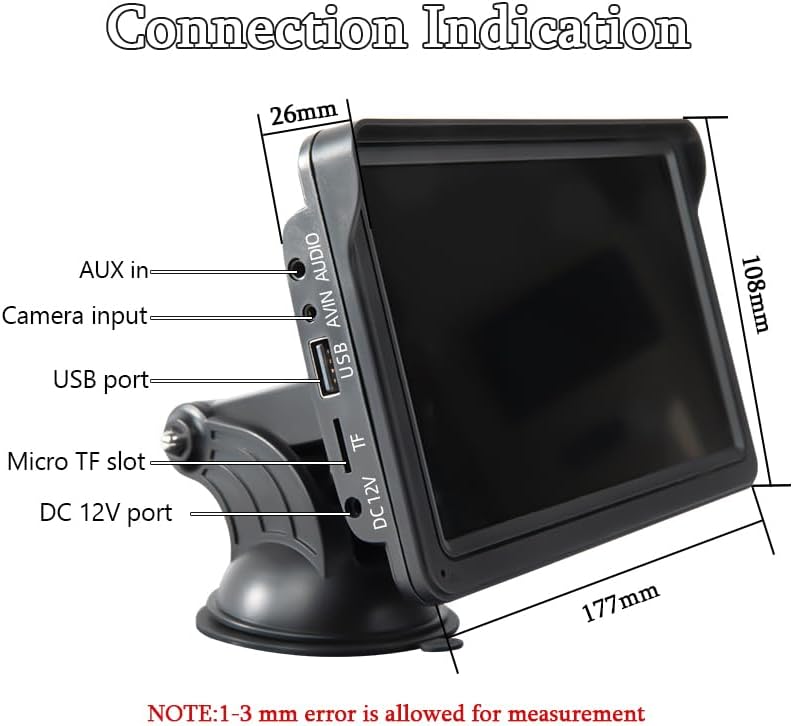
Image: Illustrations demonstrating the 360-degree adjustability of the screen mount, allowing for various viewing angles and positions.
3.2 Power Connection
This device is powered via the cigarette lighter power plug. Insert the power plug into your vehicle's cigarette lighter socket. The device will power on automatically. The power supply voltage range is 12V to 30V DC, making it suitable for most vehicle models.

Image: The car stereo installed on a dashboard, showing the power cable connected to the cigarette lighter socket, which includes a dedicated USB port for phone charging.
3.3 Connecting a Backup Camera (Optional)
If you have a backup camera, connect its video output to the AVIN (Reversing camera input) port on the car stereo using a 2.5mm to RCA adapter cable. Ensure the camera is properly installed and powered according to its own instructions.

Image: The car stereo displaying a backup camera feed with parking guidelines, alongside a separate image of a rear-view camera unit.
4. Operating Instructions
4.1 CarPlay & Android Auto Connection
The device supports both wired and wireless connections for Apple CarPlay and Android Auto.
4.1.1 Wired Connection
- Connect your smartphone to the car stereo's USB port using a USB data cable.
- The device will automatically enter the CarPlay or Android Auto interface.
4.1.2 Wireless Connection
- On your smartphone, enable both Bluetooth and Wi-Fi functions.
- On the car stereo, navigate to the 'PhoneLink' or 'CarPlay/Android Auto' section.
- Search for and connect to the car stereo's Bluetooth device name from your phone's Bluetooth settings.
- Once Bluetooth is paired, the device will automatically initiate the CarPlay or Android Auto interface via Wi-Fi.

Image: A sequence of smartphone screenshots illustrating the steps to connect to CarPlay wirelessly, including enabling Wi-Fi and Bluetooth, selecting the device, and confirming pairing.

Image: A sequence of smartphone screenshots illustrating the steps to connect to Android Auto wirelessly, including enabling Wi-Fi and Bluetooth, selecting the device, and confirming pairing.
4.2 GPS Navigation
When connected to CarPlay or Android Auto, the device utilizes your smartphone's online map applications (e.g., Google Maps, Apple Maps) for navigation. This provides live GPS tracking, instant route adjustments for traffic, and access to up-to-date maps without manual updates. The 7-inch screen offers a larger, clearer view for navigation.

Image: The car stereo displaying a navigation route from a mapping application, with various map app icons shown alongside.
4.3 Bluetooth Functions
The integrated Bluetooth 5.0 allows for:
- Hands-Free Calling: Make and receive calls directly from the car stereo display using the built-in microphone.
- Wireless Music Streaming: Play audio from your smartphone through the car stereo.
- Dual-Device Pairing: Maintain connection with two devices for seamless switching between audio sources.

Image: The car stereo displaying a phone dialer interface, indicating active Bluetooth connection for hands-free calling, with a smartphone also showing a call screen.
4.4 FM Transmitting
To output audio through your vehicle's speakers via FM radio:
- On the car stereo, select the FM Transmitter function.
- Choose an unoccupied FM frequency on the car stereo.
- Tune your vehicle's FM radio to the exact same frequency.
- Audio from the car stereo will now play through your car's speakers. Avoid frequencies occupied by local FM stations to prevent interference.

Image: The car stereo displaying FM transmission settings, with a car's built-in radio also tuned to the same FM frequency, illustrating the audio transmission process.
4.5 AUX Cable Connection
If your car has an AUX input, you can connect the car stereo directly using the provided AUX cable for audio output. Plug one end into the car stereo's audio port and the other into your car's AUX input.
4.6 Mirror Link
The Mirror Link function allows you to display your smartphone's screen directly on the car stereo. Connect your iPhone via USB cable for casting. For Android phones, connect via USB and follow prompts to install any necessary app software on your mobile phone.

Image: The car stereo displaying a mirrored smartphone screen, with separate images showing wired connection methods for iPhone and Android devices to enable Mirror Link.
5. Maintenance
To ensure the longevity and optimal performance of your SINOVCLE car stereo, follow these maintenance guidelines:
- Cleaning: Use a soft, dry cloth to clean the screen and exterior. For stubborn smudges, slightly dampen the cloth with water or a screen-safe cleaner. Avoid abrasive materials or harsh chemicals.
- Temperature: Avoid exposing the device to extreme temperatures, both hot and cold, for extended periods.
- Moisture: Keep the device dry. Do not expose it to water or other liquids.
- Cable Management: Ensure all cables are securely connected and not pinched or tangled, which can cause damage.
- Software Updates: Check the manufacturer's website periodically for any available firmware updates to improve performance and add features.
6. Troubleshooting
If you encounter issues with your device, refer to the following common problems and solutions:
6.1 No Power
- Check Power Connection: Ensure the cigarette lighter power plug is fully inserted into the vehicle's socket and the vehicle's ignition is on.
- Vehicle Power: Verify that the vehicle's cigarette lighter socket is functional (e.g., by testing with another device).
- Fuse: Check the fuse in the cigarette lighter plug or your vehicle's fuse box if applicable.
6.2 Wireless CarPlay/Android Auto Connection Issues
- Bluetooth & Wi-Fi: Ensure both Bluetooth and Wi-Fi are enabled on your smartphone.
- Forget Device: On your smartphone, 'forget' the car stereo from your Bluetooth and Wi-Fi settings, then attempt to pair again.
- Restart Devices: Restart both your smartphone and the car stereo.
- Manual Discrepancy: If the on-screen display differs from the manual's instructions, prioritize the on-screen prompts or contact support.
- Wired Connection Test: Try a wired connection to confirm basic functionality of CarPlay/Android Auto.
6.3 No Audio Output
- Volume Levels: Check the volume settings on both the car stereo and your vehicle's audio system.
- FM Transmitter: If using FM transmission, ensure the car stereo and your vehicle's radio are tuned to the exact same, unoccupied frequency.
- AUX Connection: If using AUX, ensure the cable is securely connected to both the car stereo and your vehicle's AUX input, and your car's audio source is set to AUX.
- Bluetooth Audio: If using Bluetooth, ensure your phone's audio output is directed to the car stereo.
6.4 Backup Camera Not Displaying
- Cable Connection: Verify the AVIN cable is securely connected to the car stereo.
- Camera Power: Ensure the backup camera itself is receiving power and is functioning correctly.
- Adapter Cable: Confirm the 2.5mm to RCA adapter cable is correctly used and not damaged.
6.5 Touch Screen Unresponsive
- Restart: Power off and restart the device.
- Clean Screen: Ensure the screen is clean and free of debris or moisture.
7. Specifications
| Feature | Specification |
|---|---|
| Model Number | XSP-207-SXT-303-12D |
| Screen Size | 7 inches |
| Display Resolution | IPS 1024x600 |
| Connectivity Technology | Auxiliary, Bluetooth, USB |
| Bluetooth Version | 5.0 |
| Controller Type | Touch Screen |
| Special Features | Android Auto, Built-In Bluetooth, Multi-device Support, Touchscreen, Wireless Carplay |
| Compatible Devices | Smartphones (iOS/Android), Backup Cameras |
| Power Supply Voltage | 12V~30V DC |
| Audio Output Mode | Stereo |
| Connector Type | 3.5mm Jack, USB |
| Product Dimensions | 2"D x 7"W x 4.5"H (5.08 x 17.78 x 11.43 cm) |
| Item Weight | 1.59 pounds (0.72 kg) |

Image: A side view of the SINOVCLE car stereo, highlighting its slim profile and IPS 1024x600 touch screen, with comparison images showing clarity differences.
8. Safety Information
- Always operate the device responsibly and in accordance with local traffic laws.
- Do not attempt to install or service the device while driving.
- Ensure the device is securely mounted and does not obstruct your view of the road or interfere with vehicle controls.
- Avoid prolonged exposure to direct sunlight or extreme temperatures inside the vehicle.
- Keep the device away from water and other liquids.
9. Warranty and Support
For warranty information and technical support, please refer to the documentation provided with your purchase or contact SINOVCLE customer service directly. Contact details can typically be found on the product packaging or the official SINOVCLE website.


