
1. Introduction
Thank you for choosing the Leadfan Car Radio. This manual provides detailed instructions for the installation, operation, and maintenance of your new 10.1-inch touchscreen stereo replacement for Chevy Silverado and GMC Sierra models manufactured between 2014 and 2018. Please read this manual thoroughly before installation and use to ensure proper function and safety.
Important Compatibility Note:
- This car radio does not support vehicles with premium sound systems (e.g., J.B.L, SO-NY Amplifier, Bose Speakers, OEM camera).
- It is not compatible with vehicles featuring optical fiber audio output.
- If your car's power cord interface has only two cables, this unit is not supported.
Always turn off the car power before connecting any product cables.
2. Safety Information
- Ensure all connections are secure and properly insulated to prevent short circuits.
- Do not operate the device in a manner that distracts you from driving.
- Avoid exposing the unit to extreme temperatures, direct sunlight for prolonged periods, or excessive moisture.
- Only use specified power cables and accessories.
- Professional installation is recommended if you are unfamiliar with car audio wiring.
3. Package Contents
Verify that all items listed below are included in your package:
- 10.1-inch Car Radio Unit
- Backup Camera
- GPS Antenna
- Microphone (Small)
- USB Cables (x2)
- RCA Cable
- Can Bus Decoder
- Power Cable
- User Manual

Figure 3.1: Package contents and unit dimensions. Includes the main unit, backup camera, GPS antenna, microphone, USB cables, RCA cable, Can Bus, power cable, and user manual.
4. Setup and Installation
This unit is designed for plug-and-play installation for compatible Chevy Silverado and GMC Sierra models (2014-2018). Necessary wiring harnesses are included.
4.1 Pre-Installation
- Ensure your vehicle is compatible as per the Introduction section.
- Turn off the vehicle's ignition and disconnect the negative terminal of the car battery to prevent electrical shorts.
- Carefully remove the factory radio and dashboard trim. Refer to your vehicle's service manual for specific instructions on trim removal.
4.2 Wiring Connections
Connect the provided wiring harnesses to the corresponding ports on the new car radio and your vehicle's wiring. Ensure all connections are firm.
- Power Cable: Connect to the vehicle's power harness.
- RCA Cable: For external audio/video input/output.
- USB Cables: For USB devices and wired CarPlay/Android Auto (if applicable).
- Reverse Input: Connect to the backup camera signal.
- GPS Antenna: Mount in a location with a clear view of the sky.
- Radio Antenna: Connect to the vehicle's radio antenna.
- MIC: Connect the external microphone for improved call quality.
4.3 Backup Camera Installation
The included 1080p high-definition backup camera provides a 170° wide-angle view with night vision. Connect the camera as follows:
- Mount the backup camera at the rear of your vehicle.
- Connect the video cable from the camera to the 'Reverse Input' on the car radio.
- Connect the camera's power cable to your vehicle's reverse light power source (positive and negative). This ensures the camera activates when reverse gear is engaged.

Figure 4.1: Visual comparison of the vehicle dashboard before and after installing the Leadfan car radio.
Figure 4.2: Detailed diagram showing the wiring connections for the backup camera, highlighting HD, wide-angle, waterproof, and night vision features.
4.4 Final Assembly
- Carefully place the new car radio into the dashboard opening.
- Secure the unit with screws or clips as per your vehicle's requirements.
- Reinstall any removed dashboard trim pieces.
- Reconnect the negative terminal of the car battery.
5. Operating Instructions
5.1 Power On/Off and Basic Touchscreen Operation
Press the power button to turn the unit on or off. The 10.1-inch HD touchscreen supports intuitive touch gestures for navigation and control. Swipe gestures allow for easy switching between applications.

Figure 5.1: The 10.1-inch HD touchscreen interface, demonstrating touch responsiveness and split-screen capabilities.
5.2 Wireless CarPlay & Android Auto
This unit supports wireless CarPlay for iPhone and wireless/wired Android Auto for Android phones, allowing seamless integration of your smartphone's features.
- Ensure Bluetooth and Wi-Fi are enabled on your smartphone.
- On the car radio, select the CarPlay or Android Auto application.
- Follow the on-screen prompts to pair your device. Once connected, you can access navigation, music, calls, and other compatible apps directly from the car radio display.
5.3 MirrorLink
MirrorLink allows you to mirror your smartphone's screen onto the car radio display. iOS devices support wireless connection, while Android devices support both wireless and wired connections.
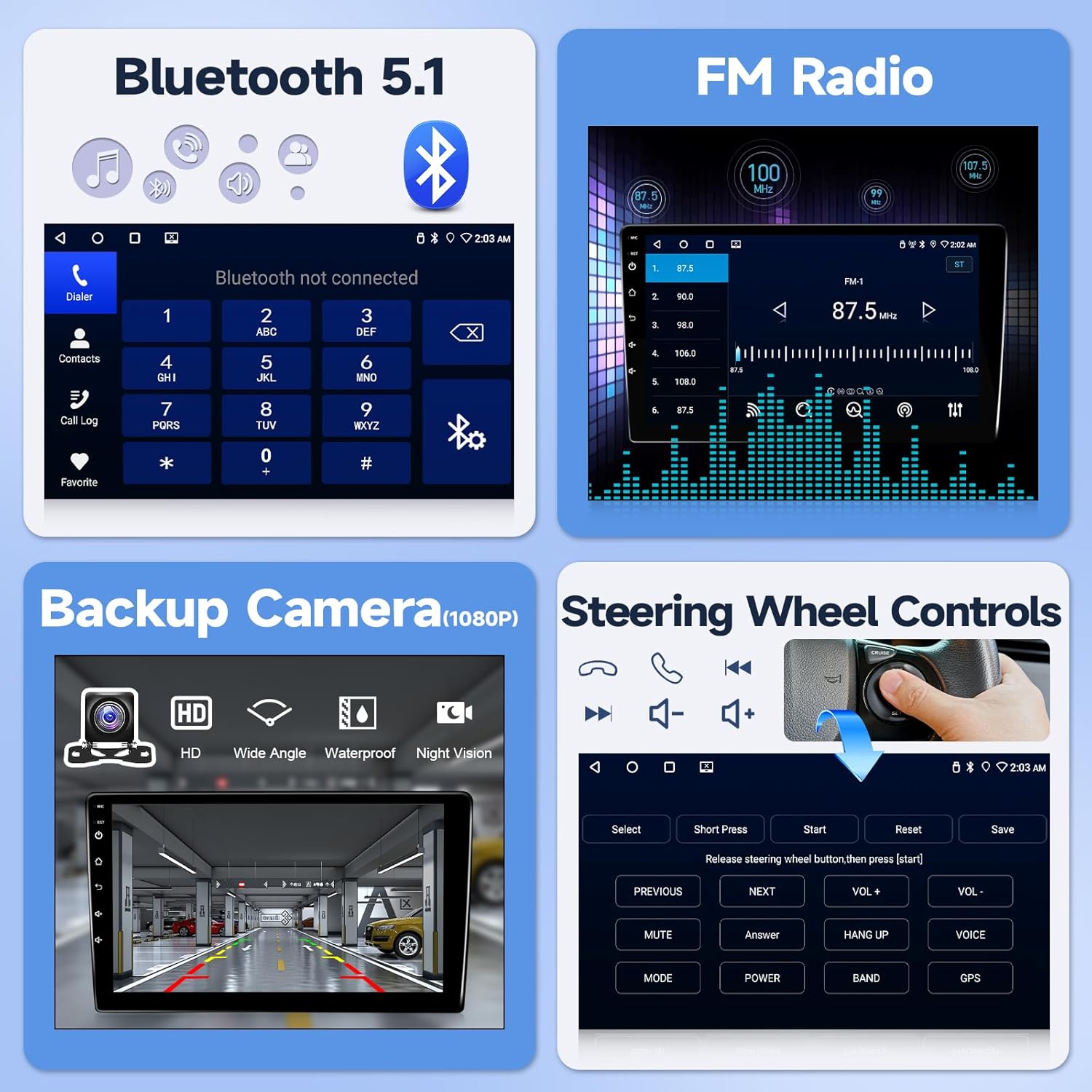
Figure 5.2: Illustration of wireless CarPlay, Android Auto, and MirrorLink functionality, showing how smartphones connect to the car radio.
5.4 Bluetooth 5.1
Connect your smartphone via Bluetooth for hands-free calling and audio streaming.
- Go to the Bluetooth settings on the car radio.
- Enable Bluetooth on your smartphone and search for available devices.
- Select the car radio from the list and confirm pairing.
- Once paired, you can make/receive calls and play music through the car's speakers.
5.5 GPS Navigation
The unit features a built-in GPS navigation system supporting both offline and online maps. The large screen provides clear map routes.
- Ensure the GPS antenna is properly installed and has a clear view of the sky.
- Open the navigation application on the car radio.
- Enter your destination to receive turn-by-turn directions.
5.6 FM Radio
Access real-time radio programs and save your favorite stations.
- Select the FM Radio application.
- Use the scan function to find available stations or manually tune to a frequency.
- Save frequently listened-to stations for quick access.

Figure 5.3: Overview of Bluetooth 5.1, FM Radio interface, backup camera display, and steering wheel control learning interface.

Figure 5.4: Displaying GPS navigation with online and offline map options, alongside WiFi connectivity for app downloads and internet access.
5.7 Steering Wheel Controls (SWC)
The unit supports steering wheel control functions for a safer driving experience.
- After correct wiring, access the SWC learning interface in the system settings.
- Follow the on-screen instructions to assign functions to your steering wheel buttons.
5.8 Split Screen Function
Use two applications simultaneously with the split-screen feature. Swipe gestures allow for easy switching between applications.
6. Features Overview
- Operating System: Android system with 4-core processor for smooth performance.
- Memory: 2GB RAM + 32GB ROM for app storage.
- Display: 10.1-inch HD touchscreen (1280x720 resolution).
- Connectivity: Wireless CarPlay, Android Auto, MirrorLink, Bluetooth 5.1, Wi-Fi, USB.
- Navigation: Built-in GPS with support for offline and online maps.
- Audio: FM Radio, EQ settings for customized sound.
- Safety: Supports 1080p HD backup camera with 170° wide-angle night vision.
- Control: Steering Wheel Control (SWC) compatibility.
- User Interface: 24 types of customizable UI designs.
7. Troubleshooting
If you encounter issues, please refer to the following common problems and solutions:
- No Power: Ensure all power cables are securely connected and the vehicle's battery is charged. Check the fuse.
- No Sound: Verify speaker connections. Check volume levels and EQ settings. Ensure the mute function is not active.
- GPS Signal Loss: Ensure the GPS antenna is properly installed and has an unobstructed view of the sky.
- Bluetooth/Wi-Fi Connection Issues: Restart both the car radio and your smartphone. Ensure no other devices are interfering with the connection.
- Backup Camera Not Displaying: Check the camera's power and video connections. Ensure the reverse trigger wire is correctly connected to the vehicle's reverse light.
- Steering Wheel Controls Not Working: Verify wiring and ensure the SWC learning process has been completed successfully in the settings.
For further technical assistance, please contact customer support as described in Section 9.
8. Specifications
| Feature | Specification |
|---|---|
| Display Size | 10.1 Inches |
| Operating System | Android |
| Memory Storage Capacity | 32 GB |
| Connectivity Technology | Bluetooth, USB, Wi-Fi |
| Special Features | Android Auto, Bluetooth, CarPlay, Waterproof (Backup Camera) |
| Map Type | North America |
| Audio Output Mode | Stereo |
| Mounting Type | Dashboard Mount |
| Item Weight | 4.71 pounds |
| Package Dimensions | 17.01 x 12.2 x 4.49 inches |
9. Warranty and Support
This product comes with a standard warranty. Please refer to your purchase documentation for specific warranty terms and duration.
For technical support, installation queries, or troubleshooting assistance, please follow these steps:
- Locate the seller information on your purchase platform (e.g., Amazon).
- Click on the seller's name (e.g., "Nideo").
- Select the option to "Ask a question" or contact the seller directly.
- Provide a detailed description of your issue, including any photos or videos if relevant.
The seller typically offers:
- 30-day free return policy.
- 12-month replacement for quality issues.
- Lifetime technical support with responses within 24 hours.
- Professional customer service.

Figure 9.1: Visual guide on how to access technical support through the seller's contact options on the purchase platform.


