
1. Product Overview
The SEUNKWANG EWEADN Q5 Wireless Mouse offers versatile connectivity and ergonomic comfort for various computing needs. It features dual-mode connectivity (Bluetooth and 2.4G wireless), adjustable DPI settings, and a quiet click design, making it suitable for diverse environments.
- Portable Design: Lightweight and compact for easy transport.
- Adjustable DPI: Three DPI settings (800, 1200, 1600) for precise tracking.
- Ergonomic Shape: Contoured for comfortable, long-term use.
- Dual Connectivity: Seamlessly switch between Bluetooth and 2.4G connections.
- Quiet Operation: Designed for minimal clicking noise.
- Battery Level Display: Integrated indicator for battery status.
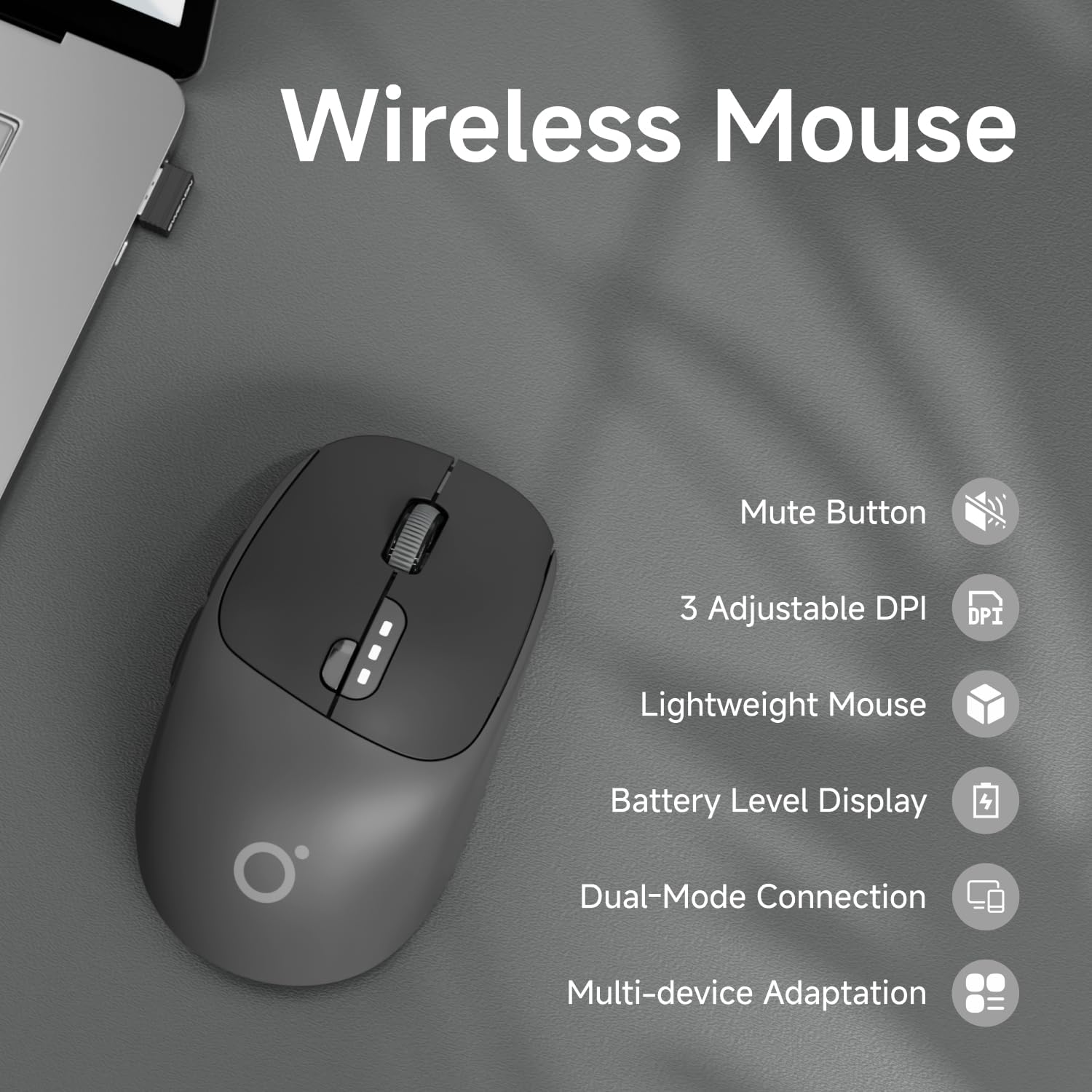
Figure 1: Key features of the EWEADN Q5 Wireless Mouse.
2. Package Contents
Please check the package contents upon unboxing:
- 1 x SEUNKWANG EWEADN Q5 Wireless Mouse
- 1 x USB Receiver (stored in the mouse's bottom compartment)
- 1 x USB-C Charging Cable
- 1 x User Manual
3. Setup Guide
3.1 Charging the Mouse
The mouse is rechargeable via the included USB-C cable. A full charge takes approximately 2 hours and provides up to 60 days of usage (based on 2 hours/day). The battery level display on the mouse indicates charge status:
- Below 75%: 2 lamps on
- Below 50%: 1 lamp on
- Below 25%: Flashing lamps

Figure 2: Charging and battery life information.
3.2 Connecting the Mouse
The Q5 mouse supports dual connection modes: 2.4G Wireless and Bluetooth.
2.4G Wireless Connection:
- Locate the USB receiver stored in the bottom compartment of the mouse.
- Plug the USB receiver into an available USB port on your computer.
- Turn on the mouse using the power switch on the bottom. The indicator light will turn green for 2.4G mode.
- The mouse should automatically connect to your device.
Video 1: Demonstrating the storage and use of the USB receiver for 2.4G connection.
Bluetooth Connection:
- Turn on the mouse using the power switch on the bottom.
- Press and hold the scroll wheel button for more than three seconds until the indicator light turns blue. This switches the mouse to Bluetooth (BT) mode.
- On your device (laptop, PC, Mac, tablet, phone), go to Bluetooth settings and search for available devices.
- Select "EWEADN Q5" or similar from the list to pair.
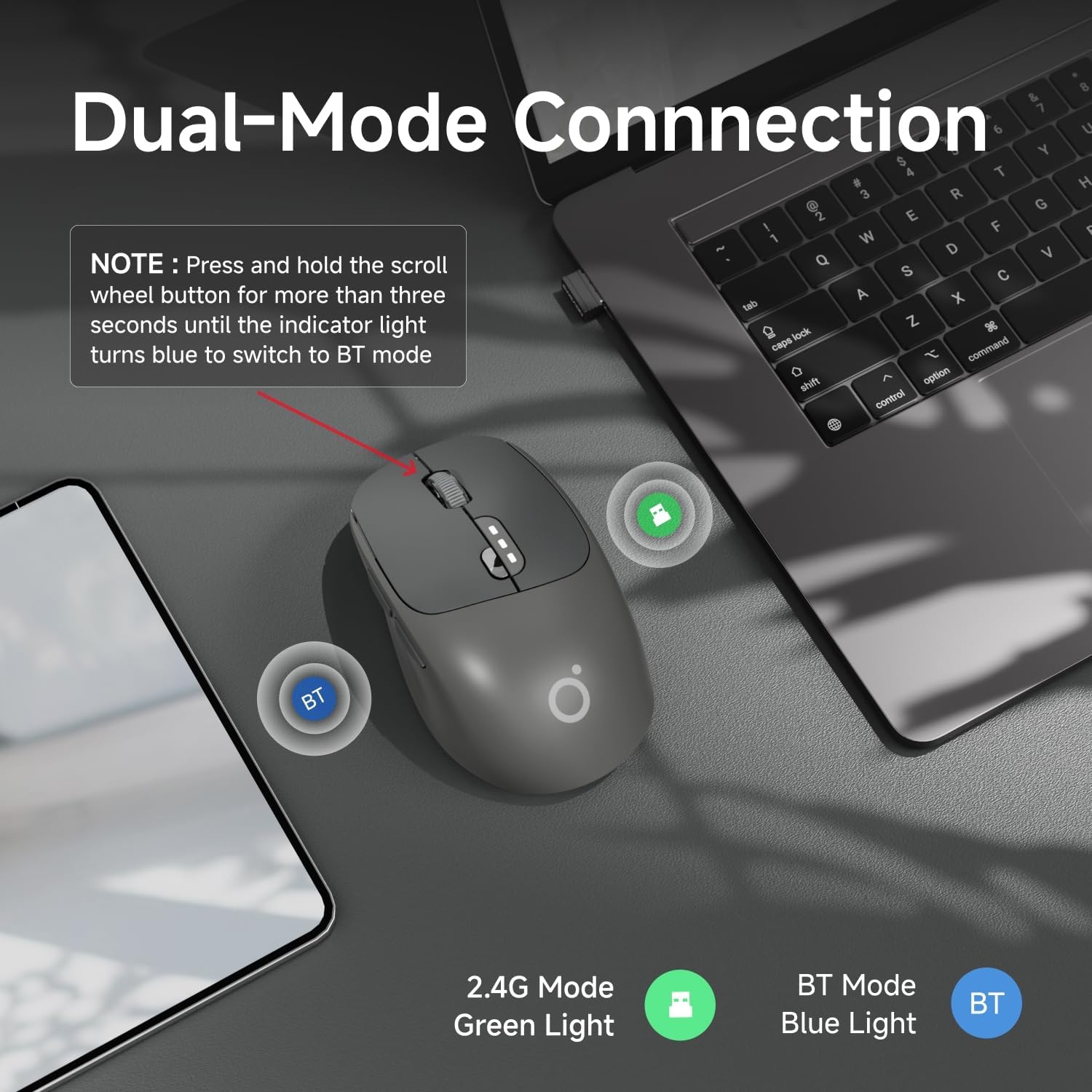
Figure 3: Visual guide for switching between 2.4G and Bluetooth modes.
Video 2: Demonstration of the mouse's on/off switch and DPI button, also showing quiet clicks.
4. Operating Instructions
4.1 Mouse Buttons and Functions
The EWEADN Q5 mouse features 6 buttons for enhanced productivity and gaming:
| No. | Button Name | Function |
|---|---|---|
| 1 | Left Click | Standard selection and interaction. |
| 2 | Forward Button | Navigate forward in web browsers or applications. |
| 3 | Back Button | Navigate backward in web browsers or applications. |
| 4 | Power Button | Turns the mouse on/off. |
| 5 | Right Click | Access context menus. |
| 6 | Track Roller (Scroll Wheel) | Scroll up/down. Press and hold to switch between 2.4G and Bluetooth modes. |
| 7 | Battery Level Display | Indicates remaining battery charge. |
| 8 | Return To Desktop | Quickly minimize all windows to show desktop. |
| 9 | Power Switch | Main power control for the mouse. |
| 10 | DPI Switching Button | Adjust mouse sensitivity (800/1200/1600 DPI). |
| 11 | Indicator Light | Shows connection mode (Green for 2.4G, Blue for BT). |
| 12 | Receiver Storage | Secure compartment for the USB receiver. |

Figure 4: Labeled diagram of mouse components.
4.2 Adjusting DPI Sensitivity
To change the mouse sensitivity (DPI), press the DPI Switching Button (labeled 10 in Figure 4) located on the bottom of the mouse. Cycle through 800, 1200, and 1600 DPI settings to find your preferred tracking speed.

Figure 5: DPI adjustment settings.
4.3 Ergonomics and Comfort
The mouse is designed with an ergonomic contour to fit the natural curve of your hand, providing lasting comfort and productivity during extended use. It features curved side-grips for a secure and comfortable hold.

Figure 6: Ergonomic design for comfortable grip.
5. Maintenance
To ensure optimal performance and longevity of your EWEADN Q5 Wireless Mouse, follow these maintenance tips:
- Cleaning: Use a soft, dry cloth to clean the mouse surface. For stubborn dirt, slightly dampen the cloth with water or a mild cleaning solution. Avoid harsh chemicals.
- Storage: When not in use, especially during travel, store the USB receiver in its designated compartment at the bottom of the mouse to prevent loss.
- Battery Care: Avoid fully discharging the battery frequently. Recharge the mouse when the battery indicator shows low charge.
- Avoid Extreme Conditions: Do not expose the mouse to extreme temperatures, direct sunlight, or high humidity.
6. Troubleshooting
If you encounter issues with your EWEADN Q5 Wireless Mouse, please refer to the following common solutions:
- Mouse not responding:
- Ensure the mouse is turned on using the power switch on the bottom.
- Check the battery level and recharge if necessary.
- For 2.4G connection, ensure the USB receiver is securely plugged into your device. Try a different USB port.
- For Bluetooth connection, ensure Bluetooth is enabled on your device and the mouse is in BT mode (blue indicator light). Try re-pairing the mouse in your device's Bluetooth settings.
- Cursor movement is erratic or slow:
- Adjust the DPI setting using the DPI switching button on the bottom of the mouse.
- Ensure the mouse is used on a clean, non-reflective surface.
- Clean the optical sensor on the bottom of the mouse.
- Buttons are not clicking quietly:
- While the mouse is designed for quiet clicks, individual perception may vary. Ensure no debris is obstructing the buttons.
7. Specifications
| Feature | Detail |
|---|---|
| Model Number | Q5 |
| Product Dimensions | 3.66 x 2.52 x 0.04 inches (110 x 65 x 40 mm) |
| Item Weight | 6.4 ounces (approx. 87.5g) |
| Connectivity Technology | 2.4GHz Wireless, Bluetooth |
| DPI Settings | 800, 1200, 1600 |
| Number of Buttons | 6 |
| Movement Detection | Optical |
| Battery Capacity | 500mAh (rechargeable) |
| Compatibility | Windows 7/8/10/XP, Vista 7/8, Mac, Linux, Laptops, Desktops, PCs, MacBooks, other devices. |
| Manufacturer | EWEADN |
8. Warranty and Support
For any product inquiries, technical support, or warranty claims, please contact SEUNKWANG customer service directly. Refer to the contact information provided in your product packaging or visit the official SEUNKWANG store on Amazon.
Email Support: eweadnkeyboard@outlook.com
For additional support and resources, you may visit the SEUNKWANG Store on Amazon: SEUNKWANG Amazon Store