
ASHATA H610
ASHATA H610 Micro ATX Motherboard User Manual
Model: H610 (G69201 12)
1. Introduction
This manual provides detailed instructions for the installation, operation, and maintenance of your ASHATA H610 Micro ATX Motherboard. Designed for high-performance computing, this motherboard supports Intel 12th, 13th, and 14th generation processors with an LGA 1700 socket. It features DDR4 memory support, M.2 slots, and various expansion options for building a robust and efficient system.
Please read this manual thoroughly before proceeding with installation to ensure proper setup and to prevent any damage to the components.

Figure 1: Overview of the ASHATA H610 Micro ATX Motherboard. This image displays the full layout of the motherboard, including the CPU socket, RAM slots, PCIe slots, and various connectors.
2. Key Features
- CPU Support: LGA 1700 socket, compatible with Intel 12th, 13th, and 14th Gen i3, i5, i7, i9 processors (e.g., 12100F, 12400F, 13600F).
- Memory: 2 x 288-pin DDR4 SDRAM slots, supporting up to 64GB in dual-channel mode. Supports frequencies: 3200, 2933, 2800, 2666, 2400, 2133 MHz.
- Storage: 3 x Serial ATA 3.0 (6GB/s) ports, 1 x NVME M.2 interface, 1 x Serial ATA M.2 interface.
- Expansion Slots: 1 x PCI Express x16 slot, 1 x PCI Express x1 slot, 1 x WIFI interface.
- Video Output: DisplayPort and HDMI outputs (requires CPU with integrated graphics).
- Connectivity: Onboard 10/100/1000Mbps LAN, 2 x USB 3.0, 4 x USB 2.0, 3-in-1 audio ports.

Figure 2: Key features of the ASHATA H610 Motherboard, highlighting LGA1700 socket, Intel H610 chipset, DDR4 memory support up to 64GB, USB 2.0/3.0 ports, and 3 SATA 3.0 ports.
3. Setup and Installation
3.1 CPU Installation
Follow these steps carefully to install the CPU into the LGA 1700 socket. Always handle the CPU by its edges and avoid touching the pins or contacts.
- Open the Socket: Locate the CPU socket lever. Press down on the lever and gently lift it to open the CPU cover.
- Position the CPU: Align the triangular symbol on the CPU with the corresponding triangle on the socket. Carefully place the CPU into the socket without forcing it.
- Remove Plastic Cover: Once the CPU is seated correctly, remove the plastic protective cover from the socket.
- Secure the CPU: Lower the lever back into its original position, ensuring it clicks into place. This will secure the CPU.
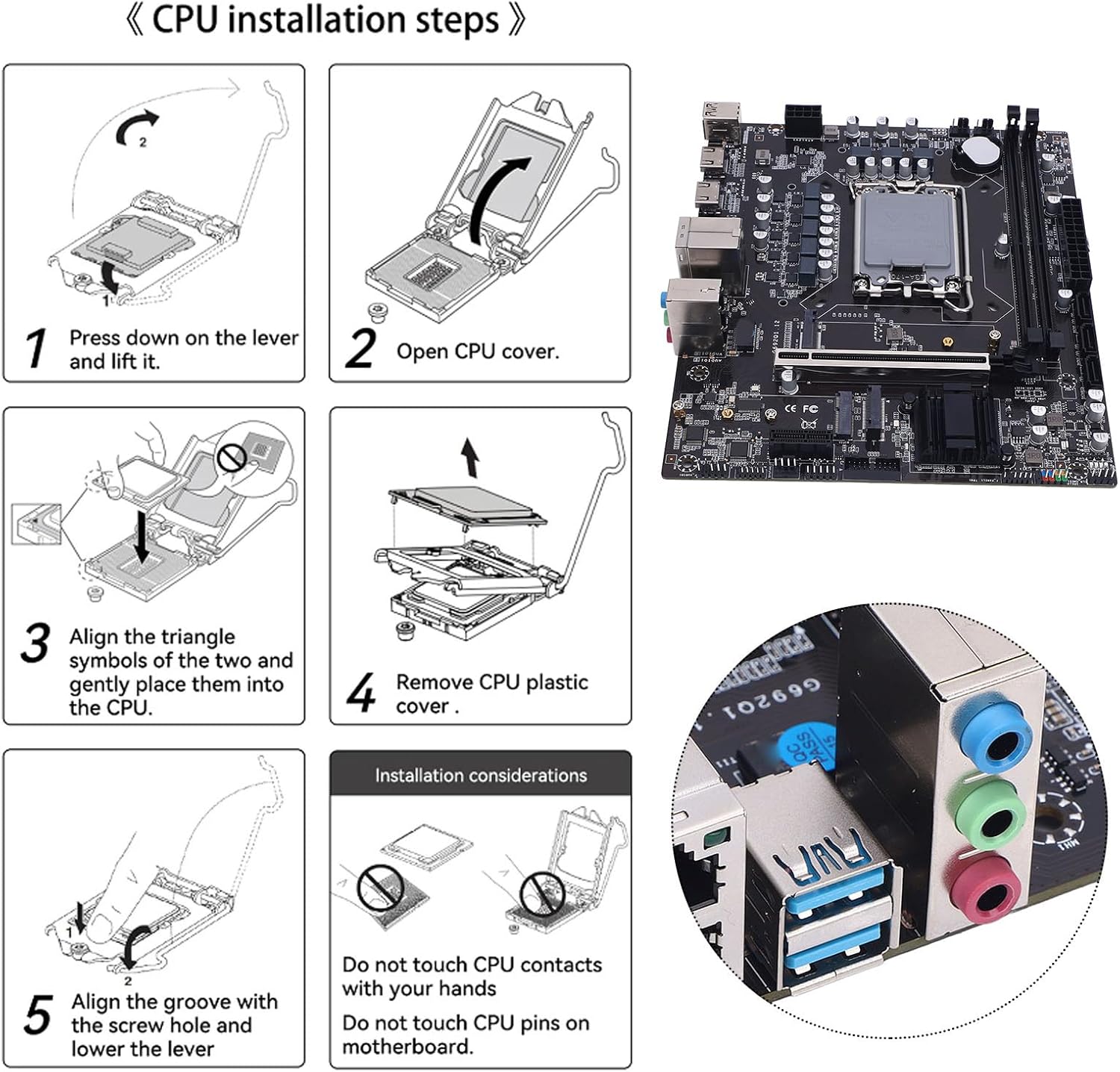
Figure 3: Illustrated guide for CPU installation. This image shows the five steps for correctly installing an LGA 1700 CPU, including opening the lever, aligning the CPU, and securing it. It also provides important warnings about not touching CPU contacts or pins.
3.2 Memory (RAM) Installation
The motherboard supports DDR4 SDRAM. Insert memory modules into the two 288-pin DDR4 slots.
- Open the clips at both ends of the memory slot.
- Align the notch on the memory module with the key in the slot.
- Press down firmly on both ends of the memory module until the clips snap into place.
3.3 Storage Device Installation
- SATA Drives: Connect SATA data cables from your storage devices (HDDs/SSDs) to the three Serial ATA 3.0 (6GB/s) ports on the motherboard. Connect power cables from your power supply to the drives.
- M.2 Drives: Install NVMe or SATA M.2 SSDs into the designated M.2 slots. Secure them with the provided screw.
3.4 Power Connections
- Connect the 24-pin ATX power connector from your power supply to the main power socket on the motherboard.
- Connect the 8-pin ATX 12V power connector to the CPU power socket.
3.5 Front Panel and Peripheral Connections
- Connect your case's front panel USB, audio, power switch, reset switch, and LED indicators to the corresponding headers on the motherboard. Refer to your case manual for specific pin assignments.
- Install any PCI Express expansion cards (e.g., graphics card) into the appropriate slots.

Figure 4: Diagram illustrating various ports and connectors on the ASHATA H610 motherboard, including USB, DisplayPort, HDMI, Audio, NVMe M.2, and SATA 3.0 ports.
4. Operating Instructions
4.1 Initial Boot and BIOS Setup
After assembling your system, power it on. Press the designated key (usually DEL or F2) during startup to enter the BIOS/UEFI setup utility. Here you can configure boot order, system time, and other advanced settings.
4.2 Display Output
The motherboard features DisplayPort and HDMI outputs. To utilize these, your installed CPU must have integrated graphics. Connect your monitor to either the DisplayPort or HDMI output on the motherboard's rear I/O panel.

Figure 5: The ASHATA H610 motherboard shown alongside a PC case, emphasizing its DisplayPort and HDMI outputs for integrated graphics solutions.
4.3 Network and Audio
- LAN: Connect an Ethernet cable to the RJ45 port on the rear I/O panel for wired network access.
- Audio: Use the 3-in-1 audio ports (Line in, Line out, Microphone in) on the rear I/O panel for connecting speakers, headphones, or microphones.

Figure 6: Close-up view of the rear I/O panel, specifically highlighting the audio jacks (green, blue, pink) and USB ports for peripheral connections.
5. Maintenance
5.1 General Cleaning
Regularly clean your computer's interior to prevent dust buildup, which can lead to overheating and component failure. Use compressed air to gently remove dust from the motherboard, fans, and heatsinks. Ensure the system is powered off and unplugged before cleaning.
5.2 CMOS Battery
The motherboard uses a CR2032 battery to store BIOS settings. If you experience issues with system time or BIOS settings resetting, the CMOS battery may need replacement. To replace, power off the system, unplug it, and carefully remove the old battery before inserting a new one with the positive (+) side facing up.

Figure 7: A detailed view of the CPU socket area, also showing the CR2032 CMOS battery located near the bottom right of the socket.
6. Troubleshooting
- No Power: Ensure all power cables (24-pin ATX, 8-pin ATX 12V) are securely connected to the motherboard and power supply. Check the power supply switch and wall outlet.
- No Display: Verify that your monitor is connected to the correct video output (motherboard or graphics card). If using motherboard outputs, ensure your CPU has integrated graphics. Reseat your RAM modules and graphics card (if applicable).
- System Not Booting: Check that all components (CPU, RAM, storage) are correctly installed. Try booting with only essential components (CPU, one RAM stick, power supply) to isolate the issue.
- CPU Installation Warnings: Do not touch CPU contacts with your hands. Do not touch CPU pins on the motherboard. Improper handling can cause permanent damage.
- BIOS Issues: If the system is unstable or settings are incorrect, try resetting the CMOS. This can usually be done by briefly removing the CMOS battery or using a dedicated CMOS clear jumper on the motherboard (refer to the motherboard diagram for location).
7. Specifications
| Model | H610 (G69201 12) |
| CPU Socket | LGA 1700 |
| Compatible Processors | Intel 12th, 13th, 14th Gen i3, i5, i7, i9 (e.g., 12100F, 12400F, 12490F, 12600F, 12700F, 13600F) |
| Chipset | Intel H610 |
| Memory Slots | 2 x 288-pin DDR4 SDRAM |
| Max Memory Capacity | 64 GB |
| Memory Frequencies | 3200, 2933, 2800, 2666, 2400, 2133 MHz (Double Channel) |
| Storage Interfaces | 3 x Serial ATA 3.0 (6GB/s), 1 x NVME M.2, 1 x Serial ATA M.2 |
| Expansion Slots | 1 x PCI Express x16, 1 x PCI Express x1, 1 x WIFI Interface |
| Video Outputs | 1 x DisplayPort, 2 x HDMI (requires CPU with integrated graphics) |
| LAN | Onboard 10/100/1000Mbps |
| Audio | Onboard 6-Channel HD Sound Codec |
| USB Ports (Rear I/O) | 2 x USB 3.0, 4 x USB 2.0 |
| Form Factor | Micro ATX (18x21.5cm / 7.1x8.5in) |
| CMOS Battery | CR2032 (Built-in) |
8. Warranty and Support
8.1 Warranty Information
Please refer to the warranty card included with your product or visit the official ASHATA website for detailed warranty terms and conditions. Keep your proof of purchase for warranty claims.
8.2 Technical Support
For technical assistance, driver downloads, or further inquiries, please visit the ASHATA official support website or contact their customer service. Contact information can typically be found on the manufacturer's website or in your product packaging.
Ask a question about this manual
Ask about setup, troubleshooting, compatibility, parts, safety, or missing instructions. Manuals+ will review the question and use this page’s manual context to help answer it.