
Introduction
This manual provides comprehensive instructions for the Zintronic P3 PTZ IP WiFi Outdoor Camera, model IKPW330V1. This advanced surveillance camera features a 3MP sensor for crystal-clear Full HD video, Pan-Tilt-Zoom (PTZ) functionality for wide area coverage, automatic motion tracking, and efficient LED night vision for clear images in low-light conditions. It supports local recording to a microSD card (up to 128GB) and offers remote management via the intuitive CamHipro application. Key features include two-way audio communication, instant motion detection notifications, and live remote viewing from any location. This camera is an ideal solution for monitoring homes, offices, or businesses, combining advanced functions with ease of use.
Safety Information
- Ensure the power supply meets the camera's specifications (5W).
- Install the camera in a location where it is protected from extreme weather conditions, despite being rated for outdoor use.
- Avoid direct exposure to water or moisture during installation and operation.
- Do not attempt to disassemble or modify the camera. This may void the warranty and cause damage.
- Keep the camera away from strong magnetic fields or sources of interference.
- Use only manufacturer-approved accessories.
Package Contents
Verify that all items are present in the package:
- Zintronic P3 PTZ IP WiFi Camera (IKPW330V1)
- WiFi Antenna
- User Manual (this document)
Product Overview
The Zintronic P3 PTZ IP WiFi Camera is designed for outdoor surveillance, offering robust features in a compact, rotatable dome-shaped housing. Familiarize yourself with the camera's components:
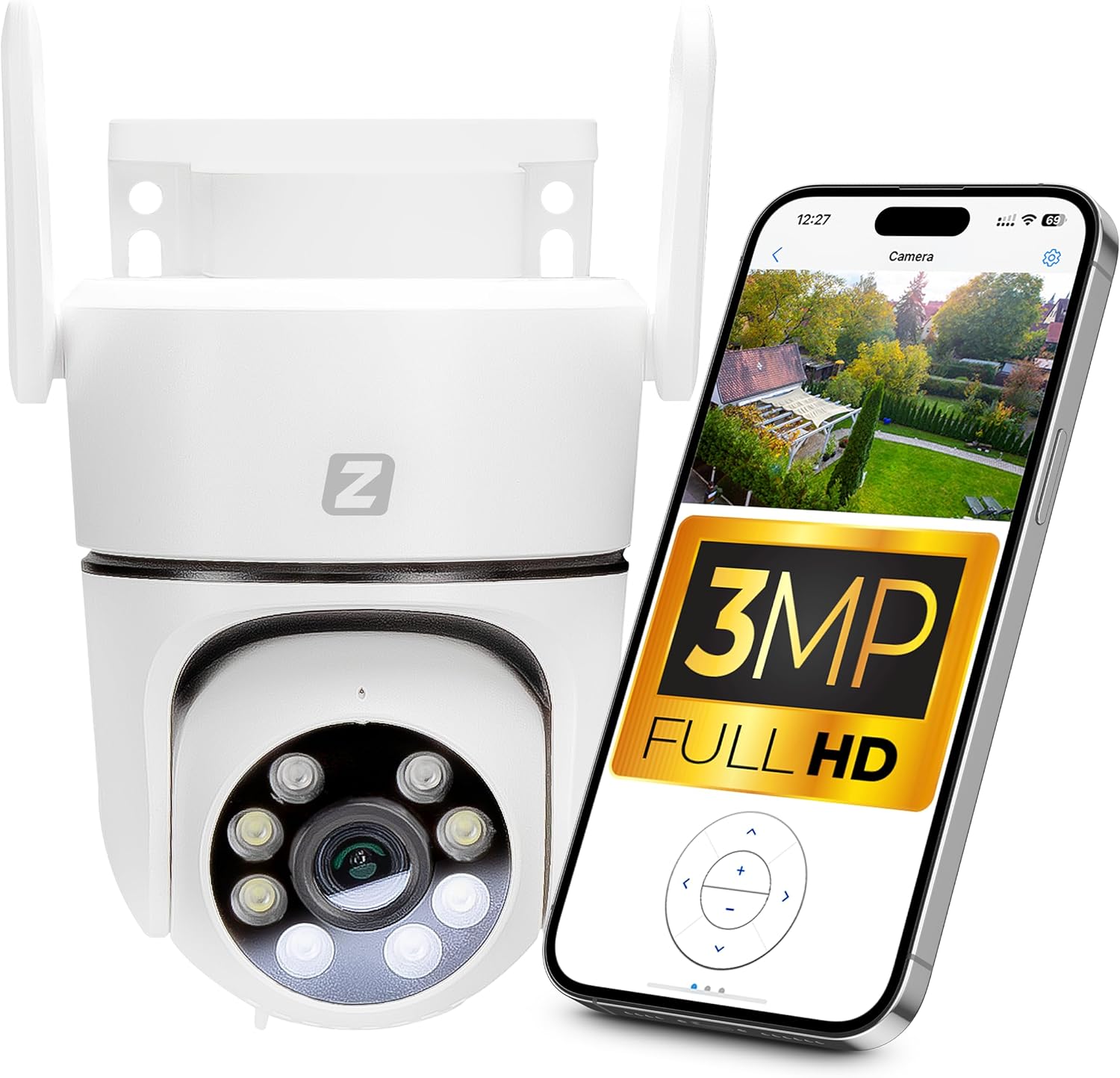
Figure 1: Zintronic P3 PTZ IP WiFi Camera with mobile app interface showing live feed.

Figure 2: Front view of the Zintronic P3 PTZ camera, highlighting the lens and LED illuminators.

Figure 3: Side view of the Zintronic P3 PTZ camera, showing the antenna and mounting bracket.

Figure 4: Rear view of the Zintronic P3 PTZ camera, showing the antenna connections.
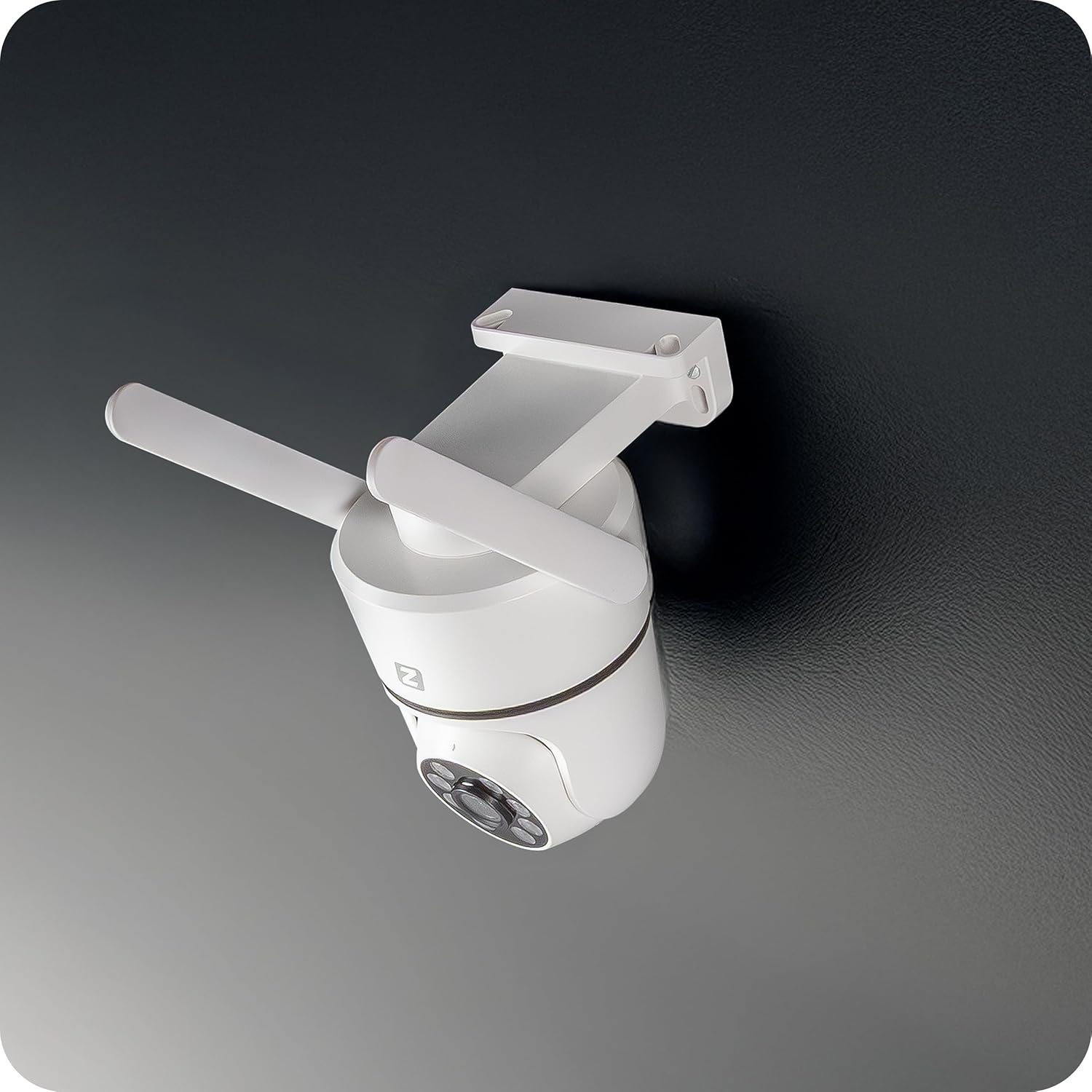
Figure 5: Angled view of the Zintronic P3 PTZ camera, showcasing its rotational capability.

Figure 6: Close-up front view of the Zintronic P3 PTZ camera, detailing the lens and LED array.
Key Components:
- Camera Lens: Captures video footage.
- LED Illuminators: Provide illumination for night vision, including color night vision.
- Microphone: For audio input and two-way communication.
- Speaker: For audio output and two-way communication.
- WiFi Antennas: For wireless network connectivity.
- Mounting Bracket: For wall or ceiling installation.
- MicroSD Card Slot: For local video storage (up to 128GB).
- Power Port: For connecting the power adapter.
Setup
1. Physical Installation
- Choose a Location: Select a suitable outdoor location for optimal surveillance coverage, considering the camera's 89-degree viewing angle and 40-meter night vision range. Ensure the location has a stable Wi-Fi signal and access to a power source.
- Mounting: The camera supports wall or ceiling mounting. Use the provided mounting bracket and hardware to securely attach the camera.
- Connect WiFi Antenna: Screw the WiFi antenna(s) onto the designated ports on the camera.
- Power On: Connect the power adapter to the camera's power port and plug it into an electrical outlet. The camera will initiate its self-test and rotation.

Figure 7: Ceiling mount example.

Figure 8: Wall mount example.
2. App Installation and Account Creation
- Download CamHipro App: Search for "CamHipro" in your smartphone's app store (Google Play Store for Android or Apple App Store for iOS) and install it.
- Register Account: Open the CamHipro app and follow the on-screen instructions to register a new account using your email address or phone number.
3. Network Connection
- Add Device: In the CamHipro app, tap the "+" icon to add a new device.
- Select Device Type: Choose "IP Camera" or scan the QR code usually found on the camera or its packaging.
- Connect to WiFi: Follow the app's prompts to connect the camera to your 2.4GHz Wi-Fi network. This typically involves entering your Wi-Fi password and allowing the app to generate a QR code for the camera to scan, or using an audio pairing method.
- Device Initialization: Once connected, the camera will be added to your account. You can then name the camera and begin live viewing.
Operating Instructions
1. Live View
Open the CamHipro app and select your camera from the device list to access the live video feed. You can view the footage in real-time from your smartphone, tablet, or computer.
2. PTZ Control (Pan-Tilt-Zoom)
On the live view screen, use the on-screen controls to pan (rotate horizontally 360°), tilt (rotate vertically), and digitally zoom the camera. The camera also features automatic motion tracking, where it can follow detected movement within its field of view.
3. Recording and Playback
- MicroSD Card Recording: Insert a microSD card (up to 128GB, not included) into the camera's slot for local storage of recordings. The camera will automatically record based on your settings (e.g., continuous, motion-triggered).
- Cloud Storage (Optional): Check the CamHipro app for available cloud storage options, which may require a subscription.
- Playback: Access recorded footage through the "Playback" section in the CamHipro app. You can filter by date and time.
4. Motion Detection Settings
Configure motion detection sensitivity and areas within the app's settings. When motion is detected, the camera can send instant notifications to your smartphone and begin recording.
5. Two-Way Audio
Utilize the built-in microphone and speaker for two-way audio communication. Tap the microphone icon in the live view to speak through the camera, and listen to audio from the camera's surroundings.
6. Night Vision Modes
The camera features advanced LED illuminators for night vision up to 40 meters. It can automatically switch to night mode in low light, providing clear, and in some configurations, color images at night.
Maintenance
- Cleaning: Gently wipe the camera lens and housing with a soft, dry cloth. Do not use harsh chemicals or abrasive cleaners.
- Firmware Updates: Regularly check the CamHipro app for firmware updates. Keeping the firmware updated ensures optimal performance and security.
- Network Stability: Ensure your Wi-Fi network is stable and strong for uninterrupted camera operation.
Troubleshooting
- Camera Offline: Check power connection and Wi-Fi signal strength. Restart the camera and your router. Ensure the camera is within Wi-Fi range.
- Cannot Connect to App: Verify correct Wi-Fi password. Ensure your phone is connected to a 2.4GHz Wi-Fi network during setup. Try resetting the camera (refer to app instructions for reset procedure).
- Poor Video Quality: Check network bandwidth. Ensure the lens is clean. Adjust camera placement for optimal lighting.
- Motion Detection Not Working: Verify motion detection settings in the app. Ensure the detection area is correctly configured.
- No Audio: Check volume settings on your phone and in the app. Ensure the camera's microphone and speaker are not obstructed.
Specifications
| Feature | Specification |
|---|---|
| Brand | Zintronic |
| Model Name | P3 (IKPW330V1) |
| Effective Video Resolution | 3MP (2304 x 1296 pixels) |
| Color | White (as pictured, note: product specification listed "Black") |
| Included Components | Camera, WiFi Antenna |
| Wireless Communication Technology | Wi-Fi |
| Housing Type | PTZ Rotary Camera (Dome Shape) |
| Viewing Angle | 89 Degrees |
| Installation Type | Wall or Ceiling Mount |
| Night Vision Range | 40 Meters |
| Frame Rate | 25 Fps |
| Material | Plastic |
| Power Consumption | 5W |
| Item Dimensions (L x W x H) | 22.4 x 11 x 12.8 cm |
| Light Source Type | LED |
| Special Features | Motion sensor, Two-way audio, Night vision, PTZ rotation, Remote control |
| Batteries Required? | No |
| Recommended Uses | Office monitoring, Home monitoring, Business monitoring, Outdoor surveillance, Property protection |
| Indoor/Outdoor Use | Outdoor |
| Compatible Devices | Computer, Smartphone, Tablet |
| Power Source | Power supply |
| Connectivity Protocol | ONVIF |
| Mounting Type | Wall mount |
Warranty and Support
For warranty information and technical support, please refer to the documentation provided with your purchase or visit the official Zintronic website. You may also contact Zintronic customer service directly for assistance with your IKPW330V1 camera.


