
1. Introduction
This manual provides detailed instructions for the safe and effective use of your Yoidesu Mini Projector. This portable projector features WiFi 6 and Bluetooth connectivity, supports 4K and 1080P resolution, and offers a 180° rotatable design for flexible projection. Please read this manual thoroughly before operating the device and retain it for future reference.
2. Package Contents
Verify that all items listed below are included in your package:
- 1 x Yoidesu Mini Projector
- 1 x Remote Control (AAA batteries not included)
- 2 x User Manual (This document and potentially a quick start guide)
3. Product Overview
Familiarize yourself with the main components of your Yoidesu Mini Projector.
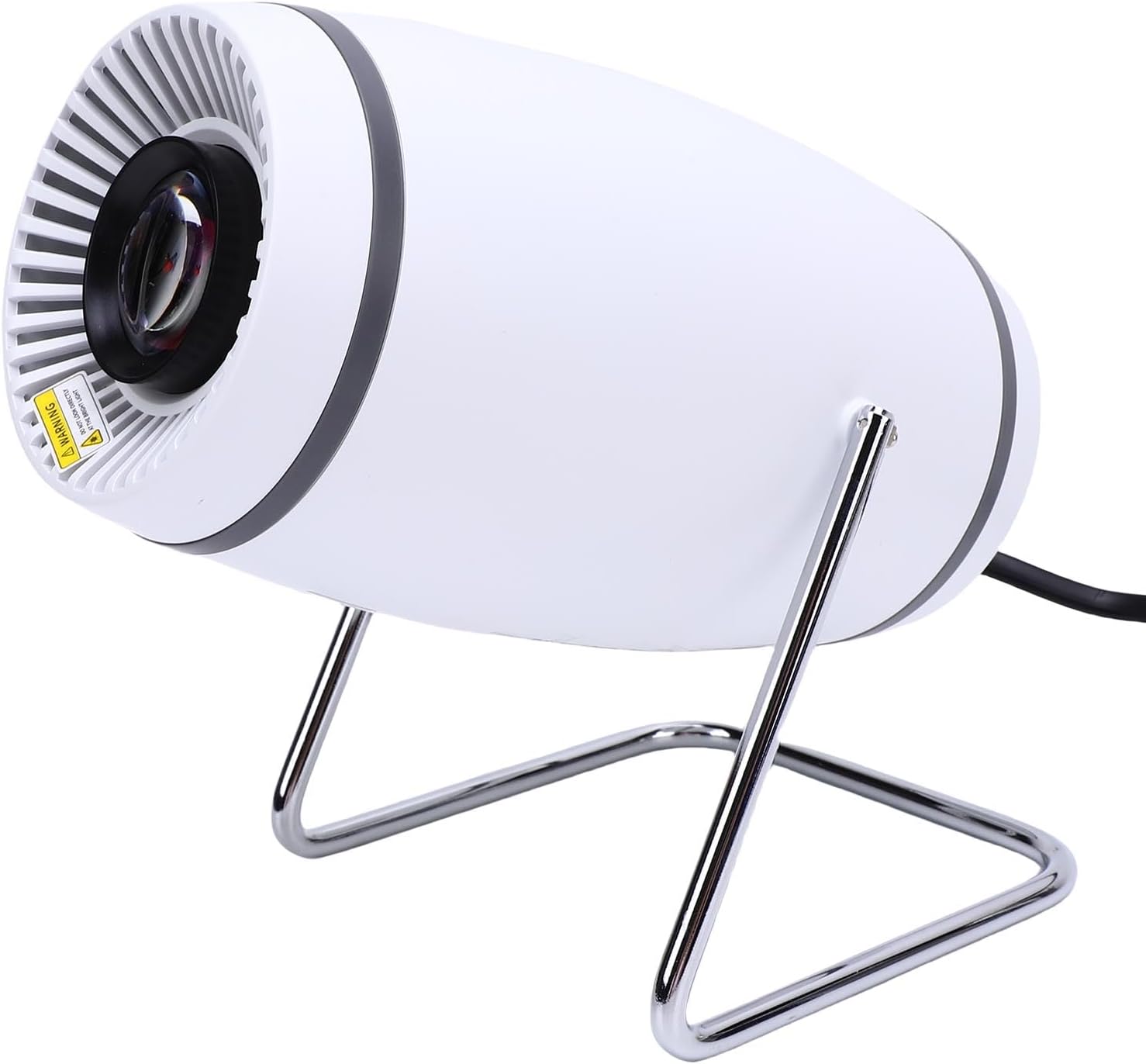
Figure 3.1: Front-side view of the Yoidesu Mini Projector, showcasing its compact, cylindrical design with a white finish and a chrome-plated stand.
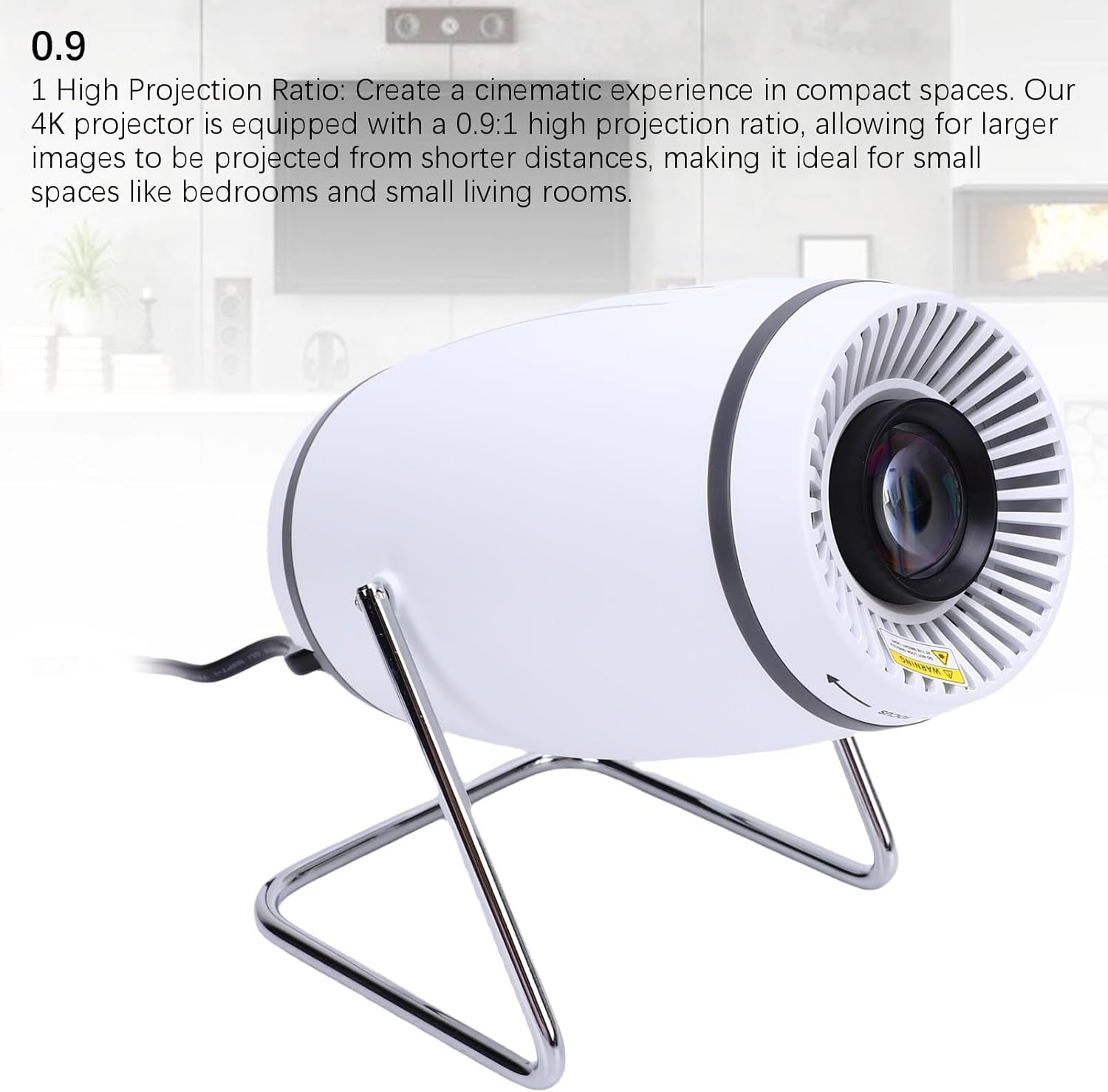
Figure 3.2: Front view of the projector, highlighting the projection lens and the focus adjustment ring located around the lens. A warning label is visible near the lens.
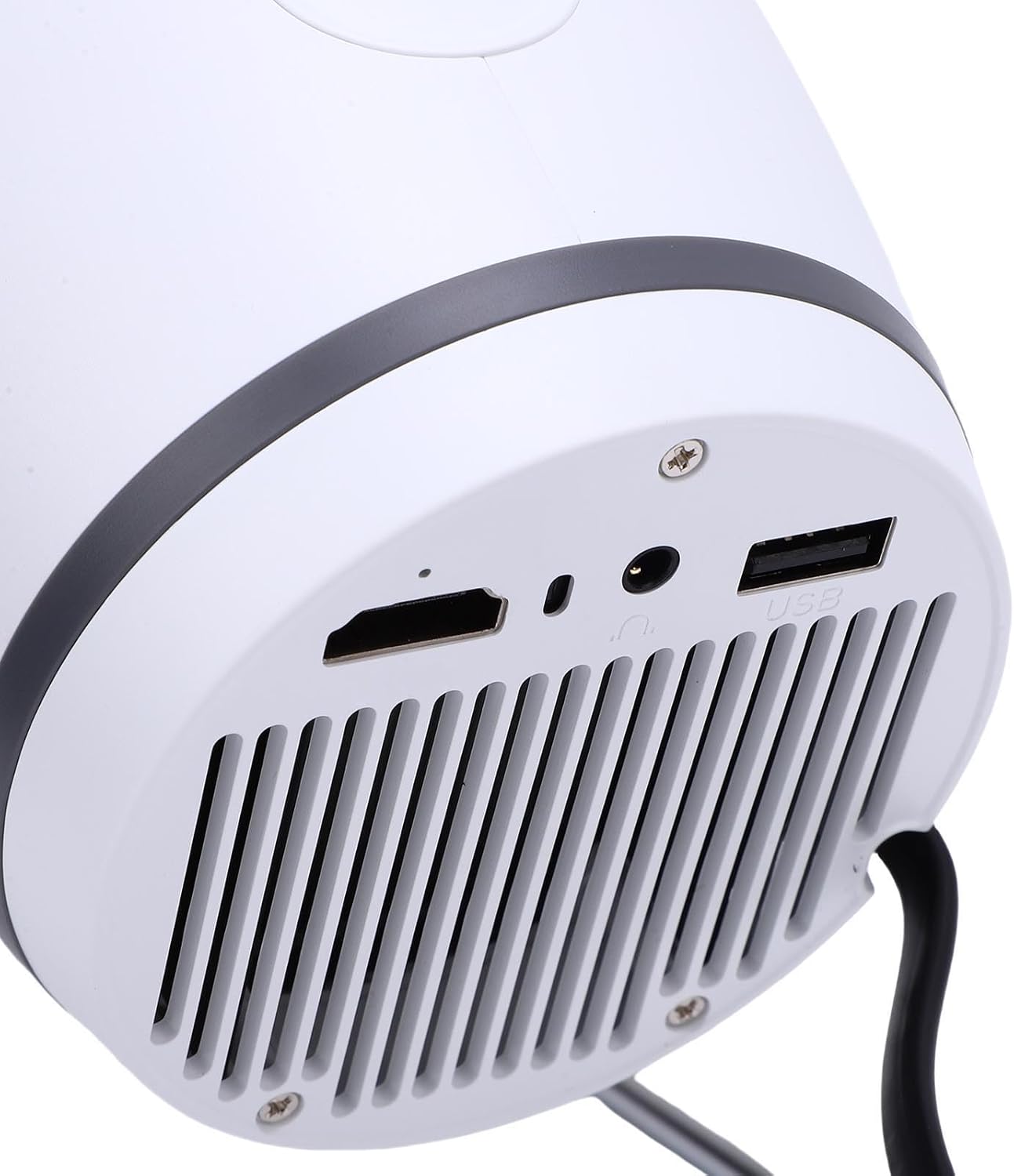
Figure 3.3: Rear view of the projector, displaying the various input and output ports including HDMI, audio out, and USB, along with ventilation grilles.
3.1. Key Features
- HD Picture Quality: Supports 1080P and 4K resolution with advanced color technology (HDR10, HLG).
- 180° Rotatable Design: Integrated bracket allows projection onto walls or ceilings.
- Smart OS: Runs on Android 11 with a built-in TV store for app downloads (Netflix, Prime Video).
- Versatile Connectivity: WiFi 6, Bluetooth 5.4, Miracast, AirPlay, DLNA, HDMI, USB, and audio output.
- High Projection Ratio: 0.9:1 ratio for large images in compact spaces.
- Auto Keystone Correction: Four-point automatic correction for optimal image alignment.
4. Setup Guide
4.1. Unpacking and Placement
- Carefully remove the projector and all accessories from the packaging.
- Place the projector on a stable, flat surface.
- Adjust the 180° rotatable bracket to direct the projection towards your desired surface (wall or ceiling). The projector can project images from 40 to 130 inches. The optimal projection distance is approximately 1.68 meters (5.51 feet) for a 60-inch screen.
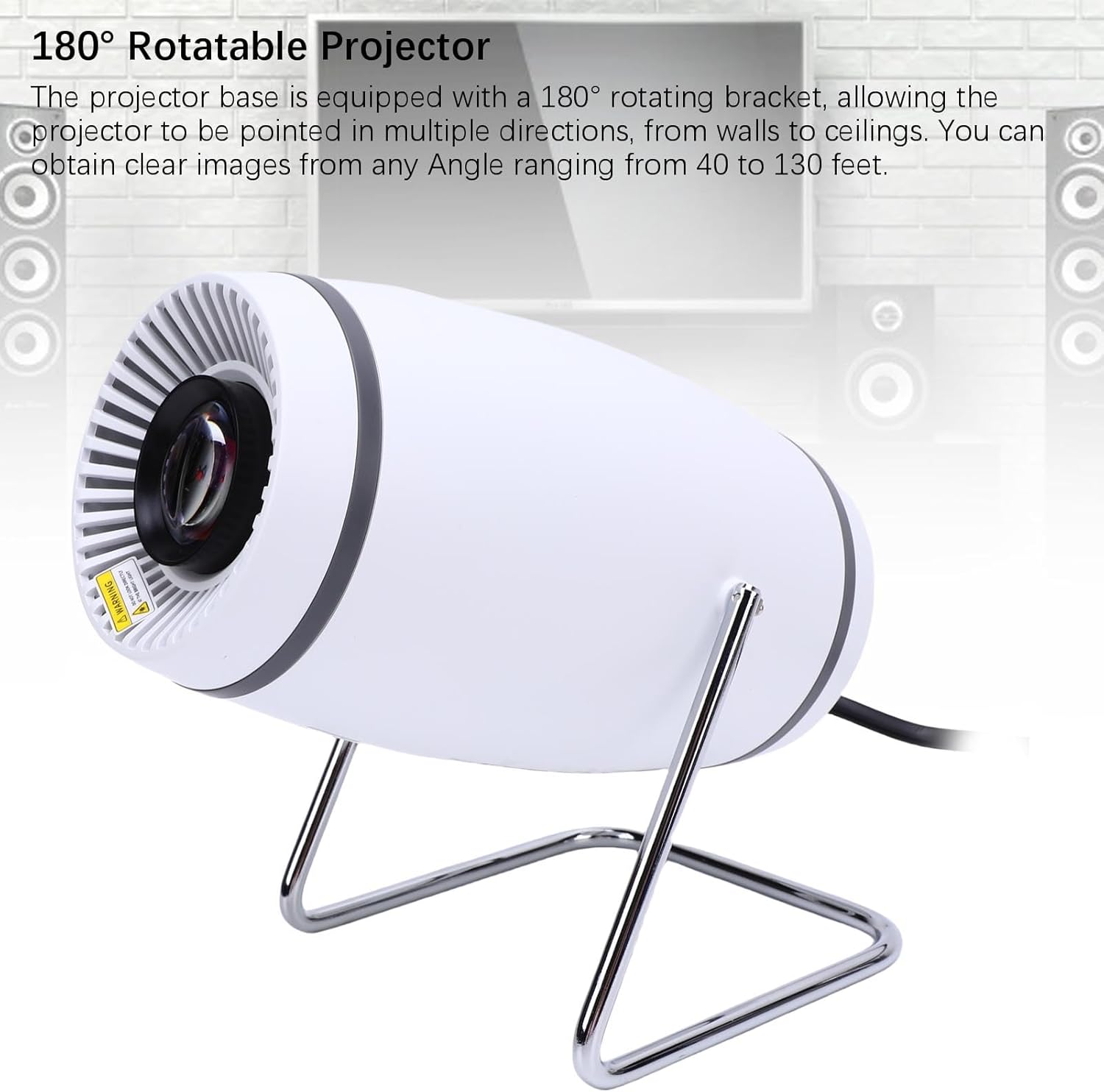
Figure 4.1: The projector positioned to demonstrate its 180-degree rotatable bracket, allowing flexible projection angles.
4.2. Power Connection
Connect the provided power adapter to the projector's power input port and then plug it into a suitable electrical outlet (US Plug).
4.3. Initial Power On
Press the power button on the projector or the remote control to turn on the device. The projector will boot up, displaying the Android 11 interface.
5. Operating Instructions
5.1. Focus Adjustment
To achieve a clear image, manually adjust the focus ring located around the projector lens until the projected image appears sharp.

Figure 5.1: A close-up view of the projector's front, showing the lens and the 'FOCUS' ring with directional arrows for adjustment.
5.2. Keystone Correction
The projector features automatic four-point keystone correction. This function automatically adjusts the image to be rectangular even if the projector is placed at an angle. Manual adjustments may also be available through the system settings if needed.
5.3. Connectivity
The projector offers various ways to connect to other devices:
- Wireless Connectivity:
- WiFi 6 (2.4G/5G): Connect to your home network for internet access and streaming.
- Bluetooth 5.4: Pair with external Bluetooth speakers or headphones for enhanced audio.
- Screen Mirroring (Miracast, AirPlay, DLNA): Wirelessly cast content from your smartphone, tablet, or PC.
- Wired Connectivity:
- HD Multimedia Interface (HDMI): Connect to laptops, gaming consoles, Blu-ray players, etc.
- USB: Play media files directly from a USB drive.
- Audio Output: Connect to external audio systems via the 3.5mm audio jack.
5.4. Built-in Applications
The projector runs on Android 11 and includes a built-in TV store. You can download and install various streaming applications such as Netflix and Prime Video directly onto the projector for a standalone entertainment experience.

Figure 5.2: The projector displaying a vibrant, colorful scene, with a smartphone mirroring the content, illustrating its smart features and connectivity.
6. Maintenance
6.1. Cleaning
To maintain optimal performance and image quality:
- Use a soft, lint-free cloth to gently wipe the projector's exterior.
- For the lens, use a specialized lens cleaning cloth and solution to avoid scratches.
- Ensure ventilation grilles are free from dust accumulation to prevent overheating.
6.2. Lamp Life
The projector uses a White LED light source with an estimated lamp life of 50,000 hours. This ensures long-term usage without frequent lamp replacement.
7. Troubleshooting
If you encounter issues with your projector, refer to the following common problems and solutions:
- No Power:
- Ensure the power adapter is securely connected to both the projector and a working power outlet.
- Check if the power outlet is functional.
- No Image/Signal:
- Verify that the correct input source (HDMI, USB, Screen Mirroring) is selected in the projector's menu.
- Check all cable connections (HDMI, USB) for looseness or damage.
- Ensure the source device (laptop, phone) is powered on and outputting a signal.
- Blurry Image:
- Adjust the focus ring on the projector lens until the image is clear.
- Ensure the projection distance is within the recommended range (1.2-4 meters).
- Check if the lens is clean and free from dust or smudges.
- Image is Tilted/Distorted:
- The projector has automatic keystone correction. If distortion persists, check system settings for manual keystone adjustments.
- Ensure the projector is placed on a level surface.
- No Sound:
- Check the volume settings on both the projector and the source device.
- If using external speakers, ensure they are properly connected via Bluetooth or the audio output port.
- Verify that the audio output is correctly configured in the projector's settings.
8. Specifications
Detailed technical specifications for the Yoidesu Mini Projector:
| Operating System | for Android 11 |
| CPU | H716 Quad core for ARM Cortex-A53 |
| GPU | for Mali G31 (supports for OpenGL ES3.2, for 1.1, and for OpenCL2.0) |
| RAM | 2GB |
| ROM | 16GB |
| WiFi | WiFi6, 2.4G/5G |
| Bluetooth | BT5.4 |
| Projection Technology | Single LCD |
| Native Resolution | 1280*720P |
| Supported Resolution | 4K |
| Brightness | 150 ANSI Lm |
| Contrast Ratio | 1500:1 |
| Image Flip | 360 degrees flip |
| Aspect Ratio | 16:9, 4:3 |
| Projection Ratio | 0.9:1 |
| Correction | Four Point Auto Correction |
| Lamp Life | 50000 Hrs |
| Light Source Type | White LED 30W |
| Projection Distance | Approx. 1.2-4M / 3.94-13.12ft (Best Projection Distance 1.68M / 5.51ft) |
| Projection Size | Approx. 40-130 inch |
| Speaker | 1*3W |
| Item Weight | 1.94 pounds |
| Package Dimensions | 7.87 x 5.91 x 5.51 inches |
9. Warranty and Support
For warranty information or technical support, please refer to the documentation provided at the time of purchase or contact Yoidesu customer service through the retailer where the product was purchased. Please have your product model number (B0FCFW6M2B) and purchase date available when contacting support.