
NOKBABO Magic Keyboard Case for iPad Pro 11/10.9 inch
NOKBABO Magic Keyboard Case
User Manual
Introduction
This manual provides comprehensive instructions for the NOKBABO Magic Keyboard Case, designed to enhance your iPad experience. It covers product features, setup, operation, maintenance, and troubleshooting to ensure optimal performance and longevity of your device.

Image: The NOKBABO Magic Keyboard Case with an iPad inserted, showcasing its sleek design and integrated keyboard.
Compatibility
The NOKBABO Magic Keyboard Case is compatible with a range of iPad models. Please verify your iPad model number to ensure compatibility:
- iPad Air 11-inch 2024 (M2): Models A2902, A2903, A2904
- iPad Pro 11-inch 4th Gen 2022: Models A2759, A2435, A2761, A2762
- iPad Pro 11-inch 3rd Gen 2021: Models A2377, A2301, A2459, A2460
- iPad Pro 11-inch 2nd Gen 2020: Models A2228, A2068, A2230, A2231
- iPad Pro 11-inch 1st Gen 2018: Models A1980, A1934, A1979, A2013
- iPad Air 5th Gen 10.9-inch 2022: Models A2588, A2589, A2591
- iPad Air 4th Gen 10.9-inch 2020: Models A2072, A2316, A2324, A2325

Image: A visual guide displaying various iPad models and their compatibility with the keyboard case.
Features
The NOKBABO Magic Keyboard Case integrates several features for enhanced usability and protection:
- Strong Magnetic Stand: Features a floating cantilever design that securely holds your iPad and allows for a 135° adjustable viewing angle.
- Customizable Backlight: Enjoy 7-color backlit keys with adjustable brightness for comfortable typing in various lighting conditions.
- Precise Trackpad: A large, multi-touch trackpad supports full gesture control for seamless navigation and productivity.
- Durable Material: Constructed from dirt-resistant PU leather, providing comprehensive protection against daily wear and contaminants.
- Long Battery Life: Built-in rechargeable battery provides over 70 hours of use with the backlight off after a 3-hour full charge.

Image: An infographic detailing key features such as the strong magnetic stand, 135-degree viewing angles, dirt-resistant surface, multi-touchpad, scissors keys, and PU leather construction.
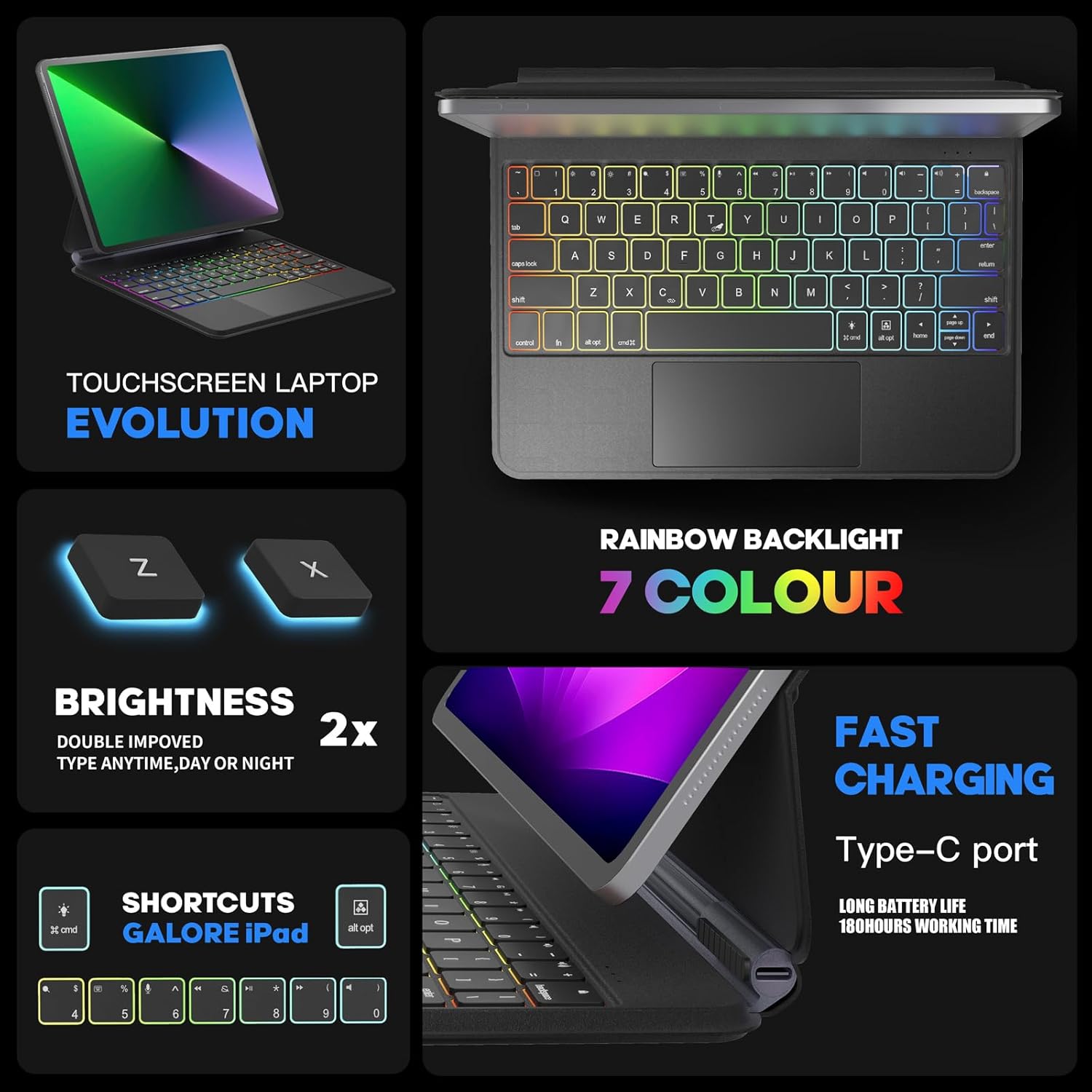
Image: A visual representation of the 7-color rainbow backlight, adjustable brightness, fast charging via Type-C port, and iPadOS shortcut keys.

Image: Illustration of the floating cantilever design, showing how the iPad is magnetically adsorbed and can be adjusted to various viewing angles.

Image: A diagram illustrating the ergonomic benefits of the keyboard case's design, showing how proper posture can alleviate strain.
Setup
Follow these steps to connect your NOKBABO Magic Keyboard Case to your iPad via Bluetooth:
- Power On and Pairing Mode: Turn on the keyboard. Press the Fn + C keys simultaneously. The keyboard will enter searching mode for 3 seconds.
- Open iPad Settings: On your iPad, navigate to the Settings application.
- Enable Bluetooth: In Settings, tap on 'Bluetooth' and ensure the Bluetooth toggle is switched to the 'ON' position.
- Connect to Keyboard: Under 'Other Devices', locate 'Bluetooth Keyboard' in the list of available devices and tap on it to connect.

Image: A step-by-step visual guide demonstrating how to connect the keyboard to an iPad via Bluetooth.
Operating Instructions
Once connected, utilize the keyboard and trackpad features:
- Trackpad Gestures: The precise trackpad supports multi-touch gestures for efficient document editing, web browsing, and app switching. Refer to iPadOS gesture guides for full functionality.
- Trackpad On/Off: To toggle the trackpad function, press Fn + T.
- Backlight Control: Use dedicated keys to cycle through 7 backlight colors and adjust brightness levels to your preference.
- iPadOS Shortcut Keys: A full row of shortcut keys provides quick access to volume controls, media playback, search, and more, streamlining your workflow.

Image: A close-up view of the keyboard's trackpad, highlighting its 4.7-inch size and multi-touch capabilities for managing files, browsing the web, and switching apps. Also shows the FN+T shortcut for trackpad control.
Maintenance
To maintain the appearance and functionality of your NOKBABO Magic Keyboard Case:
- Cleaning: The PU leather material is designed to be dirt-resistant. For light cleaning, gently wipe the surface with a soft, damp cloth. Avoid abrasive cleaners or solvents.
- Storage: When not in use, keep the keyboard case closed to protect the screen and keyboard from dust and scratches.
- Avoid Liquids: Do not expose the keyboard case to excessive moisture or liquids.
Troubleshooting
If you encounter issues with your keyboard case, refer to the following common solutions:
- Keyboard Not Connecting/Frequent Disconnections:
- Ensure the keyboard is fully charged.
- Verify Bluetooth is enabled on your iPad and the keyboard is in pairing mode (Fn + C).
- Forget the device in your iPad's Bluetooth settings and attempt to reconnect.
- Restart both your iPad and the keyboard.
- Ensure no other Bluetooth devices are causing interference.
- Keys Not Responding:
- Check if the keyboard is connected via Bluetooth.
- Ensure the keyboard battery is not depleted.
- Trackpad Not Working:
- Ensure the trackpad is not disabled (press Fn + T to toggle).
- Verify Bluetooth connection is stable.
Specifications
| Brand | NOKBABO |
| Compatible Devices | iPad Air 11-inch M2 2024, iPad Pro 11-inch (4th/3rd/2nd/1st Gen), iPad Air 10.9-inch (5th/4th Gen) |
| Connectivity Technology | Bluetooth |
| Keyboard Description | Flexible |
| Special Features | Auto Sleep/Wake, Backlit, Lightweight |
| Color | Black |
| Number of Keys | 84 |
| Material | Faux Leather |
| Item Weight | 2.2 pounds |
| Package Dimensions | 11.42 x 8.7 x 1.14 inches |
| Batteries | 1 Lithium Ion battery (included) |
Warranty and Support
NOKBABO is committed to providing high-quality service. Your Magic Keyboard Case comes with a comprehensive warranty:
- 1-Year Replacement Warranty: If any problem arises within 1 year of purchase, NOKBABO will replace the product rather than repair it.
For further assistance, technical support, or warranty claims, please contact NOKBABO customer service through the retailer's platform or the official NOKBABO website.
Ask a question about this manual
Ask about setup, troubleshooting, compatibility, parts, safety, or missing instructions. Manuals+ will review the question and use this page’s manual context to help answer it.