
1. Introduction
The TOPPING DX5 II is a high-resolution Digital-to-Analog Converter (DAC) and Headphone Amplifier combo unit designed for audiophile-grade audio reproduction. It integrates dual ES9039Q2M DAC chips, an X-Hybrid headphone amplifier, 10-band parametric equalizer (PEQ), and Bluetooth 5.1 with LDAC support, offering versatile connectivity and exceptional sound performance for various audio setups.
2. Safety Information
- Do not disassemble or modify the device. Unauthorized modifications may void the warranty and pose safety risks.
- Keep the device away from water, moisture, and extreme temperatures.
- Ensure proper ventilation around the unit to prevent overheating.
- Use only the provided power adapter or a compatible power supply with the correct voltage.
- Avoid placing heavy objects on the device.
- Disconnect the power cable during lightning storms or when unused for extended periods.
3. Package Contents
Please check the package for the following items:
- TOPPING DX5 II Unit
- Remote Control
- USB Cable
- 6.35mm to 3.5mm Headphone Adapter
- AC Power Cable
- Bluetooth Antenna
- Quick Start Guide
- Product Information Card
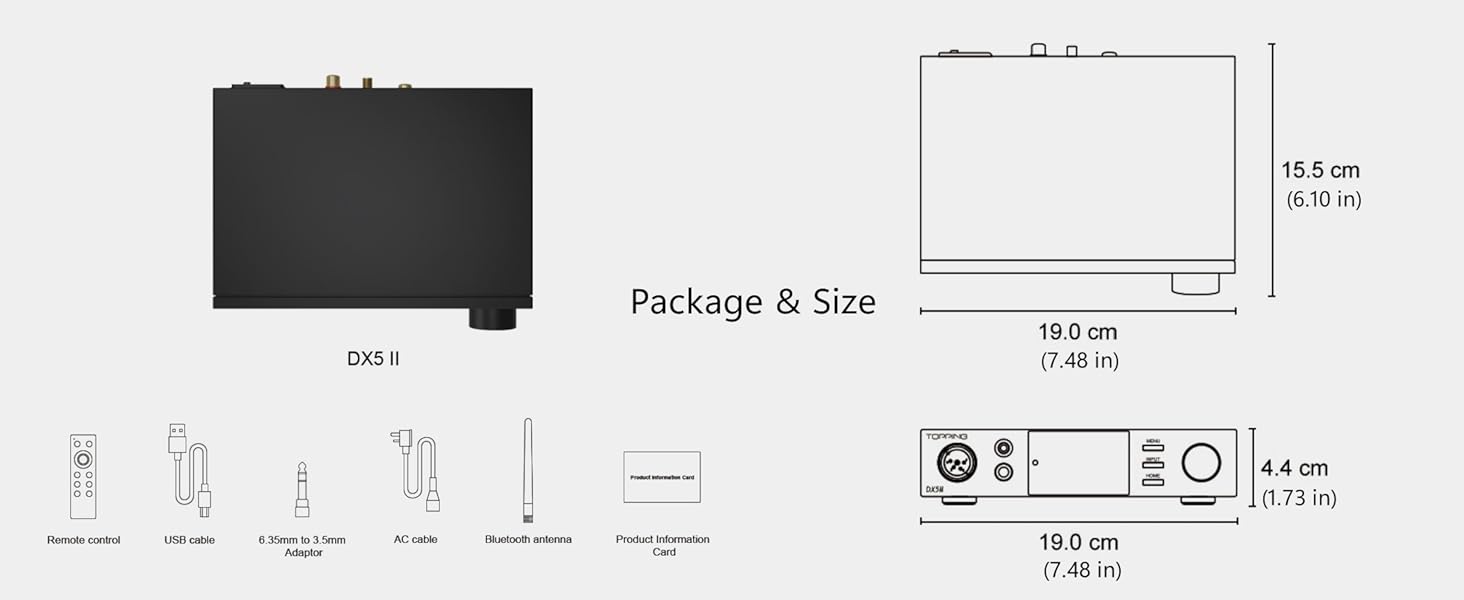
Image: Package contents including the DX5 II unit, remote, cables, and antenna, alongside dimensional drawings.
4. Product Overview
4.1 Front Panel

Image: Detailed diagram of the TOPPING DX5 II front and rear panels with English labels.
- XLR 4-pin Balanced Output: For balanced headphones.
- 4.4mm Balanced Output: For balanced headphones and IEMs.
- 6.35mm Single-Ended Output: For standard single-ended headphones.
- Display Screen: Shows current input, volume, sample rate, and other settings. Features Aurora UI with customizable themes.
- Menu Button: Accesses the device settings menu.
- Input Button: Cycles through available input sources.
- Home Button: Returns to the main display.
- Volume Knob/Function Key: Rotates to adjust volume; press to confirm selections or access quick functions.
4.2 Rear Panel
- Balanced XLR Output (L/R): For connecting to external amplifiers or active speakers.
- Single-Ended RCA Output (L/R): For connecting to external amplifiers or active speakers.
- Coaxial Digital Input: For digital audio sources.
- Optical Digital Input: For digital audio sources.
- USB Digital Input: For connecting to computers or other USB audio sources.
- Bluetooth Antenna Port: For attaching the included Bluetooth antenna.
- 12V Trigger IN/OUT (3.5mm): For synchronized power control with other compatible devices.
- Power Input Terminal: Connects to the AC power cable.
- Power Switch: Turns the device on or off.
5. Setup
5.1 Initial Connection
- Attach Bluetooth Antenna: Screw the Bluetooth antenna onto its designated port on the rear panel.
- Power Connection: Connect the AC power cable to the power input terminal on the rear panel, then plug it into a wall outlet. Ensure the power switch is in the OFF position before connecting.
- Turn On: Flip the power switch to the ON position. The device display will illuminate.
5.2 Input Connections
- USB Input: Connect a USB cable from your computer (Windows, Mac, Linux) or mobile device (iOS, Android) to the USB input port on the DX5 II. For Windows, driver installation may be required (refer to section 5.4).
- Optical/Coaxial Input: Connect your digital audio source (e.g., CD player, TV, game console) to the Optical or Coaxial input ports.
- Bluetooth Input: After powering on, the DX5 II will be discoverable for Bluetooth pairing.
5.3 Output Connections
- Headphones: Plug your headphones into the appropriate front panel output (XLR 4-pin, 4.4mm balanced, or 6.35mm single-ended).

Image: Close-up of the DX5 II front panel showing XLR 4-pin, 4.4mm balanced, and 6.35mm single-ended headphone outputs.
- External Amplifier/Active Speakers: Connect the Balanced XLR outputs or Single-Ended RCA outputs on the rear panel to your external amplifier or active speakers. Ensure the DX5 II is set to Preamp Mode if you wish to control volume from the DX5 II.
5.4 Driver Installation (for Windows USB)
For Windows operating systems, a dedicated driver may be required for optimal USB audio performance. The driver can typically be found on the official TOPPING website. Follow the instructions provided with the driver package for installation.
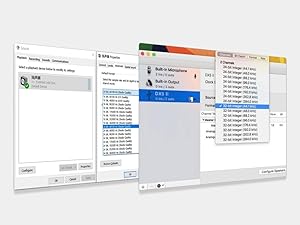
Image: Screenshot showing typical driver installation interfaces for Windows and Mac operating systems.
6. Operating Instructions
6.1 Power On/Off
Use the physical power switch on the rear panel to turn the unit on or off. The front panel display will show the startup sequence.
6.2 Input Selection
Press the INPUT button on the front panel or the remote control to cycle through the available input sources: USB, Optical, Coaxial, and Bluetooth.
6.3 Volume Control
Rotate the large knob on the front panel clockwise to increase volume and counter-clockwise to decrease volume. The current volume level is displayed on the screen.
6.4 Output Mode Selection (Headphone Amp / Preamp)
The DX5 II can operate as a dedicated headphone amplifier, a DAC with line output (Preamp Mode), or both. Use the MENU button to navigate to output settings and select your desired mode (e.g., HPA ALL for all headphone outputs, LO ALL for all line outputs, or specific balanced/single-ended options).

Image: Diagram illustrating the various headphone (HPA) and line output (LO) options available on the DX5 II.
6.5 Bluetooth Pairing
- Select Bluetooth as the input source using the INPUT button.
- On your source device (smartphone, tablet, etc.), search for Bluetooth devices. The DX5 II should appear as an available device.
- Select the DX5 II to pair. Once paired, the display will indicate a successful connection.
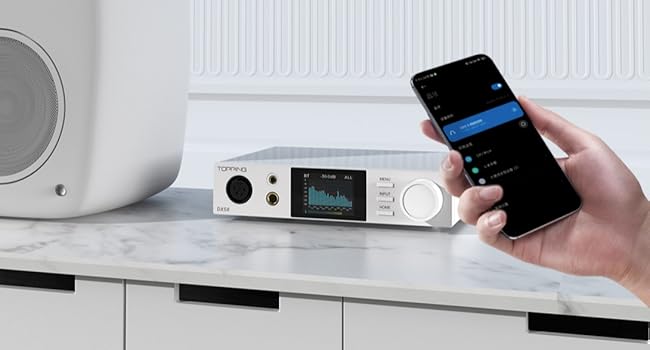
Image: The DX5 II connected via Bluetooth to a mobile device, demonstrating wireless audio streaming.
6.6 Parametric Equalizer (PEQ) Adjustment
The DX5 II features a 10-band high-precision PEQ. Access the PEQ settings via the MENU button. You can adjust frequency bands, gain, and Q-factor to customize the sound signature. Refer to the detailed user manual for advanced PEQ configuration.
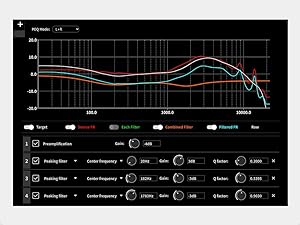
Image: Graphical representation of the 10-band Parametric Equalizer (PEQ) interface on the DX5 II, showing adjustable parameters.
6.7 Display Settings (Aurora UI)
The 2.0" Aurora UI screen offers 9 customizable themes. Navigate to the display settings in the MENU to change themes, brightness, and other visual preferences.
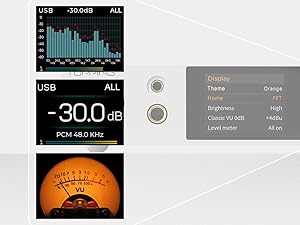
Image: Examples of different display themes and information layouts available on the DX5 II's Aurora UI screen.
6.8 12V Trigger Function
The 12V Trigger IN/OUT ports allow the DX5 II to synchronize power on/off with other compatible audio equipment. Connect a 3.5mm trigger cable between the DX5 II and another device to enable this function.
7. Maintenance
- Cleaning: Use a soft, dry cloth to clean the exterior of the device. Avoid using abrasive cleaners or solvents.
- Ventilation: Ensure the ventilation holes are not obstructed to maintain proper airflow.
- Storage: When not in use for extended periods, store the device in a cool, dry place, away from direct sunlight.
8. Troubleshooting
- No Power: Check if the power cable is securely connected and the power switch is ON. Verify the wall outlet is functioning.
- No Sound:
- Ensure the correct input source is selected.
- Verify volume is not muted or set too low.
- Check all cable connections (input and output).
- If using USB, ensure drivers are correctly installed and the DX5 II is selected as the audio output device on your computer.
- Confirm headphones or speakers are properly connected and functional.
- Distorted Sound:
- Check for loose cable connections.
- Ensure the source audio file is not corrupted.
- Reduce volume if clipping occurs.
- Bluetooth Connection Issues:
- Ensure the DX5 II is in Bluetooth input mode.
- Move the source device closer to the DX5 II.
- Try unpairing and re-pairing the device.
- Ensure no other devices are interfering with the Bluetooth signal.
- Firmware Issues: If experiencing unexpected behavior, check the official TOPPING website for the latest firmware updates and installation instructions.
9. Specifications
| Feature | Specification |
|---|---|
| DAC Chips | Dual ESS9039Q2M |
| Headphone Amplifier | X-Hybrid Amplifier Circuit, Fully Balanced Quad-Channel Design |
| Max Headphone Output Power | 7600mW x2 |
| Supported PCM | Up to 768kHz/32bit |
| Supported DSD | DSD512 Native |
| Bluetooth Version | 5.1 |
| Bluetooth Codecs | LDAC, aptX Adaptive, aptX HD, AAC, SBC |
| Equalizer | 10-Band High Precision PEQ Adjustment |
| Display | 2.0" Aurora UI Full-Color Display (9 customizable themes) |
| Inputs | USB, Bluetooth, Coaxial SPDIF, Optical SPDIF |
| Outputs | XLR 4-pin Balanced, 4.4mm Balanced, 6.35mm Single-Ended, Balanced XLR Line Out, RCA Line Out |
| Compatibility | Windows, Mac, Linux, iOS, Android |
| Trigger | 12V Trigger In/Out |
| Dimensions | 7.48 x 6.1 x 1.73 inches (19.0 x 15.5 x 4.4 cm) |
| Weight | 3.61 pounds |
| Material | Metal, Plastic |
| Power Supply | 12V DC |
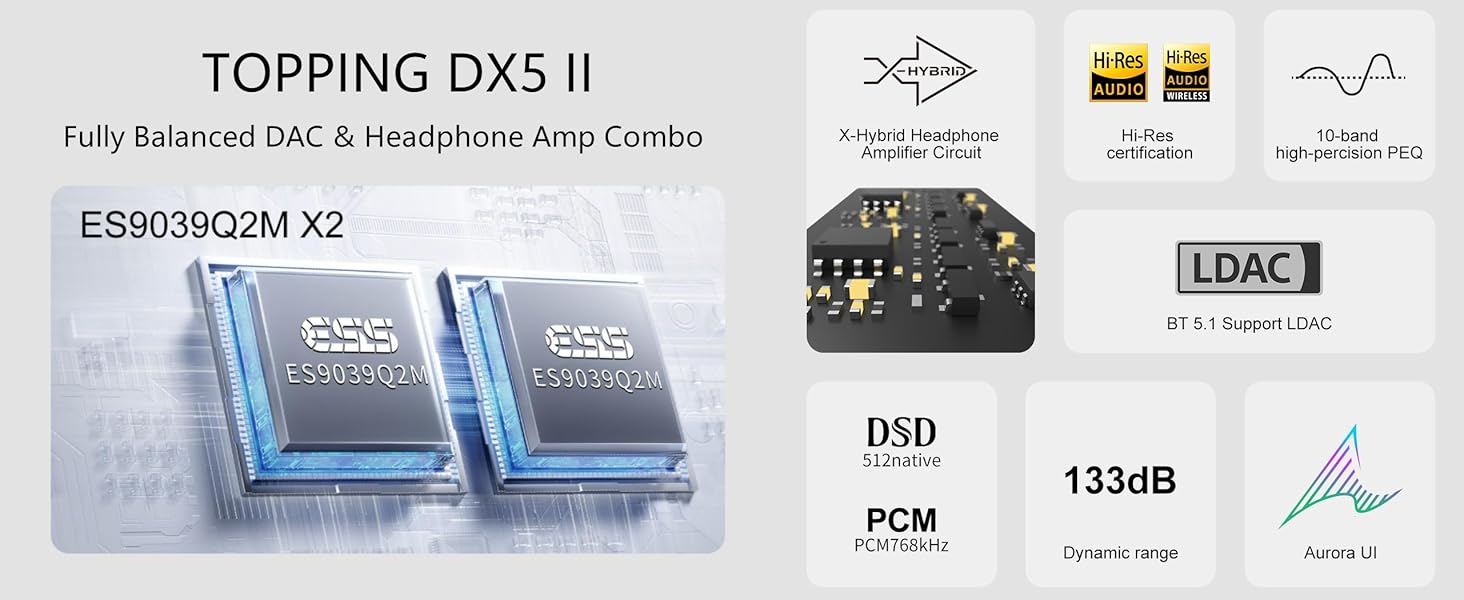
Image: Overview of key features and specifications including dual ES9039Q2M DACs, X-Hybrid amp, Hi-Res certification, LDAC, DSD512, PCM768kHz, 133dB dynamic range, and Aurora UI.
10. Warranty and Support
The TOPPING DX5 II comes with a standard manufacturer's warranty. Please refer to the warranty card included in your package for specific terms and conditions. For technical support, firmware updates, or further assistance, please visit the official TOPPING website or contact their customer service.
Official TOPPING Website: www.topping.audio


