
Leadfan B0FC2L6R4B
Leadfan Android Car Stereo User Manual
For Toyota Sienna (2011-2014) with JBL System - Model B0FC2L6R4B
1. Introduction
This manual provides detailed instructions for the installation, operation, and maintenance of your Leadfan Android Car Stereo, specifically designed for Toyota Sienna models from 2011 to 2014 equipped with the original JBL sound system. Please read this manual thoroughly before installation and use to ensure proper function and safety.
2. Product Overview
The Leadfan Android Car Stereo is an advanced head unit featuring a 9-inch IPS touch screen, 4-core CPU, 2GB RAM, and 32GB ROM. It offers seamless integration with your vehicle's existing JBL system and provides a range of modern functionalities for enhanced driving experience.
Key Features:
- Wireless Apple CarPlay & Android Auto
- 9-inch IPS Touch Screen (1280*720 Resolution)
- Built-in GPS Navigation (Online/Offline Maps)
- Bluetooth 5.1 for Hands-Free Calling & Audio Streaming
- 5G WiFi Connectivity & Hotspot Support
- Split-Screen Functionality
- Mirror Link for iOS/Android devices
- FM/RDS Radio
- Steering Wheel Control (SWC) Support
- Includes IP68 AHD Rear Camera
- Plug & Play Wiring Harness
What's in the Box:
- 9-inch IPS Touchscreen Android Radio Headunit
- Radio Kit Frame for Toyota Sienna 2011-2014
- AHD Backup Camera + Reversing Camera Input Cable
- GPS Antenna
- WiFi & Bluetooth Signal Booster Cable
- Plug and Play Power Harness
- CanBus Decoder
- External Microphone
- USB Cables (x2)
- RCA Cable
- User Manual
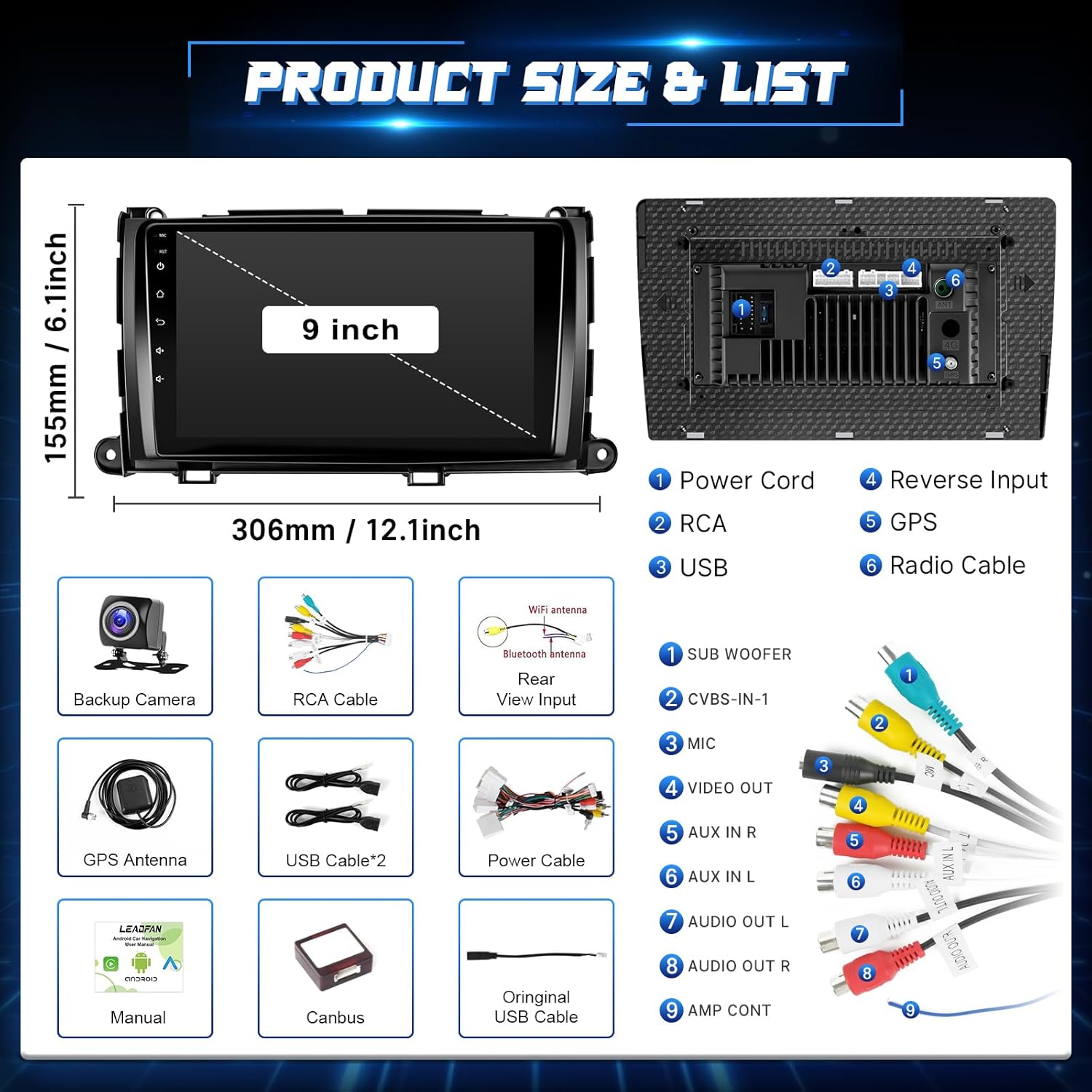
Image: Product dimensions and a detailed list of included components such as the head unit, backup camera, GPS antenna, USB cables, power cable, Canbus, and user manual.
3. Safety Information
- Always ensure the vehicle is turned off and the battery is disconnected before performing any installation or wiring.
- Improper installation can lead to vehicle damage or personal injury. If unsure, seek professional assistance.
- Do not operate the device in a way that distracts you from driving. Always prioritize road safety.
- Keep the device away from water and excessive heat.
4. Installation Guide
This head unit is designed for a plug-and-play installation for Toyota Sienna 2011-2014 models with the original JBL system. It includes a custom frame and wiring harness to simplify the process.
Pre-Installation Check:
- Verify your car model, year, and the shape of your vehicle's center console to ensure compatibility.
- Confirm your vehicle has the original JBL sound system.
General Installation Steps:
- Disconnect Battery: For safety, disconnect the negative terminal of your car battery.
- Remove Original Head Unit: Carefully remove the trim panels and screws securing the factory radio.
- Connect Wiring Harness: Connect the provided plug-and-play wiring harness to your vehicle's existing connectors and to the new head unit. Ensure all connections are secure.
- Install GPS Antenna: Mount the GPS antenna in a location with a clear view of the sky, typically on the dashboard or under the windshield.
- Install Rear Camera (Optional but Recommended): Route the camera cable from the rear of the vehicle to the head unit. Connect the camera's power to the reverse light circuit and the video signal to the 'Reverse Input' on the head unit.
- Mount New Head Unit: Secure the new head unit into the dashboard using the provided frame and screws.
- Reconnect Battery: Reconnect the car battery and test the unit.

Image: Visual comparison showing the original Toyota Sienna dashboard radio and the new Leadfan Android Car Stereo installed, highlighting compatibility with JBL systems.

Image: Detailed wiring diagram for connecting the backup camera, including connections to the reverse trigger and power supply.
5. Initial Setup
Upon first power-on, the system may guide you through initial setup steps such as language selection, time zone, and Wi-Fi connection. Follow the on-screen prompts.
- Wi-Fi Connection: Navigate to Settings > Network & Internet > Wi-Fi to connect to an available network. This is essential for online maps, app downloads, and certain CarPlay/Android Auto functionalities.
- Date & Time: Ensure the date and time are correctly set, either manually or by enabling network time synchronization.
6. Operating Instructions
6.1. Wireless CarPlay & Android Auto
Connect your iPhone or Android device wirelessly for a seamless in-car experience.
- Enable Bluetooth & Wi-Fi: On your smartphone, ensure both Bluetooth and Wi-Fi are enabled.
- Pair Device: On the car stereo, go to the CarPlay/Android Auto application. Follow the on-screen instructions to pair your phone via Bluetooth.
- Automatic Connection: Once paired, the system will automatically connect via Wi-Fi for full CarPlay/Android Auto functionality.

Image: Displays the user interfaces for Apple CarPlay, Android Auto, and Mirror Link, illustrating their respective connection methods (USB/WiFi/Bluetooth).
6.2. Screen Mirroring
Project your mobile phone's screen onto the head unit for a larger display of content.
- Access Mirror Link App: Open the Mirror Link application on the car stereo.
- Follow Prompts: The app will provide instructions for connecting your iOS or Android device, typically involving Wi-Fi or a USB connection.

Image: Shows the Mirror Link feature, detailing connection options for Android (WiFi, USB) and Apple (WiFi, Bluetooth) devices, with a phone screen mirrored to the head unit.
6.3. GPS Navigation
The unit supports both offline and online navigation.
- Offline Maps: North American offline maps are pre-installed. Access them via the Navigation app without an internet connection.
- Online Maps: Connect to Wi-Fi (via hotspot or local network) to use online navigation apps like Google Maps, Waze, etc., which can be downloaded from the Application Store.

Image: Highlights GPS navigation with online and offline map options, Wi-Fi functionality, the Android 11 operating system, and the 4-core CPU architecture.
6.4. Bluetooth Functionality
Enjoy hands-free calling and wireless audio streaming.
- Pairing: Go to the Bluetooth app on the stereo, enable Bluetooth on your phone, and search for the head unit. Select it to pair.
- Hands-Free Calls: Once paired, you can make and receive calls directly from the stereo screen using the built-in microphone or the external microphone.
- Audio Streaming: Play music from your phone through the car's speakers.
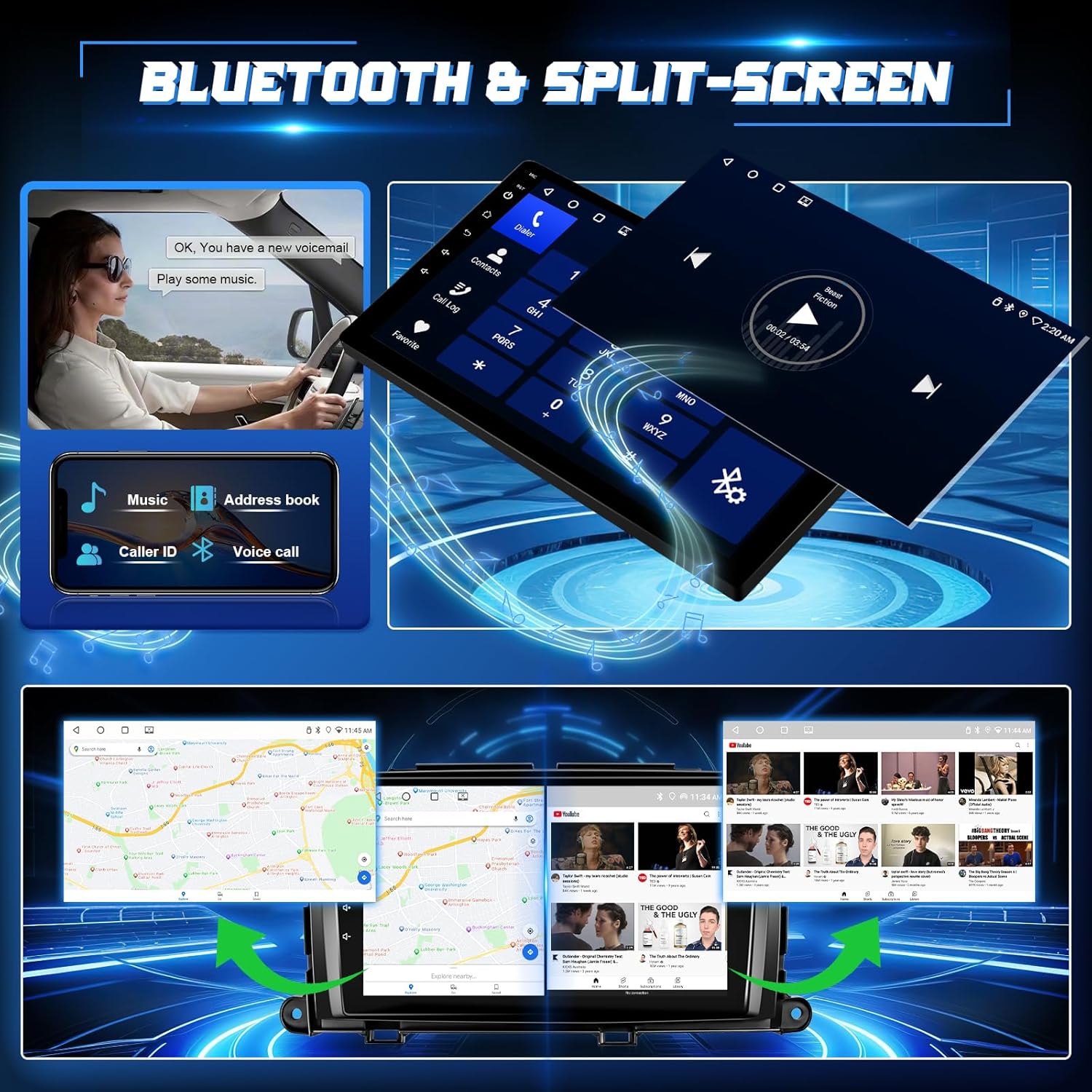
Image: Illustrates Bluetooth 5.1 features for hands-free calling and music playback, along with the split-screen capability showing two applications running simultaneously.
6.5. FM Radio & EQ Settings
Access your favorite radio stations and customize audio output.
- FM Radio: Open the FM Radio app. You can manually search for stations or use the automatic scan function to find and save presets.
- EQ Settings: The unit features a 32-band equalizer. Access the EQ settings to adjust audio frequencies, balance, and fader to optimize sound quality.
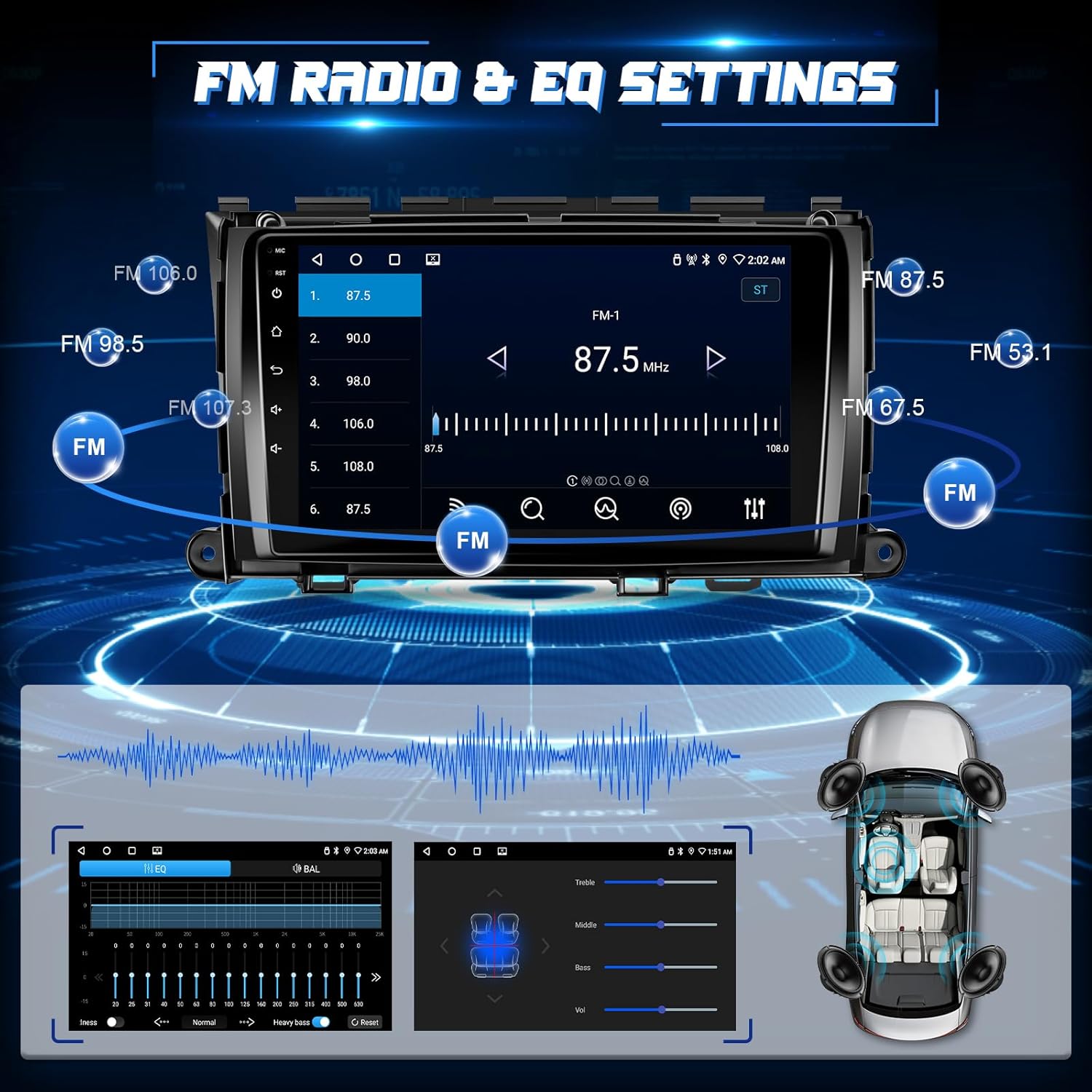
Image: Shows the FM radio interface with frequency display and preset options, alongside the audio equalizer settings for fine-tuning sound output.
6.6. Split-Screen Functionality
Run two applications simultaneously on the 9-inch display.
- Activate Split-Screen: While an app is open, press and hold the recent apps button or drag an app to one side of the screen (method may vary slightly based on Android version).
- Select Second App: Choose another app from the recent apps list or app drawer to occupy the other half of the screen.

Image: Demonstrates the split-screen feature, displaying navigation on one side and a media player or phone interface on the other.
6.7. Reverse Image & Steering Wheel Control (SWC)
Enhance safety and convenience with these integrated features.
- Reverse Camera: When the vehicle is shifted into reverse, the IP68 AHD rear camera automatically displays a 1280*720P image with a 170-degree ultra-wide angle on the touch screen.
- Steering Wheel Control: The unit supports your original car's steering wheel controls. Use the SWC harness to configure buttons for hands-free calling, music switching, and volume control. Access the SWC learning function in the settings to map your vehicle's buttons.

Image: Features the reverse camera display with parking guidelines and an interface for mapping steering wheel control buttons for various functions.
7. Maintenance
- Cleaning: Use a soft, dry cloth to clean the screen and unit. Avoid abrasive cleaners or solvents.
- Software Updates: Periodically check for software updates via the system settings (requires Wi-Fi connection) to ensure optimal performance and access to new features.
- Backup Data: If you store important data on the unit, consider backing it up regularly.
8. Troubleshooting
If you encounter any issues, refer to the following common problems and solutions:
| Problem | Possible Solution |
|---|---|
| Unit does not power on | Check power connections and vehicle's fuse box. Ensure the car battery is properly connected. |
| No sound | Verify speaker wiring, volume settings, and ensure the unit is not muted. Check amplifier connections if applicable. |
| GPS signal lost or inaccurate | Ensure the GPS antenna is properly installed and has a clear view of the sky. Check antenna connection. |
| Bluetooth/Wi-Fi connection issues | Restart both the head unit and your mobile device. Ensure Bluetooth/Wi-Fi is enabled on both. Re-pair devices if necessary. |
| Rear camera not displaying | Check camera wiring, especially the reverse trigger connection. Ensure the camera is receiving power. |
| Steering Wheel Controls not working | Ensure the SWC harness is correctly connected. Access the SWC learning function in settings to re-map buttons. |
For further technical or installation assistance, please contact Leadfan customer support. You can typically find their contact information by navigating to the seller's page on the platform where you purchased the product and clicking 'Ask a question'.

Image: Illustrates the steps to contact customer service by clicking on the seller's name and then 'Ask a question' on the product page.
9. Specifications
| Feature | Detail |
|---|---|
| Model Number | B0FC2L6R4B |
| Compatible Vehicles | Toyota Sienna 2011, 2012, 2013, 2014 (with Original JBL & Large Screen) |
| Operating System | Android 11 (or similar Android version) |
| CPU | 4-CORE |
| RAM | 2GB |
| ROM | 32GB |
| Screen Size | 9 inches |
| Display Type | IPS Touchscreen |
| Resolution | 1280*720 |
| Connectivity | Wireless CarPlay, Wireless Android Auto, Bluetooth 5.1, 5G WiFi, USB, RCA |
| Audio Output Mode | Stereo |
| Surround Sound Channel | 5.0 |
| Video Encoding | H.264, H.265/HEVC, MPEG-4 |
| Item Weight | 3.23 pounds |
| Package Dimensions | 14.76 x 11.06 x 4.41 inches |
10. Warranty and Support
For warranty information and customer support, please refer to the documentation included with your product or contact the seller directly through the platform of purchase. The manufacturer, Leedfan, is committed to providing customer assistance for any technical or installation queries.
Related documentsB0FC2L6R4B


Ask a question about this manual
Ask about setup, troubleshooting, compatibility, parts, safety, or missing instructions. Manuals+ will review the question and use this page’s manual context to help answer it.