
Blackview Acebook6
Blackview Acebook6 Laptop User Manual
Model: Acebook6
1. Introduction
Welcome to the Blackview Acebook6 Laptop User Manual. This guide provides essential information for setting up, operating, maintaining, and troubleshooting your new laptop. Please read this manual thoroughly to ensure optimal performance and longevity of your device.
2. Product Overview
The Blackview Acebook6 is a versatile laptop designed for business, student, and everyday use. It features a powerful Intel N150 processor, ample memory and storage, and a comfortable display with eye-care technology.
Key Features:
- Processor: Intel N150 Quad-Core (up to 3.6GHz) for efficient performance.
- Memory & Storage: 16GB DDR4 RAM and 256GB M.2 SSD, expandable up to 32GB RAM and 2TB SSD.
- Display: 15.6-inch Full HD IPS screen (1920x1080) with TÜV Rheinland Eye Care certification.
- Battery & Charging: 5000mAh (38Whr) battery with 45W Type-C fast charging (supports 100W).
- Connectivity: Type-C (PD 3.0), 2x USB 3.2 Gen1, 1x USB 2.0, HDMI 2.0, 3.5mm audio jack, TF card slot, Dual-band Wi-Fi, Bluetooth 5.0.
- Operating System: Pre-installed Windows 11 Home.
- Design: Slim 19.5mm profile, 1.7kg lightweight build, 180° lay-flat hinge.

Image: The Blackview Acebook6 laptop displaying the Windows 11 operating system interface.
3. Initial Setup
3.1 Unpacking and Inspection
- Carefully remove the laptop and all accessories from the packaging.
- Verify that all items listed in the "What's in the Box" section are present: Laptop, Type-C charging cable, Adapter, User Manual.
- Inspect the laptop for any signs of physical damage. If damage is found, contact customer support immediately.
3.2 Connecting the Power Adapter
Before first use, ensure the laptop is fully charged. Connect the Type-C charging cable to the laptop's Type-C port and the adapter to a power outlet.

Image: The Blackview Acebook6 laptop with a Type-C charging cable connected to its port, illustrating the fast charging capability.
3.3 Initial Boot-up and Windows Setup
- Press the power button located on the top right of the keyboard to turn on the laptop.
- Follow the on-screen instructions to complete the Windows 11 initial setup. This includes selecting your region, language, connecting to a Wi-Fi network, and creating a user account.
- It is recommended to connect to the internet during setup to download the latest updates.
4. Operating Your Laptop
4.1 Keyboard and Touchpad
The laptop features a full-sized keyboard with an independent numeric keypad for efficient data entry. The touchpad supports multi-touch gestures for navigation.
- Touchpad Gestures: Refer to Windows 11 settings for customizing touchpad gestures (e.g., two-finger scroll, pinch-to-zoom).
- Function Keys: Use the Fn key in combination with the F1-F12 keys for quick access to functions like screen brightness, volume control, and Wi-Fi toggle.

Image: A detailed view of the laptop's keyboard, emphasizing the integrated numeric keypad for enhanced productivity.
4.2 Connecting External Devices
The Acebook6 offers various ports for connecting peripherals:
- USB Ports: Connect USB drives, external keyboards, mice, or other USB devices to the USB 3.2 Gen1 or USB 2.0 ports.
- Type-C Port: Use for charging, data transfer, or connecting compatible USB-C accessories.
- HDMI Port: Connect to an external monitor or TV for extended display or presentations. Supports 4K output.
- 3.5mm Audio Jack: Connect headphones or external speakers.
- TF Card Slot: Insert a TF (microSD) card for additional storage or data transfer.

Image: The side profile of the Blackview Acebook6 laptop, highlighting the arrangement and types of available ports for connectivity.
4.3 Battery Management
The laptop is equipped with a 5000mAh battery. To optimize battery life:
- Adjust screen brightness to a comfortable level.
- Close unused applications and browser tabs.
- Utilize Windows power-saving modes (Power-saving, Balanced, Performance) accessible via the battery icon in the taskbar.
- Avoid extreme temperatures.

Image: An illustration detailing the laptop's battery capacity and the three available power modes: Power-saving, Balanced, and Performance.
5. Maintenance and Care
5.1 Cleaning the Laptop
- Always power off the laptop and disconnect the power adapter before cleaning.
- Use a soft, lint-free cloth slightly dampened with water or a screen cleaner to wipe the display. Avoid harsh chemicals.
- For the keyboard and chassis, use a soft cloth. A can of compressed air can help remove dust from between keys and vents.
5.2 Storage and Handling
- Store the laptop in a cool, dry place away from direct sunlight and extreme temperatures.
- Avoid placing heavy objects on the laptop.
- Transport the laptop in a protective sleeve or bag to prevent scratches and impacts.
5.3 Software Updates
Regularly check for and install Windows updates to ensure your system has the latest security patches and performance improvements. Go to Settings > Windows Update.
6. Troubleshooting
This section addresses common issues you might encounter with your Blackview Acebook6 laptop.
| Problem | Possible Cause | Solution |
|---|---|---|
| Laptop does not power on. | Low battery, power adapter issue. | Connect the power adapter and allow the laptop to charge for at least 30 minutes. Ensure the power outlet is functional. |
| Screen is blank or black. | Sleep mode, display settings, hardware issue. | Press any key or move the mouse to wake the laptop. Check if an external monitor is connected and configured as the primary display. Restart the laptop. |
| Wi-Fi connection issues. | Wi-Fi adapter off, incorrect password, router issue. | Ensure Wi-Fi is enabled in Windows settings. Verify the Wi-Fi password. Restart your router and the laptop. |
| Slow performance. | Too many applications running, low storage, outdated drivers. | Close unnecessary programs. Free up disk space. Update Windows and device drivers. Consider upgrading RAM or SSD if performance remains an issue (supports up to 32GB RAM + 2TB SSD). |
| Battery not charging. | Faulty charger, port issue, battery issue. | Ensure the Type-C cable and adapter are securely connected. Try a different compatible Type-C charger if available. Contact support if the issue persists. |
7. Technical Specifications
Below are the detailed technical specifications for the Blackview Acebook6 Laptop:
| Feature | Specification |
|---|---|
| Model Name | Acebook6 |
| Processor | Intel N150 Quad-Core (up to 3.6GHz, 6MB Cache) |
| Operating System | Windows 11 Home |
| RAM | 16GB DDR4 (2666MHz), expandable to 32GB |
| Storage | 256GB M.2 SSD, expandable to 2TB |
| Display | 15.6-inch Full HD (1920x1080) IPS, 220 nits, 45% NTSC, TÜV Rheinland Eye Care |
| Graphics | Intel UHD Graphics (supports 4K output via HDMI) |
| Battery | 5000mAh (38Whr) |
| Charging | 45W Type-C Fast Charging (PD 3.0 compliant, supports 100W) |
| Ports | 1x Type-C (PD 3.0), 2x USB 3.2 Gen1, 1x USB 2.0, 1x HDMI 2.0, 1x 3.5mm Audio Jack, 1x TF Card Slot |
| Wireless Connectivity | Dual-band Wi-Fi, Bluetooth 5.0 |
| Dimensions (LxWxH) | 14.07 x 9 x 0.66 inches (35.74 x 22.86 x 1.68 cm) |
| Weight | 3.74 pounds (1.7 kg) |
| Color | Space Gray |
8. Warranty and Support
Blackview is committed to providing reliable products and comprehensive customer support.
8.1 Warranty Information
- Your Blackview Acebook6 laptop comes with a 24-month repair warranty for manufacturer defects.
- This warranty covers defects in materials and workmanship under normal use.
- For detailed warranty terms and conditions, please refer to the warranty card included with your product or visit the official Blackview website.
8.2 Technical Support
Blackview offers lifetime technical support for your laptop. If you encounter any issues or have questions:
- Online Support: Visit the official Blackview support website for FAQs, drivers, and software downloads.
- Email Support: Contact our support team via email for assistance. Responses are typically provided within 24 hours (Mon-Sat).
- Offline Stores: Dedicated Blackview service centers are available in various locations, including the U.S., for in-person assistance.
- QR Code: Scan the QR code provided with your laptop for quick access to support resources.
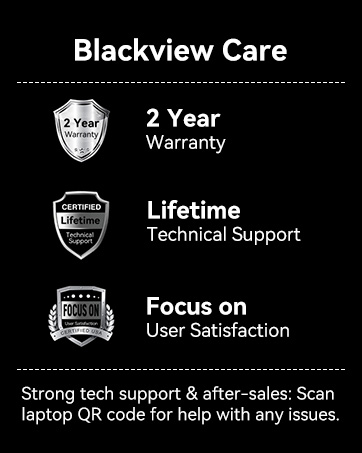
Image: An infographic detailing Blackview's customer care, including a 2-year warranty and lifetime technical support.
Related documentsAcebook6


Ask a question about this manual
Ask about setup, troubleshooting, compatibility, parts, safety, or missing instructions. Manuals+ will review the question and use this page’s manual context to help answer it.