
1. Product Overview
The Blackview Acebook 6 is a portable laptop designed for general computing tasks, featuring a 15.6-inch Full HD IPS display, an Intel N150 Quad-Core processor, 16GB DDR4 RAM, and a 512GB SSD. It operates on Windows 11 and supports 100W Type-C fast charging.

Image: The Blackview Acebook 6 laptop displaying the Windows 11 operating system interface.
2. Package Contents
Verify that all items are present in the package:
- Blackview Acebook 6 Laptop
- Power Adapter (100W Type-C)
- Wireless Mouse
- Laptop Bag
- User Manual (this document)
3. Setup Guide
3.1 Initial Charging
Before first use, fully charge the laptop. Connect the provided 100W Type-C power adapter to the laptop's Type-C port and a power outlet. The charging indicator light will illuminate.

Image: The laptop's Type-C port connected to the fast charging cable, illustrating the charging process.
3.2 Powering On/Off
- To Power On: Press and hold the power button located on the top right of the keyboard until the screen illuminates.
- To Power Off: Click the Windows Start button, then select Power > Shut down. Alternatively, press and hold the power button for several seconds to force a shutdown (use only when necessary).
3.3 Connecting Peripherals
The Acebook 6 features various ports for connecting external devices:
- USB 3.2 Gen 1 Ports (x2): For high-speed data transfer with USB devices.
- USB 2.0 Port (x1): For standard USB devices like mice or keyboards.
- Full-featured Type-C Port (x1): Supports 5Gbps data transfer, fast charging, and DisplayPort 1.4 video output.
- HDMI 2.0 Port (x1): Connect to external displays or projectors for up to 4K resolution at 60Hz.
- 3.5mm Audio Jack (x1): For headphones or external speakers.
- TF Card Slot (x1): For memory card expansion (Max 25MB/s data transfer).

Image: Detailed view of the laptop's left and right sides, highlighting the USB, Type-C, HDMI, audio, and TF card ports.
4. Operating Instructions
4.1 Display Features
The 15.6-inch Full HD (1920x1080) IPS display offers clear visuals. It features TÜV Rheinland Low Blue Light Certification to reduce eye strain during extended use.

Image: The laptop screen showcasing its TÜV SÜD Low Blue Light Certification for eye comfort.
4.2 Performance and Storage
The laptop is equipped with an Intel N150 Quad-Core processor, 16GB DDR4 RAM, and a 512GB M.2 SSD for efficient performance and ample storage. The SSD can be expanded up to 2TB.

Image: The laptop screen showing various applications running, emphasizing the 16GB RAM and 512GB SSD with 2TB expansion capability.
4.3 Battery Management
The Acebook 6 features a 45Wh battery. You can select from different power modes to optimize battery life or performance:
- Power-saving Mode: Limits background activities to extend battery life.
- Balanced Mode: Optimizes performance and battery life for everyday tasks.
- Performance Mode: Prioritizes maximum performance for demanding tasks.

Image: An illustration detailing the laptop's battery capacity and the three available power management modes.
4.4 Wireless Connectivity
- Wi-Fi: Supports dual-band 5G Wi-Fi for stable and fast internet connections.
- Bluetooth: For connecting wireless peripherals such as headphones, mice, and keyboards.
4.5 Numeric Keypad
The integrated independent numeric keypad allows for efficient data entry, useful for financial reports or detailed document creation.

Image: A close-up of the laptop's keyboard, highlighting the independent numeric keypad for enhanced productivity.
5. Maintenance
5.1 Cleaning
- Use a soft, lint-free cloth to clean the screen and exterior.
- Avoid using harsh chemicals or abrasive materials.
- For stubborn smudges, lightly dampen the cloth with water or a screen-cleaning solution.
5.2 Heat Management
The Acebook 6 features an expansive cooling area with a gaming-grade shark fin fan, operating at up to 4500 RPM, and thickened copper pipes to maintain optimal operating temperatures and quiet performance.

Image: An internal view of the laptop's heat dissipation system, showing the fan and copper pipes.
5.3 Software Updates
Regularly check for and install operating system and driver updates to ensure optimal performance and security. These updates are typically managed through Windows Update.
6. Troubleshooting
6.1 Common Issues and Solutions
- Laptop not powering on: Ensure the laptop is charged or connected to the power adapter. Try a hard reset by holding the power button for 10-15 seconds.
- Screen is blank: Check if the laptop is powered on. Connect an external monitor via HDMI to verify if the issue is with the laptop's display.
- Wi-Fi connectivity issues: Ensure Wi-Fi is enabled in Windows settings. Restart your router and the laptop.
- Slow performance: Close unnecessary applications. Check for available system updates. Ensure sufficient free storage space on the SSD.
For persistent issues, refer to the support section or contact Blackview customer service.
7. Specifications
| Feature | Specification |
|---|---|
| Model Name | ACEBOOK 6 |
| Processor | Intel N150 Quad-Core (Up to 3.6GHz) |
| RAM | 16GB DDR4 SDRAM |
| Storage | 512GB M.2 SSD (Expandable up to 2TB) |
| Display | 15.6 Inches FHD IPS (1920x1080 Pixels) |
| Graphics Coprocessor | Intel Graphics (Integrated) |
| Operating System | Windows 11 |
| Wireless Type | Dual-band 5G Wi-Fi, Bluetooth |
| Ports | 2x USB 3.2 Gen 1, 1x USB 2.0, 1x Full-featured Type-C, 1x HDMI 2.0, 1x 3.5mm Audio, 1x TF Card Slot |
| Battery | 45Wh Lithium Ion |
| Item Weight | 3.74 pounds (1.7 kg) |
| Product Dimensions | 14.1 x 0.7 x 9 inches (35.8 x 1.8 x 22.8 cm) |
| Special Feature | Numeric Keypad, TÜV Rheinland Eye Care |
8. Warranty and Support
8.1 Warranty Information
The Blackview Acebook 6 laptop comes with a 2-Year Warranty. This warranty covers manufacturing defects and hardware malfunctions under normal use conditions.
8.2 Technical Support
Blackview provides Lifetime Technical Support for the Acebook 6. For assistance with any issues, you can:
- Refer to the troubleshooting section in this manual.
- Visit the official Blackview support website for FAQs and additional resources.
- Contact Blackview customer service directly.
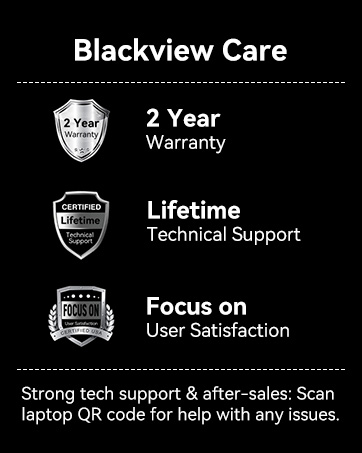
Image: Blackview Care details, including 2-year warranty and lifetime technical support commitment.


